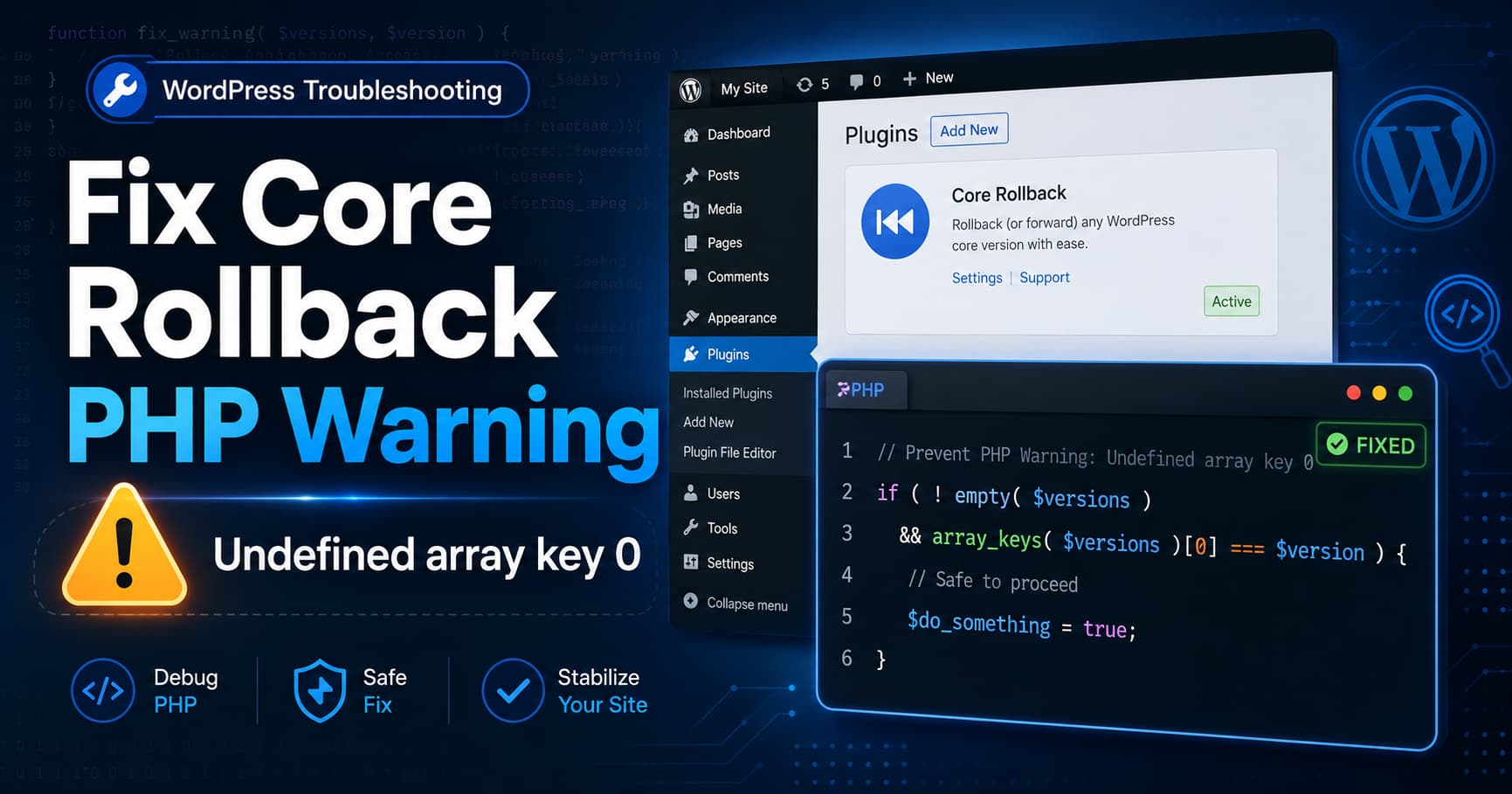
Quick answer: Update Core Rollback first. If no verified fixed release is available, deactivate the plugin when you are not using it. Only as a last resort, back up the site and apply the temporary guard shown below. Then investigate why the WordPress Core Version Check API returned no usable version data.
Core Rollback allows administrators to reinstall or roll WordPress back to another supported core version. Some websites may record this warning:
PHP Warning: Undefined array key 0 in
/wp-content/plugins/core-rollback/src/Core.php on line 189
The warning may occur intermittently. The site may continue working, but repeated messages can fill the PHP error log. This guide explains the likely empty-array condition, the safest response order, and diagnostic steps.
Recommended Fix Order
- Check whether an official Core Rollback update is available.
- Deactivate Core Rollback if you are not currently using it.
- If the plugin must remain active and no verified update is available, use the temporary file patch only after creating a backup and arranging a recovery method.
- Clear only cache data that has been verified as belonging to Core Rollback.
- Test access to the WordPress Core Version Check API and review the relevant logs.
What Causes the Warning?
Core Rollback retrieves available WordPress versions from the WordPress Core Version Check API. In the inspected Core Rollback version, the relevant logic is described as similar to this:
$versions = $this->get_core_versions();

if ( array_keys( $versions )[0] === $version ) {
	unset( $transient->updates[1] );
}
If $versions is empty, array_keys( $versions ) is also empty. The following expression then attempts to read an element at position 0 that does not exist:
array_keys( $versions )array_keys( $versions )[0]PHP can therefore generate:
Undefined array key 0The plugin’s get_core_versions() method contacts:
https://api.wordpress.org/core/version-check/1.7/According to the article’s source analysis, an API failure can result in an empty array. That behavior, the exact inspected plugin version, and the relevant method should be confirmed against the installed plugin source before publication.
- A temporary WordPress.org API connection problem
- DNS resolution errors on the hosting server
- Outbound HTTPS requests being blocked
- A firewall or security rule
- SSL certificate verification problems
- A request timeout
- An empty or invalid API response
- A stale Redis, Memcached, or object-cache value
This may explain why the warning is intermittent: the warning may occur when cached version data expires and a subsequent API request does not provide usable data. The exact cache behavior requires verification for the installed plugin and site configuration.
For this specific warning, the shown failure is a PHP array-access problem rather than a direct MySQL version problem. That conclusion should not be generalized to unrelated errors on the same site.
Is This a Critical WordPress Error?
Usually, this message is a PHP warning rather than a fatal error, so processing may continue. It should nevertheless be investigated because it can:
- Fill the PHP error log
- Make legitimate errors harder to identify
- Appear in the WordPress dashboard when debugging is enabled
- Be exposed to visitors when PHP error display is enabled
- Indicate that the server may not consistently reach the WordPress API
Do not treat hiding PHP errors as the fix. The empty-array condition and, where applicable, the underlying API or cache problem still need attention.
Solution 1: Check for an Official Core Rollback Update
- Open WordPress Dashboard.
- Go to Plugins.
- Locate Core Rollback.
- Install an available update only after confirming that it is an official release appropriate for your site.
The source article identifies Core Rollback 1.4.2 as the version containing the unguarded access and refers to a development change from 1.4.2 to 1.4.2.1. These release and fix-status claims require confirmation.
The corrected condition described in the source is:
if ( ! empty( $versions ) && array_keys( $versions )[0] === $version ) {Until the release status is confirmed, do not assume that this change is available through the normal WordPress update system.
Solution 2: Deactivate Core Rollback When It Is Not Needed
If you are not currently performing a rollback, deactivation is the least invasive immediate option:
- Go to Plugins > Installed Plugins.
- Find Core Rollback.
- Click Deactivate.
You can activate it again when it is needed. The source article states that deactivation prevents the affected plugin code from running; confirm this behavior against the installed version and site configuration. Do not delete the plugin while a rollback operation is in progress.
Solution 3: Apply the Temporary File Patch
Use this only if no verified fixed update is available and Core Rollback must remain active. Editing plugin files is a temporary measure: an update can overwrite the change, and an editing mistake can make the plugin or site unavailable.
Before editing: use staging where possible; create a complete backup; preserve the original plugin file; confirm access through FTP, SFTP, SSH, or the hosting file manager; and ensure that you know how to restore the original file if the dashboard becomes unavailable.
Open the Core.php File
Open:
/wp-content/plugins/core-rollback/src/Core.phpSearch for the condition below. The line number can differ between plugin packages:
if ( array_keys( $versions )[0] === $version ) {Replace the Condition
Replace the original condition with:
if ( ! empty( $versions ) && array_keys( $versions )[0] === $version ) {The complete corrected section in the source article is:
$rollback = get_site_transient( '_core_rollback' );
$version  = isset( $rollback['core_dropdown'] )
	? $rollback['core_dropdown']
	: '';
$offers   = get_site_transient( '_core_rollback_offers' );
$versions = $this->get_core_versions();

if ( ! empty( $versions ) && array_keys( $versions )[0] === $version ) {
	unset( $transient->updates[1] );
}
The ! empty( $versions ) condition is intended to prevent access to array position 0 when the array has no values. The claim that this is identical to an upstream developer change requires manual source verification.
A normal plugin update may overwrite this modification. Keep a record of the change and remove the manual patch once an official fixed version is installed. The source article advises against using a Code Snippets plugin because the affected condition is inside the Core Rollback class and may not be replaceable reliably with a normal action or filter; verify that limitation against the installed version.
Clear Verified Core Rollback Cache Data
After updating or patching the plugin, clearing relevant cached API data may cause a fresh version request. The exact transient names, whether they are site or network transients, and the correct procedure for multisite must be verified before running these commands.
From the correct WordPress installation, and only with suitable permissions, the source article provides:
wp transient delete core_rollback --network
wp transient delete _core_rollback --network
wp transient delete _core_rollback_offers --network
If a persistent object cache is active, the source article also provides:
wp cache flushThis command can affect the entire WordPress object cache. Avoid running it unnecessarily, and confirm that the command targets the intended site. Removing only verified Core Rollback data is preferable where the environment supports it.
Test the WordPress Core API Connection
The guard addresses the warning, but it does not explain why the API returned no usable data. The following WP-CLI test assumes that WP-CLI is installed, the command is run from the correct WordPress installation, and the account has appropriate access:
wp --skip-plugins=core-rollback eval '
$url = "https://api.wordpress.org/core/version-check/1.7/?locale=" . get_locale();

$response = wp_remote_get(
	$url,
	array(
		"timeout" => 20,
	)
);

if ( is_wp_error( $response ) ) {
	echo "Connection failed: ";
	echo $response->get_error_message();
	echo PHP_EOL;
} else {
	echo "HTTP status: ";
	echo wp_remote_retrieve_response_code( $response );
	echo PHP_EOL;
}
'
The source article identifies this result as successful:
HTTP status: 200A status code alone does not prove that the response body is valid for Core Rollback.
Potential error messages include:
cURL error 6: Could not resolve hostcURL error 7: Failed to connectcURL error 28: Operation timed outSSL certificate problemTest With cURL
You can also test the connection from the server:
curl -sS -I
"https://api.wordpress.org/core/version-check/1.7/?locale=en_US"
This command requests headers only. A successful header response does not by itself confirm that the response body can be retrieved or parsed by the plugin. If the request fails, ask the hosting provider whether outbound HTTPS connections to api.wordpress.org are allowed.
Inspect WordPress HTTP API Errors
The source article suggests temporarily adding this code to an MU plugin:
<?php
/**
 * Plugin Name: Debug WordPress HTTP API Errors
 */

add_action(
	'http_api_debug',
	static function ( $response, $context, $class, $parsed_args, $url ) {
		if (
			'response' !== $context ||
			false === strpos( $url, 'api.wordpress.org/core/version-check/' )
		) {
			return;
		}

		if ( is_wp_error( $response ) ) {
			error_log(
				'WordPress Core API error: ' .
				$response->get_error_message()
			);
		}
	},
	10,
	5
);
Save it as:
/wp-content/mu-plugins/debug-wordpress-core-api.phpThe hook signature and behavior should be syntax- and behavior-tested on the target WordPress environment before publication. Remove the debugging file after collecting enough information. Protect logs because they may contain server paths or other sensitive details.
Do Not Downgrade PHP as the Fix
The source article associates the warning with PHP 8.1 or newer, but the exact supported and tested PHP environments require verification. PHP behavior may make invalid array access more visible; changing PHP versions does not correct the unsafe access in the plugin code.
The preferred approach is to:
- Confirm that the array is not empty before accessing position
0. - Investigate why the API request did not provide usable data.
- Install an official plugin update when its release status is confirmed.
Similarly, this warning alone does not establish a need to downgrade WordPress core.
Use Caution With Debugging Settings
Do not display PHP warnings publicly on a production site. Before changing wp-config.php, back up the file, check for existing definitions, and avoid creating duplicate or conflicting settings. The source article provides:
define( 'WP_DEBUG', true );
define( 'WP_DEBUG_LOG', true );
define( 'WP_DEBUG_DISPLAY', false );

@ini_set( 'display_errors', 0 );
Add these settings before:
/* That's all, stop editing! Happy publishing. */The source article identifies this log path:
/wp-content/debug.logLog locations, permissions, storage behavior, and host-level PHP logging vary. Protect the log and ask the host for help if you cannot control access to it. After troubleshooting, revert temporary settings or disable debugging when continuous logging is not required:
define( 'WP_DEBUG', false );Suppressing display protects visitors from seeing server paths, but it does not fix the plugin condition.
How to Verify the Result
Record the original warning and the log in which it appeared. After updating, deactivating, or patching the plugin:
- Clear only the verified Core Rollback transients and any relevant persistent object-cache entry.
- Visit Tools > Rollback Core, if that dashboard path exists in the installed plugin version.
- Refresh the relevant page and run the WordPress update check.
- Review the applicable PHP or WordPress log.
- Check again after the relevant site-transient or cache refresh interval has been verified.
- Compare the result with the original warning and separately confirm the API test result.
The warning to look for is:
Undefined array key 0 in
wp-content/plugins/core-rollback/src/Core.php
Not seeing the warning during a short test does not prove that it cannot recur. State the observation period and environment when documenting the result.
Frequently Asked Questions
Can I safely ignore this warning?
It may not stop WordPress from running, but repeated warnings can fill logs and may indicate unreliable communication with WordPress.org. It should not be ignored permanently.
Will clearing the cache permanently fix it?
Not necessarily. Clearing a stale or invalid value may help, but the warning can return if a later API request again produces no usable version data. The empty-array condition still needs to be handled.
Will editing Core.php break the plugin?
The change is intended to add a guard before the array access, but any manual file edit carries risk. Back up the original file, use staging where possible, and retain a recovery method.
Will the patch disappear after an update?
Plugin updates can replace modified plugin files. Remove the temporary patch once an official version containing the fix has been verified.
Is this caused by MySQL 8?
The shown warning is generated while PHP accesses an empty array, so MySQL 8.0 is not identified as the direct cause of this specific warning.
Is WordPress 6.9.5 incompatible with Core Rollback?
The warning alone does not establish a general incompatibility. The source article attributes it to the plugin’s handling of an empty API result in version 1.4.2; the version-specific claim requires verification.
Should I leave Core Rollback permanently activated?
That depends on how the site is managed. If the plugin is not needed for an active rollback task, deactivation can avoid running its code until it is required. Confirm the plugin’s behavior and operational requirements before changing its status.
Final Recommendation
Prefer an official, verified Core Rollback update. Otherwise, deactivate the plugin when it is not needed. Use the file patch only as a documented temporary measure, then verify the relevant cache behavior and the server’s connection to the WordPress Core API. Monitor the applicable log over a verified cache-refresh period rather than treating one successful page load as proof that the issue is permanently resolved.
