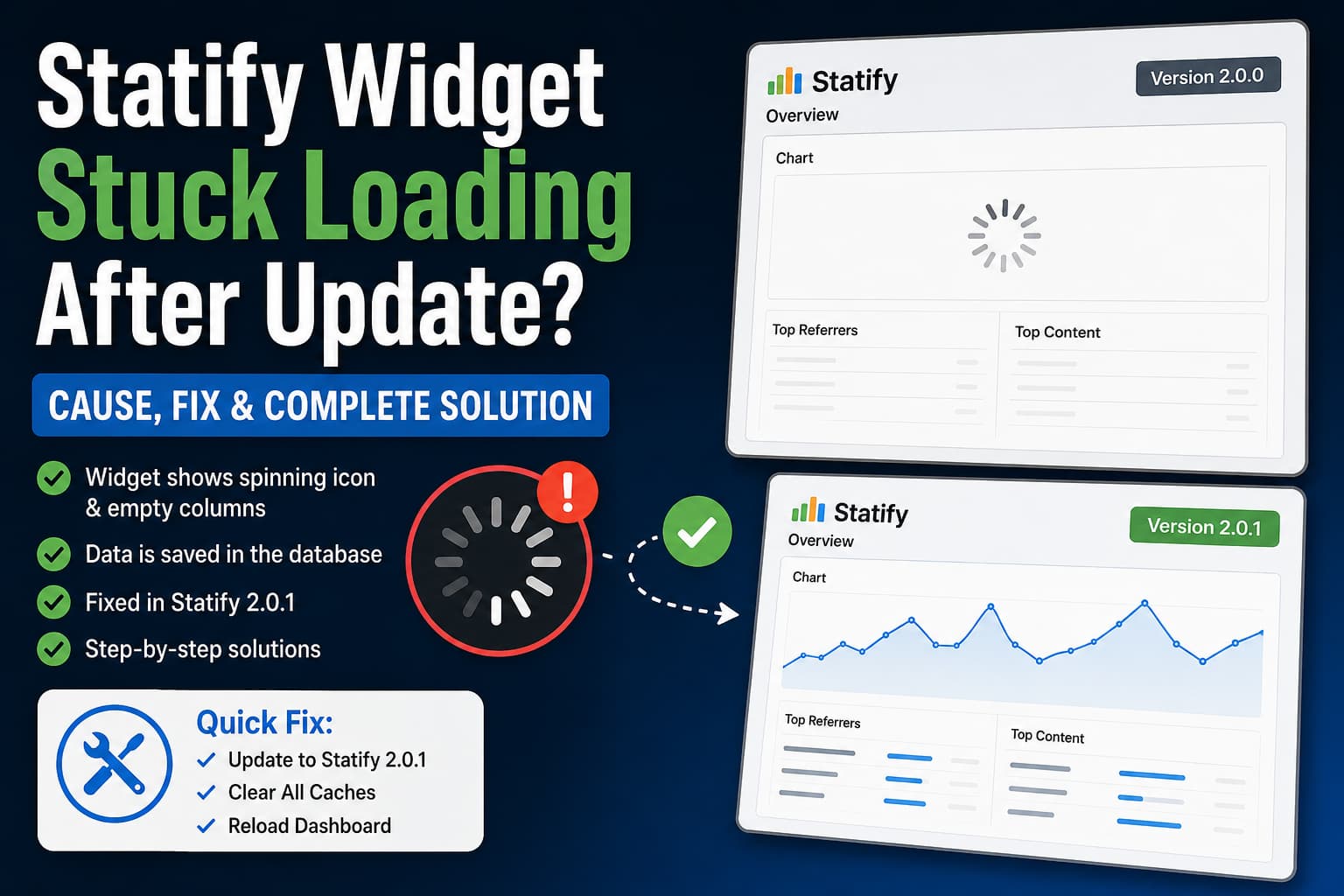
After updating Statify to version 2.0.0, the WordPress dashboard widget may stop displaying statistics. Instead of showing the normal chart, top referrers, and popular content, the widget displays a continuously spinning loading icon with empty columns.
This can be especially confusing because Statify continues adding apparently valid records to the WordPress database. The separate Statify Extended Evaluation pages may also display the expected statistics correctly.
The good news is that the data has not been deleted. This specific problem is a display bug in Statify 2.0.0 involving localized WordPress language codes. The permanent fix is included in Statify 2.0.1.
Symptoms of the Statify Widget Problem
You may be experiencing this issue when:
- Statify was recently updated to version 2.0.0.
- The Statify dashboard widget never finishes loading.
- A spinning loading icon remains visible.
- The chart area is empty.
- The referrer and target columns contain no information.
- Statify Extended Evaluation still shows reasonable statistics.
- New records continue appearing in the Statify database table.
- The problem affects only certain administrator accounts or WordPress languages.
- Changing the user’s dashboard language changes the behavior.
- The browser console reports an invalid language tag.
A typical JavaScript console error looks like this:
Uncaught RangeError: invalid language tag: "de_CH"You may see another regional locale instead, such as:
Uncaught RangeError: invalid language tag: "en_GB"The error normally references Statify’s dashboard.min.js file.
Quick Solution
Update Statify from version 2.0.0 to version 2.0.1 or later.
Go to:
WordPress Dashboard > Plugins > Installed PluginsFind Statify and click Update now.
After the update:
- Clear the WordPress cache.
- Clear any hosting or object cache.
- Purge the CDN cache if applicable.
- Clear the browser cache or perform a hard refresh.
- Reload the WordPress dashboard.
As of August 1, 2026, WordPress.org lists Statify 2.0.1 as the current version.
Why the Statify Dashboard Widget Stops Loading
Statify 2.0.0 introduced a major update to the plugin’s dashboard and tracking system.
Among other changes, version 2.0.0:
- Integrated additional dashboards previously provided through Extended Evaluation for Statify.
- Added localized number formatting to charts and tables.
- Changed frontend translation handling.
- Started using the WordPress REST API for JavaScript-based tracking.
- Improved bot detection.
- Added role-based statistics permissions.
- Changed how post titles and statistics are displayed.
The widget problem is connected to localized date and number formatting.
WordPress represents many regional languages with an underscore. Examples include:
de_CH
de_AT
en_GB
en_AU
fr_CA
pt_BR
However, JavaScript’s internationalization functions expect language tags using a hyphen:
de-CH
de-AT
en-GB
en-AU
fr-CA
pt-BR
Statify 2.0.0 passed the WordPress locale directly to the JavaScript internationalization function.
For example:
de_CHwas sent where JavaScript expected:
de-CHJavaScript then threw a RangeError and stopped executing the remaining dashboard code. Because the script terminated before rendering the statistics, the loading icon remained visible and the columns stayed empty.
The Statify developers confirmed that the problem occurred with non-default regional locales and scheduled the correction for version 2.0.1.
Are the Statify Statistics Lost?
No. This bug affects the display of the statistics, not the stored records.
In the original support case:
- Statify continued storing meaningful database entries.
- Statify Extended Evaluation continued displaying meaningful numbers.
- Only the main dashboard widget remained stuck on the loading animation.
The plugin developer specifically confirmed that only the display was affected.
Statify stores its statistics locally in the WordPress database. The plugin records page-view information such as the date, referrer, and target URL. Extended Evaluation reads and analyzes the data collected by Statify, which explains why its reports may continue working even when the main widget fails to render.
Do not reset Statify or delete its database table to solve this issue.
The following actions are unnecessary and could destroy valid historical statistics:
- Using the Reset Statistics option
- Emptying the Statify database table
- Deleting Statify through a database-cleanup plugin
- Manually removing Statify options
- Importing an old database without first confirming data loss
Update the plugin and clear the cached JavaScript instead.
Solution 1: Update Statify to Version 2.0.1
Create a database backup before updating any statistics plugin, especially when its historical information is important.
Then update Statify normally:
- Log in to WordPress.
- Open Plugins > Installed Plugins.
- Locate Statify.
- Confirm that the installed version is 2.0.0.
- Click Update now.
- Wait for WordPress to confirm that the update completed.
- Reload the dashboard.
Check the installed version again and confirm that it now shows:
2.0.1The Statify 2.0.1 release was published specifically after the localization problem was identified. WordPress.org now lists it as the current plugin version.
Solution 2: Update Statify Using WP-CLI
WP-CLI can be used when the update is not appearing inside the WordPress dashboard.
First, check the installed version:
wp plugin get statify --field=versionUpdate the plugin:
wp plugin update statifyCheck the version again:
wp plugin get statify --field=versionThe result should be:
2.0.1If WordPress still believes that version 2.0.0 is current, reinstall the newest WordPress.org package over the existing plugin files:
wp plugin install statify --force --activateThis replaces the plugin files without intentionally deleting the Statify database table. Nevertheless, create a complete database backup before using the --force option.
Solution 3: Clear Every Relevant Cache
A successful plugin update may not appear to fix the widget immediately if the browser or optimization system continues loading the old Statify 2.0.0 JavaScript file.
Clear the following cache layers:
- Browser cache
- WordPress caching plugin
- Hosting page cache
- Redis object cache
- Memcached object cache
- Cloudflare cache
- Other CDN caches
- JavaScript minification or combination cache
- Administrator asset optimization cache
Then perform a hard refresh.
On Windows or Linux, use:
Ctrl + F5On macOS, use:
Command + Shift + RYou can also open the WordPress dashboard in a private or incognito browser window.
Caching plugins and performance services should not combine or serve outdated scripts inside the WordPress administrator area. Exclude the following paths from public page caching:
/wp-admin/*
/wp-login.php
Statify 2.0 also uses a WordPress REST API endpoint for JavaScript tracking. Do not block all /wp-json/ requests as a general security measure, because that can interfere with Statify tracking and other WordPress functionality.
Solution 4: Temporarily Change the User Profile Language
When version 2.0.1 cannot be installed immediately, changing the affected administrator’s profile language can be used as a temporary workaround.
Go to:
Users > Profile > LanguageChange a regional language such as:
Deutsch (Schweiz)
Deutsch (Österreich)
English (UK)
to a non-regional option such as:
Site Default
Deutsch
English (United States)
Save the profile and reload the dashboard.
This works because the version 2.0.0 bug is triggered when the locale contains a regional component with an underscore. The developer reproduced the problem by selecting a non-default locale such as English UK or German Austria.
Changing the profile language is only a workaround. It does not correct the defective JavaScript in Statify 2.0.0.
Update to version 2.0.1 as soon as possible.
How to Confirm the Localization Error
Open the WordPress dashboard where the Statify widget is stuck.
Press:
F12Open the Console tab and reload the page.
Look for an error similar to:
Uncaught RangeError: invalid language tag: "de_CH"or:
Uncaught RangeError: invalid language tag: "en_GB"You can also look for references to:
dashboard.min.js
Intl
RangeError
invalid language tag
If you see this error while Statify 2.0.0 is installed, the localization bug is confirmed.
After installing version 2.0.1 and clearing the cache, reload the page and check the console again. The invalid language-tag error should no longer appear.
How to Verify That the Statistics Still Exist
The easiest method is to open the integrated or Extended Evaluation reports.
If they display recent page-view information, the data is still present.
Advanced users can also inspect the database.
First, identify the WordPress database prefix:
wp db prefixThe standard Statify table is usually named:
wp_statifyHowever, wp_ may be replaced with a custom prefix.
To display recent records, run:
wp db query "SELECT * FROM $(wp db prefix)statify ORDER BY id DESC LIMIT 10;"To count all stored records, run:
wp db query "SELECT COUNT(*) AS statify_rows FROM $(wp db prefix)statify;"Do not run DELETE, DROP, TRUNCATE, or UPDATE queries while investigating a display problem.
The presence of recent database rows confirms that Statify is still recording information and that the dashboard problem is limited to rendering.
What to Do If the Widget Still Spins After Updating
If Statify 2.0.1 is installed but the widget still does not load, follow these checks in order.
1. Confirm the Actual Installed Version
Run:
wp plugin get statify --field=versionDo not rely only on a cached Plugins page.
2. Check the Loaded JavaScript File
Open the browser developer tools and select the Network tab.
Reload the dashboard and search for:
dashboard.min.jsCheck whether the response is:
- Loaded from browser cache
- Loaded from a CDN
- Combined into another optimization file
- Returning a 404 error
- Returning an old cached response
- Blocked by a security policy
Disable the browser cache from the Network panel and reload again.
3. Purge Combined JavaScript Files
Temporarily disable JavaScript combination, delay, or minification in plugins such as:
- Autoptimize
- LiteSpeed Cache
- WP Rocket
- W3 Total Cache
- Perfmatters
- FlyingPress
- Asset CleanUp
- SG Optimizer
- Breeze
Clear all generated files and test again.
4. Test in a Private Window
A private browser window avoids many stored browser assets and extensions.
If the widget works privately but not in the normal browser window, clear the regular browser’s cache and site data.
5. Check for Another JavaScript Error
The localization error may be fixed while another plugin stops JavaScript execution earlier.
Look in the Console for:
Uncaught TypeError
Uncaught ReferenceError
SyntaxError
Failed to load resource
Content Security Policy
403
404
The first error shown in the console is often more important than later secondary errors.
6. Perform a Plugin Conflict Test
Use a staging website for this test.
Deactivate all plugins except Statify and reload the dashboard.
If the widget works:
- Reactivate the other plugins one at a time.
- Reload the dashboard after each activation.
- Identify which plugin causes the spinner to return.
Pay particular attention to:
- Administrator interface customization plugins
- JavaScript optimization plugins
- Security plugins
- Translation plugins
- Dashboard widget managers
- Plugins that disable the REST API
7. Reinstall Statify
A failed update can leave old and new plugin files mixed together.
Back up the database and run:
wp plugin install statify --force --activateThen clear all caches and test again.
Do Not Confuse This with Missing Page Views
The empty widget caused by the localization bug is different from Statify recording fewer or no page views after version 2.0.
Statify 2.0 changed JavaScript tracking from the WordPress AJAX endpoint to a dedicated REST API endpoint:
/wp-json/statify/v1/trackA normal tracking request should use the POST method and return HTTP status:
204 No ContentIf the widget loads but no new page views are being recorded, inspect the browser Network panel for that request.
A 401, 403, or another failed response may indicate that:
- The WordPress REST API is blocked.
- A firewall is denying the request.
- A security snippet disables REST access for logged-out visitors.
- Cached HTML contains an expired tracking nonce.
- A JavaScript optimizer removed or delayed the tracking script.
- Cloudflare or another WAF is blocking the endpoint.
Statify 2.0 also introduced improved bot detection, so the number of recorded views may legitimately differ from version 1.8.5. That is a separate issue from the dashboard localization error.
Should You Downgrade Statify?
Downgrading to Statify 1.8.5 may temporarily restore the older dashboard, but it is not the recommended solution now that version 2.0.1 is available.
A downgrade can introduce other complications because version 2.0 includes major architectural and interface changes.
Use a rollback only when:
- Version 2.0.1 cannot be installed.
- The website has been backed up.
- The change is tested on staging first.
- The rollback is temporary.
- You understand which version-specific settings may be affected.
Do not delete the plugin’s database table during the rollback.
The safer solution is to update to 2.0.1 and clear all cached administrator JavaScript.
Frequently Asked Questions
Why does Statify Extended Evaluation still work?
Extended Evaluation reads the data recorded by Statify from the WordPress database. The version 2.0.0 bug prevents the main JavaScript dashboard interface from rendering, but it does not necessarily prevent database records from being stored or queried.
Were my Statify statistics deleted?
No. The developers confirmed that the reported localization problem affects only the display. Verify the data through Extended Evaluation or by checking the Statify database table before making any database changes.
Why does the problem affect only some administrators?
Each WordPress user can have a separate profile language. An administrator using German Switzerland may encounter the error while another administrator using standard German or English US does not.
Will clearing the cache fix Statify 2.0.0?
Clearing the cache alone does not correct the source-code bug in version 2.0.0. However, cache clearing is required after updating because an old copy of the defective JavaScript file may continue to be served.
Which Statify version fixes the issue?
Statify 2.0.1 contains the correction associated with the broken regional locale handling. WordPress.org listed version 2.0.1 as available on August 1, 2026.
Is reinstalling Statify safe?
Reinstalling the plugin files normally does not intentionally remove the separate statistics table, but a complete database backup should always be created first. Do not select any reset or data-deletion option.
Final Conclusion
The Statify widget stuck loading after the version 2.0.0 update is caused by an incorrect regional language-tag format.
WordPress supplies locales such as:
de_CHwhile JavaScript’s internationalization functions expect:
de-CHThe resulting RangeError stops the dashboard script, leaving the spinner visible and the columns empty.
The stored statistics are not normally affected. This is why the database and Extended Evaluation reports can continue showing valid numbers.
The complete solution is:
- Back up the WordPress database.
- Update Statify to version 2.0.1 or later.
- Purge browser, plugin, hosting, object, and CDN caches.
- Reload the dashboard in a private browser window.
- Confirm that the invalid language-tag error has disappeared.
- Verify that recent Statify database records remain available.
Do not reset the statistics or delete the database table. The problem is in the dashboard display, not the stored analytics data.
