A WordPress plugin or theme author may receive a message similar to this from a translation editor:
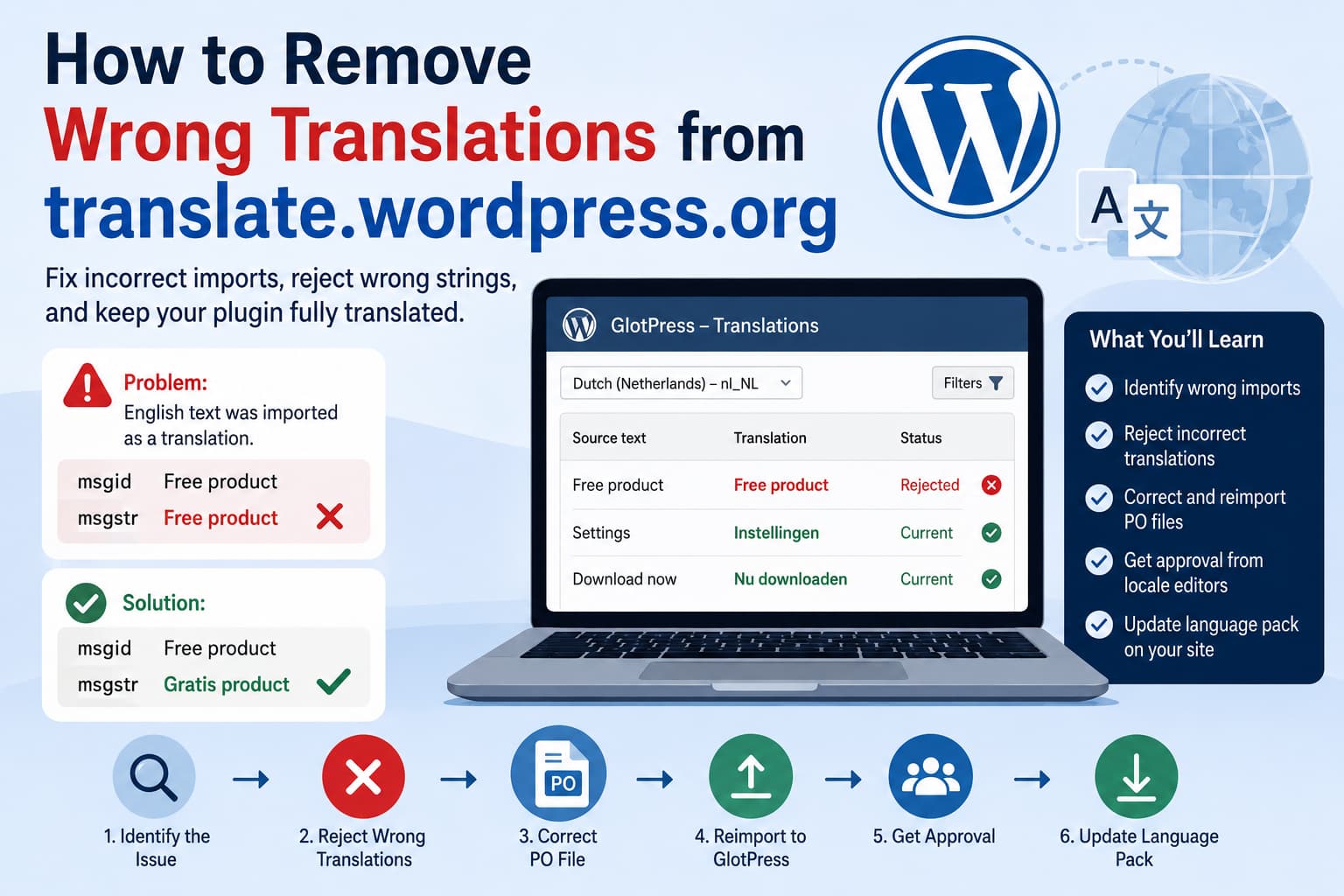
Wrong translations were provided on translate.wordpress.org. An import was completed using English translations, which is not correct. Please remove or correct the affected records. Otherwise, they will be removed and the free product will remain untranslated.
This usually means that a translation file was imported into a non-English locale, but the translated values still contained the original English text.
For example, the source string may be:
Free productHowever, the imported Dutch translation may also be:
Free productInstead of the expected translation:
Gratis productThis can happen because the wrong PO file was uploaded, the correct file was imported into the wrong locale, or untranslated English source strings were copied into the translation fields.
The problem must be corrected on translate.wordpress.org. Editing the translation only on a local WordPress website will not repair the central translation project or the language pack distributed to other users.
What Causes English Text to Be Imported as a Translation?
WordPress uses GlotPress to manage plugin, theme, core, and meta translations on translate.wordpress.org. Each translation project contains original source strings and corresponding translations for a specific locale.
A simplified PO file contains entries like this:
msgid "Free product"
msgstr "Gratis product"
The fields have different purposes:
msgidcontains the original source string, normally in English.msgstrcontains the translation for the selected locale.
A problematic file may contain:
msgid "Free product"
msgstr "Free product"
When hundreds of entries follow this pattern, GlotPress receives English text as if it were the completed Dutch, German, French, Spanish, or other localized translation.
Common causes include:
- Exporting the original English template and importing it without translating the
msgstrvalues. - Importing an English PO file into a non-English locale.
- Choosing the wrong project or locale before using Import Translations.
- Copying every source string into the translation field to make the project appear complete.
- Uploading an automatically generated translation file without human review.
- Importing a file with incorrect language metadata.
- Confusing the plugin’s source strings with completed translations.
The WordPress Polyglots documentation specifically states that unreviewed machine translations are not accepted. Translations should be reviewed by someone fluent in the target language and should follow the locale’s glossary and style guide.
Why This Problem Matters
Incorrect English translations can create several problems.
Users still see English text
A website configured to use Dutch, German, French, or another language may continue showing English labels because the language pack contains English text in its translated fields.
The locale’s translation quality is reduced
Translation editors may reject the imported records to prevent incorrect strings from being distributed to WordPress users.
The plugin may lose its generated language pack
For plugin and theme projects, at least 90% of the stable strings normally need to be approved as current before a language pack is generated.
After a qualifying translation is updated, generation normally occurs approximately 30 minutes later, and WordPress installations may download the new pack during the following hours.
If hundreds of incorrect entries are rejected, the project can fall below the required completion percentage. The result is a product that appears untranslated until enough correct translations are submitted and approved.
Step 1: Identify the Affected Locale and Project
First, determine exactly where the incorrect import occurred.
A plugin translation project may contain several subprojects:
- Stable
- Development
- Stable Readme
- Development Readme
The interface strings that appear inside the plugin are generally stored under Stable or Development.
The public plugin-directory description, installation instructions, FAQ, and changelog are stored under the readme projects.
Open the translation page for the affected plugin or theme and verify:
- The plugin or theme slug.
- The selected language and locale.
- The affected project, such as Stable or Stable Readme.
- The username that submitted the translations.
- Whether the strings are marked Waiting, Current, Rejected, Fuzzy, or Changes Requested.
Do not begin deleting or rejecting entries until you confirm that you are working in the correct locale.
A Dutch translation may use a locale such as:
nl_NLA German translation may use:
de_DEThese are separate projects. Correcting strings in one locale will not repair another.
Step 2: Check the Translation Status
The next step depends on the status of the imported strings.
Waiting
A Waiting translation has been submitted but has not yet been approved by a translation editor.
These strings are not normally included in the generated language pack.
Current
A Current translation has been approved and may be included in the language pack.
Incorrect Current translations should be rejected or replaced by a Project Translation Editor or General Translation Editor.
Rejected
A Rejected translation is no longer used as the active translation.
After rejection, a corrected translation can be suggested.
Fuzzy
A Fuzzy translation may be based on an older or similar string but still requires review.
Changes Requested
This status indicates that an editor found a problem and requested a correction. GlotPress can include feedback explaining what needs to change.
Step 3: Reject Your Own Incorrect Suggestions
WordPress allows contributors to reject translations they submitted themselves.
According to the official Polyglots FAQ, you can reject your own incorrect translation, refresh the page, and then submit a corrected version.
Use the following process:
- Log in to translate.wordpress.org using the WordPress.org account that submitted the translations.
- Open the affected locale.
- Open the relevant project, such as Stable.
- Filter the results to locate your submitted strings.
- Expand the affected translation row.
- Click Reject for the incorrect translation.
- Refresh the page if necessary.
- Enter the correct translation.
- Submit the corrected suggestion.
Recent GlotPress interface improvements provide inline Approve, Reject, and Fuzzy actions when the account has permission to perform them. Buttons that do not apply to a particular row are hidden.
If there are only a few incorrect strings, correcting them individually is the safest method.
Step 4: Bulk-Reject a Large Incorrect Import
When hundreds or thousands of strings were imported incorrectly, editing each row individually is inefficient.
Translation editors can use the bulk-action interface:
- Open the affected translation project.
- Filter the table to display the imported strings.
- Select the affected rows using the checkboxes.
- Choose Reject from the bulk-action menu.
- Click Apply.
- Repeat for additional result pages if necessary.
The GlotPress bulk-rejection workflow requires selecting the strings, choosing Reject, and applying the action.
When rejecting a large import, add a clear explanation when the interface provides a feedback field. For example:
These entries were imported with the original English strings in the
translation fields. Please replace them with reviewed translations for
this locale.
This provides a record of why the entries were rejected and helps prevent the same file from being imported again.
Verify propagation between Stable and Development
Approved plugin translations can be synchronized between Stable and Development, and PO imports can propagate between related plugin projects.
After cleaning the Stable project, inspect Development as well. Do not assume that removing incorrect strings from one section has repaired every related project.
Also inspect:
- Stable Readme
- Development Readme
- Any older plugin branches exposed in the project
Step 5: What to Do Without Translation Editor Permission
A regular translation contributor may not have permission to reject Current translations submitted or approved by someone else.
In that situation, do not repeatedly upload replacement files in an attempt to overwrite the existing records.
Instead:
- Copy the URL of the affected translation project.
- Note the locale.
- Note the plugin or theme slug.
- Record the contributor username responsible for the import, when visible.
- Include several examples of incorrect strings.
- Contact the locale’s translation team.
- Ask a Project Translation Editor or General Translation Editor to reject the incorrect import.
You can contact the translation community through:
- The locale’s WordPress team page.
- The Make WordPress Polyglots site.
- The WordPress Slack
#polyglotschannel. - The discussion attached to an affected GlotPress string.
Project Translation Editors can approve and reject strings for a particular project and locale. General Translation Editors can manage translations throughout their locale.
A useful message would be:
Hello,

An incorrect PO file was imported into the [LOCALE] Stable project for
[PLUGIN NAME]. The imported msgstr values contain the original English
text rather than translations for this locale.

Project:
[TRANSLATION PROJECT URL]

Contributor:
[WORDPRESS.ORG USERNAME]

Could a translation editor please reject the affected import? I am
preparing a corrected, human-reviewed PO file for reimport.

Thank you.
Step 6: Correct the PO File Before Reimporting It
Do not reimport the original file without correcting it first.
Open the file in a PO editor such as Poedit or another gettext-compatible translation tool.
Each entry should have an English source string and a legitimate target-language translation.
Incorrect entry
msgid "Free product"
msgstr "Free product"
Correct Dutch entry
msgid "Free product"
msgstr "Gratis product"
Correct German entry
msgid "Free product"
msgstr "Kostenloses Produkt"
Review the following before importing:
- Every
msgstrcontains the intended target language. - Placeholders such as
%s,%d, and%1$sare preserved. - HTML tags remain valid.
- URLs are not accidentally changed.
- Singular and plural forms are completed.
- The file uses UTF-8 encoding.
- The language header matches the destination locale.
- The locale’s glossary and style guide are followed.
- No untranslated English paragraphs have been copied into translated fields.
- Machine-generated text has been reviewed by a fluent speaker.
An example PO header may contain:
"Language: nl_NL\n"
"Content-Type: text/plain; charset=UTF-8\n"
Plural rules vary between languages. Do not copy a plural formula from another locale without verifying it.
Are Identical Source and Translation Strings Always Wrong?
No.
Some words are spelled identically in multiple languages. Brand names, technical terms, abbreviations, and certain interface labels may legitimately remain unchanged.
For example, a word such as Email may be acceptable in more than one locale depending on the locale glossary and style guide.
The warning sign is not one identical entry. The warning sign is a large import in which nearly every msgstr is an exact copy of the English msgid.
Translation editors should review identical strings in context rather than automatically rejecting every match.
Step 7: Test a Small Import First
Before uploading the corrected full PO file, test a small sample.
Create a file containing approximately five to ten translations and import it into the correct project.
Verify that:
- The strings appear in the intended locale.
- The translations display in the target language.
- The contributor username is correct.
- The status is Waiting unless you have editor permissions.
- Plural translations remain intact.
- Placeholders and HTML have not been damaged.
- The import did not affect an unrelated project.
Only proceed with the complete file after the sample import behaves correctly.
This small test can prevent hundreds of incorrect entries from being added again.
Step 8: Import the Corrected Translation File
After reviewing the file:
- Open the correct locale on translate.wordpress.org.
- Open the correct plugin or theme project.
- Select Stable, Development, or the appropriate readme project.
- Scroll to the import section.
- Choose the corrected PO file.
- Confirm the file format and import settings.
- Import the file.
- Inspect several entries immediately.
- Check whether the strings are Waiting or Current.
- Request a review from the locale’s translation editors.
Do not import a readme translation file into the Stable interface project. Do not import plugin-interface translations into the Stable Readme project.
Although both files may use PO format, they represent different sets of source strings.
Step 9: Wait for Translation Approval
A successful import does not always mean that the translations are immediately available to WordPress websites.
Translations submitted by a regular contributor normally remain in Waiting status until approved by a translation editor.
To request review:
- Find the locale’s documentation and communication channel.
- Provide the plugin or theme name.
- Include the translation project URL.
- Mention the locale.
- State that the previous incorrect import was removed.
- Explain that the replacement file has been reviewed.
- Ask the editors to review the Waiting strings.
Do not request approval while known English-only or unreviewed strings remain in the project.
Step 10: Update the Language Pack on the Website
Once the translations have been approved and a new language pack has been generated, update translations on the affected WordPress website.
Update through WordPress Admin
Go to:
Dashboard > UpdatesLook for the translations section and install any available translation updates. The WordPress Updates screen handles available core, plugin, theme, and translation updates.
Update through WP-CLI
For all installed plugin language packs, run:
wp language plugin update --allFor one specific plugin, run:
wp language plugin update plugin-slugWP-CLI officially supports updating the installed language packs for one or more plugins.
For themes, use:
wp language theme update --allThen clear any relevant caches:
- WordPress page cache
- Object cache
- Server cache
- CDN cache
- Browser cache
Open the website in a private browser window and verify the translated labels.
What if the Corrected Translation Still Does Not Appear?
If the central translations are correct but the website still shows English, check the following.
Confirm the site language
Go to:
Settings > General > Site LanguageMake sure the expected locale is selected.
A site configured for English (United States) will not automatically load a Dutch or German language pack.
Confirm the plugin text domain
For a WordPress.org plugin, the text domain should match the plugin slug.
For example:
__( 'Free product', 'my-plugin' );If the plugin directory slug is my-plugin, the text domain should also be:
my-pluginWordPress uses text domains to associate source strings with their correct translation files. The official Plugin Handbook recommends using a lowercase text domain matching the WordPress.org plugin slug.
Check that the string is translatable
The original plugin code should use a WordPress translation function.
Correct:
echo esc_html__( 'Free product', 'my-plugin' );Not translatable:
echo 'Free product';Hard-coded text that is not wrapped in a gettext function will not use the language pack.
Check the project source
Confirm that the string actually exists in the Stable project for the currently installed plugin release.
A string found only in Development may belong to an unreleased plugin version.
Check for JavaScript translations
Strings rendered through JavaScript require the appropriate WordPress JavaScript internationalization setup. Correct PHP translations will not fix a JavaScript string that uses a separate translation catalogue.
Check for bundled translation overrides
WordPress.org language packs generally take priority for directory-hosted plugins. However, custom translation-loading code, incorrect text domains, or third-party translation plugins can interfere with the expected loading process.
Temporarily test without custom translation overrides when diagnosing the issue.
Should You Edit the MO File Directly?
Editing the installed MO file is not a complete solution.
A local modification may temporarily change the text on one website, but it does not:
- Correct the central project on translate.wordpress.org.
- Help other plugin users.
- Restore the project’s completion percentage.
- Prevent the incorrect language pack from being downloaded again.
- Correct the PO source used for future imports.
Local MO files may also be overwritten during a translation update.
The correct long-term solution is:
- Reject the incorrect translations centrally.
- Correct the PO source file.
- Reimport the reviewed translations.
- Obtain approval from the locale editors.
- Download the newly generated language pack.
How Plugin Authors Can Prevent This Problem
Plugin and theme authors can reduce translation problems by following several practices.
Keep source strings in English
The plugin’s original translatable strings should normally use clear, grammatically correct English.
Do not mix multiple languages inside the plugin source code.
Use the correct text domain
Every gettext call should use the plugin’s actual text domain.
__( 'Settings', 'my-plugin' );Avoid variables for text domains:
__( 'Settings', $text_domain );Static text domains allow WordPress translation tools to identify strings reliably.
Add translator comments
When a string contains placeholders or unclear context, add a translator comment:
printf(
    /* translators: %s: Product name. */
    esc_html__( '%s is available for free.', 'my-plugin' ),
    esc_html( $product_name )
);
This helps translators understand what the value represents.
Preserve placeholders
A translator should not remove or alter required placeholders.
Original:
%s is available for free.Correct translation:
%s is gratis beschikbaar.An incorrect translation that removes %s may generate warnings or broken output.
Work with the locale team
Do not assume that being the plugin author automatically provides authority to approve translations for every locale.
WordPress translation projects are managed collaboratively by locale teams and translation editors.
Avoid unreviewed bulk imports
A smaller reviewed translation is better than a 100% complete project filled with inaccurate text.
Before importing hundreds of strings:
- Review the target language.
- Check the locale glossary.
- Test a small file.
- Confirm the destination project.
- Ask a fluent speaker to review the file.
- Keep a backup of the corrected PO file.
Frequently Asked Questions
Can I delete a translation from translate.wordpress.org?
You can reject your own incorrect suggestion. Translation editors can reject or replace other translations within projects where they have permission.
A regular contributor generally cannot remove another person’s approved Current translation.
Can I overwrite the incorrect translation by importing another PO file?
A corrected import may add a new suggestion, but it may not automatically remove an already approved incorrect translation.
Rejecting the incorrect record first provides a cleaner and more predictable result.
Why did my imported translations become Waiting?
Your account probably does not have Project Translation Editor or General Translation Editor permission for that locale.
Waiting translations must be reviewed and approved before they become Current.
Why is the plugin still untranslated after correction?
The project may be below the language-pack generation threshold, the new translations may still be Waiting, the language pack may not have generated yet, or the website may not have downloaded the update.
Also verify the site locale, plugin text domain, and whether the affected string belongs to the installed plugin version.
Can I use Google Translate or AI to translate the whole PO file?
Automated tools may assist a human translator, but WordPress does not accept unreviewed machine translations. Every string should be checked by someone fluent in the target language.
Will rejecting incorrect translations break the plugin?
No. Rejecting translation records does not modify the plugin’s PHP code.
The affected strings will normally fall back to their original English source until correct translations are approved and included in a language pack.
Final Solution
When English strings are mistakenly imported as translations on translate.wordpress.org, the issue should be repaired at the central translation-project level.
The complete cleanup process is:
- Identify the affected locale and project.
- Determine whether the translations are Waiting or Current.
- Reject your own incorrect suggestions.
- Ask a PTE or GTE to remove approved records when necessary.
- Inspect Stable, Development, and readme projects.
- Correct the PO file so
msgstrcontains the target language. - Review placeholders, plurals, HTML, and language metadata.
- Test a small import.
- Import the complete corrected file into the proper locale.
- Request review and approval.
- Wait for the new language pack to generate.
- Update translations on the affected WordPress website.
- Clear caches and test the frontend and WordPress admin area.
Do not solve the problem only by editing a local MO file. That approach affects one installation and may be overwritten later.
Correcting the GlotPress project and its source PO file ensures that future language packs contain accurate, reviewed translations for every user of the plugin or theme.
