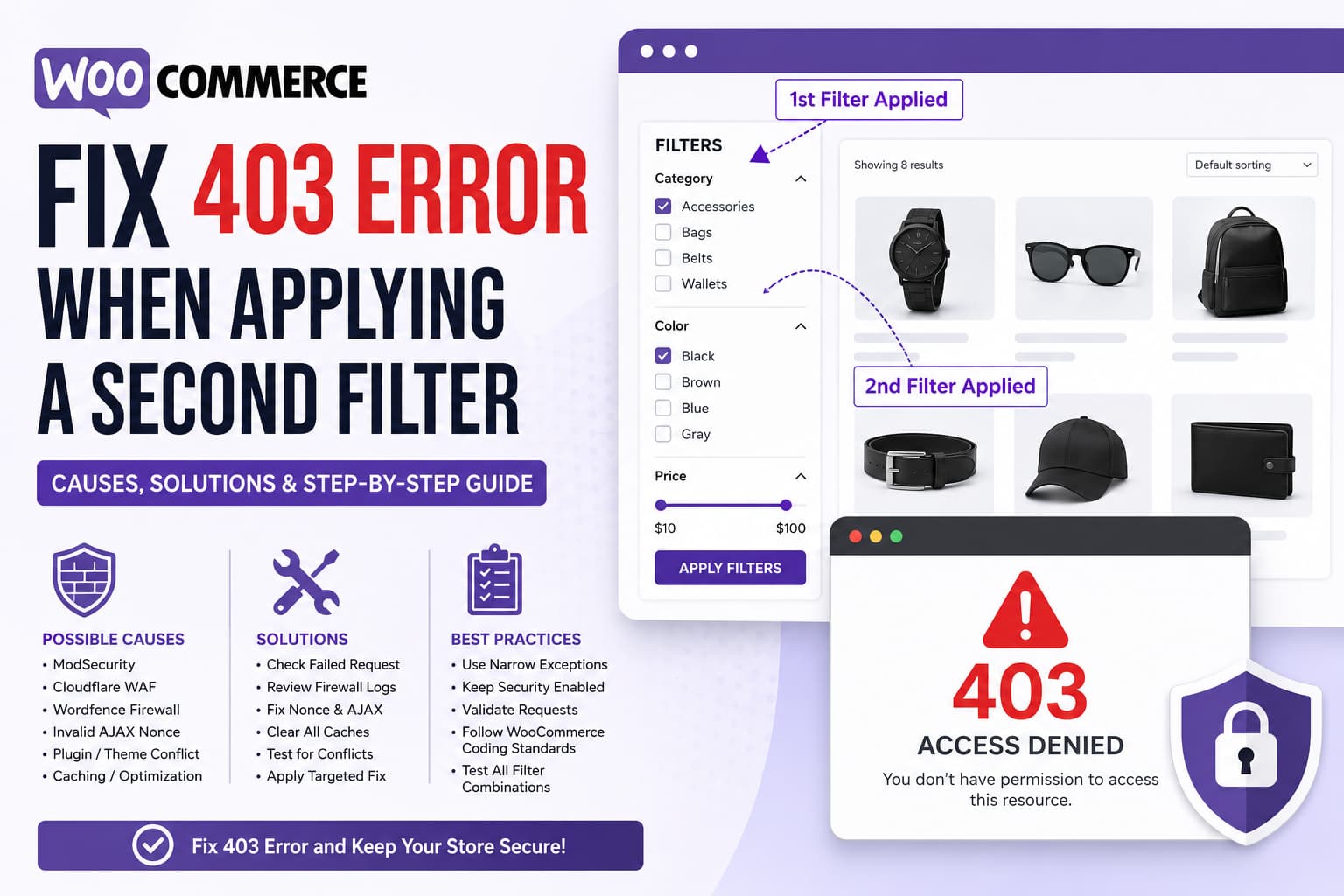
A WooCommerce store may allow customers to apply one product filter successfully but display a 403 Access Denied error as soon as they select another filter.
For example:
- The customer selects an accessory category.
- The products update correctly.
- The customer selects a color.
- The website displays:
403 Forbidden
Access Denied
The same problem can occur when combining category, color, size, price, brand, or other product attributes.
Because the first filter works, the filter interface and product query are probably not completely broken. The important difference is that the second selection sends a more complex request containing multiple parameters.
That combined request may be blocked by:
- ModSecurity on the hosting server
- Cloudflare Web Application Firewall
- A WordPress security plugin
- An expired or missing AJAX nonce
- A malformed filter URL or request payload
- A caching or JavaScript optimization conflict
- A compatibility issue between the filter plugin and theme
WooCommerce product filters commonly update products dynamically without reloading the entire page. Some filter extensions use AJAX requests, while others add parameters to the shop-page URL.
This guide explains how to identify the exact request returning the 403 response and apply a targeted fix without disabling website security.
Why Does the First Filter Work but the Second Filter Return 403?
Suppose the first filter generates a request similar to:
https://example.com/shop/?product_cat=accessoriesAfter selecting a color, the request may become:
https://example.com/shop/?product_cat=accessories&filter_color=blackAlternatively, an AJAX filter may send a POST request containing:
category=accessories
color=black
action=filter_products
The second request contains more parameters, different characters, or a larger payload. A firewall rule may interpret that combination as suspicious even though it is a legitimate product-filter request.
This is called a false positive.
The problem can also happen when the first AJAX response replaces part of the filter form. If the replacement HTML contains an expired, missing, or incorrect security nonce, the next request can fail with a 403 response.
WordPress uses nonces to validate requests. Functions such as check_ajax_referer() can terminate an invalid AJAX request, and nonce validation failures may return a 403 response.
Most Likely Causes
| Possible cause | Typical clue |
|---|---|
| ModSecurity false positive | Plain “Access Denied” page without Cloudflare branding |
| Cloudflare WAF | Cloudflare block page or Ray ID |
| Wordfence firewall | “A potentially unsafe operation has been detected” |
| Invalid AJAX nonce | Request reaches admin-ajax.php and returns 403 or -1 |
| Caching conflict | Problem disappears after clearing cache or disabling optimization |
| Plugin conflict | Filters work after another plugin is disabled |
| Theme compatibility issue | Filters work with a default WordPress theme |
| Malformed request | One particular attribute, value, or filter combination always fails |
Do not immediately change file permissions. When one filter works and a second filter fails, normal WordPress directory permissions are unlikely to be the primary cause.
Step 1: Reproduce the Error in an Incognito Window
Start with a clean browser session.
- Open the website in an incognito or private window.
- Visit the shop or product archive page.
- Apply the first filter.
- Confirm that the products update.
- Apply the second filter.
- Record the exact time the 403 error appears.
Also test different combinations:
Category only
Color only
Category + color
Category + price
Color + price
Two colors
This helps determine whether the error is caused by:
- Any second filter
- One specific filter
- One particular filter value
- A specific pair of parameters
- Multiple selections using an AND query
Record the exact combination that triggers the error.
Step 2: Find the Failed Request in Browser Developer Tools
The most important step is identifying which HTTP request returns 403.
In Chrome or Edge:
- Open the affected shop page.
- Press
F12. - Select the Network tab.
- Enable Preserve log.
- Clear the existing requests.
- Apply the first filter.
- Apply the second filter.
- Look for a red request with status
403.
The failed request may point to one of the following:
/wp-admin/admin-ajax.php
/?wc-ajax=some_action
/wp-json/plugin-name/v1/filter
/shop/?filter_color=black&product_cat=accessories
Select the failed request and inspect:
- Request URL
- Request method
- Query-string parameters
- Form data or request payload
- Response headers
- Response body
- Initiator
- Cookies
- Referrer
- Cloudflare Ray ID, when present
WordPress AJAX requests are normally sent to:
/wp-admin/admin-ajax.phpEach WordPress AJAX request must include an action parameter. Frontend AJAX implementations must also make the AJAX URL available to JavaScript rather than assuming that the global ajaxurl variable exists.
Compare the Working and Failing Requests
Open both requests in Developer Tools.
Compare:
Working request:
category=accessories

Failing request:
category=accessories
color=black
Look for:
- A missing nonce in the second request
- A changed
actionvalue - Duplicated parameters
- Empty array values
- Encoded brackets
- Unexpected HTML inside a parameter
- A request method changing from GET to POST
- An unusually long URL
- A specific filter slug that triggers the block
This comparison often reveals the cause immediately.
Step 3: Identify Which Layer Generated the 403 Error
A 403 response can come from several different layers. The appearance and content of the response usually provide clues.
Cloudflare-Generated 403
Look for:
- Cloudflare branding
- A Cloudflare Ray ID
- “Sorry, you have been blocked”
- “Attention Required”
- A Cloudflare challenge or block page
Cloudflare documents that its managed WAF rules, custom rules, Browser Integrity Check, security level, and other security features can generate 403 responses. A 403 page without Cloudflare branding is more likely to have originated from the web server.
ModSecurity or Hosting Firewall 403
A hosting-level block may show:
403 Forbidden
Access Denied
You don't have permission to access this resource
It may be a plain server-generated page without WordPress or Cloudflare styling.
The request may never reach WordPress, which means the WordPress debug log could remain empty.
Wordfence 403
Wordfence commonly displays wording similar to:
403 Forbidden

A potentially unsafe operation has been detected in your request to this site.
Wordfence acknowledges that legitimate requests can accidentally match firewall patterns. Its firewall tools can allowlist the specific URL and parameter responsible for a false positive.
WordPress Nonce Failure
A nonce failure may return:
-1or a JSON response containing a security error.
It may also return a normal 403 page generated by the plugin’s AJAX handler.
When the failed request is admin-ajax.php, inspect its POST data and confirm that the expected nonce field is included.
Solution 1: Fix a ModSecurity False Positive
ModSecurity is one of the most likely causes when combining two filters produces a plain Access Denied page.
The second request may trigger a rule because it contains:
- Multiple query parameters
- Encoded square brackets
- Comma-separated values
- Attribute names resembling protected SQL terms
- A long query string
- An unusual combination of GET and POST data
Check ModSecurity Events in cPanel or WHM
When you have WHM access:
WHM > Security Center > ModSecurity Tools > Hits ListReproduce the problem and look for a hit matching:
- The visitor’s IP address
- The failed URL
- The exact timestamp
- The filter request path
The ModSecurity Hits List shows the rule events generated by requests and allows administrators to inspect the relevant rule ID. cPanel recommends checking the complete logs when more information is needed.
Record:
Rule ID
Rule description
Request URI
Matched parameter
Timestamp
Client IP
Apply a Narrow ModSecurity Exception
The correct solution is to exclude the specific false-positive rule for the affected filter endpoint.
For example, the exception should be limited to something such as:
Request path: /wp-admin/admin-ajax.php
AJAX action: product_filter_action
Triggered rule: specific ModSecurity rule ID
Do not disable ModSecurity for the entire domain.
Avoid adding this globally:
SecRuleEngine OffThat would remove an important layer of protection from the website.
Some shared hosting accounts do not allow customers to manage individual ModSecurity rules. In that case, send the following information to the hosting provider:
A legitimate WooCommerce product-filter request is being blocked with HTTP 403 when two filters are combined. The first filter works normally. Please check the ModSecurity audit log for the attached timestamp, URL, client IP, and request payload. If a false positive is confirmed, please exclude only the triggered rule ID for the affected filter endpoint rather than disabling ModSecurity for the entire domain.
Include:
- Exact URL
- Exact time and timezone
- Your public IP address
- Screenshot of the error
- Failed request payload
- Filter combination
- Any request or event ID
Solution 2: Fix a Cloudflare WAF False Positive
When Cloudflare generates the block page, open:
Cloudflare Dashboard
> Select domain
> Security
> Events
Reproduce the error and review the event immediately.
Cloudflare Security Events shows requests acted on by security features and can identify which service or rule blocked the request.
Inspect:
Action
Service
Rule ID
Rule description
Request path
Query string
Source IP
User agent
Ray ID
Create a Targeted WAF Exception
When a managed rule caused a false positive, create an exception that matches only the legitimate filter request.
The exception may use:
- The exact filter endpoint
- The request method
- The WooCommerce AJAX path
- A specific query-string parameter
- A known AJAX action
Avoid skipping all Cloudflare security checks for:
/wp-admin/admin-ajax.phpMany WordPress plugins use that endpoint, and excluding the entire endpoint would be unnecessarily broad.
Instead, narrow the exception to the affected request and skip only the managed rule that produced the false positive.
Cloudflare recommends using Security Events to identify false positives and then adding an exception for the relevant managed rule or request.
Do Not Use Development Mode as a WAF Fix
Cloudflare Development Mode affects caching. It does not serve as a reliable method for diagnosing or disabling WAF rules.
Check Security Events instead.
Solution 3: Allowlist a Wordfence False Positive
When Wordfence is blocking the second filter:
- Sign in to WordPress as an administrator.
- Go to:
Wordfence > Tools > Live Traffic- Reproduce the filter error.
- Locate the blocked request.
- Open the request details.
- Confirm that it is the legitimate product-filter request.
- Add the specific URL and parameter to the allowlist.
You can also temporarily enable:
Wordfence > Firewall > All Firewall Options > Learning ModeRepeat the filter action once, confirm that it works, and then return Wordfence to Enabled and Protecting.
Wordfence specifically recommends Learning Mode or its Live Traffic allowlisting tools for legitimate actions incorrectly detected by the firewall.
Do not leave Learning Mode enabled permanently.
Solution 4: Fix an Invalid or Missing AJAX Nonce
This solution applies mainly to custom product filters or plugins with an AJAX implementation bug.
A nonce may be present in the first request but missing from the second because:
- The first AJAX response replaces the filter form
- JavaScript continues referencing an old form element
- The new markup does not contain the nonce
- A cached page contains an expired nonce
- The request uses the wrong nonce field name
- The PHP handler and JavaScript use different nonce actions
- A login or logout event invalidated the page’s nonce
WordPress nonces have a limited lifetime and are linked to the current user session. WordPress can return 403 when nonce validation fails.
Correct PHP Setup for a Custom AJAX Filter
The following example shows a safer nonce implementation:
<?php
/**
 * Load the custom filter script.
 */
function debugnexus_enqueue_product_filter_script() {
    if ( ! is_shop() && ! is_product_taxonomy() ) {
        return;
    }

    wp_enqueue_script(
        'debugnexus-product-filter',
        get_stylesheet_directory_uri() . '/js/product-filter.js',
        array(),
        '1.0.0',
        true
    );

    wp_localize_script(
        'debugnexus-product-filter',
        'DebugNexusFilter',
        array(
            'ajaxUrl' => admin_url( 'admin-ajax.php' ),
            'nonce'   => wp_create_nonce( 'debugnexus_filter_products' ),
        )
    );
}
add_action( 'wp_enqueue_scripts', 'debugnexus_enqueue_product_filter_script' );

add_action(
    'wp_ajax_debugnexus_filter_products',
    'debugnexus_filter_products'
);

add_action(
    'wp_ajax_nopriv_debugnexus_filter_products',
    'debugnexus_filter_products'
);

/**
 * Process the product-filter request.
 */
function debugnexus_filter_products() {
    if (
        ! check_ajax_referer(
            'debugnexus_filter_products',
            'nonce',
            false
        )
    ) {
        wp_send_json_error(
            array(
                'message' => 'The security token is invalid or expired.',
            ),
            403
        );
    }

    $category = isset( $_POST['category'] )
        ? sanitize_title( wp_unslash( $_POST['category'] ) )
        : '';

    $colors = isset( $_POST['colors'] )
        ? array_map(
            'sanitize_title',
            (array) wp_unslash( $_POST['colors'] )
        )
        : array();

    /*
     * Build the validated WooCommerce product query here.
     */

    wp_send_json_success(
        array(
            'category' => $category,
            'colors'   => $colors,
        )
    );
}
The logged-out hook is required when normal store visitors use the filter:
wp_ajax_nopriv_debugnexus_filter_productsWordPress uses wp_ajax_{$action} for authenticated users and wp_ajax_nopriv_{$action} for visitors who are not signed in.
Correct JavaScript Request
document.addEventListener("change", async function (event) {
    const filterForm = event.target.closest(".product-filter-form");

    if (!filterForm) {
        return;
    }

    const formData = new FormData(filterForm);

    formData.set("action", "debugnexus_filter_products");
    formData.set("nonce", DebugNexusFilter.nonce);

    try {
        const response = await fetch(DebugNexusFilter.ajaxUrl, {
            method: "POST",
            credentials: "same-origin",
            body: formData
        });

        const responseText = await response.text();

        if (!response.ok) {
            console.error("Filter request failed:", {
                status: response.status,
                body: responseText
            });

            throw new Error(
                `Product filter returned HTTP ${response.status}.`
            );
        }

        const result = JSON.parse(responseText);

        if (!result.success) {
            throw new Error(
                result.data?.message || "The product filter failed."
            );
        }

        console.log("Filter response:", result.data);
    } catch (error) {
        console.error("Product filter error:", error);
    }
});
Using event delegation through document.addEventListener() is useful when the filter plugin replaces the form or its fields after every AJAX response.
Do not copy this code into a website that already uses a commercial filtering plugin. In that situation, the plugin developer should correct its nonce and AJAX implementation.
Solution 5: Check Caching and JavaScript Optimization
Caching does not normally create a true server permission problem, but it can serve outdated JavaScript or stale HTML containing an old nonce.
Temporarily disable:
- JavaScript delay
- JavaScript defer
- JavaScript combination
- HTML page caching
- Guest optimization
- Cloudflare APO
- CDN script optimization
- Object caching, when the issue began after a configuration change
Then clear:
- WordPress plugin cache
- Server cache
- Object cache
- CDN cache
- Cloudflare cache
- Browser cache
Open a new incognito session and repeat the test.
If the error disappears, restore the optimization settings one at a time.
Pay particular attention to the filter plugin’s JavaScript files. Exclude them from delay or combination when optimization changes their execution order.
Also verify that dynamic filtered pages and AJAX responses are not being incorrectly served from a full-page cache.
Solution 6: Test for a Plugin Conflict
Perform conflict testing on a staging website.
Leave active only:
- WooCommerce
- The affected product-filter plugin
- Plugins required by the filter plugin
Test the same category-and-color combination.
When the filters work, reactivate the other plugins one at a time.
Test after every activation.
Pay special attention to:
- Security plugins
- Caching plugins
- Search plugins
- Faceted navigation plugins
- Product attribute plugins
- Multilingual plugins
- CDN integration plugins
- Redirect plugins
- Custom-code plugins
- WooCommerce optimization extensions
The last plugin activated before the 403 returns is probably modifying or blocking the request.
Solution 7: Test for a Theme Compatibility Problem
Some AJAX filter extensions depend on specific WooCommerce product-container selectors.
A customized theme may:
- Replace the normal products wrapper
- Remove required WooCommerce classes
- Load duplicate filter scripts
- Replace the form after AJAX updates
- Modify query parameters
- Trigger two simultaneous requests
- Contain a JavaScript error that interrupts filter processing
WooCommerce’s AJAX layered-navigation documentation notes that custom theme templates must preserve the expected product-container structure. It also recommends testing with a default theme and disabling unrelated plugins when diagnosing conflicts.
On staging:
- Temporarily switch to a current default WordPress theme.
- Test the filters.
- Check the browser console for JavaScript errors.
- Compare the request payload with the request generated by the original theme.
When the filters work with the default theme, inspect the original theme’s WooCommerce template overrides.
Check:
/wp-content/themes/your-theme/woocommerce/Compare overridden templates with the current WooCommerce versions.
Solution 8: Check the Filter Values and URL Encoding
Sometimes only one filter value triggers the firewall.
For example:
filter_color=blackmay work, while a custom value containing punctuation or encoded markup may fail:
filter_color=black/red
filter_style=men's-accessories
filter_range=[10,100]
Check the attribute slugs under:
Products > AttributesUse simple URL-safe slugs:
black
dark-blue
mens-accessories
under-100
Avoid:
- HTML tags
- Quotes
- Script-like strings
- Square brackets when unnecessary
- SQL-like words in custom parameter names
- Excessive punctuation
- Unencoded ampersands
- Duplicate query keys
For custom JavaScript, build query strings with URLSearchParams instead of manually concatenating values:
const parameters = new URLSearchParams();

parameters.set("product_cat", "accessories");
parameters.set("filter_color", "black");

const filterUrl = `/shop/?${parameters.toString()}`;
This prevents malformed URLs caused by incorrect encoding.
Solution 9: Check Password Protection and /wp-admin/ Restrictions
Some hosting configurations add HTTP authentication or special restrictions around:
/wp-admin/This can unintentionally block frontend requests to:
/wp-admin/admin-ajax.phpWordPress warns that server-side protection applied to the entire /wp-admin/ directory can break functionality that depends on admin-ajax.php.
When /wp-admin/ is password protected, configure the server so legitimate frontend access to admin-ajax.php remains available.
Do not expose other administrator pages unnecessarily.
Enable WordPress Debug Logging
A firewall may block the request before PHP starts, so the WordPress debug log will not always contain an error.
However, logging is still useful for detecting:
- PHP fatal errors
- Invalid filter parameters
- Plugin warnings
- Failed WooCommerce queries
- REST API exceptions
- Errors inside the AJAX callback
Add the following above the “stop editing” line in wp-config.php:
define( 'WP_DEBUG', true );
define( 'WP_DEBUG_LOG', true );
define( 'WP_DEBUG_DISPLAY', false );
The log is normally created at:
/wp-content/debug.logReproduce the error and inspect the newest entries.
When testing is complete, disable debugging:
define( 'WP_DEBUG', false );Do not leave verbose logging enabled indefinitely on a production store. Debug logs can grow quickly and may contain sensitive technical data.
What Not to Do
Avoid these common but unsafe fixes.
Do Not Set Permissions to 777
Permissions such as 777 do not solve a WAF, nonce, or AJAX filtering problem. They also create unnecessary security risk.
Do Not Disable Every Firewall
Temporarily isolating a firewall on staging can help diagnosis, but the permanent solution should be a narrow exception for the legitimate request.
Do Not Allowlist All of admin-ajax.php
Many WordPress plugins use admin-ajax.php. Globally bypassing security for every AJAX action is broader than necessary.
Do Not Edit WordPress Core
The problem is normally caused by a hosting rule, filter plugin, security layer, theme integration, or custom code.
Editing WordPress core will not provide a maintainable solution.
Do Not Hide the Error with JavaScript
Redirecting visitors or suppressing the error message does not fix the blocked server request.
Complete Testing Checklist
After applying the fix, test all filter combinations:
- Category only
- Color only
- Price only
- Category and color
- Category and price
- Color and price
- Category, color, and price
- Multiple colors
- Filter removal
- Clear all filters
- Pagination after filtering
- Product sorting after filtering
- Browser back and forward buttons
- Desktop
- Tablet
- Mobile
- Logged-in customer
- Logged-out customer
- Incognito browser
- Different network or IP address
Also confirm that:
- No 403 requests appear in Developer Tools
- No new ModSecurity hits are recorded
- Cloudflare Security Events does not show new blocks
- Wordfence Live Traffic does not show false positives
- Filtered products are accurate
- Product counts update correctly
- Pagination retains the selected filters
- The cart and checkout continue working
Frequently Asked Questions
Why does one WooCommerce filter work but two filters return 403?
The second selection creates a different request containing multiple parameters. That request may trigger a firewall rule, use a missing nonce, contain malformed data, or expose a plugin compatibility problem that does not occur with the first request.
Is a 403 product-filter error always caused by file permissions?
No. When the shop page loads and the first filter works, file permissions are unlikely to be the main problem. Check the failed request, firewall events, security-plugin logs, and AJAX nonce first.
Is it safe to disable ModSecurity?
Disabling ModSecurity for the entire website is not recommended. Identify the triggered rule ID and exclude only that rule for the exact legitimate filter endpoint.
How do I know whether Cloudflare caused the 403?
Check for Cloudflare branding or a Ray ID on the error page. Then review Cloudflare Security Events at the exact time the request failed. A plain unbranded 403 is more likely to come from the origin server.
Can an expired nonce cause a 403 error?
Yes. WordPress AJAX handlers can terminate a request when nonce verification fails. This is especially likely when the failed request reaches admin-ajax.php and the problem appears after an AJAX response replaces part of the page.
Can a caching plugin cause the second filter to fail?
It can contribute by serving stale HTML, an old nonce, or incorrectly optimized JavaScript. Temporarily disable caching and script optimization, purge every cache layer, and test again.
Final Solution
When a WooCommerce store returns a 403 Access Denied error only after applying a second product filter, start by inspecting the failed request in Browser Developer Tools.
Do not guess which plugin or firewall is responsible.
Determine whether the response comes from:
Cloudflare
ModSecurity
Wordfence
WordPress nonce validation
The filter plugin
The active theme
A caching or optimization layer
In many cases, the combined filter request is being incorrectly identified as malicious by a web application firewall. The correct fix is to locate the triggered rule and create a narrow exception for the legitimate endpoint and parameter.
When the request reaches admin-ajax.php, compare the working and failing payloads and confirm that the AJAX action and nonce remain present after the first filter update.
After making the change, test multiple filter combinations on desktop and mobile and confirm that the firewall continues protecting all unrelated website requests.
