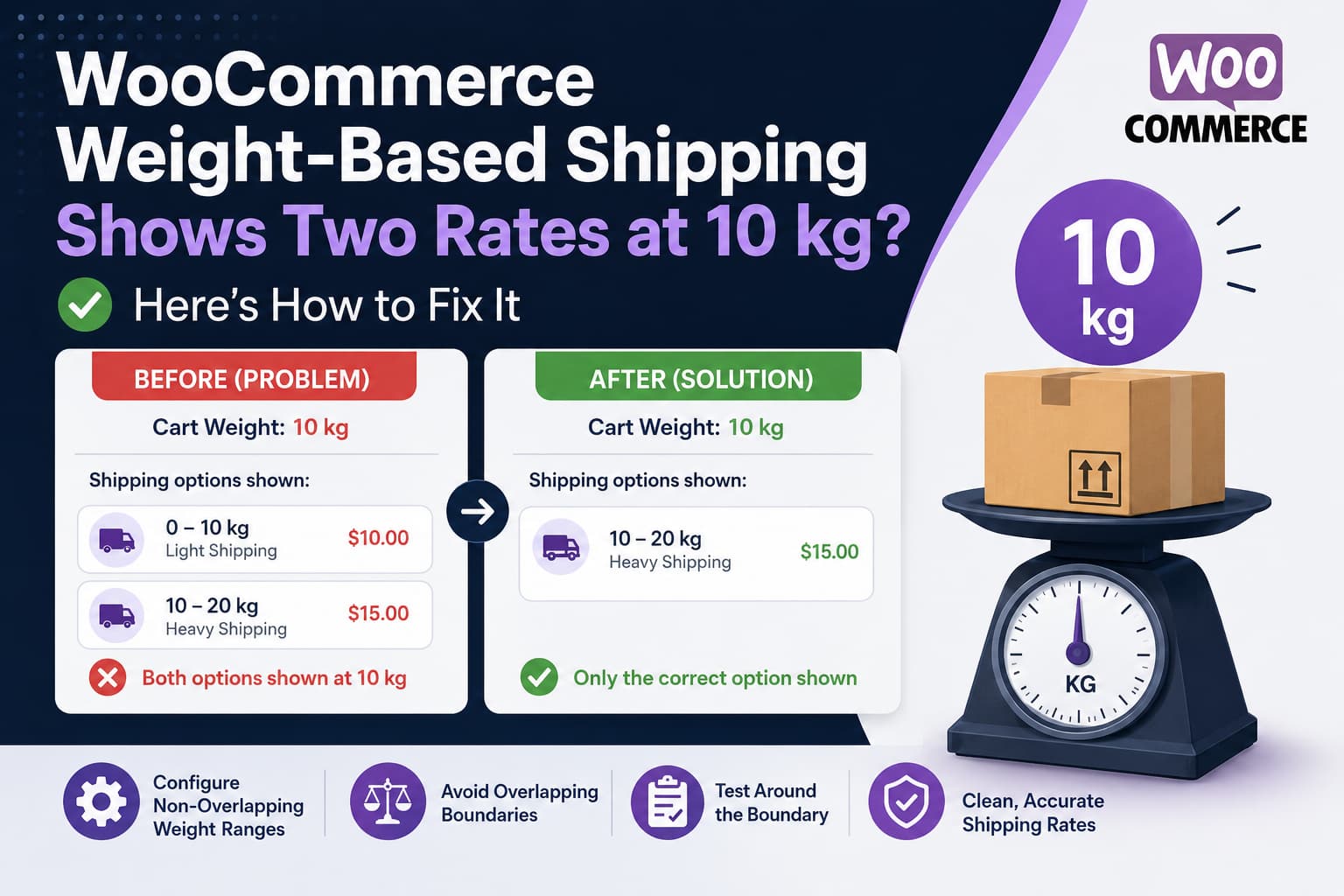
You have configured two weight-based shipping rules in WooCommerce:
| Shipping rule | Weight range |
|---|---|
| Standard lightweight shipping | 0–10 kg |
| Standard heavy shipping | 10–20 kg |
The rules appear to work correctly for most cart weights.
However, when the cart weighs exactly 10 kg, WooCommerce displays both shipping options on the checkout page.
Changing the first rule from 0–10 kg to 0–9.999 kg appears to fix the problem, but using values such as 9.999 is not the cleanest or most reliable long-term solution.
The correct fix is to configure the shared weight boundary so that 10 kg belongs to only one rule.
Why Both Shipping Options Appear
The issue is caused by overlapping weight conditions.
When the rules are configured like this:
Rule 1: Weight is greater than or equal to 0 kg
        Weight is less than or equal to 10 kg

Rule 2: Weight is greater than or equal to 10 kg
        Weight is less than or equal to 20 kg
A cart weighing exactly 10 kg satisfies both rules:
10 is greater than or equal to 0
10 is less than or equal to 10

10 is greater than or equal to 10
10 is less than or equal to 20
Because both conditions are true, the shipping plugin activates both methods.
This is normally expected rule-matching behavior rather than a WooCommerce calculation bug. Weight Based Shipping for WooCommerce evaluates the cart’s total weight and displays each shipping rule that matches the order.
Recommended Solution: Use Non-Overlapping Weight Ranges
The cleanest solution is to make the upper limit of the first rule exclusive.
Configure the rules as follows:
Rule 1: Cart weight below 10 kg
Minimum weight: 0 kg
Minimum comparison: Greater than or equal to

Maximum weight: 10 kg
Maximum comparison: Less than
In mathematical form:
0 kg ≤ cart weight < 10 kgRule 2: Cart weight from 10 kg through 20 kg
Minimum weight: 10 kg
Minimum comparison: Greater than or equal to

Maximum weight: 20 kg
Maximum comparison: Less than or equal to
In mathematical form:
10 kg ≤ cart weight ≤ 20 kgThe rules will now behave like this:
| Cart weight | Matching rule |
| 9.99 kg | 0–10 kg rule |
| 9.999 kg | 0–10 kg rule |
| 10 kg | 10–20 kg rule |
| 10.01 kg | 10–20 kg rule |
| 20 kg | 10–20 kg rule |
The important part is that the first rule uses:
Below 10 kgand not:
Below or equal to 10 kgHow to Update the Rules in WooCommerce
The exact menu labels can vary slightly depending on the version and interface of the shipping plugin.
Step 1: Open the appropriate shipping zone
Go to:
WordPress Dashboard
→ WooCommerce
→ Settings
→ Shipping
→ Shipping zones
Open the shipping zone containing your weight-based shipping method.
WooCommerce uses shipping zones to determine which methods are available for a customer’s location. A customer matches one shipping zone, and the available methods inside that zone are then evaluated.
Step 2: Edit the weight-based shipping method
Click the relevant Weight Based Shipping method.
Locate the first rule, which is currently configured for approximately:
0–10 kgStep 3: Make the first maximum exclusive
Change the rule so that it means:
Weight is below 10 kgDo not select an option equivalent to:
Below or equal to 10 kgStep 4: Make the second minimum inclusive
Configure the second rule so that it means:
Weight is 10 kg or aboveIts maximum can remain 20 kg if 20 kg should be included in this rate.
Step 5: Check the next boundary
If you have another rule beginning at 20 kg, you must also decide which rule should own exactly 20 kg.
For example:
Rule 2: 10 kg ≤ weight < 20 kg
Rule 3: 20 kg ≤ weight < 30 kg
Every shared boundary should belong to only one rule.
Step 6: Save the settings
Save the shipping rules and clear any site, object, or checkout cache before testing.
What If the Plugin Does Not Offer Exclusive Boundaries?
Some weight-based shipping plugins only provide minimum and maximum fields without separate comparison controls.
In that situation, using a small decimal difference may be necessary.
For stores using kilograms with three decimal places, you can configure:
Rule 1: 0–9.999 kg
Rule 2: 10–20 kg
This works because one gram is 0.001 kg.
However, it has limitations:
- It assumes weights are entered using no more than three decimal places.
- It becomes confusing when the store changes weight units.
- Imported products may contain more precise decimal weights.
- Floating-point calculations can occasionally produce values such as
9.999999.
Therefore, an exclusive comparison such as < 10 is preferable whenever the plugin supports it.
Check the WooCommerce Weight Unit
Before troubleshooting further, verify that WooCommerce and your products use the expected weight unit.
Go to:
WooCommerce
→ Settings
→ Products
→ General
→ Measurements
→ Weight unit
Confirm that the weight unit is set to:
kgThen edit the products involved in the test and check:
Product data
→ Shipping
→ Weight
The product weight should be entered in the store’s configured unit.
For example, when the store unit is kilograms:
Correct: 2.5
Meaning: 2.5 kg
Do not enter:
2500unless the store unit is grams.
A unit mismatch can cause shipping rules to activate at unexpected cart totals. Plugin support specifically identifies mismatched product and shipping-rule units as a common source of weight-based shipping problems.
Test the Fix Properly
Test several values around the boundary rather than checking only 10 kg.
Recommended test cases:
| Test cart weight | Expected result |
| 9 kg | Lower-weight method only |
| 9.99 kg | Lower-weight method only |
| 9.999 kg | Lower-weight method only |
| 10 kg | Higher-weight method only |
| 10.001 kg | Higher-weight method only |
| 19.999 kg | Higher-weight method only |
| 20 kg | Depends on your next boundary |
| 20.001 kg | Next shipping rule |
You can temporarily create products with simple weights to test the calculations.
For example:
Product A: 5 kg
Product B: 3 kg
Product C: 2 kg
Adding all three products should produce a cart weight of exactly:
10 kgClear the WooCommerce Shipping Cache
WooCommerce may cache calculated shipping packages during the customer session.
After updating the rules:
- Empty the cart.
- Close and reopen the checkout page.
- Clear the website cache.
- Clear any server or object cache.
- Purge CDN cache if applicable.
- Add the test products to the cart again.
- Re-enter the shipping address.
You can also temporarily enable WooCommerce shipping debug mode while testing.
Go to:
WooCommerce
→ Settings
→ Shipping
→ Shipping settings
Enable the available debugging option, test the checkout, and disable it again afterward.
Plugin support commonly recommends shipping debug mode because it prevents cached shipping calculations from hiding configuration changes during troubleshooting.
Optional PHP Fix When the Plugin Cannot Prevent Overlapping Rules
The configuration solution should always be attempted first.
If your shipping plugin cannot create exclusive ranges, you can remove the lower-weight method programmatically when the cart reaches 10 kg.
Add the following code using a child theme or a code-snippet plugin. Do not edit the parent theme’s functions.php file directly.
/**
 * Prevent overlapping WooCommerce weight-based shipping methods
 * at the 10 kg boundary.
 *
 * Replace the example shipping rate IDs with the IDs used by your site.
 */
add_filter(
    'woocommerce_package_rates',
    'debugnexus_fix_overlapping_weight_shipping_rates',
    100,
    2
);

function debugnexus_fix_overlapping_weight_shipping_rates(
    $rates,
    $package
) {
    // Avoid changing rates on normal WordPress admin screens.
    if ( is_admin() && ! wp_doing_ajax() ) {
        return $rates;
    }

    $package_weight_kg = 0.0;

    if ( empty( $package['contents'] ) ) {
        return $rates;
    }

    foreach ( $package['contents'] as $cart_item ) {
        if (
            empty( $cart_item['data'] ) ||
            ! $cart_item['data'] instanceof WC_Product
        ) {
            continue;
        }

        $product = $cart_item['data'];

        if ( ! $product->needs_shipping() ) {
            continue;
        }

        $product_weight = (float) $product->get_weight();
        $quantity       = max( 1, (int) $cart_item['quantity'] );

        if ( $product_weight <= 0 ) {
            continue;
        }

        // Convert the configured WooCommerce weight unit to kilograms.
        $product_weight_kg = (float) wc_get_weight(
            $product_weight,
            'kg'
        );

        $package_weight_kg += $product_weight_kg * $quantity;
    }

    /*
     * Replace these example IDs with your real shipping rate IDs.
     *
     * Example:
     * weight_based_shipping:3
     * weight_based_shipping:4
     */
    $lower_range_rate_ids = array(
        'weight_based_shipping:3',
    );

    $upper_range_rate_ids = array(
        'weight_based_shipping:4',
    );

    if ( $package_weight_kg >= 10.0 ) {
        // At 10 kg or above, remove the lower 0–10 kg method.
        foreach ( $lower_range_rate_ids as $rate_id ) {
            unset( $rates[ $rate_id ] );
        }
    } else {
        // Below 10 kg, remove the 10–20 kg method.
        foreach ( $upper_range_rate_ids as $rate_id ) {
            unset( $rates[ $rate_id ] );
        }
    }

    return $rates;
}
How to Find the Shipping Rate IDs
Temporarily add this diagnostic snippet:
add_filter(
    'woocommerce_package_rates',
    function ( $rates ) {
        foreach ( $rates as $rate_id => $rate ) {
            error_log(
                sprintf(
                    'Shipping rate ID: %s | Label: %s',
                    $rate_id,
                    $rate->get_label()
                )
            );
        }

        return $rates;
    },
    999
);
Visit the cart or checkout page and then check:
WooCommerce
→ Status
→ Logs
Alternatively, check the WordPress debug log:
/wp-content/debug.logYou may see entries similar to:
Shipping rate ID: weight_based_shipping:3 | Label: 0–10 kg
Shipping rate ID: weight_based_shipping:4 | Label: 10–20 kg
Copy those IDs into the main solution and then remove the diagnostic logging snippet.
Important: Do Not Identify Rates Only by Price
Avoid removing a shipping method based only on its price.
For example, this is unreliable:
if ( $rate->get_cost() === 10 ) {
    unset( $rates[ $rate_id ] );
}
Two legitimate shipping methods may have the same price. Prices may also change due to taxes, discounts, currencies, or additional fees.
Using the complete shipping rate ID is more dependable.
What If the Cart Displays the Wrong Total Weight?
If the boundary rules look correct but WooCommerce still activates an unexpected rate, check the following.
Product variations
A variable product’s variation may have its own weight.
Check:
Product data
→ Variations
→ Open variation
→ Weight
WooCommerce may use the selected variation’s weight rather than the parent product’s weight.
Products without weights
A product with an empty weight field may contribute zero to the shipping calculation.
Review every physical product in the test cart.
Quantity
WooCommerce multiplies the product’s shipping weight by its cart quantity.
For example:
Product weight: 2.5 kg
Quantity: 4
Total contribution: 10 kg
Packaging or multi-package plugins
A shipping-class, marketplace, vendor, dropshipping, or multi-package plugin may split one cart into several shipping packages.
In that case, shipping rates may be calculated separately for each package instead of against one combined cart weight.
Decimal precision
A weight displayed as 10 kg may internally be slightly below or above 10 because of imported data or decimal calculations.
During debugging, log the calculated package weight with greater precision:
error_log(
    sprintf(
        'Calculated package weight: %.6f kg',
        $package_weight_kg
    )
);
This can reveal values such as:
9.999999 kgor:
10.000001 kgIs This a WooCommerce Bug?
Usually, no.
When the first rule includes a maximum of 10 kg and the second includes a minimum of 10 kg, both rules legitimately match an exact 10 kg cart.
The problem is an ambiguous boundary definition.
The appropriate solution is to configure the ranges as:
0 kg ≤ weight < 10 kg
10 kg ≤ weight ≤ 20 kg
instead of:
0 kg ≤ weight ≤ 10 kg
10 kg ≤ weight ≤ 20 kg
The Weight Based Shipping plugin also notes that multiple matching shipping rules can produce multiple checkout options. Its current documentation describes creating tiered rates for ranges such as up to 5 kg, 5–10 kg, and above 10 kg.
Frequently Asked Questions
Why are two shipping methods appearing at exactly 10 kg?
Both weight ranges include 10 kg. The first rule includes it as the maximum, while the second includes it as the minimum.
Should I use 9.999 kg as the first maximum?
It can work when WooCommerce uses kilograms and product weights have no more than three decimal places. An exclusive < 10 kg condition is cleaner and more reliable.
Which shipping rule should include exactly 10 kg?
That depends on your pricing policy. In this example, 10 kg belongs to the 10–20 kg shipping rule.
Why do my changes not appear at checkout?
WooCommerce may be using a cached shipping calculation. Empty the cart, clear website and object caches, enable shipping debug mode temporarily, and test again.
Can I fix this with PHP?
Yes. Use the woocommerce_package_rates filter to remove the unwanted shipping rate at the boundary. However, correcting the plugin configuration is preferable.
Does WooCommerce calculate the total cart weight automatically?
WooCommerce shipping extensions generally calculate shipping from the shippable products in the applicable package. Weight Based Shipping for WooCommerce evaluates shipping rules against the total order weight.
Final Solution
For the original setup, change the rules from:
0–10 kg
10–20 kg
to logically non-overlapping conditions:
Rule 1: 0 kg or above, but below 10 kg
Rule 2: 10 kg or above, through 20 kg
In mathematical form:
Rule 1: 0 ≤ weight < 10
Rule 2: 10 ≤ weight ≤ 20
This ensures that a cart weighing exactly 10 kg activates only the 10–20 kg shipping method.
Use a PHP filter only when the shipping plugin does not provide enough control over inclusive and exclusive boundaries.
