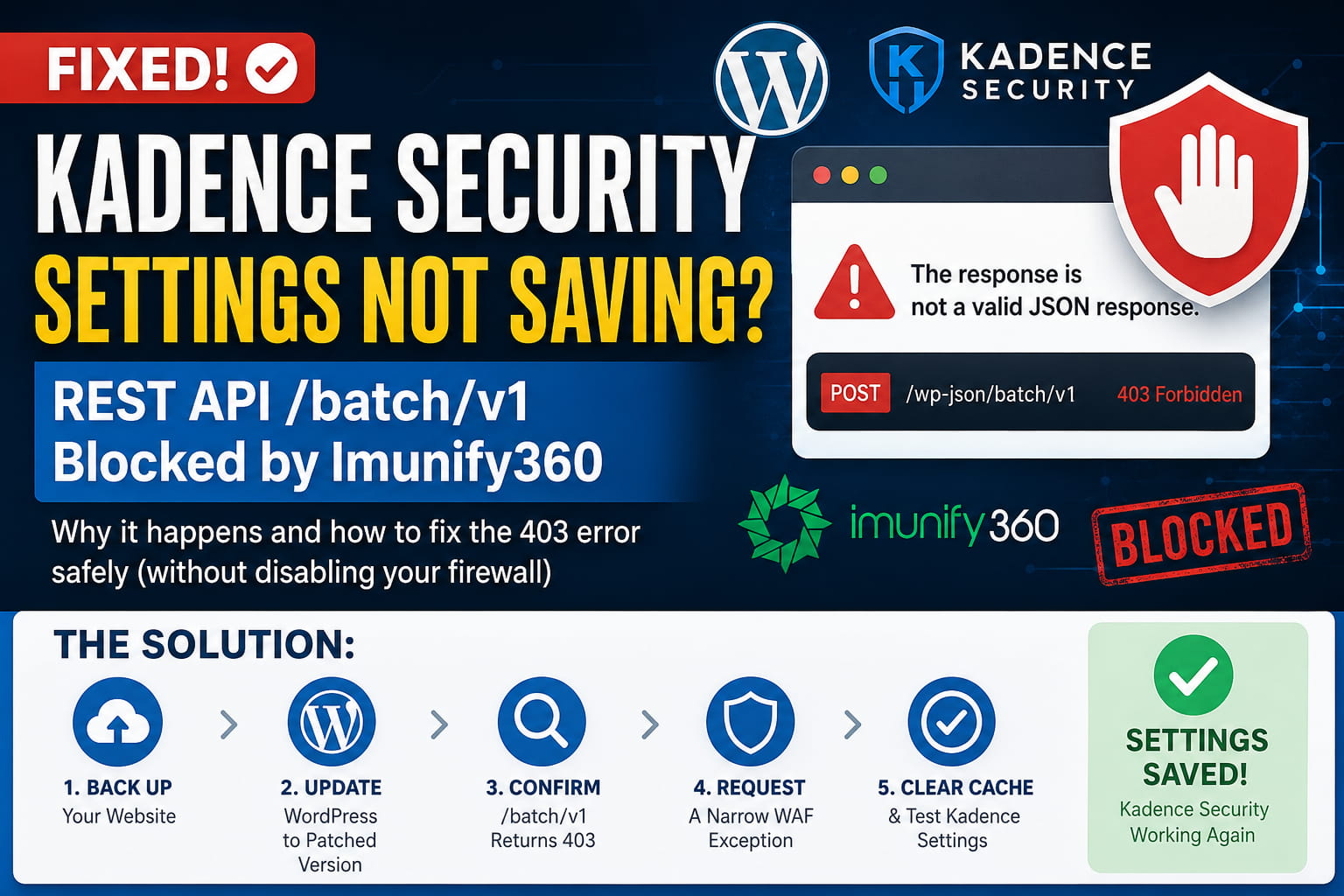
Kadence Security settings may suddenly stop saving with an error such as:
The response is not a valid JSON response.
In your browser’s developer tools, you may also find that this request is failing:
POST /wp-json/batch/v1The request normally returns a successful JSON response, but affected websites receive a 403 Forbidden response instead.
This problem started appearing after Imunify360 and other web application firewalls introduced emergency protection against the WordPress wp2shell remote code execution vulnerability.
The security rule protects vulnerable WordPress installations, but it can also block legitimate authenticated requests used by Kadence Security.
This guide explains how to identify the problem and fix it without disabling your website’s entire firewall or REST API.
What Causes the Kadence Security /batch/v1 Error?
Kadence Security uses WordPress’s core REST API batch framework to process several settings changes in one request.
WordPress introduced this framework in version 5.6. Plugins can send multiple authorized REST API operations through:
/wp-json/batch/v1A successful batch request is processed by WordPress and normally returns a JSON response, commonly with the HTTP status code 207 Multi-Status.
However, the wp2shell vulnerability chain involved a route-confusion issue in this same REST API endpoint.
According to Imunify360, the exploit combined:
- A WordPress core SQL injection vulnerability
- A route-confusion vulnerability involving
/batch/v1 - Unauthorized administrator-account creation
- Installation of a webshell for remote code execution
Imunify360 responded by deploying emergency WAF rules that blocked both versions of the endpoint:
/wp-json/batch/v1and:
?rest_route=/batch/v1These virtual patches protected websites that had not yet installed the corrected WordPress release.
The unintended consequence is that Kadence Security also depends on this endpoint for legitimate administrator actions.
When the firewall blocks the request before it reaches WordPress, Kadence cannot save the settings.
Common Symptoms
You may be experiencing this specific issue when:
- Kadence Security settings do not save.
- The setup wizard appears to finish, but the configuration is not retained.
- WordPress displays “The response is not a valid JSON response.”
- The normal
/wp-json/URL still works. - WordPress Site Health reports that the REST API is available.
- Clearing caches does not help.
- Re-saving permalinks does not help.
- Disabling other WordPress plugins does not resolve the problem.
/wp-json/batch/v1returns403 Forbidden.- The response contains an Imunify360, ModSecurity, or hosting firewall block page.
Kadence support reproduced this behavior by blocking the batch endpoint in front of WordPress. Once the blanket block was removed, the settings could be saved again.
Important: Update WordPress Before Changing the Firewall
Do not disable the relevant WAF protection while running a vulnerable WordPress release.
First, create a complete backup and update WordPress to a patched version.
The corrected releases identified in the security report are:
- WordPress 7.0.2 or later
- WordPress 6.9.5 or later
- WordPress 6.8.6 or later for websites remaining on the 6.8 branch
The affected release ranges included WordPress 6.9.0 through 6.9.4 and WordPress 7.0.0 through 7.0.1.
A WAF rule is only a temporary virtual patch. Updating WordPress is the permanent solution to the underlying core vulnerability.
Step 1: Back Up the Website
Before updating WordPress or changing firewall rules, create a complete backup containing:
- WordPress files
- The database
- The
.htaccessfile - Server or hosting configuration, when available
Where possible, test the WordPress update on a staging website before applying it to production.
Step 2: Update WordPress Core
Go to:
WordPress Dashboard → UpdatesInstall the latest available version for your supported WordPress branch.
After the update:
- Clear the WordPress cache.
- Clear the server cache.
- Purge any CDN cache.
- Log out of WordPress.
- Log back in as an administrator.
Confirm the installed version under:
Dashboard → UpdatesDo not continue with a firewall exception until the site is running a patched release.
Step 3: Confirm That /batch/v1 Is Being Blocked
The main WordPress REST API can work normally even when a firewall blocks only the batch endpoint. Therefore, opening /wp-json/ is not enough to diagnose this problem.
Use your browser’s developer tools instead.
Using Chrome Developer Tools
- Log in to WordPress as an administrator.
- Open Kadence Security.
- Go to the settings screen.
- Press
F12or right-click the page and select Inspect. - Open the Network tab.
- Enter
batchin the filter box. - Change a Kadence setting.
- Click the button to save the change.
- Select the request to
/wp-json/batch/v1.
Check the following information:
Request Method: POST
Status Code: 403
Open the Response tab as well.
A firewall block may return:
- An HTML access-denied page
- A ModSecurity error
- An Imunify360 block message
- A hosting-provider security page
- An empty
403response
This explains the misleading JSON error. WordPress expects JSON, but the firewall returns HTML or another non-JSON response.
Optional Command-Line Test
You can also inspect whether the endpoint is reachable with:
curl -i -X OPTIONS "https://example.com/wp-json/batch/v1"Replace example.com with your domain.
WordPress normally uses an OPTIONS request to describe the batch endpoint and its accepted arguments.
However, the most reliable test is still the authenticated request captured in the browser while saving Kadence settings. A firewall may treat authenticated POST requests differently from public OPTIONS requests.
Step 4: Find the Blocking Firewall Rule
Check whether your hosting environment uses:
- Imunify360
- ModSecurity
- CloudLinux security
- A hosting-level WAF
- Another server-level firewall
In Imunify360, review the incidents recorded at the exact time you attempted to save the Kadence settings.
Look for an incident involving:
/wp-json/batch/v1or:
?rest_route=/batch/v1Record the following information:
- Rule ID
- Request URL
- Date and time
- Domain
- HTTP method
- Source IP
- Firewall description
This will help your host identify the exact rule creating the false positive.
Step 5: Ask the Host to Apply a Narrow Exception
On shared hosting, customers normally cannot change server-level Imunify360 rules directly.
Send the following message to your hosting provider:
Message for Hosting Support
Hello,
My WordPress website is fully updated to a patched release, but Kadence Security can no longer save its settings.
The browser Network panel shows that the authenticated administrator request below is returning a 403 response:
POST /wp-json/batch/v1This appears to be caused by an emergency Imunify360 or ModSecurity rule introduced for the WordPress wp2shell vulnerability.
Please review the matching WAF incident and either:
- Allow authenticated WordPress administrator requests to
/wp-json/batch/v1and?rest_route=/batch/v1; or - Apply a narrowly scoped exception for the relevant rule on this domain now that WordPress has been patched.
Please do not disable the complete WAF. Anonymous malicious requests should remain blocked.
Thank you.
Step 6: Fix It From Imunify360 as a Server Administrator
Server administrators can inspect and manage individual Imunify360 rules.
In the Imunify360 interface, go to:
Imunify360 → IncidentsLocate the incident created when Kadence attempted to save its settings.
Open the incident and identify the matching ModSecurity rule.
Imunify360 supports disabling an individual ModSecurity rule for selected domains instead of disabling it across the entire server. Rules can also be managed from:
Imunify360 → Settings → Disabled RulesWhen adding an exception:
- Limit it to the affected domain.
- Disable only the specific rule causing the false positive.
- Confirm that WordPress is patched first.
- Keep unrelated SQL-injection protections active.
- Avoid disabling ModSecurity globally.
- Avoid disabling the complete Imunify360 ruleset.
Imunify360 officially supports per-domain rule management through both its interface and command-line tools.
A server administrator can manage a specific ModSecurity rule using a command structured like this:
imunify360-agent rules disable \
  --id RULE_ID \
  --plugin modsec \
  --name "Kadence authenticated REST batch request" \
  --domains example.com
Replace:
RULE_IDwith the rule shown in the Imunify360 incident, and replace:
example.comwith the affected domain.
Do not copy a rule ID from another server or online article. Use the rule ID recorded by your own firewall because deployed rules and configurations may differ.
After testing, disabled rules can be reviewed with:
imunify360-agent rules list-disabledA rule can be re-enabled with:
imunify360-agent rules enable \
  --id RULE_ID \
  --plugin modsec
Step 7: Clear Caches and Retest Kadence
After the host or server administrator adjusts the WAF rule:
- Clear the website cache.
- Purge the server cache.
- Purge the CDN or Cloudflare cache, when applicable.
- Log out of WordPress.
- Log back in.
- Open Kadence Security.
- Perform a hard refresh with
Ctrl + F5. - Change one non-critical setting.
- Save it.
- Reload the page and verify that the setting remains saved.
Open the browser Network panel again.
The request should now return a valid JSON response instead of a 403 block page. WordPress batch requests commonly return 207 Multi-Status when the individual operations have been processed.
What Not to Do
Do Not Disable the Entire REST API
Kadence Security and many other WordPress plugins depend on the REST API.
Blocking the complete API can break:
- The block editor
- WooCommerce
- Plugin settings
- Mobile applications
- Headless integrations
- Site Health
- External management services
Only the problematic firewall rule should be adjusted.
Do Not Disable Imunify360 Completely
The firewall rule was introduced in response to an actively exploited WordPress vulnerability. Disabling all protection creates unnecessary risk.
Use a rule-specific and domain-specific exception after WordPress is patched.
Do Not Whitelist the Endpoint on an Unpatched Website
Allowing unrestricted access to /batch/v1 on a vulnerable WordPress version may expose the original security issue.
Update WordPress before changing the firewall.
Do Not Keep Reinstalling Kadence
Reinstalling Kadence will not fix a server-level 403 response.
The request is being stopped before it reaches the plugin.
A reinstall is only relevant when the failed request returns a Kadence-specific 404 error such as:
{
  "code": "rest_module_not_found",
  "message": "No module was found with that id."
}
That is a separate plugin-file or module mismatch and should not be confused with the Imunify360 /batch/v1 block.
Do Not Edit Kadence Settings Directly in the Database
Manually changing security-plugin options in the database is risky. Some settings depend on multiple options, generated configuration files, scheduled events, or validation routines.
Fix the blocked request instead.
Why Re-Saving Permalinks Does Not Fix This Error
Re-saving permalinks can repair missing WordPress rewrite rules, but it cannot override a server-level firewall rule.
When Imunify360 or ModSecurity blocks the request, it happens before WordPress processes:
/wp-json/batch/v1That is why all of the following may fail to resolve this particular problem:
- Re-saving permalinks
- Clearing the browser cache
- Clearing the WordPress cache
- Disabling unrelated plugins
- Changing the theme
- Reinstalling Kadence
- Confirming that
/wp-json/loads successfully
These steps are useful for general REST API troubleshooting, but not when the Network panel confirms a WAF-generated 403.
Will Kadence Stop Using /batch/v1?
Kadence support has acknowledged the issue and escalated the possibility of adding a non-batch fallback for hosting environments that continue blocking the endpoint.
At the time of writing, this was described as a resilience improvement rather than an immediate critical hotfix. The current resolution is to patch WordPress and have the hosting provider refine or remove the overly broad firewall block.
Until a fallback is released, the REST batch endpoint must be available for legitimate authenticated Kadence Security requests.
Frequently Asked Questions
Why does Kadence say the response is not valid JSON?
Kadence expects a JSON response from WordPress. The firewall instead returns a 403 response, an HTML block page, or another non-JSON response, so WordPress displays the generic JSON error.
Why does /wp-json/ work while Kadence still fails?
The firewall may block only /wp-json/batch/v1. Other REST API routes can continue working normally.
Is /wp-json/batch/v1 part of WordPress core?
Yes. WordPress introduced the REST API batch framework in WordPress 5.6. It lets authorized applications process multiple REST operations in a single request.
Is Kadence Security causing the 403 error?
Kadence sends the request, but the hosting firewall blocks it before WordPress or Kadence can process it. The immediate cause is the WAF rule.
Should I remove Kadence Security?
Removing Kadence is not necessary when the only failure is a WAF-generated 403 on /batch/v1. Correcting the server rule is the appropriate solution.
Can I disable the Imunify360 rule myself?
On shared hosting, you will normally need hosting support. VPS and dedicated-server administrators may be able to manage the individual rule through the Imunify360 interface or CLI.
Is it safe to disable the rule?
Only consider a narrowly scoped exception after WordPress has been updated to a patched release. Do not disable the entire WAF, and do not create a broad exception on a vulnerable WordPress installation.
Final Solution Summary
To fix Kadence Security settings not saving because /wp-json/batch/v1 is blocked:
- Back up the website.
- Update WordPress to 7.0.2+, 6.9.5+, or 6.8.6+.
- Use the browser Network panel to confirm that
POST /wp-json/batch/v1returns403. - Find the matching Imunify360 or ModSecurity incident.
- Ask the host to allow legitimate authenticated administrator requests.
- Apply an exception only to the affected rule and domain.
- Keep the rest of the firewall protection enabled.
- Clear caches and test the Kadence settings again.
The key is not to disable security. The correct approach is to patch WordPress and replace the blanket endpoint block with a narrowly scoped firewall configuration.
