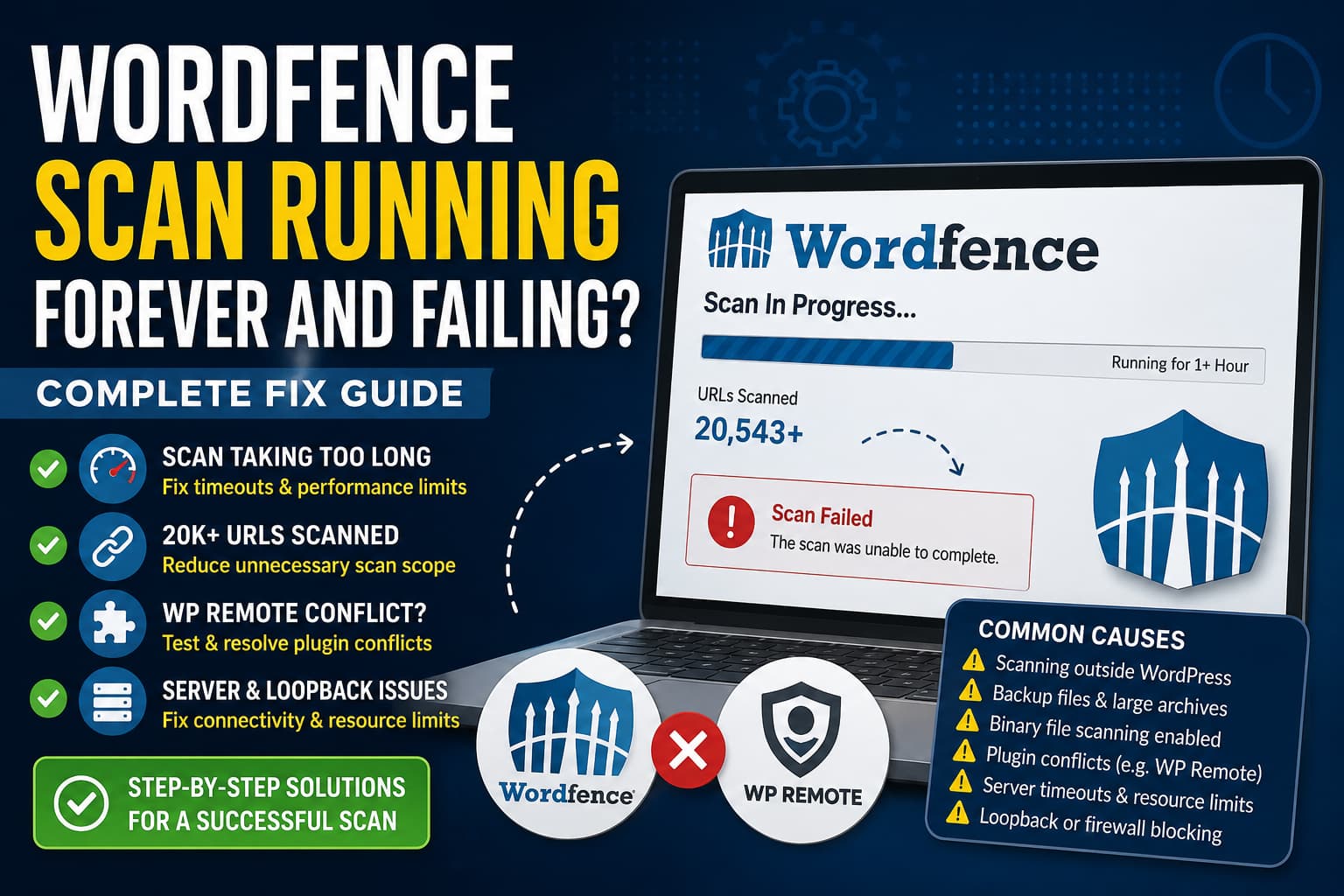
A Wordfence malware scan may occasionally run for more than an hour and then display a scan failed error, even when the WordPress website is relatively small.
A recent WordPress.org support topic described a scan that exceeded one hour, reported more than 20,000 scanned URLs, and appeared to have a problem with the WP Remote plugin, which was also monitoring the website for malware and updates.
This behavior does not automatically mean the website contains 20,000 public pages, that WP Remote is incompatible with Wordfence, or that the site has been infected.
The most common causes are:
- Wordfence scanning files outside the main WordPress installation
- Backup, staging, cache, or log files stored inside the website directory
- High-sensitivity or binary-file scanning
- Two security scanners using server resources simultaneously
- PHP memory or execution limits
- Hosting CPU or process restrictions
- Failed WordPress loopback requests
- Cloudflare, ModSecurity, or another firewall blocking scan requests
- LiteSpeed terminating long-running background processes
- Database or object-cache problems
This guide explains how to identify the exact cause and make Wordfence scans complete reliably.
Why Wordfence May Show More Than 20,000 URLs
The URL total displayed by Wordfence is not necessarily the number of public pages on the website.
Wordfence scans files, posts, pages, comments, theme and plugin options, and other database content for suspicious or known malicious URLs. It can therefore process thousands of URL references even when the website contains only a small number of published pages.
The URL total can also increase temporarily after a plugin or theme update.
Wordfence support has explained that when the scanner cannot yet confirm a new plugin release through known file hashes, it may inspect those files more thoroughly. This can temporarily increase the number of URLs processed during the scan.
Therefore, a total of 20,000 scanned URLs is not by itself evidence of malware.
However, an unusually high total combined with a scan that never finishes may indicate that Wordfence is processing unnecessary directories or repeatedly encountering a server limitation.
Back Up the Website Before Troubleshooting
Create a complete backup before changing security settings, editing .htaccess, repairing database tables, or disabling plugins.
The backup should include:
- WordPress files
- The WordPress database
- Plugin and theme settings
- Custom code
- The
.htaccessfile - The current Wordfence configuration
Perform plugin-conflict testing on a staging website whenever possible.
Do not delete Wordfence, WP Remote, backup archives, or suspicious files until you understand what is causing the scan failure.
Solution 1: Update Wordfence and WP Remote
Go to:
WordPress Dashboard > Plugins > Installed Plugins
Update:
- Wordfence Security
- The WP Remote WordPress Plugin
- WordPress core
- Active themes
- Other security, caching, and optimization plugins
Wordfence recommends confirming that its latest available version is installed before troubleshooting scan problems.
After updating, clear:
- WordPress page cache
- Hosting cache
- Object cache
- CDN cache
- Browser cache
Cancel the failed scan and start a completely new scan.
Do not rely on the previous scan session after updating the plugin.
Solution 2: Return Wordfence to Standard or Limited Scan Mode
Open:
Wordfence > Scan > Scan Options and Scheduling
Check the selected scan type.
For normal website monitoring, select:
Standard Scan
When the server has very limited resources, test:
Limited Scan
High Sensitivity scanning examines images, PDFs, binary files, and other files as though they might contain executable code. This uses considerably more resources and is intended primarily for suspected compromises rather than everyday scanning.
Run a Standard Scan first.
Use High Sensitivity only when there is a specific reason to suspect hidden malware.
Solution 3: Disable Scanning Outside the WordPress Installation
Under the Wordfence General Options, locate:
Scan files outside your WordPress installation
Temporarily disable this option.
A normal Wordfence scan already examines the main WordPress directories, including:
wp-adminwp-contentwp-includes- Files in the WordPress root directory
- Common directories such as
.well-known
When scanning outside WordPress is enabled, Wordfence may enter unrelated directories containing:
- Another WordPress installation
- A staging website
- Development files
- Server-generated backups
- Old website copies
- Email storage
- Log archives
- Temporary directories
- Non-WordPress applications
Wordfence warns that this option can make scans significantly longer, cause hosting providers to terminate them, and in rare cases lead the scanner through circular symbolic links indefinitely.
Save the changes and run another scan.
Solution 4: Disable Binary and Image Scanning
Find this option:
Scan images, binary, and other files as if they were executable
Disable it unless you are actively investigating a suspected infection hidden inside image or binary files.
This option may force Wordfence to inspect:
- JPG and PNG images
- PDFs
- ZIP archives
- Video files
- Font files
- Other binary content
A media-heavy website can contain thousands of these files even when it has only a few pages.
Wordfence recommends disabling this option when scans exceed the time limit, especially on slower servers or sites with many uploaded files.
Solution 5: Remove Backup Archives from the Website Directory
Check the following locations for large backup files:
/wp-content/backups/
/wp-content/uploads/
/wp-content/updraft/
/wp-content/ai1wm-backups/
/wp-content/wpvividbackups/
/wp-content/cache/
/backup/
/backups/
/old-site/
/staging/
Look for:
.zip
.tar
.tar.gz
.sql
.sql.gz
.wpress
.log
.bak
A single backup archive may contain a copy of the entire website. Several backup archives can cause Wordfence to inspect the same WordPress files repeatedly.
Move backups to:
- Remote cloud storage
- A separate backup server
- Storage located outside the public website directory
Wordfence also recommends storing backups outside website directories and excluding trusted large archives when they unnecessarily extend scans.
Do not exclude the entire wp-content directory because doing so would prevent Wordfence from examining plugins, themes, and uploads.
Solution 6: Adjust the Maximum Execution Time for Each Scan Stage
Wordfence does not normally process an entire scan through one continuous PHP request.
It divides the scan into multiple stages. Each stage performs some work, saves its progress, and starts another request to continue scanning.
Open:
Wordfence > Scan > Scan Options and Scheduling > Performance Options
Find:
Maximum execution time for each scan stage
Set it to:
15
Save the changes and run another scan.
Wordfence recommends approximately 15 seconds as a useful starting value when scans stop silently. If that does not work, test lower values such as:
12
10
8
The setting must remain below the process limit enforced by PHP, PHP-FPM, Apache, LiteSpeed, or the hosting provider. Setting it too high can allow the host to terminate the process before Wordfence saves its progress. Setting it unnecessarily low can increase server load by forcing Wordfence to stop and restart too frequently.
You can check the PHP value under:
Wordfence > Tools > Diagnostics > Other Tests
Open the system configuration and locate:
max_execution_time
Wordfence suggests using approximately 80% of that value, with a recommended maximum Wordfence stage value of about 45 seconds even when PHP permits a much higher limit.
Solution 7: Increase the Memory Requested by Wordfence
Only perform this step when the activity log or PHP error log reports an out-of-memory error.
Open:
Wordfence > Scan > Scan Options and Scheduling > Performance Options
Find:
How much memory should Wordfence request when scanning
Change it from the default value to:
300
This requests up to 300 MB of PHP memory while Wordfence is scanning.
Wordfence recommends 300 MB as the first test when the scan reports a memory exhaustion error. The hosting provider must still allow the requested amount.
Do not continue increasing the value without checking the hosting plan’s actual PHP and account-level memory limits.
A host may also enforce:
- Per-process memory limits
- Account-wide memory limits
- CPU limits
- Input/output limits
- PHP-FPM worker limits
- Process termination rules
These restrictions may stop a scan without producing an obvious PHP error.
Solution 8: Test for a WP Remote Conflict
WP Remote can monitor WordPress updates, security status, backups, uptime, and malware activity.
However, WP Remote is not currently identified in Wordfence’s published documentation as a confirmed known scan conflict.
The problem may instead be resource competition.
If Wordfence and WP Remote perform deep malware scans at the same time, both services may request:
- CPU
- PHP workers
- Memory
- Database queries
- File reads
- Disk input/output
- Outbound connections
To test this safely:
- Create a complete backup.
- Pause any active WP Remote malware scan.
- Temporarily deactivate only the WP Remote connector plugin.
- Clear the object cache.
- Run a fresh Wordfence Standard Scan.
- Record whether the scan completes.
- Reactivate WP Remote immediately after testing.
Do not delete the plugin or disconnect the site permanently during the initial test.
When Wordfence Works Without WP Remote
If the Wordfence scan completes only while WP Remote is inactive, avoid scheduling both malware scanners simultaneously.
For example:
- Run the Wordfence scan overnight.
- Run the WP Remote malware scan several hours later.
- Avoid running backups during either security scan.
- Check whether the host is reaching CPU, memory, or PHP-worker limits.
This does not necessarily prove a software incompatibility. It may simply mean the hosting account cannot support both scans simultaneously.
When Wordfence Still Fails
If the scan fails while WP Remote is inactive, reactivate WP Remote and continue troubleshooting.
The underlying cause is then more likely to be:
- Server resource limits
- Loopback failure
- Firewall blocking
- LiteSpeed termination
- Database corruption
- Wordfence scan configuration
Solution 9: Check the Wordfence Activity Log
Open:
Wordfence > Scan
Click:
View activity log
Enable additional logging under:
Wordfence > Tools > Diagnostics > Debugging Options
Turn on:
Enable debugging mode
Run another scan and inspect the final 20 to 30 log lines.
Important messages may include:
Scan process ended after forking
The current scan looks like it has failed
Allowed memory size exhausted
Maximum execution time exceeded
403 Forbidden
500 Internal Server Error
Connection timed out
Unable to connect to Wordfence servers
WordPress database error
wp_wfStatus is marked as crashed
The last successful activity before the scan stops is usually more useful than the generic “scan failed” message.
The activity log may also contain warnings generated by another plugin. Check the file path in each warning to identify which plugin produced it.
Disable Wordfence debugging mode after collecting the required information.
Solution 10: Test the WordPress AJAX Handler
Wordfence relies on normal WordPress background requests.
Open this address in a private browser window:
https://example.com/wp-admin/admin-ajax.phpReplace example.com with the website’s domain.
A working WordPress AJAX handler should normally display:
0If it displays a 403 error, 500 error, login page, homepage, maintenance page, or another redirect, Wordfence may be unable to continue its scan stages.
Common causes include:
- Password protection applied to
wp-admin - A security plugin blocking
admin-ajax.php - ModSecurity
- A maintenance-mode plugin
- Incorrect
.htaccessrules - Cloudflare security settings
- A custom login or administrator restriction
Wordfence documents a broken or blocked AJAX handler as a common reason scans cannot start or continue.
Solution 11: Check Wordfence Loopback Tests
Open:
Wordfence > Tools > Diagnostics
Review the connectivity and loopback tests, especially:
- Connecting back to this site
- Connecting back to this site via IPv6
- Wordfence server connectivity
- WordPress AJAX connectivity
Wordfence repeatedly connects back to the website while advancing through scan stages. If that loopback request is blocked, the scan may stop after completing only part of its work.
Cloudflare features, including some bot-protection configurations, can prevent a server from connecting back to its own domain. Wordfence recommends checking the loopback diagnostic results and allowing the server IP address through Cloudflare when necessary.
For Bluehost and Cloudflare-specific 403 errors, internally link the phrase Wordfence 403 loopback error to the existing DebugNexus troubleshooting guide.
Solution 12: Test IPv4 and Remote Scan Startup
Under:
Wordfence > Scan > Scan Options and Scheduling > Advanced Options
Enable:
Use only IPv4 to start scans
This may help when the website attempts to use IPv6 but the hosting provider, CDN, or outbound network does not support the connection correctly.
You can also test:
Wordfence > Tools > Diagnostics > Debugging Options > Start all scans remotely
Enable it and run a scan.
If it does not help, disable it again. Wordfence notes that local startup may be faster and can avoid problems with some hosting providers or Cloudflare configurations.
Change one setting at a time so the successful correction can be identified.
Solution 13: Apply the LiteSpeed Noabort Rule
LiteSpeed may silently terminate a PHP process when the browser or initiating connection ends.
This can interrupt Wordfence scans, backup operations, and security-rule updates.
Confirm that the server uses LiteSpeed before applying this solution.
Back up the existing .htaccess file.
Add the following immediately above:
# BEGIN WordPressUse:
# BEGIN LiteSpeed noabort
<IfModule mod_rewrite.c>
RewriteEngine On
RewriteRule .* - [E=noabort:1]
</IfModule>
# END LiteSpeed noabort
Save the file, clear the server cache, and run a new scan.
If the website produces a 500 error after editing .htaccess, restore the backup immediately.
Some managed LiteSpeed hosts already configure External Application Abort correctly. Ask the host before adding duplicate server rules.
Solution 14: Temporarily Enable Low-Resource Scanning
Open:
Wordfence > Scan > Scan Options and Scheduling > Performance Options
Enable:
Use low-resource scanning
This setting spreads the scan workload over a longer period to reduce peak server usage.
It does not make the scan faster. Wordfence states that low-resource scanning may make scans approximately two to four times longer, depending on the server and number of files.
Use it when the hosting provider is terminating the scan because of short CPU or input/output spikes.
Do not use it as the first solution when the only goal is reducing scan duration. First disable unnecessary scan options and remove large backup archives.
Solution 15: Check PHP and Server Error Logs
Review:
wp-content/debug.log- PHP error log
- PHP-FPM log
- Apache error log
- Nginx error log
- LiteSpeed error log
- Hosting resource-usage log
- ModSecurity audit log
To temporarily enable WordPress debugging, add the following before the line that says WordPress has finished loading configuration:
define( 'WP_DEBUG', true );
define( 'WP_DEBUG_LOG', true );
define( 'WP_DEBUG_DISPLAY', false );

@ini_set( 'display_errors', 0 );
Run the Wordfence scan again and inspect:
/wp-content/debug.logLook for errors containing:
wordfence
wfScan
wfStatus
memory
maximum execution
database
cURL
timeout
admin-ajax
cron
WP Remote
fatal error
Disable debugging after testing because debug logs can grow quickly and may contain sensitive technical information.
Solution 16: Check the Wordfence Database Tables
A damaged Wordfence database table can prevent scan progress from being recorded.
Look in the server error log for a message similar to:
WordPress database error:
Table 'database_name.wp_wfStatus' is marked as crashed
If this appears:
- Create a database backup.
- Open phpMyAdmin.
- Select the WordPress database.
- Locate the affected Wordfence table.
- Use the Repair Table operation.
Ask the hosting provider to repair the table when you are not comfortable modifying the database.
Do not delete all Wordfence tables as the first repair attempt.
Wordfence documents a crashed wfStatus table as a possible reason a scan runs without successfully recording its activity.
Solution 17: Ask the Hosting Provider to Check Process Termination
When the scan still fails, contact the hosting provider and provide the exact failure time.
Use this message:
A Wordfence security scan repeatedly runs for more than an hour and then stops without completing. I have tested a Standard Scan, disabled scanning outside the WordPress installation, disabled binary-file scanning, and temporarily paused the other malware scanner.
Please check the PHP, PHP-FPM, web server, ModSecurity, and account resource logs for the exact scan period. Please confirm whether the process was terminated by a CPU limit, memory limit, input/output limit, PHP-worker limit, execution timeout, LiteSpeed External Application Abort setting, or firewall rule.
Please also confirm that the server can make loopback requests to the website and outbound HTTPS connections required by Wordfence.
Ask the host to provide the exact log entry rather than only increasing max_execution_time.
A host-level process manager may terminate the scan even when the PHP configuration displays a higher execution limit. Wordfence identifies these hidden hosting restrictions as a common reason scans appear to stop without a useful PHP error.
Recommended Troubleshooting Order
For the fastest diagnosis, use this order:
- Update Wordfence and WP Remote.
- Select Standard Scan.
- Disable scanning outside WordPress.
- Disable binary and image scanning.
- Move backup archives outside the website directory.
- Set the scan-stage execution time to 15 seconds.
- Check the activity log.
- Test
admin-ajax.php. - Review Wordfence loopback diagnostics.
- Pause WP Remote and rerun the scan.
- Test IPv4-only startup.
- Apply the LiteSpeed noabort rule when applicable.
- Enable low-resource scanning when the host is killing resource spikes.
- Check PHP, server, database, and ModSecurity logs.
- Contact the hosting provider with the exact failure time.
Change only one or two settings between test scans. Changing everything simultaneously can make it difficult to identify the real cause.
Frequently Asked Questions
Does 20,000 scanned URLs mean the website has 20,000 pages?
No. Wordfence checks URLs found inside files, posts, comments, plugin settings, theme settings, and other database content. The displayed total is not a count of public pages.
Does a high URL count mean the site has malware?
Not necessarily. Malware can introduce suspicious URLs, but legitimate plugin files, theme files, content, comments, and recently updated packages can also increase the count.
Review the scan findings and activity log rather than judging the site only by the number.
Is WP Remote incompatible with Wordfence?
There is no confirmed general incompatibility documented by Wordfence.
However, running two malware scanners simultaneously can exceed the resources available on a shared or entry-level hosting plan. Pause one scanner, test the other, and schedule them at different times when resource competition is confirmed.
Should I increase the Wordfence scan time limit?
Increasing the total time limit may hide the underlying cause and make the scan consume server resources for even longer.
First reduce the number of files being scanned, remove backups, correct the scan-stage execution time, and check the activity log.
Increase the total limit only after confirming the scan is progressing normally.
Will low-resource scanning fix the failure?
It may help when the host terminates Wordfence because of high short-term CPU or disk usage.
It will not make the scan faster. It deliberately spreads the work over a longer period.
Why does a small WordPress website have so many files?
A website with only a few pages may still contain:
- Thousands of plugin files
- Theme frameworks
- Page-builder assets
- Cached files
- Generated CSS and JavaScript
- Images and thumbnails
- Backup archives
- Staging copies
- Log files
- Security data
The number of published pages is therefore not a reliable measurement of scan size.
Final Recommendation
When a Wordfence scan runs for more than an hour and then fails, do not immediately assume the website is infected or that WP Remote must be removed.
Start by reducing the Wordfence scan scope. Disable scanning outside WordPress, turn off binary-file scanning, and move backup archives away from the public website directory.
Next, set the maximum execution time for each scan stage to approximately 15 seconds and examine the final lines of the activity log.
Temporarily pausing WP Remote is a useful conflict test, but it should not be treated as proof of incompatibility unless Wordfence consistently completes only while WP Remote is inactive.
When the scan still fails after these changes, test WordPress loopback requests, inspect the server logs, and ask the hosting provider whether a resource limit, firewall, PHP worker restriction, or LiteSpeed process rule is terminating the scan.
