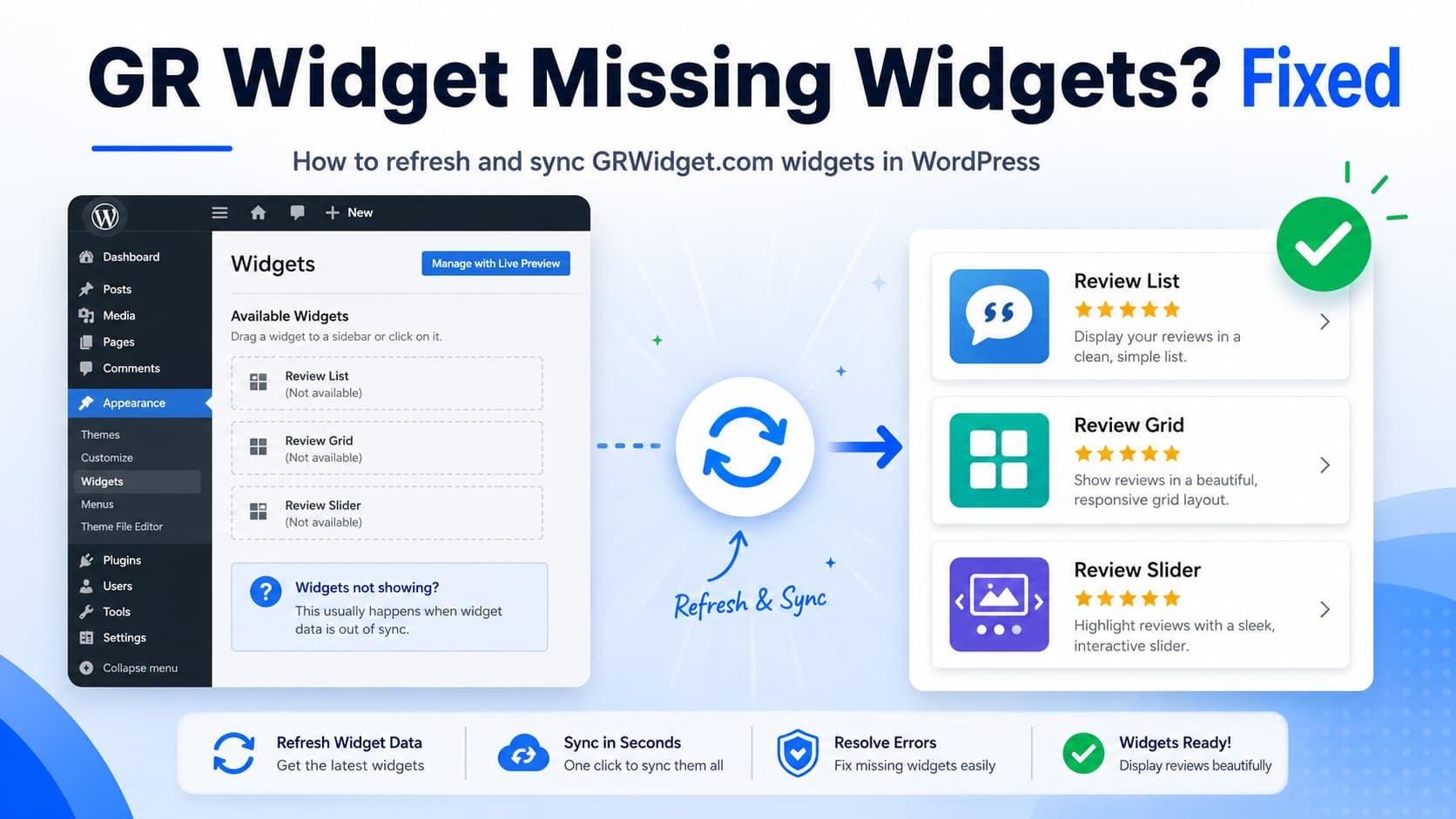
After connecting the GR Widget WordPress plugin to a GRWidget.com account, you may notice that only widgets created from inside WordPress appear in the plugin.
Widgets created previously through the builder on GRWidget.com remain visible in the online dashboard, but they do not appear in the WordPress widget list. As a result, you cannot select them from the Gutenberg block or copy their WordPress shortcode.
The good news is that this is not expected behavior, and you normally do not need to reinstall the plugin or wait for an update.
Quick Fix
Open the GR Widget page in your WordPress dashboard and refresh the widget list.
After refreshing, widgets created through the GRWidget.com web builder should appear alongside widgets created directly from WordPress.
The plugin developer confirmed that all widgets associated with the connected account should be displayed inside the WordPress plugin. The reported issue was resolved by refreshing the list, without installing a new plugin version.
Should GRWidget.com Widgets Appear in WordPress?
Yes.
Once your WordPress website is linked to a GRWidget.com account, the plugin should display the widgets associated with that account, including:
- Widgets created directly inside WordPress
- Widgets created using the GRWidget.com online builder
- Existing widgets that were created before the WordPress site was connected
- Widgets customized later through the hosted builder
The account connection is not intended only for widgets originally created inside WordPress. The hosted builder can also be used to manage and customize connected WordPress widgets.
How to Refresh the GR Widget List
Follow these steps first.
Step 1: Log in to WordPress
Open your WordPress administration dashboard:
https://yourwebsite.com/wp-admin/Use an administrator account so you can access the plugin settings.
Step 2: Open GR Widget
From the WordPress dashboard menu, open:
GR WidgetThis should display the widgets currently available to the connected website.
Step 3: Refresh the widget list
Use the refresh option available on the GR Widget page.
If there is no visible refresh button, reload the page using your browser:
Windows:
Ctrl + F5Mac:
Command + Shift + RA hard refresh prevents the browser from continuing to display an older cached version of the plugin interface.
Step 4: Check the widget list again
The list should now include widgets that were created through the GRWidget.com web builder.
Open the widget you want to use and copy its shortcode, or select it through the GR Widget block in the WordPress editor.
A typical shortcode looks like this:
[grwi_widget id="your-widget-key"]The plugin officially supports both a Gutenberg block and the [grwi_widget] shortcode. The shortcode can also be placed in Elementor and other page builders that support WordPress shortcodes.
What to Do If Refreshing Does Not Work
If the widgets are still missing, continue with the checks below.
1. Confirm That the Correct Account Is Connected
It is possible to be logged in to one GRWidget.com account in your browser while WordPress is connected to a different account or API token.
In WordPress, open:
GR Widget → AccountConfirm that the connected account is the same account containing the missing widgets.
You can also log in to GRWidget.com and verify:
- The account email address
- The selected workspace, if applicable
- The website or domain assigned to the widgets
- The API token used by WordPress
Widgets stored under another account or workspace may not appear in the connected plugin.
2. Reconnect the GRWidget.com Account
If the account information looks correct but synchronization still fails, reconnect it.
A safe reconnection process is:
- Open the WordPress GR Widget account settings.
- Disconnect the current account connection.
- Log in to the correct GRWidget.com account.
- Generate or copy the WordPress API token.
- Paste the token into the plugin.
- Save the connection.
- Return to the widget list and refresh it.
GRWidget.com documents account linking through an API token generated under Account → WordPress. After the token is added to the plugin, the website and online dashboard should remain connected.
Before disconnecting, save a copy of the current token or take a screenshot of the settings.
3. Update the GR Widget Plugin
Go to:
WordPress Dashboard → Plugins → Installed PluginsCheck whether an update is available for GR Widget – Google Reviews Widget.
The original missing-widget report did not require a plugin update, but using the latest available version can prevent unrelated connection, interface, or compatibility problems.
After updating:
- Clear your WordPress cache.
- Reload the administration dashboard.
- Open GR Widget.
- Refresh the widget list again.
4. Clear WordPress and Browser Caches
An administration page may occasionally continue displaying old API results because of caching or optimization.
Clear the following where applicable:
- WordPress caching plugin cache
- Object cache, such as Redis or Memcached
- Hosting-level cache
- Cloudflare cache
- Browser cache
Caching is more commonly responsible for a widget remaining blank on the public page than for an administration list not updating, but clearing it is still a useful troubleshooting step.
Do not clear or delete the website database just to resolve this issue.
5. Check Security and Firewall Restrictions
The GR Widget plugin communicates with GRWidget.com for account linking, widget creation, configuration, review synchronization, previews, and plan information. The public widget also loads its content through the hosted GRWidget.com service.
A security plugin or server firewall could interfere with these requests.
Temporarily check whether the following are blocking outbound connections:
- Wordfence
- Solid Security
- Sucuri
- Cloudflare Web Application Firewall
- Hosting firewalls
- ModSecurity rules
- Custom Content Security Policy headers
- Server restrictions on external HTTPS requests
Do not permanently disable website security. Temporarily test the connection and then create an appropriate allow rule if a security tool is confirmed as the cause.
Your server should be able to make HTTPS requests to:
grwidget.com6. Inspect the Browser Network Request
You can check whether the refresh request is failing from the browser.
- Open the GR Widget administration page.
- Press
F12to open Developer Tools. - Select the Network tab.
- Refresh the widget list.
- Look for failed Fetch or XHR requests.
- Check for HTTP status codes such as
401,403,429, or500.
These codes usually indicate different problems:
401 Unauthorized
The API token may be missing, expired, incorrect, or connected to another account.
403 Forbidden
A firewall, security plugin, access rule, or account permission may be blocking the request.
429 Too Many Requests
The service may be receiving too many refresh requests in a short period. Stop repeatedly refreshing and try again later.
500 Server Error
The request reached either WordPress or the remote service but encountered an internal error. Enable WordPress debugging or check the server PHP error log for more details.
7. Check the WordPress Debug Log
If the administration refresh produces an error, temporarily enable WordPress debugging.
Add or update these lines in wp-config.php before the line that says WordPress editing should stop:
define( 'WP_DEBUG', true );
define( 'WP_DEBUG_LOG', true );
define( 'WP_DEBUG_DISPLAY', false );
Reproduce the problem and then check:
/wp-content/debug.logLook for entries containing terms such as:
grwi
grwidget
wp_remote_get
wp_remote_post
cURL
SSL
HTTP request failed
Disable debugging after completing the investigation on a production website:
define( 'WP_DEBUG', false );Never publish a debug log publicly because it may contain file paths, account information, or other sensitive technical details.
Direct Embed Workaround
If the widget exists in GRWidget.com but you cannot select it through the WordPress plugin, you can embed it manually while investigating the account list.
Open the widget in the GRWidget.com builder and copy its embed code. A standard embed uses an asynchronous script and a widget container:
<script src="https://grwidget.com/v1/grwidget.js" async defer></script>
<div class="grwidget-embed" data-grwidget-key="YOUR_WIDGET_KEY"></div>
Replace:
YOUR_WIDGET_KEYwith the actual key supplied by GRWidget.com.
Paste the code into a Custom HTML block in Gutenberg or an HTML element in your page builder.
The official GR Widget documentation supports this two-line Custom HTML method as an alternative to using the WordPress block or shortcode. When multiple widgets are used, the script should generally be loaded only once.
Using the embed with Elementor
In Elementor:
- Edit the page with Elementor.
- Drag an HTML widget onto the page.
- Paste the GRWidget.com embed code.
- Update the page.
- Clear the website cache.
- Test the page in a private browser window.
If WordPress or your user role strips the <script> tag, add the script through a trusted header/footer code method and place only the widget <div> in Elementor.
Widget Appears in WordPress but Is Blank on the Website
This is a different issue from the widget being missing in the administration list.
If you can select the widget but nothing appears on the published page, check the following:
- Confirm the shortcode contains the correct widget key.
- Make sure the GR Widget block has a widget selected.
- Clear page, hosting, CDN, and optimization caches.
- Temporarily disable JavaScript delay or defer settings.
- Check the browser console for JavaScript errors.
- Confirm that
grwidget.com/v1/grwidget.jsis not blocked. - Check whether a Content Security Policy is blocking external scripts.
- Verify that the widget is assigned to the correct website domain.
The plugin loads its embed script only on pages containing a GR Widget shortcode or block. A missing or incorrect widget key can therefore leave the widget area empty.
How the GR Widget WordPress Integration Works
The WordPress plugin acts as a client for the hosted GRWidget.com service.
The widget configuration, review synchronization, and rendered widget data are handled through GRWidget.com. Review content is not stored directly in the WordPress database.
This explains why refreshing the connected widget list can solve the problem without reinstalling the plugin. WordPress requests the current list from the connected service and updates what is displayed in the administration dashboard.
It also means that deleting WordPress transients, editing database tables, or recreating every widget manually should not be your first troubleshooting step.
Frequently Asked Questions
Is it expected that web-created widgets are missing from WordPress?
No. Once the account is connected, widgets associated with that account should be available in the WordPress plugin, including widgets created through the GRWidget.com web builder.
Do I need to update the plugin to fix this?
Not for the resolved issue described here. The developer initially considered releasing an update but later confirmed that refreshing the widget list was sufficient.
Do I need to recreate my widgets inside WordPress?
No. Refresh the connected widget list first. Recreating the widgets could leave you with unnecessary duplicates.
Do I need a Google API key?
No. GR Widget handles Google review data through its hosted service, so the WordPress website does not need to store a Google API key.
Can I use GR Widget with Elementor?
Yes. You can use the WordPress shortcode inside Elementor’s Shortcode widget or paste the direct embed into an HTML widget.
Will clearing the WordPress database fix the issue?
No. Avoid deleting database options or plugin tables unless the plugin developer specifically instructs you to do so. Start by refreshing the list, confirming the connected account, and reconnecting the API token.
Where can I report the problem?
The plugin provides a Report bug option from the widget customization screen. You can also use its official WordPress.org support forum if refreshing and reconnecting do not resolve the problem.
Final Solution
Widgets created through GRWidget.com are supposed to appear in the connected WordPress plugin.
The confirmed solution is:
- Open the GR Widget page in WordPress.
- Refresh the widget list.
- Confirm that the web-created widgets now appear.
- Select the widget and insert it using the Gutenberg block or shortcode.
- If it remains missing, reconnect the correct account and API token.
- Check caching, security rules, and failed API requests.
- Use the direct HTML embed as a temporary alternative.
In most cases matching the resolved support report, refreshing the list is all that is required. No plugin reinstall, database modification, or custom PHP fix is necessary.
