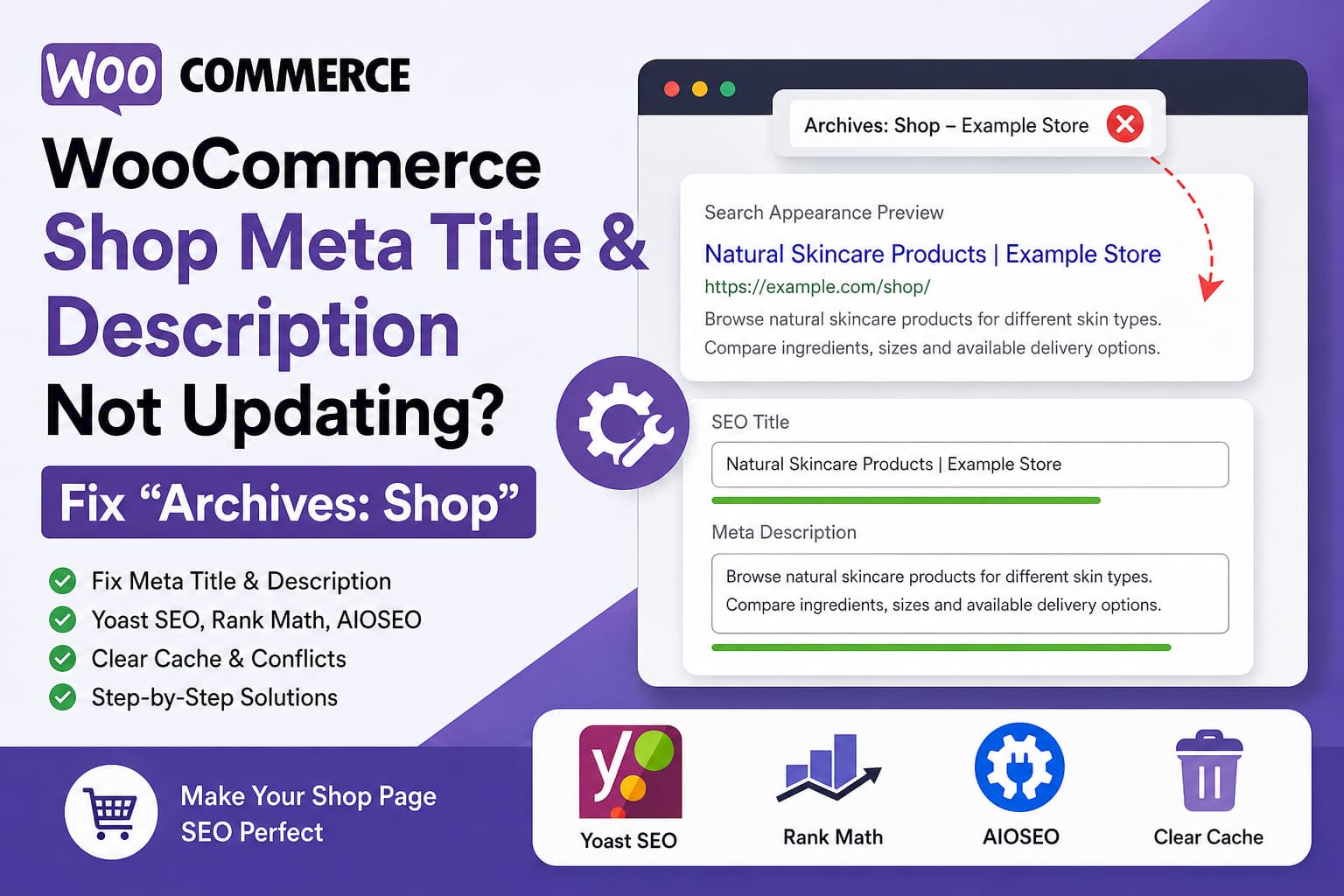
A WooCommerce store owner may change the SEO title and meta description of the Shop page under Pages > All Pages, click Update, and still see an old title such as:
Archives: ShopOn a Polish WordPress website, the same title may appear as:
Archiwa: SklepThe new meta description may also be missing from the page source or Google search results.
This commonly happens because the WooCommerce Shop page does not behave exactly like a normal WordPress page. It is a special catalog page that displays the WooCommerce product archive. Depending on the SEO plugin, theme, and WooCommerce configuration, its metadata may be controlled by product archive settings instead of the normal Page settings.
WooCommerce confirms that the assigned Shop page can be transformed by a catalog template and recommends using the custom post type archive controls provided by the active SEO plugin when needed.
This guide explains how to identify which setting is controlling the Shop page and how to fix the title and meta description safely.
First, Identify Which Page You Are Editing
Before changing any settings, determine whether the affected URL is:
https://example.com/or:
https://example.com/shop/These are not always the same page.
Website homepage
If the store loads directly at the root domain, / may be a normal static homepage that contains product blocks or a custom store layout.
Its SEO settings are normally controlled under:
Pages > Home > SEO settingsor through the Homepage section of the SEO plugin.
WooCommerce Shop page
The /shop/ URL is normally the WooCommerce product catalog. WooCommerce may treat this URL as both:
- An assigned WordPress page
- A product post type archive
- A WooCommerce catalog template
That difference is why changing the metadata in the normal Pages screen does not always update the final output.
Step 1: Confirm the Correct WooCommerce Shop Page
Go to:
WooCommerce > Settings > ProductsFind the Shop page option and confirm that the correct page is selected.
Then go to:
Pages > All PagesOpen the selected page and confirm that its URL matches the affected store URL.
WooCommerce allows a specific WordPress page to be assigned as the Shop page. If a different page is assigned, editing a page merely named “Shop” will not affect the active catalog.
After selecting the correct page, click Save changes.
Step 2: Check the Actual HTML Output
Do not rely only on the browser tab, SEO preview, or Google search result.
Open the Shop page in a private browser window, right-click the page, and select:
View Page SourceSearch the source for:
<title>Then search for:
<meta name="description"A correct result should resemble:
<title>Online Store for Natural Skincare | Example Brand</title>
<meta name="description" content="Browse natural skincare products for different skin types. Compare ingredients, sizes and available delivery options.">
The source code determines the next troubleshooting step.
The source contains the new metadata
If the new title and description are already present in the source, WordPress is working correctly. Google probably has an older indexed version or has chosen to display a different title or snippet.
Proceed to the Search Console section later in this guide.
The source contains the old metadata
The SEO plugin, theme, archive template, cache, or custom code is still generating the old values.
Continue with the plugin-specific solutions below.
The source contains duplicate metadata
For example:
<title>Shop | Example Store</title>
<title>Archives: Shop</title>
or two description tags:
<meta name="description" content="First description">
<meta name="description" content="Second description">
This normally means more than one component is generating SEO metadata.
Possible sources include:
- Two active SEO plugins
- A theme with built-in SEO functionality
- A custom metadata plugin
- Header code added through a snippets plugin
- Hardcoded tags in
header.php - A page builder SEO extension
Use only one SEO system to generate the title, description, canonical URL, and robots directives.
Solution 1: Fix the WooCommerce Shop Metadata in Yoast SEO
Yoast SEO has dedicated handling for the WooCommerce Shop page.
Go to:
Yoast SEO > Settings > Content types > ProductsScroll to the Product archive section.
Find and click the Shop page link.
Open the Yoast SEO sidebar or meta box for that page, select Search appearance, and enter the required:
- SEO title
- Meta description
Then return to the page editor and click Update.
Yoast’s current documentation specifically directs WooCommerce users to the Shop page link under the Products content-type settings before changing the Shop metadata.
After updating:
- Clear the Yoast cache or optimization data if available.
- Purge the WordPress page cache.
- Purge the hosting cache.
- Purge the CDN cache.
- Check the page source again.
Check the Yoast product archive template
Also review:
Yoast SEO > Settings > Content types > ProductsLook for the product archive title and description template.
An archive template containing a variable such as an archive title may generate text similar to:
Archives: ShopReplace it with a suitable title template or use the Shop page-specific settings.
Solution 2: Fix the Shop Metadata in Rank Math
First, open:
Pages > All Pages > ShopOpen the Rank Math panel and click:
Edit SnippetEnter the Shop page SEO title and description, and update the page.
Rank Math documents this as the normal method for changing the WooCommerce Shop page’s SEO title.
If the page still uses archive metadata, go to:
Rank Math SEO > Titles & Meta > ProductsCheck these fields:
Product Archive Title
Product Archive Description
Rank Math provides separate title and description templates for product archives. These settings can control the Shop archive when the individual page metadata is not being used.
Replace an archive-based title such as:
%title% Archives %sep% %sitename%with a clearer title such as:
Shop Our Products %sep% %sitename%Add a specific archive description rather than relying on an automatically generated excerpt.
After saving the settings, clear all caches and inspect the source again.
Solution 3: Fix the Shop Metadata in All in One SEO
Open:
All in One SEO > Search Appearance > ArchivesFind the archive associated with WooCommerce products or the Products custom post type.
Set:
- Show in Search Results: Yes
- Archive Title
- Meta Description
AIOSEO provides separate SEO title and description controls for custom post type archives.
You should also edit the assigned Shop page and review its AIOSEO settings:
Pages > Shop > AIOSEO SettingsEnter the title and description in the snippet section and update the page.
If the individual page values are ignored, the custom post type archive settings are probably taking priority.
Solution 4: Clear Every Cache Layer
The settings may be correct in WordPress while visitors continue receiving an old cached document.
Clear all applicable cache layers:
- WordPress cache plugin
- Hosting or server cache
- Varnish cache
- LiteSpeed cache
- Nginx FastCGI cache
- Cloudflare or another CDN
- Redis or Memcached object cache
- Browser cache
Common cache plugins include:
- LiteSpeed Cache
- WP Rocket
- W3 Total Cache
- WP Super Cache
- FlyingPress
- Breeze
- SG Optimizer
When using Cloudflare, purge the specific Shop URL first. Use a complete cache purge only when necessary.
After clearing the cache, open the page in a private browser window and inspect the source again.
Adding a random query string can also help confirm whether a cache is serving an old document:
https://example.com/shop/?test-meta=1Do not use the query-string version as the canonical Shop URL. It is only a temporary diagnostic test.
Solution 5: Check for Multiple SEO Plugins
Go to:
Plugins > Installed PluginsCheck whether more than one SEO plugin is active.
Examples include:
- Yoast SEO
- Rank Math
- All in One SEO
- SEOPress
- The SEO Framework
- Slim SEO
Do not keep two plugins active when both generate titles, descriptions, canonical tags, robots tags, Open Graph data, or schema markup.
Deactivate the unused plugin, clear all caches, and check the source again.
Also check the theme options for sections named:
- SEO
- Meta tags
- Custom title
- Header scripts
- Search engine settings
A theme’s built-in SEO output can conflict with a dedicated SEO plugin.
Solution 6: Check the WooCommerce Product Catalog Template
Modern block themes may use the WooCommerce Product Catalog template instead of displaying the content entered directly into the Shop page.
Go to:
Appearance > Editor > Templates > WooCommerce > Product CatalogWooCommerce states that the Product Catalog template can take priority over edits made directly to the Shop page.
This primarily affects visible content and the page heading, but a custom theme or SEO integration may also use archive context when building the document title.
Check the template for:
- Archive Title block
- Post Title block
- Duplicate H1 headings
- Hardcoded “Archives” text
- Custom query or catalog blocks
If the visible heading says Archives: Shop, select the Archive Title block and check whether its prefix can be disabled.
You can also replace it with a normal Heading block containing the preferred Shop title.
Solution 7: Remove “Archives:” From the Visible Shop Heading
The visible page heading and SEO title are separate elements.
If the browser title is correct but the page itself displays:
Archives: Shopadd the following PHP snippet:
/**
 * Remove the archive prefix from the visible WooCommerce Shop heading.
 */
add_filter( 'get_the_archive_title_prefix', function ( $prefix ) {
	if ( function_exists( 'is_shop' ) && is_shop() ) {
		return '';
	}

	return $prefix;
} );
Add the code through:
- A child theme’s
functions.php - Code Snippets
- WPCode
- A small custom plugin
Do not edit the parent theme directly because a theme update will overwrite the modification.
This code only removes the visible archive prefix. It does not set the SEO title or meta description.
Solution 8: Force the Shop Metadata With Yoast Filters
Use this only when Yoast’s normal settings continue producing the wrong output.
Replace the example title and description with the store’s real content.
/**
 * Force the Yoast SEO title and description on the WooCommerce Shop page.
 */
add_filter( 'wpseo_title', function ( $title ) {
	if ( function_exists( 'is_shop' ) && is_shop() ) {
		return 'Natural Skincare Products | Example Store';
	}

	return $title;
}, 99 );

add_filter( 'wpseo_metadesc', function ( $description ) {
	if ( function_exists( 'is_shop' ) && is_shop() ) {
		return 'Browse natural skincare products for different skin types. Compare ingredients, sizes and available delivery options.';
	}

	return $description;
}, 99 );
Clear every cache after activating the snippet.
Solution 9: Force the Shop Metadata With Rank Math Filters
Use the following version only when Rank Math is the active SEO plugin:
/**
 * Force the Rank Math title and description on the WooCommerce Shop page.
 */
add_filter( 'rank_math/frontend/title', function ( $title ) {
	if ( function_exists( 'is_shop' ) && is_shop() ) {
		return 'Natural Skincare Products | Example Store';
	}

	return $title;
}, 99 );

add_filter( 'rank_math/frontend/description', function ( $description ) {
	if ( function_exists( 'is_shop' ) && is_shop() ) {
		return 'Browse natural skincare products for different skin types. Compare ingredients, sizes and available delivery options.';
	}

	return $description;
}, 99 );
Do not use the Yoast and Rank Math versions together.
Solution 10: Force the Shop Metadata With AIOSEO Filters
Use this version when All in One SEO is active:
/**
 * Force the AIOSEO title and description on the WooCommerce Shop page.
 */
add_filter( 'aioseo_title', function ( $title ) {
	if ( function_exists( 'is_shop' ) && is_shop() ) {
		return 'Natural Skincare Products | Example Store';
	}

	return $title;
}, 99 );

add_filter( 'aioseo_description', function ( $description ) {
	if ( function_exists( 'is_shop' ) && is_shop() ) {
		return 'Browse natural skincare products for different skin types. Compare ingredients, sizes and available delivery options.';
	}

	return $description;
}, 99 );
AIOSEO officially exposes the aioseo_title and aioseo_description filters for modifying its frontend metadata.
Solution 11: Add Metadata Without an SEO Plugin
The following fallback is intended only for websites that do not use an SEO plugin.
/**
 * Set the WooCommerce Shop document title without an SEO plugin.
 */
add_filter( 'pre_get_document_title', function ( $title ) {
	if ( function_exists( 'is_shop' ) && is_shop() ) {
		return 'Natural Skincare Products | Example Store';
	}

	return $title;
}, 99 );

/**
 * Add a meta description to the WooCommerce Shop page.
 */
add_action( 'wp_head', function () {
	if ( ! function_exists( 'is_shop' ) || ! is_shop() ) {
		return;
	}

	$description = 'Browse natural skincare products for different skin types. Compare ingredients, sizes and available delivery options.';

	echo '<meta name="description" content="' . esc_attr( $description ) . '">' . "\n";
}, 1 );
Do not use the manual meta description output when Yoast, Rank Math, AIOSEO, SEOPress, or another SEO plugin is already generating one. Otherwise, the page may contain duplicate description tags.
Solution 12: Check Multilingual Shop Pages
On a multilingual WooCommerce website, each language may use a separate Shop page or translated archive configuration.
Check:
- The Shop page assigned for each language
- The translated page’s SEO title
- The translated meta description
- Product archive settings for each language
- The language of the page currently being cached
- Canonical and hreflang output
- Whether the English and Polish Shop pages share the same page ID incorrectly
For example, changing the Polish Shop page will not necessarily change the metadata for:
https://example.com/en/shop/Edit and test each language-specific URL separately.
Solution 13: Test for a Theme or Plugin Conflict
Create a staging copy before conflict testing.
Temporarily switch to a default WooCommerce-compatible theme such as Storefront and inspect the Shop page source.
If the correct metadata appears with Storefront, the active theme is probably:
- Replacing the document title
- Loading an outdated WooCommerce template
- Hardcoding archive text
- Calling an old title function
- Adding duplicate metadata
If the issue remains, deactivate all plugins except:
- WooCommerce
- The active SEO plugin
Check the Shop page again.
Reactivate the other plugins one at a time until the incorrect metadata returns.
Do not perform this test directly on a busy production store unless maintenance mode and a rollback plan are available.
Check Whether Google Is Showing an Old Version
If the HTML source contains the correct title and description but Google still shows Archives: Shop, the WordPress problem has already been fixed.
Open Google Search Console and go to:
URL InspectionEnter the complete Shop URL.
Then:
- Check the last crawl date.
- Select Test Live URL.
- Confirm that the page is indexable.
- Click Request Indexing.
- Confirm that the canonical URL is correct.
Google’s URL Inspection tool can show the indexed version, test the current live page, and request another crawl after a change.
Updating the source does not guarantee that Google will display the exact submitted title or description.
Google may construct a title link using the <title> element, visible headings, prominent page text, anchor text, or other signals.
Google may also generate the search-result snippet from the page content when it considers that content more relevant to a particular search than the supplied meta description.
Keep the following elements consistent:
- SEO title
- Visible H1
- Shop introduction
- Main product categories
- Internal link anchor text
- Site language
- Store branding
For example, avoid using:
SEO title: Organic Skincare Products
H1: Shop
Introduction: Welcome to our website
A more consistent structure would be:
SEO title: Organic Skincare Products | Example Store
H1: Organic Skincare Products
Introduction: Browse natural cleansers, moisturizers and serums for different skin types.
Recommended Troubleshooting Order
Use this sequence to avoid unnecessary code changes:
- Confirm the affected URL.
- Confirm the assigned WooCommerce Shop page.
- Inspect the
<title>and meta description in the source. - Update the Shop or product archive settings in the SEO plugin.
- Clear all cache layers.
- Check for duplicate SEO plugins.
- Review the Product Catalog template.
- Test for a theme or plugin conflict.
- Use a plugin-specific filter only when normal settings fail.
- Request indexing after the correct metadata appears in the source.
Final Solution
The WooCommerce Shop page meta title and description often fail to update because the Shop page is being handled as a product archive rather than an ordinary WordPress page.
The normal Page editor may therefore not be the setting that controls the final metadata.
The most reliable solution is to:
- Verify the Shop page under WooCommerce settings.
- Configure the Shop or product archive metadata in the active SEO plugin.
- Purge WordPress, server, object, and CDN caches.
- Inspect the source to confirm that only one title and description are present.
- Check the WooCommerce Product Catalog template and theme overrides.
- Use the appropriate SEO plugin filter only when the normal interface continues to fail.
- Request another crawl through Google Search Console after the source is correct.
Once the HTML source contains the correct title and description, any remaining old text in Google is an indexing or search-result generation issue rather than a WooCommerce saving problem.
Frequently Asked Questions
Why does the WooCommerce Shop page show “Archives: Shop”?
WooCommerce displays products through a product archive query. A theme, WordPress archive block, or SEO template may add the “Archives:” prefix automatically.
Why does editing the Shop page under Pages not change the SEO title?
The active SEO plugin may be using its product archive settings instead of the individual WordPress page settings.
Are the Shop page title and visible H1 the same thing?
No. The SEO title appears in the HTML <title> element and may be used in search results. The H1 is the visible heading displayed on the page.
Why is the new title visible in the source but not in Google?
Google may not have crawled the updated page yet, or it may choose a different title based on the visible content and other page signals.
Should I add the metadata directly to header.php?
No. Hardcoding it in header.php can create duplicate tags and will usually affect more pages than intended. Use the SEO plugin’s settings or filters instead.
Can I use all three code snippets?
No. Use only the snippet designed for the active SEO plugin. Do not run the Yoast, Rank Math, and AIOSEO snippets together.
Do I need to clear the cache after changing SEO metadata?
Yes. A page cache, hosting cache, CDN, or object cache can continue serving the previous HTML document even after WordPress has saved the new values.
