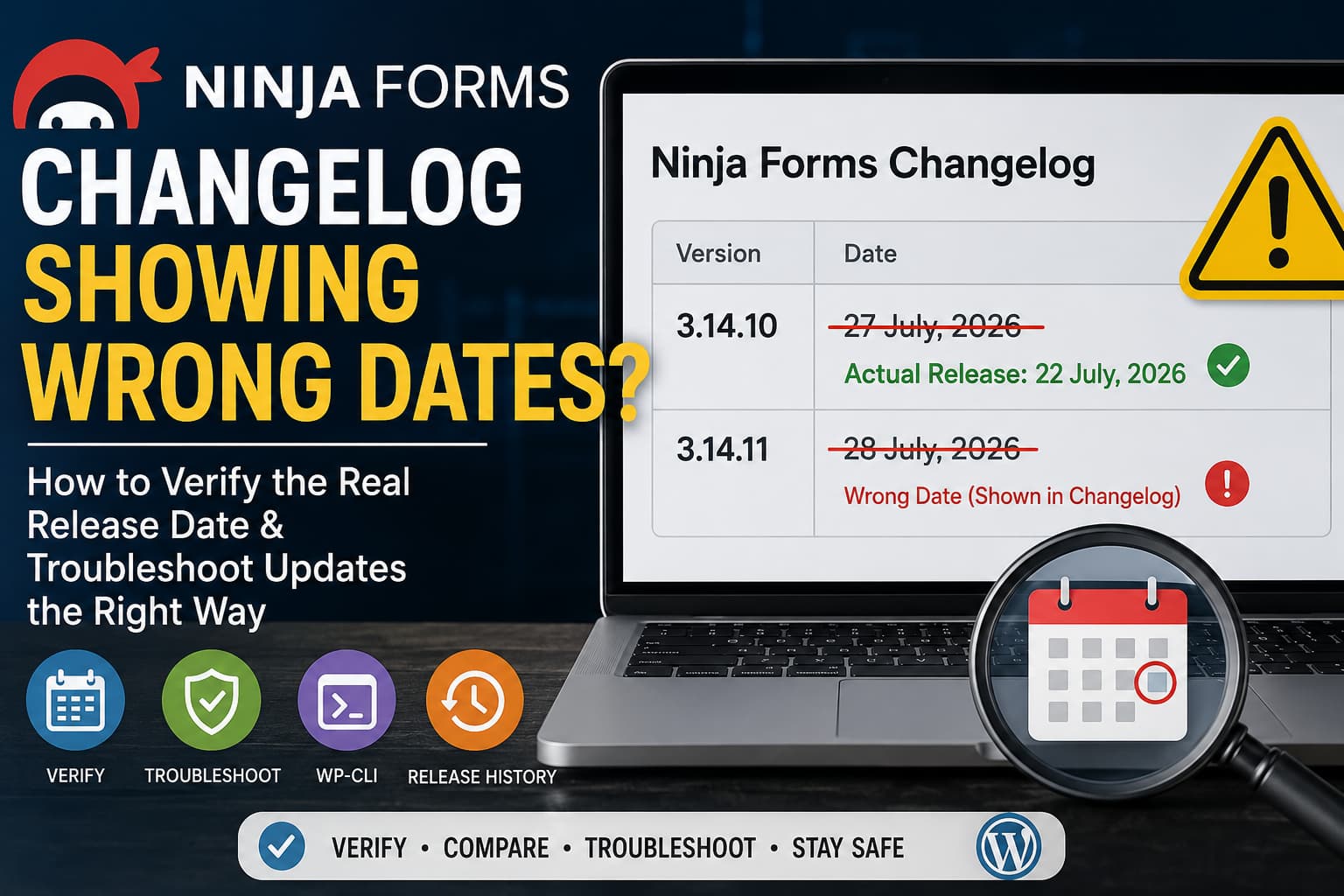
A WordPress developer recently reported a confusing issue with the Ninja Forms changelog.
According to the report, Ninja Forms 3.14.10 had been released on July 22, 2026, but its changelog listed July 27. A later entry for version 3.14.11 reportedly displayed July 28 even though the current date was still July 27.
This may appear to be a small documentation mistake, but inaccurate release dates can create a serious problem when developers are tracing regressions, security updates, form failures, or unexpected changes across multiple WordPress websites.
When a problem begins after an update, the first question is usually:
Which plugin version was installed when the problem started?
If the public changelog date does not match the actual deployment date, establishing an accurate timeline becomes much more difficult.
This guide explains why WordPress plugin release dates can appear incorrect, how to verify the real release history, how to compare affected Ninja Forms versions safely, and how plugin developers can prevent this problem.
Current Ninja Forms changelog status
At the time this article was checked, the WordPress.org plugin directory listed Ninja Forms 3.14.10 as the current version and displayed its changelog date as July 27, 2026.
The official Ninja Forms documentation displayed the same version and date. Version 3.14.11 was not publicly visible on either page at that time.
This means the public information may have been changed after the original forum report. However, the current plugin page alone cannot confirm whether:
- Version 3.14.11 was briefly published and withdrawn
- The changelog was published before the plugin package
- A planned release date was entered accidentally
- Cached copies showed different changelog content
- The version number was corrected before the final release
- Repository and documentation updates became visible at different times
The original observation is still important because it demonstrates why a manually displayed changelog date should not be treated as the only source of release information.
Why a WordPress plugin changelog date can be wrong
WordPress.org collects plugin information from several locations.
These include:
- The plugin header inside the main PHP file
- The plugin’s
readme.txt - The stable tag
- The WordPress.org Subversion repository
- The versioned release tag
- Repository check-in activity
The date written beside a changelog version is normally part of the text maintained by the plugin developer. WordPress.org does not automatically replace that written date with the precise moment the release became available.
WordPress.org separately calculates its Last updated value from repository activity following a version-number change. Therefore, the manually written changelog date and the directory’s repository-derived update time are not necessarily the same thing.
Several situations can produce a mismatch.
1. A planned date was entered before deployment
A development team may prepare the changelog several days before the release.
For example:
3.14.11 - July 28, 2026If the readme is published on July 27, the directory can briefly display a future date.
2. The plugin package and documentation were published separately
The code may be tagged first while the readme is updated later, or the documentation website may be updated before the WordPress.org package.
This creates a period during which different official locations show different information.
3. The release was delayed
A changelog may contain the intended release date, but testing, packaging, security review, or deployment problems delay the actual release.
Unless someone updates the changelog again, the original planned date remains visible.
4. A version was briefly published and then withdrawn
A developer may discover a serious problem immediately after releasing an update.
The team might then:
- Change the stable tag back to the previous version
- Correct the readme
- Replace the affected tag
- Publish another maintenance version
- Temporarily remove the changelog entry
The public plugin page may no longer show the withdrawn version, but some users or cached pages may have already seen it.
5. Timezone differences affected the date
A release created late in the day may fall on different calendar dates depending on the developer’s timezone, WordPress.org’s server time, and the website administrator’s local time.
A timezone difference can explain a one-day variation. It normally does not explain a difference of several days, so it should not automatically be assumed to be the cause.
6. Cached WordPress.org pages were temporarily inconsistent
WordPress.org has localized plugin-directory pages for different countries and languages. Repository and readme updates may not appear on every cached page at exactly the same moment.
WordPress.org advises plugin developers to allow several hours for directory changes to propagate fully.
Does the wrong changelog date affect Ninja Forms?
An incorrect date inside the changelog does not directly change how Ninja Forms runs.
It does not normally affect:
- Form submissions
- Email notifications
- Conditional logic
- Database records
- JavaScript execution
- WordPress cron
- The installed plugin version
- Update availability
The main problem is traceability.
An inaccurate date can make it harder to determine whether an update caused:
- A form validation problem
- Failed email delivery
- A PHP warning
- A JavaScript error
- A change in merge-tag output
- A security-related behavior change
- A conflict with an extension
- A regression affecting only recently updated websites
This is especially important for developers managing many WordPress installations.
How to verify the actual Ninja Forms version installed
Do not rely only on the public changelog. Start by recording the version that is actually installed on the affected website.
Method 1: Check the WordPress Plugins screen
Go to:
WordPress Dashboard
→ Plugins
→ Installed Plugins
Locate Ninja Forms and record its version number.
Take a screenshot or copy the version into your troubleshooting notes before updating or rolling back anything.
Method 2: Check using WP-CLI
When SSH and WP-CLI are available, run:
wp plugin get ninja-forms \
  --fields=name,status,version,update,update_version \
  --format=table
This can show:
- The installed version
- Whether the plugin is active
- Whether an update is available
- The version WordPress currently offers
You can also list all plugin versions and update states:
wp plugin list \
  --fields=name,status,version,update,update_version \
  --format=table
Save the output before changing the website.
Method 3: Inspect the plugin header
Open the main Ninja Forms plugin file:
/wp-content/plugins/ninja-forms/ninja-forms.phpLook for a header similar to:
/**
 * Plugin Name: Ninja Forms
 * Version: 3.14.10
 */
The file header confirms the version declared by the installed package.
Do not edit the version header manually. Changing the number does not actually upgrade or downgrade the plugin and may interfere with update detection.
How to verify the real release history
The most dependable investigation combines multiple sources instead of trusting one displayed date.
1. Check the WordPress.org plugin page
Record:
- Current version
- Last updated information
- Changelog entry
- Minimum WordPress version
- Minimum PHP version
- Tested-up-to version
Remember that the date inside the changelog may have been typed manually.
2. Check the Development or Advanced View
The WordPress.org plugin page provides development information and access to previous releases.
Look for:
- Available version packages
- Development version
- Previous versions
- Repository links
- Stable release information
If a version is mentioned in a changelog but no corresponding package or repository tag exists, it may not have completed the normal release process.
3. Inspect the WordPress.org SVN history
WordPress.org uses Subversion as its plugin release repository.
Official WordPress documentation explains that completed releases should be stored in version-numbered directories under tags, and the stable tag in trunk/readme.txt tells the directory which version should be distributed.
A release should normally have a path similar to:
/tags/3.14.10/Developers with the Subversion command-line client can inspect the repository history with:
svn log https://plugins.svn.wordpress.org/ninja-forms/To inspect a particular tag:
svn log https://plugins.svn.wordpress.org/ninja-forms/tags/3.14.10/This provides repository commit information that is more useful for reconstructing the release timeline than the date typed into a changelog heading.
4. Check your own website backups and activity logs
Your hosting account may provide stronger evidence of when the website received the update.
Check:
- Backup creation dates
- Staging deployment history
- WordPress activity logs
- Hosting file-change logs
- Update-management reports
- Maintenance records
- Client approval messages
- Git or deployment commits
- Security-plugin audit logs
For example, if your backup from July 22 contains Ninja Forms 3.14.9 and the July 23 backup contains 3.14.10, you know when your website actually received the update, regardless of the public changelog date.
5. Check the plugin directory file timestamps carefully
Server file modification times may help, but they are not definitive.
File timestamps can be changed by:
- Restoring a backup
- Migrating the website
- Extracting a ZIP package
- Running a deployment
- Copying files through SFTP
- Synchronizing staging and production
Use file timestamps as supporting evidence, not as the only proof.
Full troubleshooting solution for website administrators
When you are trying to determine whether a Ninja Forms update introduced a problem, use the following process.
Step 1: Do not test directly on production
Create a staging copy of the website.
The staging site should include:
- The same WordPress version
- The same PHP version
- The same theme
- The same Ninja Forms extensions
- A recent copy of the database
- The same caching configuration where practical
Ninja Forms stores forms and submissions in the database, so backing up only the plugin files is not enough.
Step 2: Create a complete backup
Before changing versions, back up:
Database
wp-content/plugins/ninja-forms/
wp-content/uploads/
wp-config.php
Active theme or child theme
Must-use plugins
Some plugin updates may perform database migrations. If a downgrade causes problems, restoring only an older plugin directory may not restore the database to its previous state.
Step 3: Record the current environment
Document:
WordPress version:
PHP version:
Ninja Forms version:
Ninja Forms add-on versions:
Theme and version:
Caching plugin:
Object cache:
Date the problem started:
Last known working version:
Also record whether the issue affects:
- All forms or one form
- Logged-in or logged-out users
- Mobile or desktop
- AJAX submissions
- Email actions
- Conditional logic
- File uploads
- Payment add-ons
- Only production or both staging and production
Step 4: Enable WordPress debugging on staging
Add the following to wp-config.php above the stop-editing line:
define( 'WP_DEBUG', true );
define( 'WP_DEBUG_LOG', true );
define( 'WP_DEBUG_DISPLAY', false );
Reproduce the issue and inspect:
/wp-content/debug.logDo not leave debug logging enabled indefinitely on a busy production website. Debug logs can become large and may contain sensitive technical data.
Step 5: Test the last known working version
WP-CLI officially supports installing a particular WordPress.org plugin version with the --version option and replacing the currently installed copy with --force.
For example:
wp plugin deactivate ninja-forms
wp plugin install ninja-forms --version=3.14.9 --force
wp plugin activate ninja-forms
Use this only on staging after creating a complete backup.
After installing the older version:
- Clear the WordPress cache.
- Clear the hosting cache.
- Clear Redis or Memcached if enabled.
- Purge any CDN.
- Clear PHP OPcache when possible.
- Open a private browser window.
- Retest the affected form.
Step 6: Compare the two versions
If version 3.14.9 works but 3.14.10 fails, repeat the test carefully:
wp plugin install ninja-forms --version=3.14.10 --forceTest the same form and the same steps again.
A reliable regression test requires changing only one important variable at a time.
Do not update WordPress, PHP, the theme, Ninja Forms, and several extensions simultaneously. Otherwise, you will not know which change caused the problem.
Step 7: Run a plugin-conflict test
If the problem exists in both versions, the Ninja Forms core update may not be the cause.
On staging:
- Keep Ninja Forms active.
- Deactivate its optional extensions.
- Test the form.
- Deactivate unrelated plugins in small groups.
- Switch temporarily to a default WordPress theme.
- Test after every change.
Pay particular attention to:
- SMTP plugins
- Security plugins
- JavaScript optimization
- CAPTCHA integrations
- Caching plugins
- Multilingual plugins
- Custom code snippets
- Ninja Forms premium add-ons
- Theme-level form styling
Step 8: Inspect the browser Network and Console panels
Open the browser developer tools and submit the form.
Check the Network panel for requests returning:
400 Bad Request
403 Forbidden
404 Not Found
422 Unprocessable Content
500 Internal Server Error
502 Bad Gateway
504 Gateway Timeout
Check the Console panel for:
- JavaScript exceptions
- Blocked scripts
- Mixed-content warnings
- Content Security Policy errors
- CAPTCHA failures
- Invalid JSON responses
A server-side PHP error may cause the AJAX request to return invalid or incomplete JSON, creating a secondary JavaScript error in the browser.
Step 9: Document the result
A useful report should state:
Working version: 3.14.9
Failing version: 3.14.10
WordPress version:
PHP version:
Ninja Forms add-ons:
Affected form:
Steps to reproduce:
Expected result:
Actual result:
PHP error:
Browser error:
This evidence is much more useful to a plugin developer than saying only that the form stopped working “after a recent update.”
Should you disable Ninja Forms automatic updates?
Temporarily pausing automatic updates can be reasonable while investigating a confirmed regression.
However, leaving an old version installed permanently is not a safe solution, especially when newer versions include security fixes.
A better process is:
- Pause the update briefly.
- Reproduce the problem on staging.
- Confirm the exact affected version.
- Report the issue.
- Apply the official fixed version when available.
- Re-enable the normal update process.
Do not remain on a vulnerable release simply because its date is easier to understand.
How Ninja Forms or another plugin developer should fix incorrect dates
The permanent documentation solution belongs in the plugin’s release workflow.
1. Use an unreleased section during development
Instead of adding a future date, prepare the changelog as:
= 3.14.11 - Unreleased =Replace Unreleased only when the final tag is deployed.
2. Use one canonical timezone
Release timestamps should use a clearly defined timezone, preferably UTC.
For example:
Release date: 2026-07-27 UTCUsing the ISO format also prevents confusion between day-first and month-first date formats.
3. Update the version and stable tag together
Before deployment, confirm that these match:
Main plugin header version
readme.txt stable tag
Changelog version
SVN tag directory
Release package version
For example:
Plugin header: 3.14.11
Stable Tag: 3.14.11
Changelog: 3.14.11
SVN tag: /tags/3.14.11/
WordPress recommends creating completed releases in tags and updating the stable tag in trunk/readme.txt.
4. Deploy the code and changelog in one release commit
The release should not expose a changelog for a version whose package is not yet available.
A normal release flow is:
svn update

# Copy tested release files into trunk.
# Update the plugin version and readme stable tag.

svn copy trunk tags/3.14.11

svn commit -m "Release Ninja Forms 3.14.11"
The exact workflow may be automated, but the final public state should be internally consistent.
5. Add an automated future-date check
A release script can stop deployment when the changelog contains a date later than the current UTC date.
Example shell logic:
#!/usr/bin/env bash

set -euo pipefail

CHANGELOG_DATE="2026-07-28"
CURRENT_DATE="$(date -u +%F)"

if [[ "$CHANGELOG_DATE" > "$CURRENT_DATE" ]]; then
    echo "Release stopped: changelog date is in the future."
    exit 1
fi

echo "Changelog date validation passed."
A production workflow should extract the date automatically from the changelog rather than defining it manually in the script.
6. Verify the public directory after deployment
After deployment, check:
- Correct downloadable version
- Correct stable tag
- Correct changelog version
- Correct changelog date
- Previous-version availability
- WordPress update response
- Official documentation page
- Localized WordPress.org pages
WordPress.org notes that directory updates can take several hours to appear fully, so developers should verify again after caches have refreshed.
7. Correct documentation errors without creating a fake release
WordPress.org does not require a new plugin version for a cosmetic readme correction. The developer can correct the readme in the appropriate locations without pretending that code changed.
However, the correction should not rewrite history silently when users need the original timeline for security or regression analysis.
For significant corrections, a note such as the following is clearer:
Correction: The original changelog displayed July 27, 2026.
The plugin package became publicly available on July 22, 2026.
Recommended release checklist for WordPress plugin developers
Before publishing an update, confirm:
[ ] All automated tests pass
[ ] Manual testing is complete
[ ] Main plugin version is correct
[ ] Stable tag matches the version
[ ] Changelog version matches
[ ] Changelog date is today, not a planned future date
[ ] Date uses the agreed timezone
[ ] SVN tag exists
[ ] Release ZIP contains the correct files
[ ] Upgrade and rollback have been tested
[ ] Database migrations have been tested
[ ] WordPress.org displays the expected version
[ ] Official documentation matches WordPress.org
[ ] Security notes are accurate
Frequently asked questions
Are WordPress plugin changelog dates generated automatically?
The date written beside a changelog version is generally maintained as part of the plugin’s readme or changelog content. The WordPress.org Last updated value is separate and is derived from repository activity after a version change.
Does the WordPress.org “Last updated” date prove when I installed the update?
No. It describes activity in the plugin directory, not when a particular website installed the plugin.
Use your backups, activity logs, maintenance reports, and file-deployment history to establish the installation date for your website.
Can I install a specific Ninja Forms version?
Yes. WP-CLI supports installing a specific WordPress.org plugin version:
wp plugin install ninja-forms --version=3.14.9 --forceUse this on staging with a complete database and file backup.
Is an incorrect changelog date a security vulnerability?
Not by itself.
However, inaccurate dates can complicate security auditing because administrators may struggle to determine when a security fix became available or whether a vulnerable version was installed during a particular period.
What should I trust when the changelog and release history disagree?
Use several sources together:
- Installed plugin version
- WordPress.org stable tag
- SVN tag and commit history
- Available version packages
- Website backups
- Activity logs
- Hosting deployment history
Do not use a manually written changelog date as the only source.
Final conclusion
Incorrect Ninja Forms changelog dates do not directly break forms, but they can make update troubleshooting and regression analysis unnecessarily difficult.
At the time of verification, WordPress.org and the official Ninja Forms documentation both showed version 3.14.10 dated July 27, 2026. The temporarily reported version 3.14.11 entry was no longer publicly visible.
For website administrators, the correct solution is to record the installed version, inspect repository history, use backups and activity logs, and compare exact plugin versions on staging.
For plugin developers, the correct solution is to treat WordPress.org SVN as a release repository, update the plugin header, stable tag, changelog, tag directory, and release date together, and add automated validation that prevents future-dated changelog entries from being deployed.
A changelog should make troubleshooting easier. When its dates cannot be trusted, the repository history and the website’s own maintenance records must become the source of truth.
