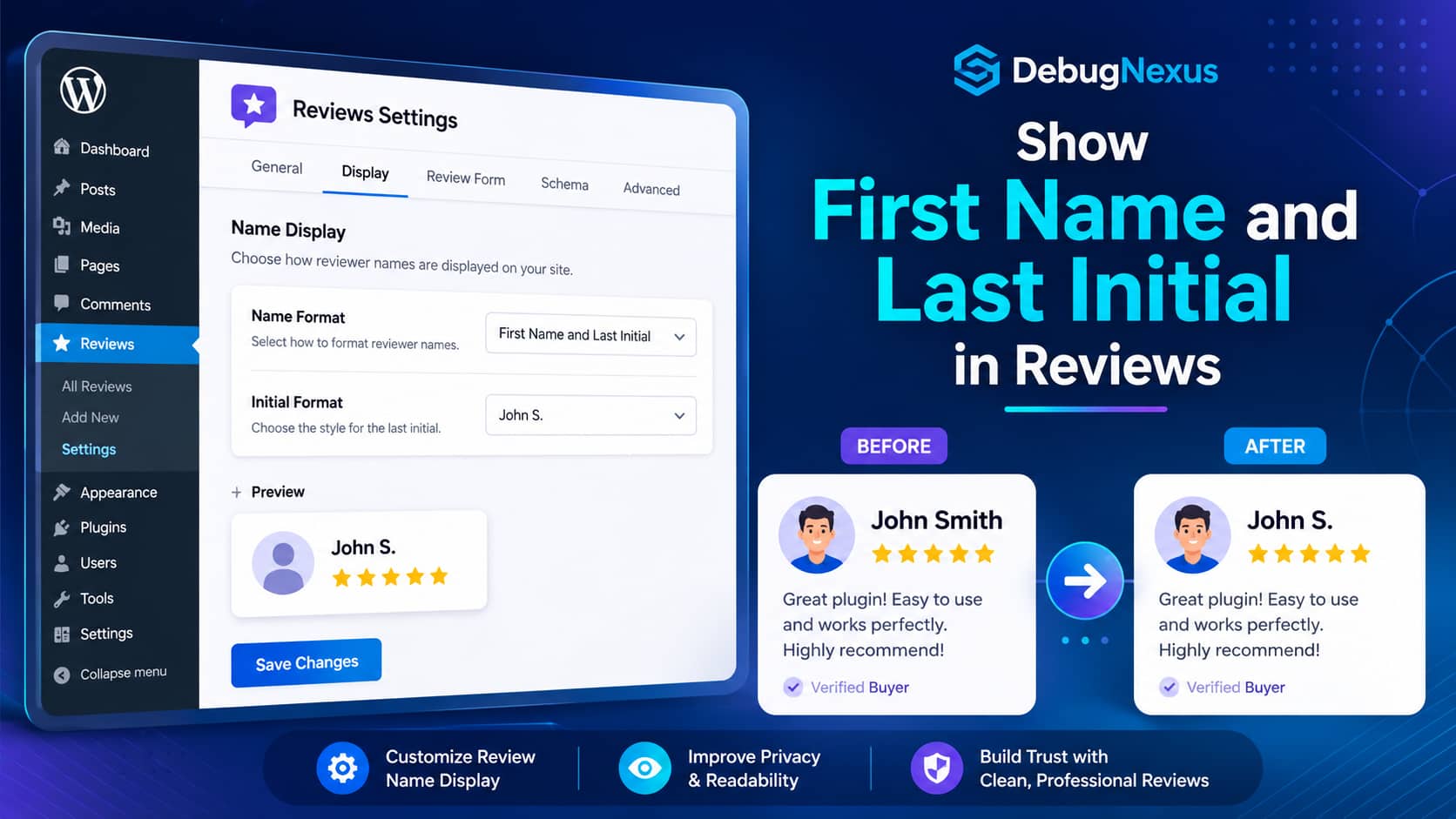
The Site Reviews WordPress plugin includes several options for controlling how reviewer names appear publicly.
For example, you can display:
- The reviewer’s full name
- First name only
- First initial and last name
- First name and last initial
- All initials
A common privacy-friendly format is the reviewer’s first name followed by the initial of their last name.
For example:
John Smith → John S.
However, some website owners find that their reviews continue displaying only initials, even after changing the relevant setting.
This guide explains the correct configuration and the troubleshooting steps to follow when the change does not appear on the frontend.
The Correct Site Reviews Name Settings
Open your WordPress dashboard and navigate to:
Site Reviews → Settings
Find the Reviews settings section and locate the following options.
Name Format
Select:
Convert last name to an initial
This tells Site Reviews to retain the reviewer’s first name while replacing the last name with its first letter.
Initial Format
Select:
Initial with a period
The completed configuration should look similar to this:
- Name Format: Convert last name to an initial
- Initial Format: Initial with a period
Then click Save Changes.
With these settings, a reviewer named John Smith should appear publicly as:
John S.
The plugin also offers an “Initial with a period and a space” option, but that option mainly controls spacing when multiple initials are present. For the standard “John S.” format, Initial with a period is normally the appropriate choice.
Site Reviews officially defines separate formatting options for the first name, last name and all initials. Its formatting function maps the “last initial” option to the reviewer’s first name followed by the last-name initial.
Why the Name May Not Change Immediately
Site Reviews does not normally overwrite the reviewer’s original name when you change this setting.
Instead, it reads the saved reviewer name and applies the selected format while generating the review on the frontend. This means that existing reviews should also adopt the new format automatically, provided that the complete names are still stored in WordPress.
When the old name format remains visible, work through the following solutions.
Solution 1: Clear Every Layer of Cache
The most common cause is cached HTML.
A caching plugin or hosting cache may continue serving a previously generated version of the reviews page, even though the Site Reviews setting has been changed successfully.
Clear all applicable cache layers:
- Clear your WordPress caching plugin.
- Purge the hosting or server cache.
- Purge your CDN cache, including Cloudflare if used.
- Clear any page-builder cache.
- Clear your browser cache.
- Open the page in a private or incognito window.
Common caching systems that may need to be purged include:
- LiteSpeed Cache
- WP Rocket
- W3 Total Cache
- FlyingPress
- Cloudflare
- Varnish
- Host-level page caching
- Elementor generated files and cache
After clearing the caches, visit the page while logged out of WordPress.
Logged-in administrators sometimes receive a different cached version than regular visitors, so testing in a private browser window is important.
Solution 2: Check the Name Stored in the Review
The plugin can only format information that still exists.
For example, suppose the original full name was:
John Smith
If WordPress still stores John Smith, Site Reviews can display it as:
John S.
However, if the review itself was previously edited or imported with the author name saved as:
J. S.
the plugin cannot reconstruct “John Smith” from those initials.
How to check the stored name
In the WordPress dashboard:
- Open Site Reviews → All Reviews.
- Edit one of the affected reviews.
- Locate the reviewer’s Name or Author field.
- Check whether it contains the full name.
- Replace initials with the full name when the correct name is available.
- Update the review.
The full name can remain stored in the dashboard while the public-facing review displays only the last-name initial.
Important privacy consideration
Only restore a complete name when you have permission to store and use it.
When an imported review source provides only initials or an anonymized name, do not guess the reviewer’s identity.
Solution 3: Create a Temporary Test Review
A controlled test can quickly identify whether the problem is caused by the plugin settings or the existing review data.
Create a temporary review using a recognizable name such as:
John Smith
Then view the review on the frontend.
If the new review displays as “John S.”
Your global settings are working correctly.
The older reviews probably have only initials or incomplete names stored in their author fields.
If the new review still displays as “J. S.”
The page may still be cached, or a custom template, filter or integration may be replacing the formatted author name.
If the full name displays as “John Smith”
Confirm that Convert last name to an initial was selected and that the settings page was saved successfully.
Also check whether a security plugin, database optimization plugin or JavaScript error prevented the settings request from completing.
Delete the temporary review after completing the test.
Solution 4: Check for a Custom Site Reviews Template
Site Reviews supports template customization. A developer may have copied the plugin’s review template into the active theme or child theme and changed how the author is displayed.
The standard Site Reviews template uses the following author placeholder:
{{ author }}The plugin processes that author tag through its formatted author method, which respects the global Name Format and Initial Format settings.
A custom template may instead:
- Output an unformatted custom field
- Display previously saved initials
- Use outdated Site Reviews template code
- Replace the author tag with custom PHP
- Contain hard-coded reviewer information
How to test for a template override
- Make a full backup of the website.
- Search the active theme and child theme for a Site Reviews
review.phptemplate. - Temporarily rename the custom template file.
- Clear all caches.
- Reload the reviews page.
If the name format starts working, the custom template is the cause.
Compare the override with the current default template and ensure it uses:
{{ author }}Do not edit the template inside the Site Reviews plugin directory. Plugin updates would overwrite those changes.
Solution 5: Check for Custom PHP Filters
A custom code snippet may alter the reviewer’s name after Site Reviews formats it.
Check these common locations:
- The active child theme’s
functions.php - A custom functionality plugin
- The Code Snippets plugin
- Must-use plugins in
/wp-content/mu-plugins/ - Custom page-builder code
- Theme-specific hooks
- Previous privacy or anonymization customizations
Search the codebase for terms such as:
site-reviews
glsr
review author
author name
initials
review.php
Temporarily disable only the relevant snippet, purge the cache and test again.
Avoid disabling code directly on a busy production website. Perform the test on staging whenever possible.
Solution 6: Check the Page Builder or Reviews Integration
The review may not be generated directly by the standard Site Reviews block or shortcode.
It could be displayed through:
- Elementor
- Divi
- Bricks
- WPBakery
- A theme review widget
- A carousel or slider plugin
- A custom query loop
- Imported review markup
- A custom REST API integration
Some integrations may save rendered review content in their own cache or use a separate name field.
Try these steps:
- Edit the affected page.
- Open the review widget or block.
- Confirm that it is using Site Reviews rather than a separate testimonial widget.
- Update or resave the page.
- Regenerate the page builder’s CSS and data.
- Clear the page builder and frontend caches.
- Test the standard Site Reviews block on a temporary page.
If the standard block displays “John S.” but the builder widget does not, the problem is within that integration or widget configuration.
Solution 7: Update Site Reviews Safely
An outdated plugin version may contain a compatibility issue or may not match the documentation you are following.
Before updating:
- Create a full website and database backup.
- Test the update on a staging site.
- Update Site Reviews.
- Clear all caches.
- Test review submission and review display.
- Confirm that custom templates remain compatible.
Do not update the plugin directly on a high-traffic production site without a current backup.
Solution 8: Confirm the Setting Was Actually Saved
Occasionally, a WordPress settings page appears to save but the database value is not updated.
This may happen because of:
- A security rule blocking the request
- An expired WordPress nonce
- A JavaScript error in the dashboard
- A database write failure
- Object-cache problems
- Conflicting optimization plugins
- Insufficient user permissions
To verify the setting:
- Select Convert last name to an initial.
- Select Initial with a period.
- Click Save Changes.
- Leave the settings page.
- Return to the same page.
- Confirm that both selected options remain selected.
If the options revert, check the browser console, WordPress debug log, server error log and security logs.
Fast Diagnostic Guide
| Test result | Most likely cause |
|---|---|
| New reviews show “John S.” but old reviews do not | Old reviews contain only initials or incomplete names |
| Dashboard preview is correct but live page is not | Page, server or CDN cache |
| Standard Site Reviews block works but a custom widget does not | Page-builder or third-party integration |
| Default template works but the theme template does not | Outdated or customized template override |
| Settings revert after leaving the page | Settings are not being saved |
| Every review ignores the setting | Custom filter, template or plugin conflict |
| Imported reviews show anonymized names | The source data does not contain full names |
What Not to Do
Do not manually rename every review first
The display format is intended to be applied globally. Test the setting, caches and template before editing a large number of reviews.
Do not edit Site Reviews core files
Any change made inside the plugin directory can be lost during the next update.
Do not guess missing surnames
When an imported or anonymized review contains only initials, the missing identity cannot be reliably recovered.
Do not expose full names publicly as a workaround
Keep the complete name stored privately when appropriate and allow Site Reviews to create the privacy-friendly frontend format.
Frequently Asked Questions
Will the new name format apply to existing reviews?
Normally, yes.
Site Reviews formats the author name when the review is rendered. Existing reviews should display the new format as long as their complete names remain stored and no cache or custom template overrides the output.
Why do my existing reviews still show only initials?
The saved author field may already contain only initials. The plugin cannot generate a first name from information that is no longer stored.
Edit an affected review and inspect its author field.
Which setting displays “John S.”?
Use:
- Name Format: Convert last name to an initial
- Initial Format: Initial with a period
Will changing the setting modify the database?
The formatting is normally applied to the public display rather than permanently rewriting every reviewer’s saved name.
Can Site Reviews recover full names from initials?
No. If a review stores only “J. S.,” the plugin cannot determine whether the original name was John Smith, Jane Stone or another name.
Should I edit the plugin template directly?
No. Use a child-theme override or a custom functionality plugin. Direct plugin edits are removed during updates.
Does this work with imported reviews?
It works when the imported review contains the complete author name. When the source provides only an anonymized name, Site Reviews can format only the data it receives.
Final Checklist
Before considering the issue unresolved, confirm that you have:
- Selected Convert last name to an initial
- Selected Initial with a period
- Saved the Site Reviews settings
- Confirmed the options remain saved
- Purged WordPress, server and CDN caches
- Tested the page while logged out
- Created a temporary “John Smith” review
- Checked the stored author names of older reviews
- Tested the default Site Reviews block
- Checked for a custom
review.phptemplate - Checked custom PHP snippets and must-use plugins
- Updated the plugin safely on staging
- Reviewed WordPress and server error logs
Final Recommendation
Start by selecting Convert last name to an initial and Initial with a period, then purge every cache layer.
If a newly submitted test review displays correctly but older reviews do not, inspect the stored author fields. They probably contain only initials.
If even a new test review ignores the selected format, temporarily test the default Site Reviews template and block. A custom template, page-builder integration or PHP filter is probably bypassing the plugin’s formatted author output.
Once configured correctly, Site Reviews should display:
John Smith → John S.
This provides a more personal reviewer name while keeping the reviewer’s full surname private.
