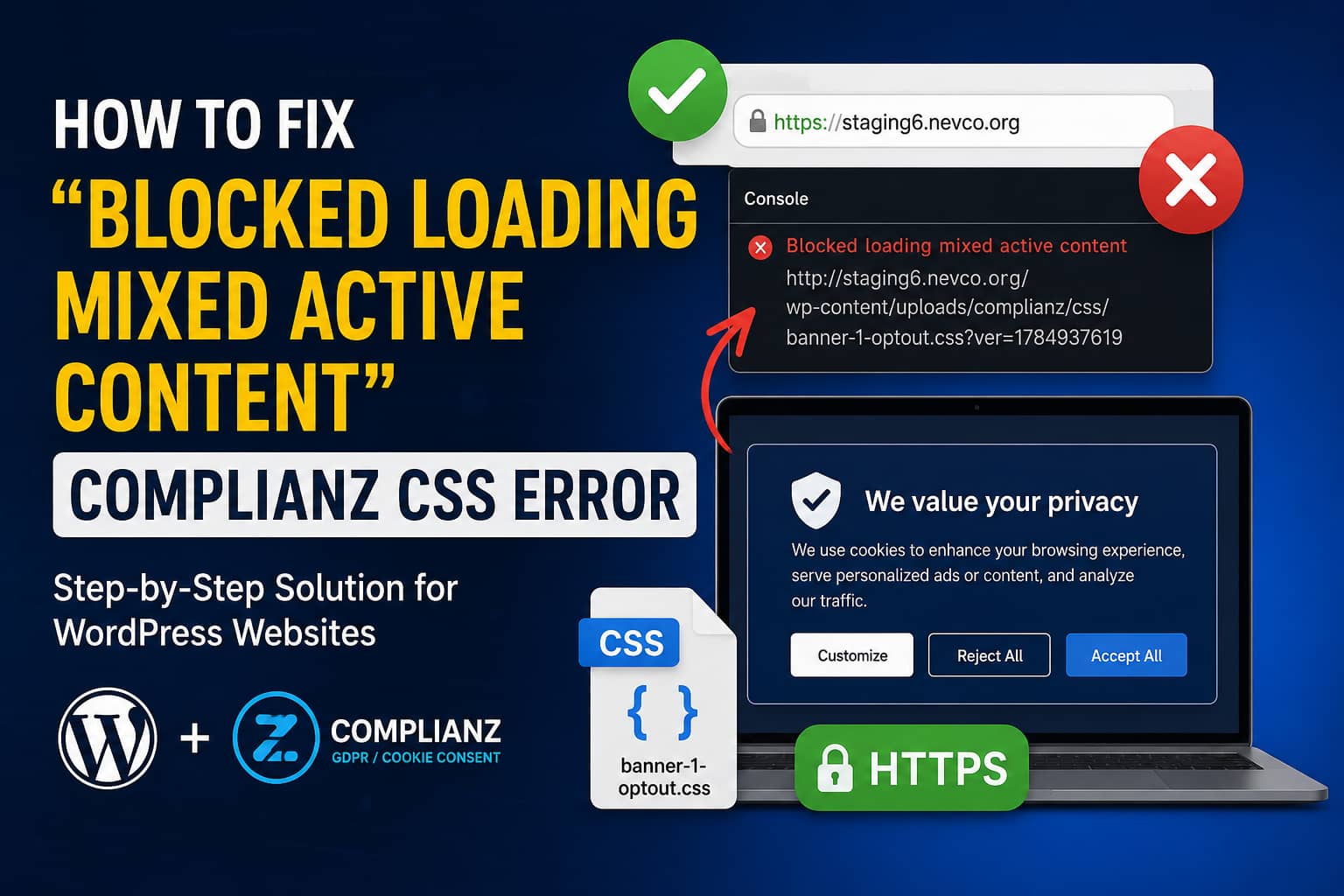
A WordPress website may suddenly look broken after activating the Complianz cookie consent plugin. The cookie banner might appear without proper styling, page elements may move unexpectedly, or the browser console may display an error similar to this:
Blocked loading mixed active content
http://staging6.nevco.org/wp-content/uploads/complianz/css/banner-1-optout.css
The complete browser message may look like:
Mixed Content: The page was loaded over HTTPS, but requested an insecure stylesheet over HTTP. This request has been blocked; the content must be served over HTTPS.This does not usually mean that the CSS file is corrupted. It means that the website is loading through HTTPS while Complianz is attempting to load its generated banner stylesheet through HTTP.
Because stylesheets are considered active content, modern browsers block insecure CSS files from loading inside secure HTTPS pages. When the Complianz stylesheet is blocked, the cookie banner loses its layout and styling, which can make the website appear visually broken.
This guide explains how to correct the WordPress HTTPS configuration, regenerate the Complianz stylesheet, clear cached HTTP URLs, and prevent the problem from returning.
What Causes the Complianz Mixed Content Error?
Complianz generates cookie banner CSS files inside the WordPress uploads directory. A typical file may be located at:
/wp-content/uploads/complianz/css/banner-1-optout.cssThe problem occurs when WordPress generates the complete file URL using HTTP:
http://example.com/wp-content/uploads/complianz/css/banner-1-optout.cssBut the website itself is being visited through HTTPS:
https://example.com/The browser sees the HTTP stylesheet as insecure active content and blocks it.
This commonly happens after:
- Moving a WordPress website from HTTP to HTTPS
- Copying a live website to a staging domain
- Restoring an older database backup
- Migrating between hosting providers
- Changing the website domain
- Enabling SSL through Cloudflare or another reverse proxy
- Running a search-and-replace operation that missed serialized plugin settings
- Serving an old page through a caching plugin or CDN
- Generating the Complianz CSS before HTTPS was configured correctly
In the example error, the generated Complianz stylesheet points to:
http://staging6.nevco.org/The correct URL should be:
https://staging6.nevco.org/Solution Overview
The safest repair process is:
- Confirm that the CSS file works over HTTPS.
- Correct the WordPress Address and Site Address.
- Check for hard-coded HTTP URLs in
wp-config.php. - Fix HTTPS detection when using a reverse proxy.
- Replace old HTTP URLs in the database.
- Regenerate the Complianz cookie banner CSS.
- Clear every caching layer.
- Exclude Complianz from problematic optimization settings.
- Test the website in a private browser window.
Do not start by manually editing the generated CSS file. Complianz can overwrite that file the next time the banner settings are saved or regenerated.
Step 1: Confirm the CSS File Is Available Over HTTPS
Copy the blocked CSS URL from the browser console.
Change the beginning from HTTP:
http://staging6.nevco.org/wp-content/uploads/complianz/css/banner-1-optout.cssTo HTTPS:
https://staging6.nevco.org/wp-content/uploads/complianz/css/banner-1-optout.cssOpen the HTTPS version directly in your browser.
If the stylesheet opens normally, the SSL certificate and file are working. WordPress or a cache layer is simply generating the wrong protocol.
If the HTTPS URL does not open, check:
- Whether SSL is active for the staging domain
- Whether the domain points to the correct server
- Whether the file exists
- Whether the uploads directory is readable
- Whether a firewall or CDN is blocking the request
- Whether the SSL certificate includes the staging subdomain
You can also check the response using the following command:
curl -I "https://staging6.nevco.org/wp-content/uploads/complianz/css/banner-1-optout.css"A successful result should normally return a response such as:
HTTP/2 200
content-type: text/css
A 404 response means the generated file no longer exists. A 403 response usually indicates a file permission, firewall, or security rule problem.
Step 2: Correct the WordPress HTTPS URLs
In the WordPress dashboard, go to:
Settings > GeneralCheck these two fields:
WordPress Address (URL)
Site Address (URL)
Both should begin with HTTPS:
https://staging6.nevco.orgThey should not use:
http://staging6.nevco.orgSave the changes.
WordPress may log you out after changing these URLs. Log in again through the HTTPS admin URL.
Next, go to:
Settings > PermalinksClick Save Changes without changing the permalink structure. This refreshes WordPress rewrite rules.
When the URL Fields Cannot Be Edited
The fields may be disabled when the website URLs are defined in wp-config.php.
Open:
/wp-config.phpLook for lines such as:
define( 'WP_HOME', 'http://staging6.nevco.org' );
define( 'WP_SITEURL', 'http://staging6.nevco.org' );
Change them to:
define( 'WP_HOME', 'https://staging6.nevco.org' );
define( 'WP_SITEURL', 'https://staging6.nevco.org' );
Do not add duplicate constants. Edit the existing definitions when they are already present.
Also confirm that WP_SITEURL includes the correct subdirectory when WordPress is installed in a directory rather than the domain root.
Step 3: Check the Current URLs With WP-CLI
When SSH access is available, run:
wp option get home
wp option get siteurl
The output should use HTTPS.
You can correct the values with:
wp option update home "https://staging6.nevco.org"
wp option update siteurl "https://staging6.nevco.org"
Run the commands from the directory containing the WordPress installation.
Step 4: Fix HTTPS Detection Behind Cloudflare or a Reverse Proxy
Sometimes the visitor connects to Cloudflare, a load balancer, or a hosting proxy through HTTPS, but the proxy connects to WordPress through HTTP.
The browser sees an HTTPS website, while PHP incorrectly thinks the request is HTTP. WordPress then generates HTTP asset URLs.
Check WordPress Site Health:
Tools > Site Health > Info > ServerYou can also temporarily inspect the HTTPS server value:
var_dump( $_SERVER['HTTPS'] ?? 'not set' );Remove debugging output immediately after testing.
When the website is behind a trusted reverse proxy that sends the X-Forwarded-Proto header, the following can be added near the top of wp-config.php, before WordPress is loaded:
if (
	isset( $_SERVER['HTTP_X_FORWARDED_PROTO'] ) &&
	false !== strpos( $_SERVER['HTTP_X_FORWARDED_PROTO'], 'https' )
) {
	$_SERVER['HTTPS'] = 'on';
}
Only use this code when the website is genuinely behind a trusted proxy that controls the forwarded header. The preferred solution is to configure HTTPS detection correctly at the web server, hosting platform, or proxy level.
Cloudflare SSL Mode
When Cloudflare is active, use an appropriate SSL mode such as:
FullOr preferably:
Full (strict)Avoid relying on Flexible SSL for a WordPress installation when the origin server can support HTTPS. Flexible SSL commonly causes redirect loops and incorrect protocol detection because the visitor-to-Cloudflare connection is HTTPS while the Cloudflare-to-origin connection remains HTTP.
Step 5: Replace Old HTTP URLs in the Database
The old HTTP domain may remain inside:
- WordPress options
- Complianz plugin settings
- Theme settings
- Page builder data
- Widgets
- Serialized arrays
- Cached transients
- Custom CSS
- Plugin-generated metadata
Create a complete database backup before running a replacement.
Using Better Search Replace
Install and activate the Better Search Replace plugin.
Go to:
Tools > Better Search ReplaceSearch for:
http://staging6.nevco.orgReplace it with:
https://staging6.nevco.orgSelect the relevant WordPress database tables.
First, enable:
Run as dry runReview the number of replacements. When the result looks correct, disable the dry-run option and run the replacement again.
A database-wide HTTP-to-HTTPS replacement is a commonly recommended way to repair stored mixed-content URLs in WordPress.
Using WP-CLI
WP-CLI is generally safer and faster for large databases because it understands serialized WordPress data.
Run a dry test first:
wp search-replace \
"http://staging6.nevco.org" \
"https://staging6.nevco.org" \
--all-tables-with-prefix \
--skip-columns=guid \
--precise \
--dry-run
Review the output. Then run the replacement without --dry-run:
wp search-replace \
"http://staging6.nevco.org" \
"https://staging6.nevco.org" \
--all-tables-with-prefix \
--skip-columns=guid \
--precise
Afterward, clear WordPress transients:
wp transient delete --allWhen Redis or Memcached object caching is active, flush the object cache:
wp cache flushDo not run a basic SQL replacement directly against serialized WordPress data. Changing the length of a URL inside a serialized value can corrupt the stored setting.
Step 6: Regenerate the Complianz Banner CSS
After correcting the website URLs, Complianz must generate a new stylesheet using HTTPS.
In WordPress, go to:
Complianz > WizardContinue to:
Finish > FinishComplete the wizard so Complianz regenerates the cookie banner and its CSS.
Complianz specifically recommends completing the Wizard’s Finish step when banner CSS needs to be regenerated, followed by clearing all caches.
You can also open:
Complianz > Cookie BannerSelect the active banner, make a harmless change, save it, restore the original value if necessary, and save again.
Check the following directory after saving:
/wp-content/uploads/complianz/css/A new banner stylesheet should be created or the existing file’s modification time should change.
Do Not Manually Edit the Generated CSS URL
Editing banner-1-optout.css will not fix the source of the problem. The protocol is normally determined when WordPress or Complianz generates the URL that loads the file.
Complianz may also regenerate the file during:
- Plugin updates
- Wizard completion
- Banner changes
- Regional configuration changes
- Cache regeneration
Fix the site URL and regenerate the file instead.
Step 7: Check Complianz Directory Permissions
If Complianz cannot regenerate its stylesheet, verify that WordPress can write to:
/wp-content/uploads/complianz/Typical permissions are:
Directories: 755
Files: 644
The correct ownership depends on the server configuration. The PHP or web server user must be able to write to the uploads directory.
Do not use 777 permissions as a permanent solution.
You can check the directory from SSH:
ls -la wp-content/uploads/complianz/
ls -la wp-content/uploads/complianz/css/
When the old generated file is stuck, take a backup and temporarily rename it:
banner-1-optout.cssTo:
banner-1-optout.css.oldThen complete the Complianz wizard again. The plugin should generate a fresh file.
Only use this fallback after confirming that the WordPress URLs already use HTTPS.
Step 8: Clear Every Cache Layer
The website may continue loading the old HTTP URL even after the configuration is corrected.
Clear all relevant cache layers in this order.
Complianz
Complete the Complianz wizard and save the active cookie banner.
WordPress Cache Plugin
Clear the cache from plugins such as:
- LiteSpeed Cache
- WP Rocket
- W3 Total Cache
- WP-Optimize
- Autoptimize
- FlyingPress
- Breeze
- WP Fastest Cache
Hosting Cache
Clear any cache provided by:
- Cloudways
- Kinsta
- WP Engine
- SiteGround
- GoDaddy
- Hostinger
- Pressable
- Managed VPS control panels
Object Cache
Flush Redis or Memcached when enabled.
CDN Cache
Purge:
- Cloudflare
- QUIC.cloud
- Bunny CDN
- Amazon CloudFront
- Other reverse-proxy or CDN services
Browser Cache
Test in an incognito or private window.
Complianz also recommends clearing site and CDN caches and using a private window when an old banner version continues to appear.
Step 9: Exclude Complianz From CSS and JavaScript Optimization
Optimization plugins can combine, delay, minify, or cache Complianz assets. This may cause the banner to appear unstyled or continue loading an outdated file.
Complianz recommends excluding its scripts and styles from optimization when these features interfere with the banner.
Useful exclusion keywords include:
complianz
cmplz
For the generated banner directory, also consider excluding:
/wp-content/uploads/complianz/LiteSpeed Cache
Go to:
LiteSpeed Cache > Page Optimization > TuningAdd the following to the relevant CSS and JavaScript exclusion fields:
complianz
cmplz
/wp-content/uploads/complianz/
Check these settings in particular:
- CSS Excludes
- UCSS File Excludes
- UCSS Inline Excludes
- JS Excludes
- JS Deferred/Delayed Excludes
Save the settings and purge all LiteSpeed caches.
WP Rocket
Go to:
Settings > WP Rocket > File OptimizationExclude:
complianz
cmplz
/wp-content/uploads/complianz/
Review:
- Excluded CSS Files
- Excluded JavaScript Files
- Delay JavaScript Execution exclusions
- Remove Unused CSS behavior
Save the settings and clear the WP Rocket cache.
Autoptimize
Go to:
Settings > AutoptimizeExclude Complianz files from CSS and JavaScript aggregation:
complianz, cmplz, wp-content/uploads/complianz/Save and delete the Autoptimize cache.
Disabling all optimization temporarily is also a useful diagnostic test. If the error disappears, reactivate the optimization settings one at a time until the conflicting feature is identified.
Step 10: Force HTTP Requests to HTTPS
The website should redirect all public HTTP requests to HTTPS.
For an Apache server, a typical .htaccess redirect is:
RewriteEngine On

RewriteCond %{HTTPS} !=on
RewriteCond %{HTTP:X-Forwarded-Proto} !https
RewriteRule ^ https://%{HTTP_HOST}%{REQUEST_URI} [L,R=301]
Proxy and hosting configurations vary, so test carefully. An incorrect HTTPS redirect can create a loop.
For Nginx, the redirect is normally added to the HTTP server block:
server {
	listen 80;
	server_name staging6.nevco.org;

	return 301 https://$host$request_uri;
}
Reload Nginx after validating the configuration:
sudo nginx -t
sudo systemctl reload nginx
A redirect alone may not repair URLs already stored in the database. It should be used together with the WordPress URL correction and Complianz CSS regeneration.
Step 11: Test the Repair
Open the website in an incognito window.
Because Complianz may remember consent in a cookie, either clear the website’s cookies or use a fresh private session so the banner appears again.
Open Chrome DevTools:
F12 > ConsoleConfirm that the mixed content error no longer appears.
Next, open:
DevTools > NetworkSearch for:
complianzOr:
banner-1-optout.cssThe stylesheet request should now use HTTPS:
https://staging6.nevco.org/wp-content/uploads/complianz/css/banner-1-optout.cssIt should return:
200 OKAlso confirm that:
- The cookie banner is styled correctly
- Buttons are aligned
- Cookie categories open normally
- Accept and deny actions work
- Consent is saved after refreshing
- The banner does not reappear on every page
- The mobile banner is not overflowing
- No HTTP Complianz assets appear in page source
How to Find the Remaining HTTP URL
If the error remains, search the generated HTML.
Right-click the affected page and select:
View Page SourceSearch for:
http://staging6.nevco.orgYou can also search files and the database from SSH.
Search the WordPress Files
grep -R \
"http://staging6.nevco.org" \
wp-content/ \
--exclude-dir=cache \
--exclude="*.log"
This can identify a hard-coded URL in:
- A custom plugin
- The active theme
- A must-use plugin
- A configuration file
- Custom code
- A cached CSS or HTML file
Search the Database With WP-CLI
wp db query "
SELECT option_name
FROM wp_options
WHERE option_value LIKE '%http://staging6.nevco.org%';
"
The database prefix may not be wp_. Check the value of $table_prefix inside wp-config.php.
You can also repeat the WP-CLI dry run:
wp search-replace \
"http://staging6.nevco.org" \
"https://staging6.nevco.org" \
--all-tables-with-prefix \
--skip-columns=guid \
--precise \
--dry-run
If this still reports matches, review which tables contain the old URL.
Common Fixes That Do Not Solve the Root Cause
Installing a Mixed Content Fixer Without Correcting the URLs
A mixed content plugin may rewrite some asset URLs dynamically, but it can hide the underlying configuration problem.
The better permanent repair is to:
- Correct the WordPress URLs
- Fix proxy HTTPS detection
- Replace stored HTTP URLs
- Regenerate the Complianz CSS
- Clear all caches
Editing the Generated CSS File
The file contents are not usually responsible for the HTTP request. The page is loading the file through an incorrect URL.
The next Complianz update or banner save may also overwrite the manual edit.
Disabling Complianz Permanently
Disabling Complianz may make the website styling look normal because the blocked stylesheet is no longer requested. However, it does not repair the HTTPS configuration.
Other plugins, images, fonts, scripts, or generated CSS files may develop the same mixed content problem later.
Changing Only the Browser URL
Manually adding HTTPS to the address bar does not change URLs stored inside WordPress.
The site may still output HTTP links from the database, configuration, cache, or proxy environment.
Using Protocol-Relative URLs
Changing an asset URL to begin with // can make the browser use the page’s current protocol, but this is not the preferred solution for a fully HTTPS WordPress website.
Use explicit HTTPS URLs and correct the site configuration instead.
Quick Fix Checklist
Use this checklist when troubleshooting the Complianz mixed content error:
- Confirm the CSS file opens over HTTPS.
- Check Settings > General.
- Make sure both WordPress URLs use HTTPS.
- Check
WP_HOMEandWP_SITEURL. - Verify HTTPS detection behind Cloudflare or a reverse proxy.
- Back up the database.
- Replace the old HTTP domain with HTTPS.
- Complete Complianz > Wizard > Finish > Finish.
- Save the active cookie banner.
- Confirm the uploads directory is writable.
- Purge the WordPress cache.
- Purge hosting and object caches.
- Purge the CDN.
- Exclude
complianzandcmplzfrom problematic optimization. - Test in an incognito window.
- Confirm the stylesheet returns
200 OKover HTTPS. - Confirm the browser console contains no mixed content errors.
Frequently Asked Questions
Why does activating Complianz make my website look broken?
Complianz loads a generated stylesheet for its cookie banner. If the website uses HTTPS but the stylesheet URL uses HTTP, the browser blocks the file. The missing CSS can make the banner or surrounding page appear unstyled.
Where does Complianz store its generated banner CSS?
The generated file is commonly stored inside:
/wp-content/uploads/complianz/css/The exact filename depends on the banner ID and configuration, for example:
banner-1-optout.cssCan I change HTTP to HTTPS directly in the CSS file?
No. The main problem is the URL used to request the CSS file, not necessarily anything inside the file. Correct the WordPress URL settings and regenerate the Complianz banner CSS.
Should I delete the Complianz CSS file?
Do not delete it as the first solution. Correct the HTTPS configuration and regenerate the banner through the Complianz wizard.
When regeneration is failing, you can back up and rename the old file, then complete the wizard again. Make sure the Complianz uploads directory is writable.
Will clearing the cache fix the problem?
Clearing the cache may fix the visible error when the website configuration is already correct but an old HTTP page is cached.
If WordPress continues generating HTTP URLs, clearing the cache alone will not provide a permanent solution.
Can Cloudflare cause this error?
Yes. This can happen when the visitor connects to Cloudflare over HTTPS but Cloudflare connects to the origin server over HTTP. WordPress may then believe the request is insecure and generate HTTP asset URLs.
Use the correct Cloudflare SSL mode and ensure WordPress detects forwarded HTTPS requests properly.
Is the error caused by Complianz?
Complianz is the plugin generating the affected stylesheet, but the root cause is commonly an incorrect WordPress URL, an old database value, proxy HTTPS detection, or stale cache.
Does the mixed content error affect security?
Yes. The browser blocks active content such as insecure stylesheets and scripts to protect the secure page. The blocked file can also break the website’s design and cookie consent interface.
Final Recommendation
For an error such as:
Blocked loading mixed active content
http://staging6.nevco.org/wp-content/uploads/complianz/css/banner-1-optout.css
The correct repair is to make sure WordPress recognizes the website as HTTPS and then regenerate the Complianz banner stylesheet.
Start with:
Settings > GeneralConfirm that both website URLs use:
https://Next, replace any remaining HTTP domain references in the database, complete:
Complianz > Wizard > Finish > FinishThen clear the WordPress, hosting, CDN, object, and browser caches.
Once repaired, the Complianz CSS request should use HTTPS, return a successful response, and the cookie banner should display normally without mixed content warnings.
