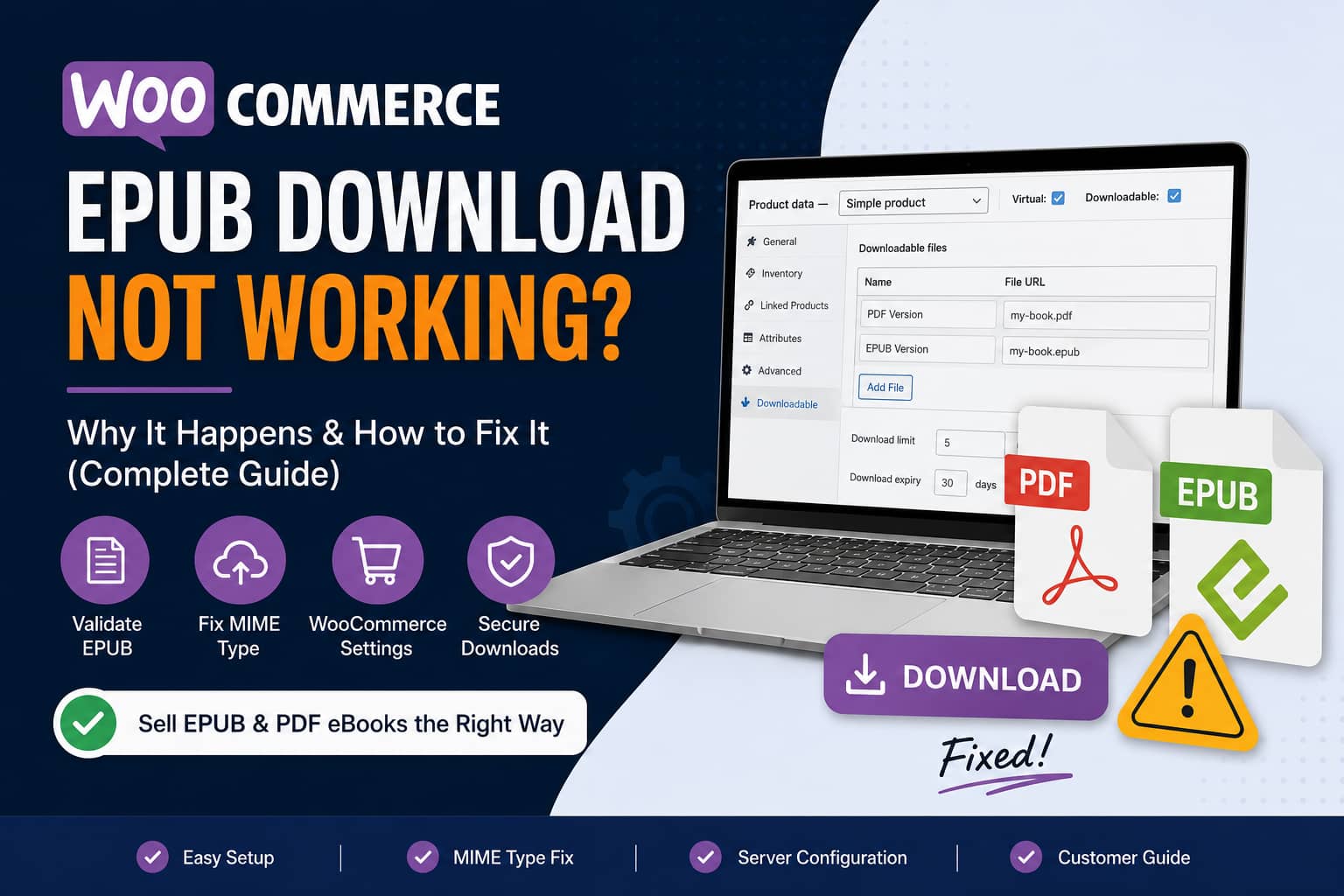
A WooCommerce store owner recently reported an interesting issue:
“I’m going to sell an eBook through WooCommerce. During testing, many people could download the PDF version but not the EPUB version. Does that mean I should not offer EPUB?”
The answer is no, you should not remove the EPUB version simply because some testers had trouble opening it.
WooCommerce can sell and deliver EPUB files. The problem is usually caused by one of the following:
- The customer does not have an EPUB reader installed.
- The EPUB file is invalid or corrupted.
- WordPress does not recognize the EPUB file type.
- The server sends the EPUB with the wrong MIME type.
- The browser renames the EPUB file as a ZIP file.
- WooCommerce’s download method is not compatible with the hosting configuration.
- A caching, security, or CDN rule is blocking the protected download link.
The best solution is normally to provide both PDF and EPUB versions so customers can choose the format that works best for their device.
Should You Offer Both PDF and EPUB?
Yes. Providing both formats gives customers the best reading experience.
A PDF preserves the original page design, fonts, spacing, and image placement. It is a good choice for desktop reading, printing, worksheets, technical manuals, and books with complex layouts.
An EPUB is a reflowable eBook format. Its text can automatically adjust to different screen sizes, font settings, and reading preferences. This makes EPUB more comfortable for smartphones, tablets, and eReaders.
Google’s publishing documentation recommends providing both PDF and EPUB when possible because the two formats support different reading experiences.
Therefore, the recommended WooCommerce setup is:
- PDF version for universal access and fixed formatting.
- EPUB version for eReaders and mobile reading.
- A short instruction explaining how to open the EPUB file.
Why Can Customers Download PDF but Not EPUB?
PDF support is built into most modern browsers and operating systems. When someone clicks a PDF, the browser may open it immediately.
EPUB behaves differently. A browser generally downloads the file but may not know which application should open it. The customer needs an EPUB-compatible reading application.
This creates an important distinction:
The file does not download
This is usually a WooCommerce, server, hosting, security, or MIME configuration problem.
The file downloads but does not open
This is usually an EPUB reader or file-validity problem.
The file downloads as a ZIP file
This usually means the server or browser detected the EPUB as a ZIP archive instead of serving it as an EPUB file.
EPUB files are technically ZIP-based containers, but their registered media type is:
application/epub+zipThat is the official MIME type registered for EPUB files.
Step 1: Validate the EPUB File
Before changing WordPress or WooCommerce, confirm that the EPUB itself is valid.
A file may have the .epub extension but still contain:
- Missing book files
- Invalid XML
- Broken table-of-contents links
- Incorrect metadata
- Missing images
- Invalid internal paths
- An incorrectly created ZIP structure
- Unsupported scripts or embedded content
Use EPUBCheck, the official W3C conformance checker for EPUB publications. It checks EPUB 2 and EPUB 3 files against the official EPUB specifications.
After downloading EPUBCheck, you can validate a book using:
java -jar epubcheck.jar your-book.epubA valid result should show no critical errors.
If EPUBCheck reports errors, recreate or repair the EPUB before uploading it to WooCommerce. Do not try to solve an invalid EPUB by changing the file extension.
Also test the final EPUB in at least two different reading applications before selling it.
Step 2: Use a Clean Filename
Rename the file before uploading it.
Use:
my-book-title.epubAvoid filenames such as:
My Book FINAL version (updated) #2.epubKeep the filename lowercase and use hyphens instead of spaces or special characters.
A simple filename helps prevent problems with:
- Browser encoding
- CDN storage
- Security rules
- External storage services
- Download headers
- Email clients
Step 3: Configure the WooCommerce Product Correctly
Go to:
WordPress Dashboard > Products > Add NewUnder Product data:
- Select Simple product.
- Enable Virtual.
- Enable Downloadable.
- Set the product price.
- Find the Downloadable files section.
- Add the PDF and EPUB as separate files.
Use clear customer-facing file names:
PDF Version
EPUB Version
WooCommerce supports downloadable products with multiple files. You can also set download limits and expiration periods. Products marked as both virtual and downloadable do not require shipping and can move directly to the completed order status after successful payment.
A recommended configuration is:
Download limit: 5
Download expiry: 30 days
You can leave both fields blank when you want to provide unlimited lifetime downloads.
Upload Files Through the Product Editor
Upload the eBook from the downloadable file section inside the WooCommerce product editor.
Avoid uploading a paid eBook to the regular WordPress Media Library and then copying its public URL.
Files stored in the WordPress Media Library are normally publicly accessible to anyone who discovers the direct URL. WooCommerce recommends uploading protected product files through the product editor so they can be placed in the WooCommerce uploads directory.
Step 4: Fix the “File Type Is Not Permitted” Error
Some WordPress or hosting configurations may reject EPUB uploads with an error similar to:
Sorry, you are not allowed to upload this file type.WordPress controls uploadable extensions through its allowed MIME-type list and provides the upload_mimes filter for adding supported formats.
Do not enable this setting:
define( 'ALLOW_UNFILTERED_UPLOADS', true );That setting is unnecessarily broad because it permits unrestricted file types. It is safer to allow only EPUB.
Create a Small EPUB Support Plugin
Create a folder named:
debugnexus-epub-supportInside it, create:
debugnexus-epub-support.phpAdd the following code:
<?php
/**
 * Plugin Name: DebugNexus EPUB Support
 * Description: Allows authorized WooCommerce managers to upload valid EPUB files.
 * Version: 1.0.0
 */

defined( 'ABSPATH' ) || exit;

/**
 * Register the EPUB extension and its official MIME type.
 */
add_filter(
	'upload_mimes',
	function ( $mimes ) {
		if ( current_user_can( 'manage_woocommerce' ) ) {
			$mimes['epub'] = 'application/epub+zip';
		}

		return $mimes;
	}
);

/**
 * Handle servers that identify an EPUB as application/zip.
 *
 * EPUB is a ZIP-based format, so some PHP/server environments detect it
 * as a normal ZIP archive. This code verifies the basic EPUB structure
 * before allowing WordPress to accept it.
 */
add_filter(
	'wp_check_filetype_and_ext',
	function ( $data, $file, $filename, $mimes, $real_mime ) {
		if ( ! current_user_can( 'manage_woocommerce' ) ) {
			return $data;
		}

		$extension = strtolower( pathinfo( $filename, PATHINFO_EXTENSION ) );

		if ( 'epub' !== $extension || ! is_readable( $file ) ) {
			return $data;
		}

		if ( ! class_exists( 'ZipArchive' ) ) {
			return $data;
		}

		$archive = new ZipArchive();

		if ( true !== $archive->open( $file ) ) {
			return $data;
		}

		$epub_mimetype = $archive->getFromName( 'mimetype' );
		$container     = $archive->locateName(
			'META-INF/container.xml',
			ZipArchive::FL_NOCASE
		);

		$archive->close();

		$is_epub = (
			'application/epub+zip' === trim( (string) $epub_mimetype )
			&& false !== $container
		);

		if ( ! $is_epub ) {
			return $data;
		}

		$data['ext']             = 'epub';
		$data['type']            = 'application/epub+zip';
		$data['proper_filename'] = false;

		return $data;
	},
	10,
	5
);
Compress the folder as a ZIP file, upload it under:
Plugins > Add New Plugin > Upload PluginActivate it and try uploading the EPUB again.
The second filter is particularly useful when the server identifies the file as application/zip, because an EPUB is internally a ZIP-based container. The filter checks for basic EPUB components rather than trusting the filename alone.
If the ZipArchive PHP extension is unavailable, ask the hosting provider to enable PHP ZIP support.
Step 5: Choose the Correct WooCommerce Download Method
Navigate to:
WooCommerce > Settings > Products > Downloadable productsWooCommerce provides three file download methods.
Force Downloads
This sends the file through PHP and hides the direct file location.
It is a good default choice for smaller eBooks stored on the same server.
Possible disadvantages include:
- PHP timeout on very large files
- High memory or processor use
- Problems when
allow_url_fopenis disabled - Download interruption on underpowered hosting
X-Accel-Redirect/X-Sendfile
This lets Nginx or Apache serve the protected file after WooCommerce authorizes the request.
This is generally the best option for performance and security, but the hosting server must support and configure X-Accel-Redirect or X-Sendfile.
Ask your hosting provider before enabling it.
Redirect Only
This redirects the customer directly to the file URL.
It can help diagnose delivery problems, but it is considered insecure because anyone who obtains the URL may be able to download the file without purchasing it.
Do not use Redirect Only as the permanent solution for a paid eBook unless the files are protected by another service.
Recommended Setting
For a normal EPUB or PDF stored on your WooCommerce website, begin with:
File download method: Force Downloads
Downloads require login: Optional
Grant access after payment: Enabled
Append a unique string to filename: Enabled
If Force Downloads fails or times out, ask your host to configure X-Accel-Redirect or X-Sendfile.
Step 6: Fix EPUB Files Downloading as ZIP
If the customer clicks “EPUB Version” but receives a .zip file, check the following.
Confirm the Original Extension
Make sure the uploaded file is genuinely named:
book-title.epubDo not upload book-title.zip and simply change its displayed WooCommerce label to “EPUB.”
Set the Correct Apache MIME Type
On an Apache or LiteSpeed server, add this line to the website’s .htaccess file:
AddType application/epub+zip .epubPlace it outside any automatically generated WordPress section when possible.
After saving the file:
- Clear the website cache.
- Clear the CDN cache.
- Download the EPUB again.
- Confirm that the filename still ends in
.epub.
Set the Correct Nginx MIME Type
For Nginx, add the EPUB type to the server’s MIME-type configuration:
application/epub+zip epub;The exact location depends on the hosting configuration. It is commonly added to the server’s mime.types file or an existing types block.
Reload Nginx after changing the configuration:
sudo nginx -t
sudo systemctl reload nginx
Do not create a new incomplete types block without understanding the current Nginx configuration, because it may override other MIME mappings. Ask the hosting provider to add the mapping when you do not manage the server directly.
Check the Response Headers
You can inspect an accessible test file with:
curl -I https://example.com/path/book-title.epubThe response should contain a header similar to:
Content-Type: application/epub+zipThe download filename should also end in .epub.
Protected WooCommerce links may require a valid order and download key, so test them through an actual test purchase instead of publishing the protected URL.
Step 7: Give Customers Clear EPUB Instructions
Some customers believe a download has failed when the file actually downloaded successfully but their device does not know how to open it.
Add a short notice beneath the product description or inside the order email:
How to open the EPUB version: EPUB files require an eBook reader. After downloading the file, open it with Apple Books, Google Play Books, another EPUB-compatible reader, or send it to your Kindle using Send to Kindle. Download the PDF version when you prefer a file that opens directly in most browsers.
Google Play Books supports uploading and reading both PDF and EPUB files. On Android, customers can download the EPUB and use the “Open with” option to add it to Play Books.
Amazon’s Send to Kindle service also lists EPUB as a supported file type.
This customer guidance can significantly reduce support requests.
Step 8: Test the Complete Purchase Process
Do not test only by opening the original file from the WordPress dashboard.
Perform a complete customer test:
- Open the store in an incognito or private browser window.
- Purchase the product using a test payment method.
- Confirm that the order reaches the correct status.
- Open the order confirmation email.
- Download the PDF.
- Download the EPUB.
- Check the filename and extension.
- Open the EPUB in an EPUB reader.
- Test the link from My Account > Downloads.
- Repeat the test on a phone and a desktop computer.
Also test:
- Chrome
- Safari
- Firefox
- Android
- iPhone or iPad
- A Kindle workflow when Kindle users are part of the audience
Step 9: Check WooCommerce Download Logs
WooCommerce records downloadable-product activity, including the product, file, order, customer, and download information. The download report can help determine whether WooCommerce delivered the file or whether the customer failed to open it afterward.
Review:
WooCommerce > Analytics > DownloadsDepending on the WooCommerce version and dashboard configuration, download information may also appear inside the individual order.
Check the order’s Downloadable product permissions section and confirm:
- The EPUB file is assigned to the order.
- The customer has remaining download attempts.
- The download has not expired.
- The file URL is still valid.
- The product file was not replaced incorrectly.
Step 10: Check Security, Cache, and CDN Rules
If PDF works but EPUB returns a 403, 404, or access-denied error, temporarily investigate:
- WordPress security plugins
- Web application firewall rules
- ModSecurity
- Cloudflare security rules
- Hotlink protection
- MIME-type restrictions
- CDN file-extension restrictions
- Server malware scanners
- Hosting download limits
- Caching plugins
- Nginx protected-directory rules
Do not permanently disable security protection.
Instead, identify the rule that is blocking legitimate .epub downloads and create the smallest possible exception.
Protected WooCommerce download URLs should not be cached as normal public pages. Clear all caches after changing the file, product, download method, MIME settings, or server configuration.
Common EPUB Download Problems and Solutions
“Sorry, you are not allowed to upload this file type”
Add the EPUB MIME type using the custom plugin shown above.
The EPUB downloads as a ZIP file
Configure the server to return:
application/epub+zipAlso verify that the Content-Disposition filename ends in .epub.
The EPUB downloads but cannot be opened
Validate it with EPUBCheck and open it using an EPUB-compatible application.
The download link returns 403 Forbidden
Check security plugins, ModSecurity, server access rules, protected upload configuration, and the selected WooCommerce download method.
The link returns 404 Not Found
Confirm that the file still exists, regenerate the customer’s download permissions, and make sure its directory is included under:
WooCommerce > Settings > Products > Approved download directoriesThe download stops or produces an empty file
Force Downloads may be reaching a PHP memory, execution-time, or output-buffering limit. Ask the host about X-Accel-Redirect or X-Sendfile.
The customer does not receive a download link
Check the order status, payment status, downloadable-product permissions, and the Grant access to downloadable products after payment setting.
Previous customers cannot access a newly added EPUB
Editing an existing downloadable file entry can update previous purchase links, but adding an entirely new file does not automatically grant it to all previous orders. WooCommerce documents this distinction in its downloadable-product guide.
You may need to regenerate permissions for affected orders.
Best WooCommerce Setup for Selling an eBook
For most stores, use the following configuration:
Product type: Simple product
Virtual: Enabled
Downloadable: Enabled

Files:
1. PDF Version
2. EPUB Version

Download method:
Force Downloads

Grant access after payment:
Enabled

Unique filename string:
Enabled

File location:
WooCommerce protected uploads directory
You should also:
- Validate the EPUB before uploading it.
- Use a clean filename.
- Provide EPUB opening instructions.
- Complete a real test order.
- Test the download on multiple devices.
- Monitor WooCommerce download logs.
Should You Remove the EPUB Version?
No. Difficulty opening an EPUB does not mean WooCommerce cannot deliver it.
Removing EPUB would reduce the reading options available to customers who prefer eReaders, customizable font sizes, reflowable text, and mobile-friendly layouts.
The better approach is to:
- Continue offering both PDF and EPUB.
- Validate the EPUB.
- configure the correct MIME type.
- Protect the files through WooCommerce.
- Use a compatible download method.
- Explain how customers can open the EPUB.
- Provide the PDF as an easy fallback.
Frequently Asked Questions
Can WooCommerce sell EPUB files?
Yes. WooCommerce can sell EPUB files as downloadable products. It supports the file extensions allowed by WordPress and can attach multiple downloadable files to one product.
Why does my EPUB download as a ZIP file?
An EPUB is a ZIP-based container. If the server sends it as application/zip instead of application/epub+zip, a browser or operating system may identify or rename it as a ZIP file.
Do customers need special software to open EPUB?
Customers need an application that supports EPUB. Examples include Apple Books, Google Play Books, compatible desktop readers, and Amazon’s Send to Kindle service.
Should I sell the PDF and EPUB separately?
You can, but many stores include both files with one purchase. This gives buyers the freedom to use the format that works best on their device.
You could also create a variable product with separate PDF and EPUB variations when customers should receive only the selected format. WooCommerce supports downloadable files on individual product variations.
Is Redirect Only safe for paid eBooks?
Not by itself. Redirect Only exposes the direct file URL and makes unauthorized sharing easier. Force Downloads or X-Accel-Redirect/X-Sendfile is normally more appropriate for paid digital products.
Can I upload the eBook through the WordPress Media Library?
You can, but it is not recommended for a protected paid product. Media Library files are generally accessible through their direct URLs. Upload the file from the WooCommerce product editor so WooCommerce can store and protect it properly.
Final Thoughts
If customers can download your PDF but struggle with EPUB, do not assume the format is unsuitable.
First determine whether the EPUB:
- Failed to download
- Downloaded with the wrong extension
- Downloaded successfully but lacked a compatible reader
- Was invalid or corrupted
- Was blocked by a server or security rule
Once the EPUB is valid, WordPress recognizes its MIME type, WooCommerce is configured correctly, and customers receive clear opening instructions, you can safely provide both formats.
Offering both PDF and EPUB creates a better experience for desktop users, mobile readers, and eReader owners without forcing every customer to use the same format.
