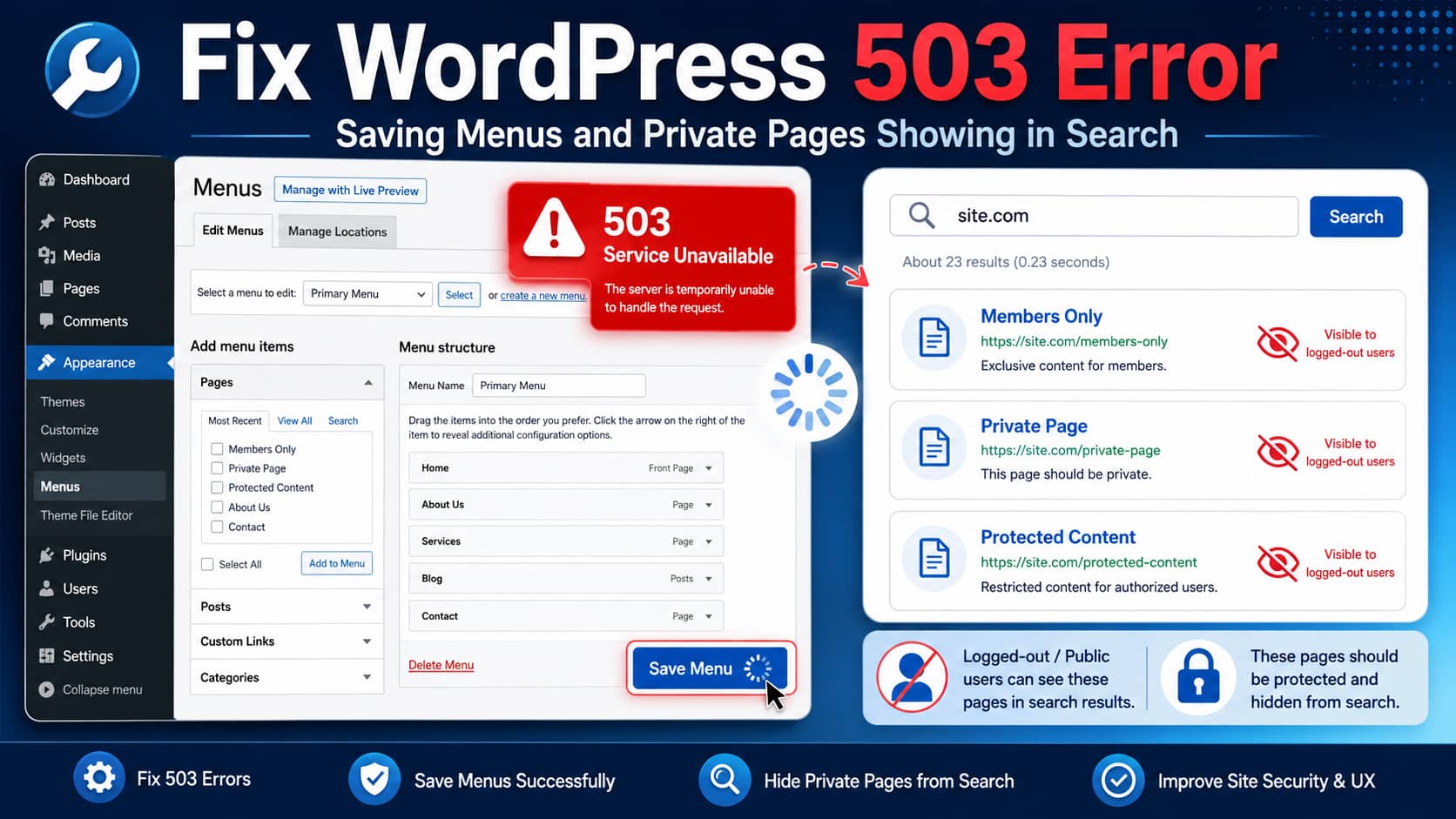
A WordPress administrator may occasionally encounter a 503 Service Unavailable error while saving a navigation menu under Appearance > Menus.
The menu screen may continue spinning, making it appear that the changes were not saved. After refreshing the page, however, the changes may already be present.
At the same time, pages intended only for logged-in users may begin appearing in WordPress search results for logged-out visitors.
The server error may look like this:
Service Unavailable
The server is temporarily unable to service your request due to maintenance downtime or capacity problems. Please try again later.
Additionally, a 503 Service Unavailable error was encountered while trying to use an ErrorDocument to handle the request.
Although these symptoms may appear related, they are usually two separate problems:
- The server is occasionally failing while processing the menu-saving request.
- The pages are not actually protected from logged-out visitors, even if they are hidden inside a private or members-only menu.
This guide explains how to diagnose and fix both problems.
What Does a 503 Service Unavailable Error Mean?
An HTTP 503 response means the server is temporarily unable to handle a request. Common reasons include temporary overload, server maintenance, unavailable PHP workers, resource restrictions, or a security layer rejecting the request.
Unlike a WordPress validation error, a 503 response generally originates from one of the following server layers:
- Apache, Nginx, or LiteSpeed
- PHP-FPM
- A hosting resource-management system
- ModSecurity or another web application firewall
- Cloudflare or another proxy
- A WordPress plugin, theme, or custom function that exhausts server resources
The additional ErrorDocument message means the server also failed while attempting to display its configured custom error page. This secondary message is not normally the original cause of the problem.
Why the Menu May Save Even Though WordPress Keeps Spinning
WordPress can finish updating the menu in the database before the server sends a successful response back to the browser.
For example, this sequence may occur:
- You click Save Menu.
- WordPress updates the menu items.
- PHP takes too long to complete the remaining request.
- The proxy, web server, or hosting platform times out.
- The browser receives a 503 error or continues spinning.
- You refresh the page and discover that the menu was saved.
This usually indicates a timeout, worker limit, firewall interruption, or another server-level problem rather than a simple browser issue.
Important: Hiding a Page From a Menu Does Not Make It Private
A navigation menu controls where links are displayed. It does not control whether visitors can access the underlying pages.
For example, you might configure a menu so that it appears only to logged-in users. However, if the pages linked from that menu are still published with Public visibility, logged-out visitors may be able to:
- Find them through the WordPress search form
- Open the URLs directly
- Find them in an XML sitemap
- Access them through links on other pages
- Discover them through Google or another search engine
- Access their public content through the WordPress REST API
Therefore, removing a page from a public menu is not an access-control solution.
Step 1: Confirm Whether the Pages Are Actually Public
Open one of the affected pages in the WordPress dashboard.
Go to:
Pages > All Pages > Edit Page
In the page settings, check:
- Status
- Visibility
- Permalink
- Password protection
- Membership or access restrictions
WordPress provides three standard visibility settings:
- Public: Anyone can access the page.
- Private: Only users with the appropriate private-page capability can access it. In a standard WordPress installation, this normally means administrators and editors.
- Password Protected: Anyone with the page password can access it.
WordPress documentation confirms that private pages are limited to authorized logged-in roles and are not intended to be visible publicly.
Test the Page Properly
Do not test while logged into WordPress as an administrator.
Instead:
- Copy the page URL.
- Open a private or incognito browser window.
- Paste the URL directly.
- Search for the page using the website’s search form.
- Check whether the full page content is accessible.
Administrators can see private and unpublished content that normal visitors cannot, so testing while logged in can produce misleading results.
Step 2: Choose the Correct Page-Protection Method
The correct solution depends on who should be allowed to view the pages.
Option 1: Only Administrators and Editors Need Access
Use WordPress’s built-in Private visibility option:
- Edit the page.
- Open the Status or Summary panel.
- Change Visibility from Public to Private.
- Save or update the page.
- Test the URL while logged out.
This is suitable for internal administrative content.
However, it is usually not suitable for subscriber portals, customer dashboards, student resources, or regular member accounts. Standard subscribers do not normally have permission to read private pages.
Option 2: Every Logged-In User Should Have Access
Use a proper membership or content-restriction system.
The access-control system should protect:
- Direct page requests
- WordPress search results
- Archive pages
- Menus
- Feeds
- REST API responses
- XML sitemaps
- Cached copies
- Unauthorized redirects
A conditional-menu plugin alone is not enough. It may hide the link without protecting the page.
For sensitive customer, student, medical, financial, or business information, use server-side authentication or a well-maintained membership solution rather than relying only on CSS, JavaScript, menu settings, or a noindex tag.
Google also recommends password or login protection for confidential content. A noindex directive only controls search-engine indexing and does not prevent someone from opening the page.
Step 3: Remove Protected Pages From Public WordPress Search
A properly configured access-control plugin should handle this automatically.
If the pages are already protected but still appear in the theme’s custom search results, you can exclude specific page IDs from the main WordPress search query.
Add the following through a small custom plugin or a code-management plugin. Avoid placing important functionality directly in a parent theme because theme updates may overwrite it.
<?php
/**
 * Exclude selected pages from public WordPress search.
 */

function debugnexus_protected_page_ids(): array {
    return array(
        123,
        456,
    );
}

function debugnexus_exclude_protected_pages_from_search(
    WP_Query $query
): void {
    if (
        is_admin() ||
        is_user_logged_in() ||
        ! $query->is_main_query() ||
        ! $query->is_search()
    ) {
        return;
    }

    $existing_exclusions = (array) $query->get('post__not_in');

    $query->set(
        'post__not_in',
        array_unique(
            array_merge(
                $existing_exclusions,
                debugnexus_protected_page_ids()
            )
        )
    );
}

add_action(
    'pre_get_posts',
    'debugnexus_exclude_protected_pages_from_search'
);
Replace 123 and 456 with the actual page IDs.
You can find a page ID by editing the page and checking the number in the browser URL:
post.php?post=123&action=editThe pre_get_posts hook allows developers to modify a WordPress query before it runs. WordPress recommends targeting the front-end main query carefully so unrelated admin, widget, or secondary queries are not accidentally changed.
Important Security Warning
This code only removes pages from the standard WordPress search results. It does not independently secure the content.
The page must still be protected using Private visibility, password protection, a membership plugin, or custom server-side authorization.
Step 4: Clear Cached Search Results
If the page has already been restricted but still appears to logged-out visitors, clear every applicable cache:
- WordPress page cache
- Object cache
- Redis or Memcached
- Hosting cache
- LiteSpeed or Varnish cache
- Cloudflare cache
- Search-plugin index
- Browser cache
Also check whether the website uses a separate search plugin or service, such as an AJAX search plugin, Elasticsearch, Algolia, or Relevanssi. These systems may maintain their own indexes and may need to be rebuilt.
Test again from an incognito window after clearing the caches.
Step 5: Remove Pages That Are Already Showing in Google
A page can remain visible in Google after you make it private because Google may still have an older version of the URL in its index.
First, permanently protect or remove the content. Then use the Search Console Removals tool when the result must disappear quickly.
Google explains that Search Console removals are temporary. The underlying page must also be removed, password protected, restricted behind a login, or marked appropriately to prevent it from returning.
Do not use robots.txt as the only privacy control. Blocking crawling does not necessarily prevent a URL from appearing in search results, and it does not prevent visitors from accessing the page directly.
How to Fix the 503 Error When Saving a WordPress Menu
The following troubleshooting order will help identify the source without making unnecessary changes.
Step 1: Create a Backup or Use Staging
Before changing PHP settings, disabling security rules, or modifying themes, create a full backup.
Whenever possible, reproduce the error on a staging website first. WordPress’s debugging documentation also recommends using a staging environment or taking an appropriate backup before making diagnostic changes.
Step 2: Capture the Failed Request
Open the browser’s developer tools before saving the menu.
In Chrome:
- Press
F12. - Select the Network tab.
- Enable Preserve log.
- Save the menu again.
- Find the failed request.
For a classic WordPress menu, the request will commonly involve:
/wp-admin/nav-menus.phpFor block themes using the Site Editor, navigation changes may instead use a WordPress REST API request.
Inspect:
- HTTP status
- Response body
- Response headers
- Request duration
- Server header
- Cloudflare or proxy headers
- Any firewall reference or rule ID
This can help determine whether the 503 came from WordPress, Apache, LiteSpeed, Cloudflare, a firewall, or the hosting platform.
Step 3: Check WordPress and Server Logs
WordPress debugging can be temporarily enabled on staging by adding the following before the “stop editing” line in wp-config.php:
define('WP_DEBUG', true);
define('WP_DEBUG_LOG', true);
define('WP_DEBUG_DISPLAY', false);

@ini_set('display_errors', 0);
Reproduce the error and inspect:
/wp-content/debug.logWordPress documents that WP_DEBUG_LOG stores errors in wp-content/debug.log, including problems generated during background, AJAX, or otherwise difficult-to-see requests. Debug output should not be publicly displayed on a production website.
The WordPress debug log may remain empty if Apache, Nginx, PHP-FPM, or a firewall terminates the request before WordPress can log the problem.
Also inspect:
- PHP error log
- PHP-FPM log
- Apache or Nginx error log
- LiteSpeed logs
- ModSecurity audit log
- Hosting resource-usage logs
- Database slow-query or error logs
- Cloudflare Security Events
Match the log timestamps with the exact time the menu was saved.
Step 4: Check max_input_vars
Large WordPress menus can submit hundreds or thousands of form variables.
PHP’s default max_input_vars value is commonly 1000. When a request contains more variables than the configured limit, PHP truncates the remaining input values and produces a warning.
This can cause symptoms such as:
- Menu items disappearing
- Menu changes not saving completely
- Only part of the menu being saved
- The save request spinning or timing out
- Unpredictable behavior on large menus
Check the active value under:
Tools > Site Health > Info > Server
WordPress provides Site Health under Tools > Site Health for reviewing the website’s environment and configuration.
You can also check through your hosting control panel or a PHP information page.
A reasonable test value for a large menu is:
max_input_vars = 5000Depending on the hosting environment, this may be changed through:
php.ini.user.ini- cPanel MultiPHP INI Editor
- Plesk PHP Settings
- A managed-hosting support request
- A server-level PHP-FPM configuration
Do not assume that adding ini_set() to WordPress will change this directive. PHP classifies max_input_vars as a per-directory configuration setting, so it normally must be changed at the appropriate PHP or hosting configuration level.
After changing it:
- Restart PHP-FPM if you manage the server.
- Confirm the new value in Site Health or
phpinfo(). - Save the menu again.
- Review the logs.
Step 5: Check ModSecurity or the Hosting Firewall
A web application firewall may block the menu-saving request because of:
- A menu label containing suspicious text
- A custom URL with a query string
- HTML inside a menu field
- A large POST request
- Too many submitted parameters
- A false-positive security rule
Temporarily rename or remove recently added custom menu items and save again.
If the request succeeds after removing a particular item, ask the hosting provider to inspect the ModSecurity or WAF logs.
Request that they whitelist only the specific false-positive rule for the affected administrative endpoint. Do not disable the entire firewall permanently.
Step 6: Check Hosting Resource Limits
An intermittent 503 error is frequently associated with exhausted hosting resources.
Ask the hosting provider to check for:
- CPU throttling
- RAM exhaustion
- PHP worker exhaustion
- Entry-process limits
- Concurrent connection limits
- PHP-FPM queue limits
- Database connection limits
- Request timeouts
- Account-level process termination
This is especially important when the menu saves successfully but the browser does not receive the final response.
Simply increasing the WordPress memory limit will not fix every 503 error. A request can fail because all PHP workers are occupied even when an individual PHP process has sufficient memory.
Step 7: Test the Theme, Must-Use Plugins, and Drop-Ins
Disabling regular plugins does not eliminate every WordPress code conflict.
Also inspect:
/wp-content/mu-plugins/
/wp-content/object-cache.php
/wp-content/advanced-cache.php
/wp-content/db.php
Must-use plugins are loaded automatically and cannot be disabled from the normal Plugins screen. They appear in a separate Must-Use section and must be removed or renamed at the file level for testing.
On staging:
- Disable normal plugins.
- Temporarily switch to a default WordPress theme.
- Inspect must-use plugins.
- Temporarily disable applicable cache or database drop-ins.
- Save the menu after each change.
WordPress’s standard troubleshooting process recommends testing plugins individually and temporarily switching to a default theme when identifying conflicts.
Step 8: Make Sure wp-admin Is Not Cached
Administrative requests should not be served from a public page cache.
Verify that the caching system bypasses:
/wp-admin/*
/wp-login.php
Also exclude authenticated WordPress cookies from full-page caching.
If a CDN, reverse proxy, Varnish configuration, or aggressive server cache processes admin POST requests incorrectly, menu saving may become unreliable.
After correcting the rules, purge:
- CDN cache
- Hosting cache
- Page cache
- Object cache
- Browser cache
Step 9: Check for a Stuck Maintenance File
If the 503 error affects the entire website after an interrupted WordPress update, check the WordPress root directory for:
.maintenanceOnly remove it after confirming that no WordPress core, theme, or plugin update is still running.
A stale maintenance file is less likely when the problem occurs only while saving menus, but it should be checked when the whole site becomes unavailable.
Step 10: Repair the Custom ErrorDocument Configuration
The message stating that another 503 occurred while handling the ErrorDocument indicates that the server’s custom error handler also failed.
Possible causes include:
- The error page is processed through PHP while PHP is unavailable.
- The configured file does not exist.
- The error page redirects back into WordPress.
- The custom error page is blocked by the same firewall rule.
- File permissions prevent Apache or LiteSpeed from reading it.
A static HTML error page is generally more reliable than a PHP or WordPress-powered error page during server failures.
For example, an Apache configuration might reference a static file:
ErrorDocument 503 /errors/503.htmlFixing the ErrorDocument will improve the displayed error message, but it will not resolve the underlying timeout, firewall block, or resource limit.
Recommended Diagnosis for This Specific Problem
When all of the following occur together:
- The 503 error appears only occasionally.
- The menu sometimes saves despite the spinner.
- Disabling normal plugins does not solve it.
- Pages intended for logged-in users appear in public search.
The most likely explanation is:
- The pages are public pages linked from a conditionally displayed menu. The menu is hidden, but the pages themselves are not access restricted.
- The menu-saving request is occasionally being interrupted by a WAF rule, PHP worker shortage, server timeout, or hosting resource limit.
- A large menu may also be approaching or exceeding the active
max_input_varslimit. - A theme, must-use plugin, or server-level component may still be active even after normal plugins are disabled.
The fastest troubleshooting sequence is:
- Verify each page’s actual visibility.
- Protect the pages with proper access control.
- Test the pages and search results while logged out.
- Capture the failed menu request in browser developer tools.
- Match the request time against server and firewall logs.
- Confirm the active
max_input_varsvalue. - Check PHP workers and hosting resource limits.
- Test a default theme, must-use plugins, and cache drop-ins.
- Clear all caches and retest.
Message to Send to Your Hosting Provider
You can send the following information to hosting support:
I am receiving an intermittent HTTP 503 response when saving a WordPress navigation menu. The affected administrative request is to
/wp-admin/nav-menus.php. Sometimes the menu is written successfully, but the browser continues spinning or receives a 503 response.Please check the Apache/Nginx or LiteSpeed logs, PHP-FPM logs, ModSecurity audit log, resource-limit history, PHP worker usage, entry-process limits, and database errors for the exact request time.
Please also confirm the active
max_input_varsvalue and whether a WAF rule or request timeout is terminating the POST request. The error page also says that another 503 occurred while processing the configured ErrorDocument.
Include the exact date, time, timezone, request URL, and your public IP address when contacting support.
Frequently Asked Questions
Why does WordPress show a 503 error when I save a menu?
The server may be overloaded, out of available PHP workers, blocking the request through a firewall, reaching a request limit, or timing out before returning a response. Large menus may also exceed the PHP max_input_vars setting.
Why did the menu save even though the page kept spinning?
WordPress may have completed the database update before the server or proxy timed out. The data was saved, but the browser never received the final success response.
Why can logged-out visitors find pages from a private menu?
Because menu visibility and page visibility are separate. Hiding a menu from visitors does not protect the URLs linked from that menu.
Will setting a page to Private allow subscribers to view it?
Not by default. Standard WordPress private pages are generally available only to roles with permission to read private pages, such as administrators and editors. Use a membership or content-restriction system when ordinary registered users need access.
Can I use robots.txt to protect a private WordPress page?
No. robots.txt controls crawler access and is not a security system. Use login authentication, password protection, Private visibility, or another server-side access-control method.
Should I increase max_input_vars?
Check the current value first. If the menu contains many items and the value is 1000, testing with 3000 or 5000 may resolve incomplete menu submissions. Confirm the change with your hosting provider and verify the active value after updating it.
Does noindex make a page private?
No. A noindex directive asks search engines not to list the page, but anyone who knows the URL may still be able to open it. Sensitive content must be protected with authentication or access control.
Final Thoughts
The key point is that a WordPress menu is only a collection of links. Making a menu available only to logged-in users does not automatically secure the pages contained in that menu.
Protect the pages themselves first. Then remove them from public search, sitemaps, caches, and search-engine indexes where necessary.
For the 503 error, avoid making random WordPress changes without checking the failed request and server logs. An intermittent 503 during menu saving is commonly caused outside the menu editor itself, particularly by PHP worker limits, WAF rules, timeouts, large POST requests, or hosting resource restrictions.
A methodical review of page permissions, PHP limits, firewall events, server logs, must-use plugins, and caching rules should reveal the underlying cause.
