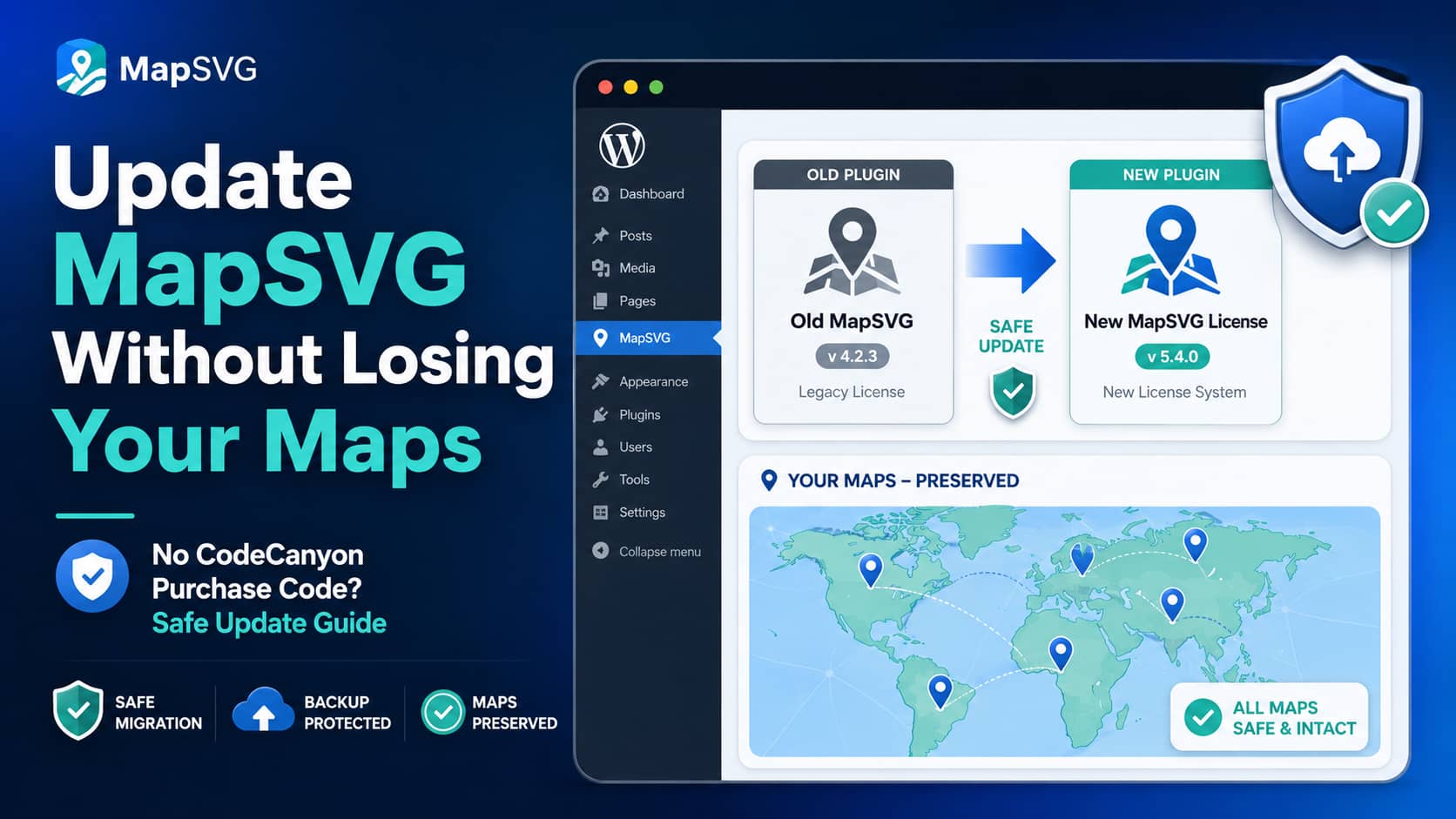
An older WordPress website may have the premium MapSVG plugin installed even though the current website owner does not have access to the original CodeCanyon account or purchase code.
This often happens after:
- A website changes ownership
- The original developer is no longer available
- A plugin was included during an earlier website build
- The client cannot access the original Envato account
- The site has not been maintained for several years
When you open the MapSVG settings, the installed version may only provide a field for a CodeCanyon purchase code. However, MapSVG now also offers Lite, Starter, Plus, Pro, and Elite licenses directly through its own website.
This raises two important questions:
- Can you replace the CodeCanyon version with a directly purchased MapSVG version?
- Will replacing the plugin delete the maps already created on the website?
The Quick Answer
In most cases, you can replace the existing MapSVG plugin with a newly purchased version without losing the maps stored in the WordPress database.
MapSVG’s current pricing documentation specifically explains that upgrading can be completed by overwriting the existing installation with the new installation file. It also states that map data is not removed when a subscription expires.
A MapSVG user with an older CodeCanyon installation also reported that installing a newly purchased version from the MapSVG website preserved their custom map data.
However, there are important exceptions.
Older MapSVG versions may store custom SVG maps, marker images, or other assets inside the plugin directory. Those files can be deleted when the old plugin folder is removed. MapSVG’s official update documentation specifically warns about this risk for older versions.
Therefore, do not replace or delete the plugin until you have created a complete backup.
Why Does MapSVG Only Show a CodeCanyon Purchase Code Field?
Automatic updates were added to MapSVG in version 5.8.0. The older update system expected users to enter a purchase code obtained from CodeCanyon.
If your installed MapSVG version still shows only a CodeCanyon purchase-code field, it normally means that the website is running a legacy package built around the original Envato licensing system.
A license purchased directly from MapSVG may not work inside that old CodeCanyon-only field.
Instead, the usual solution is to:
- Purchase the required plan directly from MapSVG.
- Download the current plugin package from the MapSVG account.
- Replace the legacy installation with the current package.
- Activate the new license through the interface supplied with the new version.
Do not purchase another CodeCanyon license solely because the old plugin shows a CodeCanyon field. First determine which licensing route and plan are appropriate for the site.
Will Replacing MapSVG Overwrite Existing Maps?
Replacing the plugin normally replaces its PHP, JavaScript, CSS, and other application files. It does not automatically mean that all map records will be deleted.
However, your MapSVG installation may contain information in two different places.
Data stored in the database
This may include:
- Map configurations
- Regions and objects
- Marker information
- Directory data
- Filters
- Templates
- Map settings
- Custom field values
- Map relationships
This data will normally remain when the plugin files are updated.
Files stored inside the plugin directory
Depending on the MapSVG version and how the website was developed, these may include:
- Custom SVG map files
- Custom marker images
- Manually modified plugin files
- Custom JavaScript added directly to plugin files
- Custom CSS added directly to plugin files
- Legacy uploaded assets
MapSVG warns that custom marker images stored inside mapsvg/markers can be lost when updating versions older than 5.4.0. It also warns that custom maps in very old 1.x or 2.x installations may be lost if the plugin folder is deleted.
That is why both a database backup and a plugin-folder backup are required.
Check Whether the Starter Plan Includes Your Existing Features
Preserving the data does not necessarily mean that every feature will remain available under the Starter plan.
MapSVG’s current Starter plan includes features such as:
- Directories
- Filters
- ZIP or postcode searching
- Custom marker images
- Distance sorting
- Custom templates
- CSS editing
- CSV imports
However, some features require a higher plan.
For example, the Plus plan includes integrations with ACF, custom posts, Gutenberg, JavaScript events, master-child maps, routes, and Google Sheets. The Pro plan adds features such as marker clustering, galleries, advanced filters, front-end editing, and KML or GeoJSON importing.
Before buying Starter, inspect the existing maps to determine whether they use any features that require Plus or Pro.
Otherwise, the maps may remain in the database but some functionality could become unavailable or uneditable.
How to Update MapSVG Safely Without Losing Your Maps
Follow this process instead of replacing the plugin directly on the live website.
Step 1: Record the Current MapSVG Setup
Before changing anything, go to:
WordPress Dashboard → Plugins → Installed Plugins
Record the currently installed MapSVG version.
Next, open the MapSVG dashboard and document:
- The number of maps
- Map names and IDs
- Pages where each map appears
- Map shortcodes
- Number of markers
- Directory settings
- Filters
- Custom templates
- Custom CSS
- Custom JavaScript
- Google Maps API configuration
- Custom SVG files
- Connections to ACF or custom post types
Take screenshots of important settings. This makes it easier to identify anything that changes after the update.
Step 2: Create a Complete Website Backup
Create a backup that includes both:
- The WordPress database
- All WordPress files
WordPress’s official backup documentation recommends backing up the database and website files before making significant changes.
The backup should include:
- The complete database
wp-content/plugins/mapsvg/wp-content/uploads/- The active theme
- Any custom plugin or theme code
- The website’s
wp-config.phpfile
Do not rely only on a hosting provider’s daily backup. Create an additional manual backup immediately before the update.
Optional WP-CLI database backup
Developers with SSH and WP-CLI access can run:
wp db export before-mapsvg-update.sqlYou can also back up the existing plugin folder:
tar -czf mapsvg-plugin-backup.tar.gz wp-content/plugins/mapsvgDownload both backups to your local computer instead of leaving the only copies on the server.
Step 3: Back Up Legacy MapSVG Assets Separately
Using your hosting file manager, FTP, SFTP, or SSH, download the complete folder:
wp-content/plugins/mapsvg/Pay particular attention to:
wp-content/plugins/mapsvg/maps/
wp-content/plugins/mapsvg/markers/
These directories are especially important when updating an old MapSVG installation.
Also search the folder for custom .svg, .png, .jpg, .js, and .css files that may have been added manually.
Step 4: Create a Staging Website
Do not perform the first update on the production website.
Create a staging copy that contains:
- The current database
- The same WordPress files
- The same PHP version
- The same theme
- The same active plugins
- The same MapSVG configuration
Disable outgoing emails and payment processing on staging if the website includes eCommerce or contact forms.
The staging copy lets you determine whether the new MapSVG package can migrate the old data safely.
Step 5: Purchase the Correct MapSVG Plan
Review the features used by the existing maps and compare them with the available MapSVG plans.
Starter may be sufficient for a standard map using markers, directories, filters, CSV data, templates, and custom styling.
Consider Plus or Pro when the existing implementation uses:
- Advanced Custom Fields
- Custom post types
- JavaScript event handlers
- Google Sheets
- Master-child maps
- Marker clustering
- Galleries
- Front-end editing
- Advanced filters
- KML or GeoJSON imports
MapSVG currently limits Starter and Plus to one domain, Pro to five domains, and Elite to unlimited domains.
Check how MapSVG treats development or staging domains before activating the license in multiple environments.
Step 6: Download the New Plugin ZIP
After purchasing the appropriate plan:
- Sign in to your MapSVG account.
- Open the account or downloads area.
- Download the latest MapSVG WordPress plugin ZIP.
- Keep an untouched copy on your computer.
Do not unzip and modify the package unless you need to install it through FTP or SFTP.
Step 7: Replace the Plugin on Staging
There are two practical update methods.
Method 1: Replace the plugin through WordPress
WordPress has supported updating a plugin by uploading a new ZIP since WordPress 5.5. When the same plugin is detected, WordPress displays a comparison screen and provides a Replace current with uploaded option.
On staging:
- Go to Plugins → Add New Plugin.
- Click Upload Plugin.
- Select the new MapSVG ZIP.
- Click Install Now.
- Review the installed and uploaded versions.
- Click Replace current with uploaded.
- Activate MapSVG if it becomes deactivated.
This is generally safer than deleting the existing plugin first, but your backup is still essential.
Method 2: Replace MapSVG using SFTP or the hosting file manager
For greater control:
- Deactivate MapSVG.
- Open
wp-content/plugins/. - Rename the existing folder from:
mapsvgto:
mapsvg-old- Upload and extract the new plugin so the new folder is:
wp-content/plugins/mapsvg/- Return to WordPress.
- Activate the new MapSVG installation.
- Check whether the existing maps appear.
Do not keep the renamed old copy on the server permanently. Download it and remove it after the update has been fully verified.
MapSVG’s official documentation also describes overwriting the existing mapsvg directory through FTP as a manual update method.
Step 8: Activate the New License
After the current package is installed, open the MapSVG settings and use the license or account system included with that package.
Do not paste a direct MapSVG license into a field specifically labeled CodeCanyon purchase code unless MapSVG confirms that the field supports both license types.
If the newly installed version still provides only a CodeCanyon field:
- Confirm that the correct ZIP was installed.
- Clear the WordPress and browser cache.
- Check whether the old plugin version is still active.
- Confirm there is only one active
mapsvgfolder. - Contact MapSVG through its account dashboard or in-plugin support.
Do not repeatedly deactivate, delete, and reinstall the plugin without maintaining a database and file backup.
Step 9: Test Every Map on Staging
Do not assume the update was successful simply because the plugin activated.
Test each map carefully.
Map display
Confirm that:
- The SVG or Google Map loads
- Regions appear correctly
- Region colors are correct
- Markers appear in the correct locations
- Custom marker images load
- Zoom and pan controls work
- The map is responsive on mobile
Map interactions
Check:
- Tooltips
- Popovers
- Details views
- Region links
- Marker links
- Directory selections
- Search
- ZIP or postcode search
- Distance search
- Filters
- Pagination
- Sorting
Data and integrations
Verify:
- All map objects remain available
- Custom fields retain their values
- Images remain connected
- ACF fields still work
- Custom posts still appear
- CSV-imported data remains available
- Google Maps API requests are successful
- Master-child maps still open correctly
Customizations
Test:
- Custom templates
- CSS added through MapSVG
- JavaScript events
- Theme-level MapSVG customizations
- Shortcodes in pages or page builders
- Custom code snippets
Also check the browser developer console for JavaScript errors.
Step 10: Clear All Caches
After the replacement, clear:
- WordPress page cache
- Object cache
- Server cache
- CDN cache
- Browser cache
- Minified CSS and JavaScript cache
Then go to:
Settings → Permalinks
Click Save Changes without changing the permalink structure. This refreshes WordPress rewrite rules.
Step 11: Repeat the Tested Process on the Live Website
Once staging passes all tests:
- Create a fresh live-site backup.
- Place the site in maintenance mode if necessary.
- Replace MapSVG using the same tested method.
- Activate the license on the production domain.
- Clear all caches.
- Test every page containing a map.
- Remove maintenance mode.
- Monitor the PHP error log and browser console.
Avoid copying the complete staging database back to production when the live site receives orders, submissions, registrations, or other user-generated data.
Repeat only the plugin update steps that were successfully tested on staging.
What to Do If the Maps Disappear After Updating
Do not immediately recreate the maps.
Use the following troubleshooting process.
Confirm that the maps still exist in WordPress
Open the MapSVG dashboard and check whether the map records are listed.
If the maps appear in the dashboard but not on the front end, the problem may involve:
- Caching
- A missing custom SVG
- JavaScript conflicts
- Outdated shortcodes
- A theme conflict
- A missing feature from the selected license plan
Restore custom SVG files
Compare the new plugin directory with the backup of:
wp-content/plugins/mapsvg/maps/If a required SVG file is missing, restore only the necessary custom file to the appropriate location.
Do not replace the complete new plugin folder with the old version unless you are performing a full rollback.
Restore custom marker images
Check the backup of:
wp-content/plugins/mapsvg/markers/Restore any missing custom marker images and then clear all caches.
Check for a license-tier limitation
A map can remain stored in the database while a feature used by that map is unavailable under the newly purchased plan.
Compare the map’s features with the current plan before assuming that the database migration failed.
Check the browser console
Open the affected page, press F12, and check the Console and Network tabs.
Look for:
- JavaScript errors
- Failed REST API requests
- Missing SVG files
- Missing marker images
- Google Maps API errors
- HTTP 403 or 404 responses
- Mixed-content errors
- Content Security Policy errors
Roll back safely
If the update causes a critical problem:
- Deactivate the new MapSVG version.
- Restore the previous plugin folder.
- Restore the pre-update database if an update routine changed the database.
- Clear all caches.
- Confirm that the previous maps work again.
Do not restore only the plugin files when the plugin update has also changed the database structure. Restore a matching set of files and database data.
Common Mistakes to Avoid
Updating directly on the live website
An old plugin may require multiple database migrations. Always test on staging first.
Deleting the old plugin before backing up its folder
This can delete custom SVG maps, marker images, and manual customizations stored inside the plugin directory.
Assuming Starter includes every old CodeCanyon feature
The current subscription plans divide features across several tiers. Review the existing implementation before selecting a plan.
Editing MapSVG database tables manually
Do not delete or rename database tables in phpMyAdmin unless you have confirmed instructions from MapSVG support and have a current database backup.
Installing an unofficial or “nulled” copy
Unofficial premium plugin downloads may contain modified code, malware, hidden administrator accounts, or outdated vulnerabilities. Purchase the plugin from MapSVG or CodeCanyon.
Overwriting custom modifications
Any PHP, JavaScript, or CSS changes made directly inside MapSVG’s core files will be overwritten during an update.
Move required customizations into:
- A child theme
- A custom plugin
- MapSVG’s built-in CSS or JavaScript editor
- A properly managed code-snippet plugin
Frequently Asked Questions
Can I update MapSVG without the original CodeCanyon purchase code?
Yes. You can purchase a current MapSVG plan, download the current plugin package, and replace the legacy installation. Test the change on staging and back up the database and plugin directory first.
Will uploading a new MapSVG ZIP delete my maps?
Normally, replacing the plugin ZIP should not delete map records stored in the database. However, custom SVGs, marker images, and manually modified files inside an old plugin directory can be lost without a backup.
Can I use a MapSVG Starter license for an old CodeCanyon installation?
Possibly, but first confirm which features the existing maps use. Features such as ACF integration, JavaScript events, Google Sheets, clustering, galleries, and advanced filtering may require Plus or Pro.
Should I delete MapSVG before uploading the new version?
It is safer to use WordPress’s plugin replacement function or rename the old plugin directory through SFTP. If you delete the plugin first, make sure its complete folder and the WordPress database have already been backed up.
Will MapSVG remove my data if I cancel the subscription?
MapSVG states that the product remains functional and data is not lost when a subscription is not renewed. However, updates and support access stop.
Why does the new license not work in the purchase-code field?
The field may belong to an older CodeCanyon licensing system. Install the current package supplied with the direct purchase and use its current licensing interface. Contact MapSVG support if the current build still displays only the legacy CodeCanyon field.
Final Recommendation
You should be able to move from an old MapSVG CodeCanyon installation to a directly purchased MapSVG license without rebuilding all of the maps.
The safest process is:
- Document the existing setup.
- Back up the database and complete MapSVG folder.
- Preserve legacy
mapsandmarkersdirectories. - Compare the current features with the Starter, Plus, and Pro plans.
- Test the new package on staging.
- Replace the plugin instead of removing map data.
- Test every map, marker, directory, filter, template, and integration.
- Repeat the verified process on production.
The biggest risk is usually not the normal database-stored map data. The main risks are legacy custom files, direct edits to plugin code, major version compatibility, and choosing a license tier that does not include features used by the existing maps.
