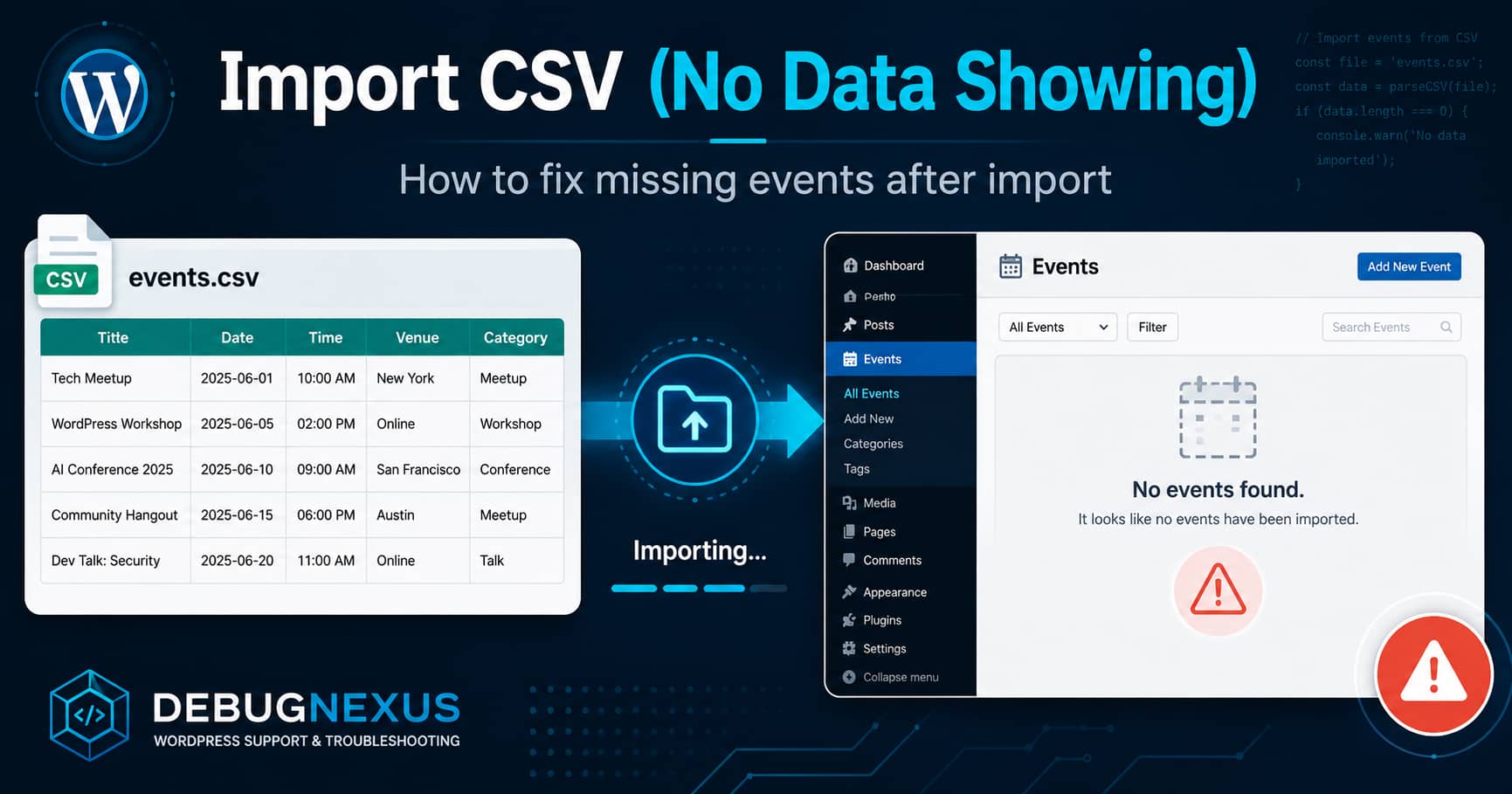
Importing events from a CSV file should make it easy to add dozens or hundreds of events to WordPress at once. However, you may complete the import successfully and then discover that none of the events appear in the WordPress dashboard or on the public calendar.
The import may report that it has finished without displaying an obvious error. In other cases, the events are created but remain hidden because of their publication status, event dates, field mappings, calendar settings, cache, or incomplete event metadata.
This guide explains how to identify exactly where the import failed and safely restore the missing events.
Symptoms of the Problem
You may be experiencing this issue when:
- The CSV import completes without an error.
- The importer reports that records were processed.
- No imported events appear under Events > All Events.
- Events appear in the dashboard but not on the public calendar.
- Imported events are saved as drafts or pending review.
- Opening and updating an imported event makes it appear.
- Event URLs return a 404 error.
- Events imported with WP All Import do not behave like events created manually.
- Only some rows from the CSV are imported.
- Imported events appear under the wrong dates.
- Events appear in Month View but not in List View.
The correct solution depends on whether WordPress created the event records at all.
Quick Fix
Before performing advanced troubleshooting, try this sequence:
- Go to Events > All Events.
- Select All instead of only viewing published events.
- Search for the exact name of one imported event.
- Open the event and confirm its publication status.
- Check its start date, end date, time and timezone.
- Click Update without changing anything.
- Go to Settings > Permalinks.
- Click Save Changes.
- Clear the WordPress, server, CDN and browser caches.
- Check the public calendar again.
If manually updating one event makes it appear, the CSV probably created the WordPress post but did not correctly register all of the event data.
Solution 1: Create a Backup Before Importing Again
Do not repeatedly import the same CSV file until you understand how the importer handles duplicate events.
Create a complete backup containing:
- WordPress files
- WordPress database
- Event plugin settings
- Existing events
- Venues and organizers
- Tickets and registrations, when applicable
Perform the next import on a staging website whenever possible.
Repeated imports can create duplicates, overwrite existing events or attach an imported event to the wrong venue or organizer.
Solution 2: Check Whether WordPress Created the Events
Open:
WordPress Dashboard > Events > All EventsSearch for the exact title of one event from the CSV.
Also check each available status:
- Published
- Draft
- Pending
- Private
- Trash
The Events Calendar importer lets you choose whether imported records should be published, saved as drafts, marked as pending review or made private. Draft, pending and private events will not appear to normal visitors on the public calendar.
If the Events Are Present
Open one event and check:
- Publication status
- Event start date
- Event end date
- Event start time
- Event end time
- Timezone
- All-day setting
- Hide from event listings setting
- Event category
- Venue
- Organizer
Click Update, then view the event from the frontend.
If it appears after updating, continue to the custom-table and WP All Import sections later in this guide.
If the Events Are Not Present
The importer probably failed before creating the event posts. The most likely causes are:
- Incorrect CSV delimiter
- Unrecognized column headings
- Required fields mapped incorrectly
- Blank event names
- Invalid date or time values
- A malformed row
- File encoding problems
- Server resource limits
- A PHP error during import
- A security or firewall rule blocking the import request
Continue with a one-event test file before trying the complete CSV again.
Solution 3: Test a Minimal CSV File
Create a new spreadsheet containing only one event.
Use the following columns:
Event Name,Event Description,Event Start Date,Event Start Time,Event End Date,Event End Time,All Day Event,Timezone,Hide from Event Listings
CSV Import Test,Temporary event used to test CSV importing,2030-08-15,10:00:00,2030-08-15,11:00:00,FALSE,America/New_York,FALSE
Replace America/New_York with the appropriate timezone for your website.
Save the file as:
CSV UTF-8Then import it through:
Events > ImportSelect:
Import Origin: CSV File
Content Type: Events
Publish Status: Published
Carefully map every column before running the import.
If this one-event file works, the plugin itself is functioning. The original CSV contains a formatting problem or an invalid row.
Solution 4: Check the CSV Delimiter
A CSV file should normally use commas to separate columns.
Open the file in a plain-text editor such as Notepad, Notepad++, Visual Studio Code or Sublime Text.
A correct file should resemble this:
Event Name,Event Start Date,Event Start Time
Test Event,2030-08-15,10:00:00
Some regional versions of Excel save CSV files using semicolons:
Event Name;Event Start Date;Event Start Time
Test Event;2030-08-15;10:00:00
The Events Calendar documentation warns that some versions of Excel can export files with separators such as semicolons. The file should use commas unless the importer specifically supports and is configured for another delimiter.
To fix it:
- Open the file in Google Sheets or Excel.
- Select File > Download or Save As.
- Choose Comma-separated values (.csv).
- Open the downloaded file in a text editor.
- Confirm that commas separate the fields.
Do not simply rename an .xlsx file to .csv. It must be exported as an actual CSV file.
Solution 5: Correct the Column Mapping
Uploading the CSV is not enough. Every CSV column must be connected to the corresponding event field during the preview step.
The import preview shows a dropdown above each column.
Confirm that the following mappings are correct:
Event Name             > Event Name
Event Description      > Event Description
Event Start Date       > Event Start Date
Event Start Time       > Event Start Time
Event End Date         > Event End Date
Event End Time         > Event End Time
All Day Event          > All Day Event
Timezone               > Timezone
Event Venue Name       > Event Venue Name
Event Organizers       > Event Organizers
Event Category         > Event Category
Any column marked Do Not Import will be ignored.
The Events Calendar automatically recognizes recommended column headings where possible. Unrecognized headings may remain unmapped and must be selected manually.
For example, a CSV may use:
Title
Start
Finish
Place
The importer may not know that these mean:
Event Name
Event Start Date
Event End Date
Event Venue Name
Either rename the headings or map them manually during import.
Solution 6: Correct the Date and Time Formats
Incorrect date formatting is one of the most common reasons imported events disappear.
Use this format for dates:
YYYY-MM-DDExample:
2030-08-15Use this format for times:
HH:MM:SSExample:
10:30:00The official field reference recommends ISO-style YYYY-MM-DD dates because formats such as 05/06/2030 can be interpreted differently depending on the website locale. It also supports HH:MM:SS for event times.
Avoid Ambiguous Dates
Do not use:
05/06/2030This could mean:
- May 6, 2030
- June 5, 2030
Use:
2030-06-05Make Sure the End Date Is Valid
The end date must not occur before the start date.
Incorrect:
Start: 2030-08-16 10:00:00
End:   2030-08-15 11:00:00
Correct:
Start: 2030-08-15 10:00:00
End:   2030-08-15 11:00:00
Check for Past Dates
An event may import successfully but not appear in the default upcoming-events view because its end date is already in the past.
Open the event directly in the dashboard and confirm the year. Spreadsheet applications sometimes change date values or export a two-digit year unexpectedly.
Solution 7: Check the Timezone
Use a valid timezone identifier such as:
America/New_York
Europe/London
Australia/Sydney
Asia/Dhaka
UTC
Avoid informal values such as:
EST
Eastern Time
New York Time
GMT+6
Also check:
Settings > General > TimezoneThen review:
Events > SettingsConfirm whether the calendar uses the website timezone or each event’s individual timezone.
A timezone mismatch can move an event to the previous or following date, particularly when the event starts close to midnight.
Solution 8: Disable “Hide from Event Listings”
The CSV field:
Hide from Event Listingsshould normally contain:
FALSEIf it contains TRUE, the event may be excluded from list-style and upcoming-event views.
The Events Calendar field reference explains that hidden events can still appear in Month View while being removed from list-style views.
This can make the import appear inconsistent because:
- The event is visible in Month View.
- The same event is missing from List View.
- The event opens through its direct URL.
- The event exists in the WordPress dashboard.
Set the value to:
FALSEand import the event again.
Solution 9: Import Venues and Organizers First
When importing separate CSV files, use this order:
- Venues
- Organizers
- Events
- RSVPs or tickets
The event importer matches venues and organizers using their exact names. Those records should exist before the events are imported.
For example, these values may not be treated as identical:
Grand Conference Center
Grand Conference Centre
Grand Conference Center
The third example contains a trailing space that may be difficult to notice.
Remove:
- Leading spaces
- Trailing spaces
- Different punctuation
- Different spelling
- Inconsistent capitalization where exact matching is required
A missing venue should not normally prevent the event itself from existing, but incorrectly associated data can make it look incomplete or prevent custom templates from displaying it correctly.
Solution 10: Check the Publication Status
Before clicking Import All, select:
PublishedDo not accidentally choose:
Draft
Pending Review
Private
A private event can be visible to an administrator while remaining unavailable to logged-out visitors.
After the import, open:
Events > All EventsUse the bulk editor to publish imported drafts when their event data is otherwise correct.
Do not bulk-publish events until you have reviewed their dates, titles and content.
Solution 11: Fix Events Imported with WP All Import
WP All Import can create custom post types, but importing an event as a generic WordPress post is not always enough.
The Events Calendar uses its own event data model. Since The Events Calendar 6.0, it also stores important event information in custom database tables. A generic import may create the tribe_events post without fully registering the event in those tables.
This commonly produces the following symptoms:
- Events appear under Events > All Events.
- Event titles and descriptions are present.
- Events do not appear in calendar views.
- Event URLs return 404 errors.
- Opening and updating an event makes it work.
- Bulk editing does not completely repair the events.
Install the Dedicated Add-On
Install and activate the WP All Import Add-On for The Events Calendar before running the import.
The official troubleshooting documentation recommends this add-on because it connects WP All Import with The Events Calendar’s metadata, slugs and internal data structure.
After activating the add-on:
- Create a new import instead of reusing a potentially incorrect template.
- Select the correct Events post type.
- Map event dates and times through the add-on’s event fields.
- Map the event status.
- Map venues and organizers correctly.
- Import one event first.
- Open the event in WordPress.
- Confirm that it appears without manually updating it.
- Run the complete import only after the test succeeds.
Avoid manually mapping only _EventStartDate and _EventEndDate unless you fully understand the current plugin database structure.
Solution 12: Check Custom Tables Health
Open:
Events > TroubleshootingFind the Custom Tables Health Check.
It should display a healthy or good status.
An incomplete custom-table migration can prevent events from displaying or can cause imported event pages to return 404 errors. The Events Calendar documentation specifically recommends checking custom-table health when event records exist but do not function correctly.
If the health check reports a problem:
- Create a complete database backup.
- Confirm that The Events Calendar and its add-ons are compatible versions.
- Complete any pending event-data migration.
- Check the PHP and database error logs.
- Repair the migration on staging first.
- Re-run a one-event import after the health check passes.
Do not manually create or alter the event tables unless you have confirmed the required schema for the installed plugin version.
Solution 13: Re-Save One Imported Event
Open one affected event and click Update.
Do not change the title or date during the first test.
Then check:
- The public calendar
- The event’s direct URL
- Month View
- List View
- The relevant event category archive
If updating the event repairs it, WordPress is triggering a save process that the importer did not trigger.
This strongly suggests one of these causes:
- Missing event metadata
- Incomplete custom-table records
- Missing slug data
- A WP All Import integration problem
- A plugin save hook that did not run
- A conflict interrupting the import process
Do not manually update hundreds of events one by one. Correct the importer configuration and re-import them properly.
Solution 14: Flush the WordPress Permalinks
Go to:
Settings > PermalinksSelect a normal permalink structure such as Post name, then click Save Changes.
You do not need to change the current structure. Clicking Save Changes regenerates the WordPress rewrite rules.
The Events Calendar recommends flushing permalinks after imported events produce 404 errors or do not have properly registered URLs.
Also check for conflicting slugs.
For example, a normal WordPress page using this slug may conflict with the calendar archive:
/events/Review the event URL settings under:
Events > SettingsThe events archive slug and single-event slug must not conflict with each other or with another WordPress page.
Solution 15: Clear Every Cache Layer
Clear:
- WordPress page cache
- Hosting cache
- Object cache
- Redis or Memcached
- Varnish
- Cloudflare or another CDN
- Browser cache
- The Events Calendar Month View cache
After clearing the caches:
- Log out of WordPress.
- Open a private browser window.
- Visit the main events page.
- Check Month View and List View.
- Open a single event.
- Test while logged out.
The Events Calendar can cache Month View output, which means newly imported events may not appear until the cached calendar is refreshed.
You can also temporarily disable the Month View cache under the calendar settings while troubleshooting.
Solution 16: Check the Default Calendar View
Open:
Events > Settings > DisplayConfirm that the selected default view is also enabled.
For example, do not configure Photo View as the default if Photo View is unavailable or disabled.
An invalid default-view configuration can cause the event archive to return a 404 or appear empty.
Temporarily set the default to:
List ViewThen test the main calendar again.
Solution 17: Split a Large CSV into Smaller Files
A large import can stop because of:
- PHP memory exhaustion
- Maximum execution time
- Request timeout
- Web application firewall limits
- Proxy timeout
- Hosting process limits
- A single malformed row
Create a smaller file containing five events and test it.
If that works, divide the original CSV into batches such as:
events-01.csv
events-02.csv
events-03.csv
If one batch fails, divide that batch again until you identify the problematic row.
Check the hosting control panel or ask the hosting provider to confirm that these limits are sufficient for the import:
memory_limit
upload_max_filesize
post_max_size
max_execution_time
max_input_time
The upload and POST limits must be larger than the CSV file itself.
Solution 18: Enable WordPress Debug Logging
Add the following to wp-config.php before:
/* That's all, stop editing! Happy publishing. */Use:
define( 'WP_DEBUG', true );
define( 'WP_DEBUG_LOG', true );
define( 'WP_DEBUG_DISPLAY', false );

@ini_set( 'display_errors', 0 );
WordPress will normally write the errors to:
/wp-content/debug.logWordPress officially documents this configuration for recording errors without displaying them publicly.
Clear the existing log, run a one-event import and then inspect the new entries.
Search for:
Fatal error
Allowed memory size
Maximum execution time
tribe_events
The Events Calendar
Event Aggregator
WP All Import
wpdb
INSERT
UPDATE
Database error
Permission denied
Undefined
TypeError
Disable debugging after completing the test.
Solution 19: Inspect the Import Request
Open the import screen and press:
F12Select the Network tab and run the test import.
Look for requests returning:
400 Bad Request
401 Unauthorized
403 Forbidden
404 Not Found
500 Internal Server Error
502 Bad Gateway
503 Service Unavailable
504 Gateway Timeout
A 403 response may indicate:
- WordPress security plugin
- ModSecurity
- Cloudflare firewall
- Hosting firewall
- Expired WordPress nonce
- File upload restriction
A 500 response usually indicates a PHP or database error.
A 502, 503 or 504 response may indicate that the import exhausted resources or exceeded a server timeout.
Solution 20: Test for a Plugin or Theme Conflict
Perform this test on staging.
- Activate a default WordPress theme.
- Keep The Events Calendar active.
- Keep only the add-ons required for the import.
- Temporarily deactivate caching, security and optimization plugins.
- Import the one-event test CSV.
- Check the dashboard and frontend.
If the event appears, reactivate the plugins one at a time.
Pay particular attention to:
- Security plugins
- Database optimization plugins
- Import and export plugins
- Custom post-type tools
- Multilingual plugins
- Object-cache integrations
- Admin customization plugins
- Code snippet plugins
- Custom MU plugins
A conflict may interrupt the event save process after the WordPress post is created but before the event metadata is completed.
Advanced: Check Imported Events with WP-CLI
Developers with SSH and WP-CLI access can check whether WordPress created the event posts.
Run:
wp post list \
  --post_type=tribe_events \
  --post_status=any \
  --fields=ID,post_title,post_status,post_date
WP-CLI supports filtering post lists by post type and displaying fields such as ID, title, date and status.
After finding an event ID, inspect its event metadata:
wp post meta get 123 _EventStartDate
wp post meta get 123 _EventEndDate
wp post meta get 123 _EventHideFromUpcoming
wp post meta get 123 _EventAllDay
Replace 123 with the actual event ID.
Expected date values normally resemble:
2030-08-15 10:00:00
2030-08-15 11:00:00
The Events Calendar documents _EventStartDate, _EventEndDate and _EventHideFromUpcoming among its event post-meta keys.
Do not manually update the metadata until you have backed up the database and confirmed that the custom event tables are also healthy.
Most Likely Resolution
For events imported with the built-in CSV importer, the most likely solution is:
- Save the file as comma-separated UTF-8 CSV.
- Use the official event column headings.
- Map every required column.
- Set the import status to Published.
- Use
YYYY-MM-DDdates. - Use
HH:MM:SStimes. - Set
Hide from Event ListingstoFALSE. - Import one test event.
- Flush permalinks.
- Clear all caches.
For events imported with WP All Import, the most likely solution is:
- Install the dedicated WP All Import add-on for The Events Calendar.
- Check The Events Calendar custom-table health.
- Reconfigure the import using the add-on fields.
- Run a one-event test.
- Confirm the event appears without manually updating it.
- Re-import the complete file.
- Flush permalinks and clear caches.
Frequently Asked Questions
Why does the CSV import say successful when no events appear?
The importer may have processed the file without creating usable published events. The records may be drafts, contain invalid dates, use unmapped fields or have incomplete event metadata.
Why does updating an imported event make it appear?
Clicking Update runs WordPress and plugin save hooks. These hooks may create missing metadata, custom-table records, slugs or rewrite information that the original import did not generate.
Can I import events as normal WordPress posts?
No. Events should be imported into the event post type with the required event fields. A normal post does not contain the date and event metadata needed by the calendar.
Why do events appear in Month View but not List View?
Check the Hide from Event Listings field. When enabled, the event can remain visible in Month View while being excluded from list-style views.
Can incorrect dates hide imported events?
Yes. Events with past dates, reversed start and end dates, ambiguous date formats or timezone errors may not appear in the expected upcoming-events view.
Should I edit The Events Calendar database tables manually?
Not as the first solution. Correct the CSV, importer mapping, plugin integration and custom-table migration before editing database records directly.
Will clearing the cache fix a failed import?
Clearing cache will not create missing event records. However, it can make successfully imported events visible when an older calendar view is still cached.
Final Checklist
Before considering the problem resolved, confirm that:
- The event appears under Events > All Events.
- Its status is Published.
- The start and end dates are correct.
- The timezone is correct.
- It is not hidden from event listings.
- The direct event URL opens successfully.
- The event appears in Month View.
- The event appears in List View.
- The event appears while logged out.
- Venue and organizer associations are correct.
- Custom Tables Health reports no problem.
- Permalinks have been refreshed.
- All caches have been cleared.
- The debug log contains no import-related fatal errors.
- A second one-event import works without manual updating.
Once the one-event test works correctly, you can safely proceed with the complete CSV import.
