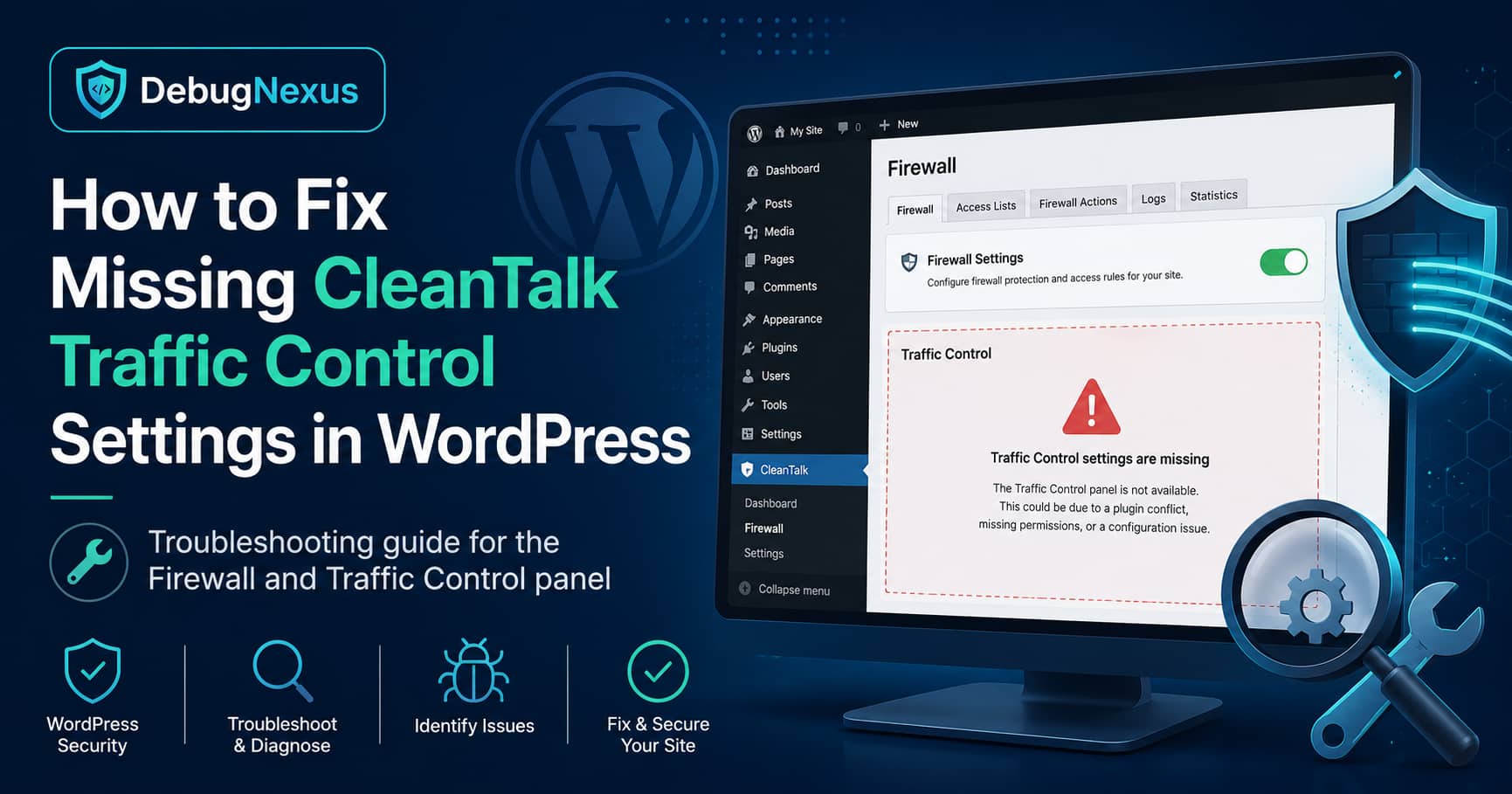
CleanTalk Security includes a Traffic Control feature that monitors requests to a WordPress website and temporarily blocks IP addresses that exceed a configured request limit.
However, some users may find that the Traffic Control settings are completely missing from the WordPress dashboard.
The problem usually looks like this:
- You open Security by CleanTalk > Firewall.
- You click the “You can adjust it here” link.
- CleanTalk redirects you to its General Settings page.
- There is no Traffic Control section anywhere on the page.
Changing the browser zoom level does not help because this is not a screen-size or layout problem. The Traffic Control settings component is not being displayed.
This issue was reported immediately after CleanTalk Security version 2.184, which changed the Traffic Control interface to a React-based settings component. The official support thread remains unresolved, and CleanTalk support requested additional website information through a private ticket.
Quick Solution
The Traffic Control settings should normally appear here:
WordPress Dashboard > Settings > Security by CleanTalk > General Settings > Firewall
When the section is missing, try the following fixes in order:
- Hard-refresh the WordPress dashboard.
- Clear browser, CDN, hosting and optimization caches.
- Temporarily disable JavaScript optimization.
- Reinstall CleanTalk Security version 2.184.
- Check the browser console for React or JavaScript errors.
- Test for a plugin conflict.
- Temporarily roll back CleanTalk Security to version 2.183.
For websites affected immediately after the 2.184 update, rolling back to version 2.183 is currently the most reliable temporary workaround.
Why Did the Traffic Control Settings Disappear?
CleanTalk Security version 2.184 was released on July 20, 2026.
The plugin changelog specifically states that the following settings were moved to React-based components:
- Traffic Control
- Upload Checker
- IP detection from headers
- CDN checking
- Scanner settings
The update also included several changes related to setting dependencies, component data names and React settings behavior.
This timing is important because the missing Traffic Control report appeared shortly after that release.
The strongest evidence therefore points to one of the following:
- A regression in the new React-based Traffic Control component
- An incomplete plugin update
- A stale JavaScript file being served from cache
- A JavaScript dependency failing to load
- A conflict with an optimization or security plugin
- A server or CDN blocking a required admin request
CleanTalk has not yet publicly confirmed the exact cause, so the React migration should be treated as the most likely explanation rather than a confirmed diagnosis.
Solution 1: Hard-Refresh the CleanTalk Settings Page
A browser may continue using an older CleanTalk JavaScript file after the plugin has been updated.
This can create a mismatch where the PHP files are from version 2.184 but the browser is trying to run JavaScript from version 2.183.
Open the CleanTalk General Settings page and perform a hard refresh:
Windows
Press:
Ctrl + Shift + Ror:
Ctrl + F5macOS
Press:
Command + Shift + RYou should also test the page in a private or incognito browser window.
If Traffic Control appears in incognito mode but not in your normal browser window, the problem is probably cached browser data or a browser extension.
Clear the browser cache and reload the page again.
Solution 2: Clear WordPress, Hosting and CDN Caches
Although most caching plugins exclude /wp-admin/, some optimization systems can still affect JavaScript files loaded inside the WordPress dashboard.
Clear all available cache layers:
- WordPress caching plugin
- Object cache, including Redis or Memcached
- Hosting cache
- Varnish cache
- Cloudflare cache
- CDN cache
- Browser cache
After clearing the caches, sign out of WordPress, close the browser and sign in again.
Then return to:
Settings > Security by CleanTalk > General SettingsCheck whether the Firewall and Traffic Control options now appear.
Solution 3: Disable JavaScript Optimization Temporarily
The new Traffic Control settings depend on JavaScript and React. Combining, delaying or modifying those scripts can prevent the component from rendering.
Temporarily disable features such as:
- JavaScript minification
- JavaScript combining
- Delay JavaScript execution
- Defer JavaScript
- Remove unused JavaScript
- Cloudflare Rocket Loader
- Admin-area optimization
Common plugins that may provide these features include:
- WP Rocket
- LiteSpeed Cache
- Autoptimize
- FlyingPress
- Perfmatters
- W3 Total Cache
- SiteGround Speed Optimizer
- Asset CleanUp
After disabling JavaScript optimization:
- Purge all caches.
- Hard-refresh the CleanTalk settings page.
- Check whether Traffic Control appears.
- Re-enable each optimization feature individually.
The WordPress administration area should generally be excluded from frontend JavaScript optimization.
Useful exclusion paths include:
/wp-admin/
/wp-login.php
Do not leave all optimization disabled permanently unless you confirm that one of these features is causing the problem.
Solution 4: Reinstall CleanTalk Security 2.184
An interrupted update can leave a website with missing, old or partially replaced plugin files.
Create a complete website backup before reinstalling the plugin.
You can reinstall the same version through WP-CLI:
wp plugin install security-malware-firewall --version=2.184 --force --activateThe --version option installs a particular version from WordPress.org, while --force replaces the existing plugin files.
After reinstalling:
- Clear all caches.
- Sign out of WordPress.
- Open a new browser session.
- Sign in again.
- Visit the CleanTalk General Settings page.
You can also reinstall the plugin manually:
- Download a fresh copy of CleanTalk Security.
- Open Plugins > Add New Plugin.
- Select Upload Plugin.
- Upload the CleanTalk ZIP file.
- Choose the option to replace the existing version.
- Activate the plugin if WordPress deactivates it.
Avoid deleting plugin data or running an uninstall cleanup unless you have backed up the site and CleanTalk configuration.
Solution 5: Check the Browser Console for JavaScript Errors
Because Traffic Control is now rendered through React, a JavaScript error can prevent the entire settings component from appearing.
Open the CleanTalk General Settings page and then open browser developer tools.
Google Chrome and Microsoft Edge
Press:
F12Select the Console tab and reload the page.
Look for errors mentioning:
CleanTalk
React
wp-element
settings
traffic control
admin-ajax.php
rest_route
chunk
Typical errors may include:
Uncaught TypeError
ReferenceError
Failed to load resource
403 Forbidden
404 Not Found
Unexpected token
Next, open the Network tab and reload the page.
Filter the requests by:
JS
Fetch/XHR
Look for failed requests with 403, 404 or 500 response codes.
What the errors may indicate
404 error for a JavaScript file
The browser or CDN may be requesting an old file that no longer exists. Clear caches and reinstall the plugin.
403 error
A firewall, hosting security rule or another WordPress security plugin may be blocking the request.
500 error
A PHP error may be preventing CleanTalk from supplying the data required by the React component.
Uncaught TypeError or ReferenceError
This usually indicates a JavaScript compatibility issue, missing dependency or plugin regression.
WordPress provides official guidance for diagnosing JavaScript errors through the browser console.
Solution 6: Enable WordPress Debug Logging
JavaScript may only be the visible symptom. An underlying PHP or AJAX error can prevent the component from receiving its settings.
Test this on staging whenever possible.
Add the following above the /* That's all, stop editing! */ line in wp-config.php:
define( 'WP_DEBUG', true );
define( 'WP_DEBUG_LOG', true );
define( 'WP_DEBUG_DISPLAY', false );
@ini_set( 'display_errors', 0 );
Reload the CleanTalk General Settings page and then inspect:
/wp-content/debug.logSearch the log for:
CleanTalk
security-malware-firewall
admin-ajax
REST API
Fatal error
TypeError
Warning
WordPress recommends using debug logging on a staging or development environment rather than leaving it enabled permanently on a production site.
Disable debugging after completing the test:
define( 'WP_DEBUG', false );Solution 7: Test for a Plugin Conflict
Another plugin may modify WordPress admin scripts, REST API access or AJAX requests.
Create a staging copy of the website and deactivate all plugins except CleanTalk Security.
Check the General Settings page again.
If Traffic Control returns, reactivate the other plugins one at a time.
Test these plugin categories first:
- Caching and performance plugins
- Security and firewall plugins
- REST API restriction plugins
- Admin customization plugins
- JavaScript optimization plugins
- CDN integration plugins
- Maintenance and white-label plugins
You can also temporarily switch to a default WordPress theme, although a theme conflict is less likely because the issue occurs inside the WordPress administration area.
Do not run a full conflict test directly on a busy production website unless you have a maintenance window.
Solution 8: Temporarily Roll Back to CleanTalk Security 2.183
When the problem begins immediately after updating to 2.184 and the previous solutions do not work, temporarily rolling back to version 2.183 is the most practical workaround.
Version 2.183 was released before the Traffic Control setting was changed to the new React-based implementation.
Roll Back with WP-CLI
Run:
wp plugin install security-malware-firewall --version=2.183 --force --activateThen clear all caches and hard-refresh the WordPress dashboard.
Return to:
Settings > Security by CleanTalk > General Settings > FirewallThe Traffic Control settings should be available through the previous interface.
Manual Rollback
- Create a full backup.
- Download CleanTalk Security version 2.183 from the plugin’s WordPress.org version archive.
- Open Plugins > Add New Plugin > Upload Plugin.
- Upload the version 2.183 ZIP file.
- Choose Replace current with uploaded.
- Clear all caches.
- Reload the General Settings page.
Temporarily disable automatic updates for CleanTalk Security so WordPress does not immediately reinstall 2.184.
Important security warning
Rolling back a security plugin should only be a temporary measure.
Continue monitoring CleanTalk’s changelog and support thread. Install the next fixed version as soon as the settings issue is confirmed as resolved.
If your website is experiencing active malicious traffic, consider maintaining an additional server-level or CDN-level firewall while using the older plugin version.
Where the Traffic Control Settings Should Appear
According to CleanTalk’s documentation, the correct location is:
WordPress Dashboard
> Settings
> Security by CleanTalk
> General Settings
> Firewall
The available Traffic Control options normally include:
- The time frame used to count requests
- The number of requests allowed during that time frame
- How long an IP address should be blocked
- Whether logged-in users should be ignored
CleanTalk explains that Traffic Control monitors requests from each IP and temporarily blocks an address when it exceeds the configured threshold.
Recommended Traffic Control Configuration
There is no single correct limit for every WordPress website.
A static business website and a WooCommerce store generate very different amounts of legitimate traffic.
A reasonable starting configuration is:
Time frame: 60 minutes
Request limit: 1,000
Block duration: 60 minutes
Ignore logged-in users: Enabled
CleanTalk’s documentation uses 1,000 requests in one hour as an example, but you should monitor your firewall logs before making the limit more aggressive.
Consider using a higher limit for:
- WooCommerce stores
- Membership websites
- Learning management systems
- Websites using WordPress Heartbeat heavily
- Websites with REST API integrations
- Websites receiving traffic from shared office networks
- Applications using frequent AJAX requests
A limit that is too low can block legitimate visitors, administrators, payment callbacks, uptime monitors or API integrations.
Start with a conservative limit, monitor the logs and reduce it gradually only when necessary.
How to Confirm That Traffic Control Is Working
After restoring the settings:
- Confirm Traffic Control is enabled.
- Save the settings.
- Open the Firewall tab.
- Monitor recent visitors and blocked requests.
- Verify that your own IP is not unexpectedly blocked.
- Test important website functionality.
For WooCommerce websites, test:
- Adding products to the cart
- Updating cart quantities
- Checkout
- Stripe or PayPal callbacks
- Customer login
- Account pages
- Webhooks
- Scheduled actions
For membership or LMS websites, test:
- Login
- Course navigation
- Progress saving
- AJAX requests
- REST API requests
Do not intentionally send thousands of requests to a live website to test the threshold.
What Not to Do
Do not edit the CleanTalk database settings directly
The new React component may depend on additional validation or dependency data. Changing raw database values can create a configuration that the plugin cannot process correctly.
Do not set an extremely low request limit
Normal visitors can generate many requests through AJAX, WooCommerce, WordPress Heartbeat or API calls.
Do not leave CleanTalk downgraded indefinitely
A rollback is a temporary compatibility workaround, especially for a security plugin.
Do not disable every firewall on a production website
If CleanTalk must be temporarily disabled, keep protection available through your host, Cloudflare or another properly configured firewall.
Do not assume that a missing panel means protection is definitely disabled
The settings interface and the firewall runtime are separate parts of the plugin. Existing Traffic Control rules may continue running even when the React settings component fails to display.
Check the Firewall logs instead of assuming that the feature is active or inactive.
Frequently Asked Questions
Why can’t I find Traffic Control in CleanTalk Security?
Traffic Control should appear under the Firewall section of CleanTalk’s General Settings. If it is missing after updating to version 2.184, the new React-based component may not be loading.
Does changing browser zoom reveal the setting?
No. This is not normally a responsive layout issue. The component is absent rather than positioned outside the visible screen.
Is this a confirmed CleanTalk 2.184 bug?
Not yet. The report appeared directly after version 2.184 changed Traffic Control to React, but CleanTalk support has requested private diagnostic information and has not published a confirmed cause or patch.
Will rolling back delete my CleanTalk settings?
Replacing plugin files normally does not remove saved settings. Nevertheless, create a database and file backup before downgrading.
Can I use Cloudflare while this is being fixed?
Yes. Cloudflare can provide rate limiting, bot filtering and firewall protection before requests reach WordPress. However, it should be configured carefully to avoid blocking WordPress administrators, payment gateways and APIs.
Should I open a CleanTalk support ticket?
Yes, especially when version 2.184 still fails after clearing caches and reinstalling the plugin. Include:
- WordPress version
- PHP version
- CleanTalk version
- Hosting provider
- Active caching and security plugins
- Browser console errors
- Failed Network requests
- Relevant entries from
debug.log - A screenshot of the missing settings
CleanTalk support requested that the affected user submit site information through its private support system.
Conclusion
The missing CleanTalk Traffic Control settings are most likely connected to the new React-based settings component introduced in CleanTalk Security version 2.184.
Begin by clearing caches, disabling JavaScript optimization and reinstalling the current plugin version. Check the browser console and WordPress debug log for failed scripts or AJAX requests.
When the settings remain missing, temporarily rolling back to CleanTalk Security 2.183 should restore the previous interface while CleanTalk investigates the problem.
Because CleanTalk is a security plugin, monitor the official changelog and upgrade to a corrected release as soon as one becomes available.
