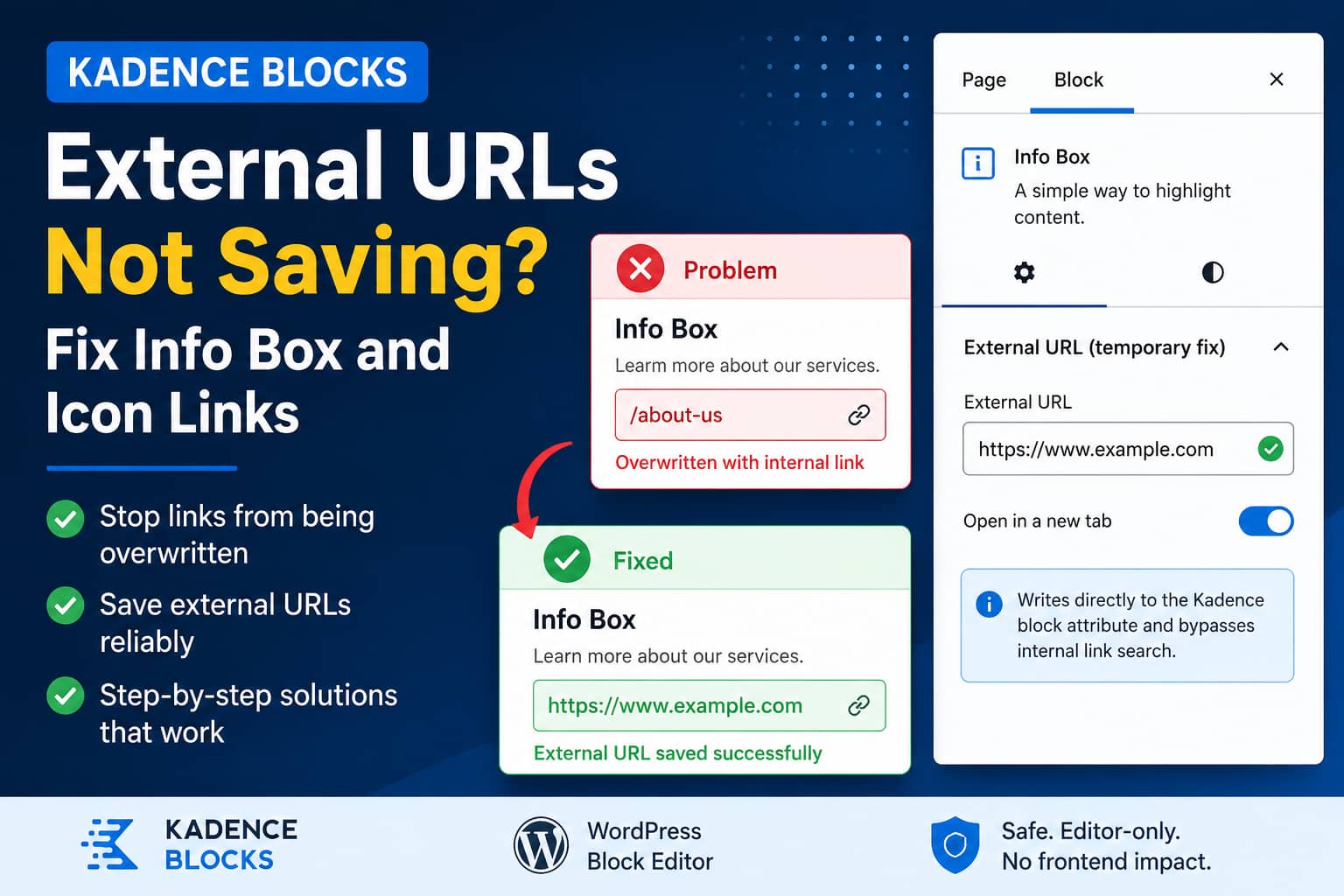
Kadence Blocks users may encounter a frustrating issue when adding external links to the Info Box or Icon block. After entering an external URL such as:
https://www.google.com/the link field may replace it with an internal page, fail to store it, or become empty after the page is saved and refreshed.
The problem can happen even on a clean WordPress installation with no additional plugins, which suggests that it is related to the Kadence block link interface rather than a plugin conflict.
This guide explains how to confirm the problem and provides three ways to fix it.
Symptoms of the Kadence External URL Problem
You may be affected by this issue when:
- An external URL is replaced by a WordPress page or post with a similar keyword.
- The internal page search opens immediately after pasting a URL.
- Pressing Enter does not confirm the external URL.
- The link appears temporarily but disappears after refreshing the editor.
- The published Info Box or Icon is not clickable.
- The block saves an empty
hrefvalue. - Editing the block as HTML is the only method that works.
The issue has been reported specifically with the link fields located in the right-hand block settings sidebar.
Which Kadence Blocks Are Affected?
The reported behavior primarily affects:
- Kadence Info Box
- Kadence Icon
- The nested Single Icon block inside the Kadence Icon block
Other Kadence blocks using the same link-control component may potentially show similar behavior.
Is This Already Fixed?
As of July 21, 2026, the current Kadence Blocks release is version 3.7.8. Its published changelog does not list a fix specifically addressing external URLs being overwritten or lost in the Info Box and Icon sidebar fields.
An older open issue in the official Kadence Blocks repository also describes confusing custom-link behavior. According to that report, entering a custom link is not enough by itself. The user must click the link submission button, and pressing Enter does not reliably confirm the URL.
Therefore, you should treat the methods below as temporary workarounds until Kadence publishes and documents an official fix.
Why Kadence Replaces the External URL
Kadence uses an AJAX-powered URL input component. As you type or paste text into the field, WordPress searches the website for matching pages, posts, and other internal content.
For example, entering:
https://www.google.com/may trigger a search for words contained in the URL. If your website has an internal page containing a similar term, the interface may suggest or select that page.
Another problem occurs when the typed URL is visible in the field but has not yet been committed to the block attributes. When you update or refresh the page, the unconfirmed value disappears.
The Kadence Info Box source code stores its destination in a string attribute named link.
Its sidebar control is supposed to pass the entered URL to that attribute using:
setAttributes({ link: value })The Single Icon block uses the same link attribute approach.
The problem is therefore generally not that Kadence cannot support external URLs. The issue occurs while the sidebar interface is trying to select and commit the URL.
Solution 1: Confirm the URL Without Selecting a Search Result
Try this method before adding custom code.
Step 1: Enter the Complete URL
Use the complete URL, including the protocol:
https://www.example.com/Do not enter only:
www.example.comor:
example.comStep 2: Ignore Internal Search Suggestions
After pasting the URL, Kadence may show internal pages underneath the field.
Do not select any of those suggestions.
Selecting an internal search result will intentionally replace the external URL with that page’s URL.
Step 3: Click the Apply or Submit Icon
Look for a small submit, apply, return, or arrow-style icon beside the link field.
Click that icon instead of only pressing Enter.
Kadence users have previously reported that pressing Enter may not commit a custom URL, while clicking the small link confirmation button does.
Step 4: Click Outside the Field
After confirming the URL:
- Click another block setting.
- Wait a few seconds.
- Click Update or Publish.
- Refresh the editor.
- Select the block again and check the URL.
If the external URL remains in the field, the problem is resolved.
If it disappears or gets replaced again, use Solution 2.
Solution 2: Add a Direct External URL Field to Kadence Blocks
This is the most reliable temporary solution because it bypasses the AJAX link-search interface.
The code adds a new panel called:
External URL (temporary fix)It appears in the block sidebar when you select a Kadence Info Box or Single Icon block.
The new field writes the URL directly to Kadence’s existing link attribute.
Before Adding the Code
Create a backup and test the snippet on staging when possible.
Do not edit the Kadence Blocks plugin files. Plugin updates would overwrite those changes and could break the editor.
Add the code using either:
- A PHP snippets plugin
- Your child theme’s
functions.phpfile - A small site-specific functionality plugin
When using functions.php, do not add another <?php opening tag if the file already contains one.
Kadence External URL Fix Snippet
/**
 * Temporary workaround for Kadence external URLs not saving.
 *
 * Adds a direct URL field to the Kadence Info Box and Single Icon
 * block settings. The field writes directly to the block's existing
 * "link" attribute and bypasses the internal AJAX link search.
 */
add_action( 'enqueue_block_editor_assets', function () {

	/*
	 * Register an editor-only script handle.
	 * No separate JavaScript file is required.
	 */
	wp_register_script(
		'debugnexus-kadence-external-url-fix',
		false,
		array(
			'wp-hooks',
			'wp-compose',
			'wp-element',
			'wp-components',
			'wp-block-editor',
		),
		'1.0.0',
		true
	);

	wp_enqueue_script( 'debugnexus-kadence-external-url-fix' );

	$script = <<<'JS'
(function (wp) {
	'use strict';

	if (
		!wp ||
		!wp.hooks ||
		!wp.compose ||
		!wp.element ||
		!wp.components ||
		!wp.blockEditor
	) {
		return;
	}

	var addFilter = wp.hooks.addFilter;
	var createHigherOrderComponent = wp.compose.createHigherOrderComponent;
	var el = wp.element.createElement;
	var Fragment = wp.element.Fragment;

	var InspectorControls = wp.blockEditor.InspectorControls;
	var PanelBody = wp.components.PanelBody;
	var TextControl = wp.components.TextControl;
	var ToggleControl = wp.components.ToggleControl;

	var supportedBlocks = [
		'kadence/infobox',
		'kadence/single-icon'
	];

	var withKadenceExternalUrlField = createHigherOrderComponent(
		function (BlockEdit) {
			return function (props) {

				if (supportedBlocks.indexOf(props.name) === -1) {
					return el(BlockEdit, props);
				}

				var attributes = props.attributes || {};

				return el(
					Fragment,
					null,

					el(BlockEdit, props),

					props.isSelected && el(
						InspectorControls,
						null,

						el(
							PanelBody,
							{
								title: 'External URL (temporary fix)',
								initialOpen: true
							},

							el(TextControl, {
								label: 'External URL',
								type: 'url',
								value: attributes.link || '',
								onChange: function (value) {
									props.setAttributes({
										link: value
									});
								},
								help: 'Writes directly to the Kadence block attribute and bypasses internal link search.'
							}),

							el(ToggleControl, {
								label: 'Open in a new tab',
								checked: attributes.target === '_blank',
								onChange: function (checked) {
									props.setAttributes({
										target: checked ? '_blank' : '_self'
									});
								}
							})
						)
					)
				);
			};
		},
		'withKadenceExternalUrlField'
	);

	addFilter(
		'editor.BlockEdit',
		'debugnexus/kadence-external-url-fix',
		withKadenceExternalUrlField
	);

})(window.wp);
JS;

	wp_add_inline_script(
		'debugnexus-kadence-external-url-fix',
		$script
	);
} );
How to Use the New URL Field
After activating the snippet:
- Open the affected page in the WordPress block editor.
- Select the Kadence Info Box or Icon block.
- Open the right-hand block settings sidebar.
- Find External URL (temporary fix).
- Enter the complete external URL.
- Enable Open in a new tab when required.
- Click Update.
- Refresh the editor and verify the URL.
- Test the link on the published page.
For a Kadence Icon block, you may need to open List View and select the nested Single Icon block instead of the outer Icon container.
Why This Code Works
The fix does not create a different kind of link. It updates the same attributes Kadence already uses.
The Info Box block reads its URL from the link attribute and writes that value to the saved anchor’s href.
When the entire Info Box is linked, Kadence also uses the same attribute when producing the clickable wrapper.
The Single Icon block similarly places its link attribute directly inside the saved anchor element.
The custom panel therefore bypasses only the problematic search interface. It does not change Kadence’s frontend HTML structure.
The snippet is loaded through WordPress’s block-editor asset system and uses the editor’s BlockEdit filter to add the extra control. It does not load on normal frontend visits.
Solution 3: Manually Edit the Block Markup
Use this method when you cannot install a snippet.
Create a backup or duplicate the block before changing its HTML.
Fixing a Kadence Info Box
- Select the Info Box.
- Open the block’s three-dot menu.
- Select Edit as HTML.
- Find the anchor containing the
info-box-linkclass. - Locate its
hrefattribute. - Replace only the URL.
- Return to the visual editor.
- Update the page.
An example may look similar to:
<a
	class="kt-blocks-info-box-link-wrap info-box-link"
	href="https://www.example.com/"
>
Do not delete Kadence classes, block comments, or other attributes.
Fixing a Kadence Icon Block
The newer Kadence Icon block may contain a nested kadence/single-icon block.
Open the WordPress code editor and find a block comment similar to:
<!-- wp:kadence/single-icon {"uniqueID":"abc123","link":"https://www.example.com/","target":"_self"} -->Change only the value assigned to link:
"link":"https://www.example.com/"Then return to the visual editor and update the page.
What to Do If WordPress Reports Invalid Block Content
If WordPress displays an invalid block warning:
- Do not immediately click Attempt Block Recovery.
- Undo the most recent HTML change.
- Check for missing quotation marks, brackets, or commas.
- Restore the duplicated block when necessary.
- Use the direct editor-field snippet instead.
Manually editing serialized block markup is effective, but it is easier to introduce formatting errors.
Alternative: Temporarily Replace the Kadence Block
For an urgent page update, replace the affected block with a standard WordPress block that supports normal links.
Possible alternatives include:
- A core Button block
- A linked Image block
- A Group containing a heading, icon, and Button
- A normal paragraph or heading link
- A custom HTML block
This is useful when the external destination must work immediately and you cannot add PHP or edit serialized block markup safely.
How to Verify the Fix
After applying any solution, complete all of the following tests.
1. Refresh the Editor
Save the page, reload the editor, and inspect the block again.
The external URL must still be present after the refresh.
2. Test the Published Page
Open the page in a private or incognito browser window.
Click the Info Box or Icon and confirm that it opens the exact external destination.
3. Inspect the Link
Right-click the linked element and inspect it.
Confirm that the HTML contains:
href="https://www.example.com/"4. Test the New-Tab Setting
When Open in a new tab is enabled, confirm that the link includes:
target="_blank"Kadence also adds noopener noreferrer when an Info Box or Single Icon opens in a new tab.
5. Clear Cache Only When Necessary
This issue usually occurs inside the block editor, so clearing the frontend cache will not normally fix the missing block attribute.
Clear page cache, server cache, or CDN cache only when:
- The correct URL remains saved in the editor.
- The frontend still displays the old URL.
- Your website uses full-page caching or a CDN.
Troubleshooting
The Temporary Panel Does Not Appear
Confirm that:
- The PHP snippet is active.
- It is allowed to run in the WordPress administration area.
- You selected a Kadence Info Box or nested Single Icon block.
- The block settings sidebar is visible.
- Your browser console does not show a JavaScript error.
Also clear any admin-side optimization or asset-combination cache.
The Field Works for Info Box but Not Icon
Open WordPress List View and expand the Kadence Icon block.
Select the nested Single Icon item. The temporary field is attached to:
kadence/single-iconrather than only the outer Icon container.
The URL Still Becomes Empty
Check that the URL includes its protocol:
https://Also verify that another plugin, custom editor script, or reusable block synchronization process is not resetting the block attributes.
The Correct URL Is Saved but the Frontend Shows the Old One
Clear:
- WordPress page cache
- Hosting cache
- CDN cache
- Browser cache
Then inspect the frontend source again.
What You Should Not Do
Avoid the following approaches:
- Do not modify Kadence Blocks plugin files directly.
- Do not select an internal search suggestion unless you want an internal link.
- Do not use an incomplete domain without
https://. - Do not perform a database-wide search and replace for one block URL.
- Do not repeatedly recover an invalid block without creating a backup.
- Do not disable security plugins unless there is evidence of an actual conflict.
- Do not assume this is a caching problem when the URL disappears inside the editor.
Frequently Asked Questions
Is this caused by a WordPress cache?
Usually not. The URL is being lost or overwritten before it is properly saved in the block attributes. Cache clearing is only relevant when the correct URL exists in the editor but the frontend still displays an older version.
Is this a security vulnerability?
There is currently no indication that this behavior is a security vulnerability. It is primarily an editor usability and data-saving problem.
Does the PHP snippet affect website visitors?
No. It is loaded using the WordPress block-editor asset hook. The extra field appears only inside the editor and does not add a frontend script.
Will it change the design of my Info Box or Icon?
No. The snippet updates only the existing link and target attributes. It does not alter colors, typography, spacing, icons, or responsive settings.
Can I remove the snippet later?
Yes. After Kadence publishes a confirmed fix, verify that links save correctly through the normal sidebar field and then deactivate the snippet.
Links already saved in the block attributes should remain in the content.
Will this work with Kadence Blocks Pro?
The workaround targets the standard Kadence Info Box and Single Icon block names. It should also work when Kadence Blocks Pro is active, provided those block names have not been replaced or customized. Test it on staging before applying it to a production website.
Final Thoughts
The Kadence Blocks external URL issue is particularly confusing because the URL may appear correct until the page is refreshed. In other cases, the internal AJAX search may replace the external destination before the user notices.
Start by entering the complete URL and explicitly clicking the link confirmation button. When the field continues to overwrite or remove the URL, use the editor-only snippet to write directly to Kadence’s existing link attribute.
The code-based workaround is safer and more maintainable than repeatedly editing serialized block HTML, and it can be removed once an official Kadence update resolves the issue.
