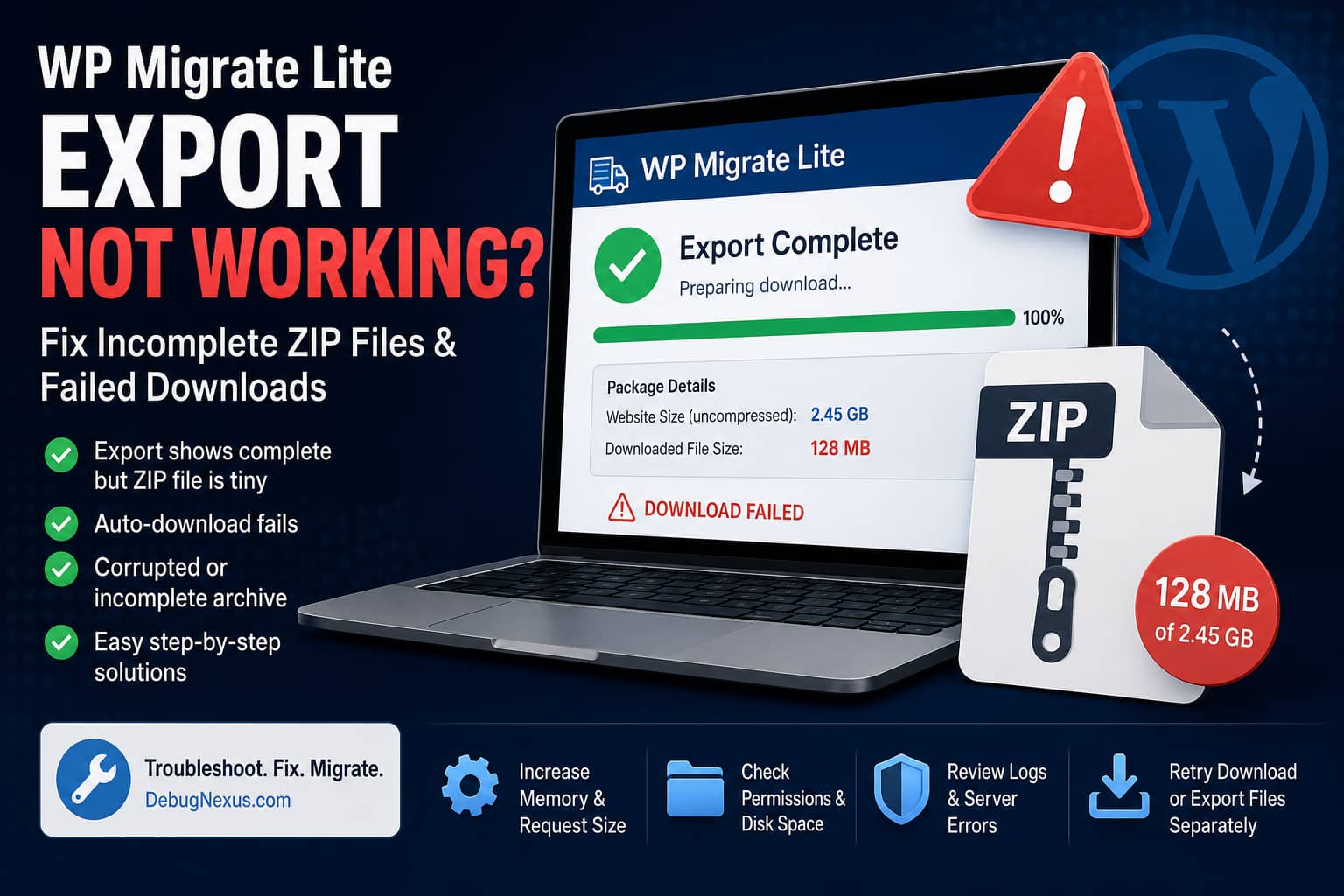
A WP Migrate Lite export may occasionally appear to finish successfully, while the downloaded ZIP file is much smaller than the size displayed by the plugin. The automatic download may also fail, or the ZIP file may be corrupted and impossible to extract.
A typical report looks like this:
The export job shows as complete, but the ZIP file is only a fraction of the listed size and the automatic download fails.
WP Migrate Lite can package the WordPress database, media uploads, themes, plugins, WordPress core files, and other selected files into one downloadable ZIP archive. After the export is assembled, the plugin automatically starts the browser download.
When the progress screen says “complete” but the archive is incomplete, the failure usually happened during one of two separate stages:
- The server failed to finish building the ZIP archive.
- The ZIP was created correctly, but the browser failed to download the complete file.
This guide will help you identify which stage failed and fix the underlying problem.
Important: The original support report had not received an official reply at the time this article was prepared. The steps below cover the most likely causes based on WP Migrate documentation, previous support cases, and standard WordPress server troubleshooting.
Quick Fix Checklist
Try these steps in this order:
- Update WP Migrate Lite, WordPress, and PHP.
- Test a database-only export.
- Export fewer files at a time.
- Increase WP Migrate’s Maximum Request Size.
- Increase the WordPress and PHP memory limits.
- Check available disk space and server inodes.
- Verify that the WP Migrate temporary directory is writable.
- Check the WP Migrate Diagnostic Info and Error Log.
- Check
wp-content/debug.logand the server error log. - Retry the download in another browser.
- Temporarily disable security, firewall, and caching restrictions.
- Transfer the database and files separately if the full-site export still fails.
First, Check Whether the ZIP Is Actually Corrupted
A ZIP archive can legitimately be much smaller than the original files because ZIP compression reduces the stored size. A smaller file alone does not necessarily mean that the export failed.
However, the archive is probably incomplete when:
- The downloaded size is only a tiny fraction of the size displayed by WP Migrate.
- The browser reports that the download failed.
- Windows cannot open the archive.
- 7-Zip reports an unexpected end of data.
- LocalWP rejects the archive.
- The terminal reports an “End-of-central-directory signature not found” error.
- Important directories or the database export are missing.
A previous WP Migrate support report involving a very small ZIP produced the “End-of-central-directory signature not found” error. WP Migrate support explained that this normally indicates that the archive was not fully generated, potentially because of server memory limits or execution timeouts.
Test the ZIP on Linux or macOS
Run:
unzip -t website-export.zipTo list the contents without extracting them, run:
unzip -l website-export.zipA valid archive should finish the test without CRC errors, missing directory information, or unexpected end-of-file errors.
Test the ZIP on Windows
Install 7-Zip, right-click the archive, and select:
7-Zip > Test archiveIf 7-Zip reports that the archive is incomplete, do not import it into LocalWP or another WordPress installation. Generate a new export after resolving the server problem.
1. Update WP Migrate Lite
Start by updating WP Migrate Lite to the latest available release.
At the time of writing, WordPress.org lists WP Migrate Lite 2.7.10, released on June 30, 2026. Version 2.7.9 also included a security fix related to the plugin’s file download handler, making it especially important not to troubleshoot this issue with an outdated release.
Go to:
WordPress Dashboard > Plugins > Installed PluginsUpdate:
- WP Migrate Lite
- WordPress core
- Active theme
- Other active plugins
After updating, clear the WordPress cache, server cache, object cache, and browser cache before running another export.
Do not update directly on a critical production website without creating a separate backup first.
2. Test a Database-Only Export
Before attempting another full-site export, determine whether the problem is caused by the database or the filesystem.
Open WP Migrate and configure an export containing only the database.
If the database-only export works, the failure is probably connected to one of these file groups:
- Media uploads
- Plugins
- Themes
- WordPress core
- Other files inside the website
- A particularly large file
- A file that PHP cannot read
- A directory with incorrect permissions
If the database-only export also fails, focus on:
- PHP memory
- Request size
- AJAX requests
- Security restrictions
- Database errors
- WP Migrate diagnostics
- Server execution limits
This small test is much faster than repeatedly generating the entire site archive.
3. Export Fewer Files at a Time
WP Migrate support recommends testing a smaller export when the full package completes but the browser download fails. Exporting fewer items helps determine whether the problem is related to the total archive size or a specific group of files.
Try the following combinations separately:
Test 1
Database onlyTest 2
Database + active themeTest 3
Database + active theme + active pluginsTest 4
Media uploads excludedIf the export works without media uploads, transfer the uploads directory separately using SFTP, SSH, rsync, or your hosting file manager.
This approach is often more reliable for websites with several gigabytes of images, videos, PDFs, backup archives, or generated cache files.
4. Increase the Maximum Request Size
WP Migrate breaks a migration into multiple requests. If its Maximum Request Size is too low, a large export may require thousands of individual requests.
A previous WP Migrate export failure was resolved by increasing the plugin’s Maximum Request Size from 1 MB to 5 MB. WP Migrate support explained that a very small request size can create an excessive number of requests, causing the process to hang, crash, or trigger security rate limiting.
Open WP Migrate’s advanced settings and locate:
Maximum Request SizeTry changing it from:
1 MBto:
5 MBRun the export again.
If the server has very little memory, a larger request may increase memory consumption. In that situation, test 2 MB before trying 5 MB.
The goal is to find a balance where each request contains enough data to avoid thousands of AJAX calls without exceeding the server’s memory limit.
5. Increase the WordPress Memory Limit
Full-site exports require additional memory to read files, export database tables, build the archive, calculate progress, and handle requests.
Add the following above the “That’s all, stop editing” line in wp-config.php:
define('WP_MEMORY_LIMIT', '512M');
define('WP_MAX_MEMORY_LIMIT', '512M');
The second constant is particularly important because WordPress administration processes may use the administrative memory limit.
A lower value may be sufficient for smaller sites:
define('WP_MEMORY_LIMIT', '256M');
define('WP_MAX_MEMORY_LIMIT', '256M');
However, defining a value in wp-config.php cannot override a lower server-level PHP limit. Check the actual PHP memory limit under:
Tools > Site Health > Info > ServerYou can also review it in the WP Migrate Diagnostic Info section.
6. Increase PHP Execution Limits
A hosting provider may terminate the export before the ZIP archive has been finalized.
Update the relevant PHP configuration file, such as php.ini, .user.ini, or the hosting control panel’s PHP Options page:
memory_limit = 512M
max_execution_time = 600
max_input_time = 600
post_max_size = 128M
upload_max_filesize = 128M
The most important values for server-side archive generation are usually:
memory_limit
max_execution_time
The exact limits required depend on:
- Total website size
- Number of files
- Database size
- Hosting performance
- PHP version
- Available CPU
- Disk speed
- Security restrictions
Some managed hosts ignore custom php.ini or .user.ini files. Contact the hosting provider when the values shown in Site Health do not change.
Ask the host to check for:
- PHP fatal errors
- Out-of-memory errors
- Process termination
- CPU throttling
- Execution timeout
- Web application firewall blocks
- Disk quota limits
7. Check Server Disk Space and Inodes
The server needs enough free space to hold the existing website and create the temporary export archive.
Depending on how the plugin builds the package, the operation may temporarily require substantially more space than the final compressed ZIP.
On an SSH-enabled server, check disk space with:
df -hCheck inode availability with:
df -iA server can report available storage while still being unable to create new files because all available inodes have been used.
Check the uploads directory size:
du -sh wp-content/uploadsCheck the complete WordPress installation:
du -sh .Common sources of unnecessary disk usage include:
- Old backup archives
- Staging copies
- Cache directories
- Large debug logs
- Previous migration packages
- Error logs
- Video files
- Unused media
- Database backup files
- UpdraftPlus backups
- All-in-One WP Migration backups
Move important backups to external storage before deleting anything.
8. Check the WP Migrate Temporary Directory
WP Migrate diagnostic logs show that full-site ZIP archives may be created under a directory similar to:
wp-content/uploads/wp-migrate-db/A previous support log repeatedly reported that the expected ZIP archive inside this directory did not exist.
Using SFTP, SSH, or your hosting file manager, check whether this directory exists and is writable.
Typical directory permissions are:
755Typical file permissions are:
644The correct ownership is more important than the numeric permission alone. PHP must be able to create, update, and delete files inside the directory.
Do not automatically set permissions to 777. World-writable permissions create a security risk and usually hide the real ownership problem.
Ask the host to confirm that the web server user owns or can write to:
wp-content/uploads/
wp-content/uploads/wp-migrate-db/
Also check whether a security plugin, malware scanner, cleanup process, or hosting optimization service is deleting the temporary ZIP before it is downloaded.
9. Remove Large or Unnecessary Files From the Export
A full-site export may accidentally include files that should not be migrated.
Inspect the website for:
wp-content/cache/
wp-content/debug.log
wp-content/updraft/
wp-content/ai1wm-backups/
wp-content/wflogs/
error_log
backup.zip
site-backup.tar.gz
node_modules/
.git/
Do not permanently delete backups until another verified copy exists.
Exclude cache files, generated logs, old migration packages, and unnecessary development directories from the export.
A single multi-gigabyte log or backup archive can dramatically increase the amount of work required to build the ZIP.
10. Retry the Download in Another Browser
Sometimes the server successfully creates the archive, but the browser fails while downloading it.
WP Migrate support recommends:
- Trying another browser
- Disabling browser extensions
- Checking the internet connection
- Exporting fewer files
- Keeping the browser tab open until the download finishes
Try the export in:
- Chrome Incognito mode
- Firefox Private Browsing
- Microsoft Edge InPrivate mode
Temporarily disable:
- Download manager extensions
- Antivirus browser extensions
- Privacy extensions
- Ad blockers
- Script blockers
- Corporate proxy extensions
Also check whether the browser is blocking automatic downloads from the WordPress admin area.
If the downloaded ZIP is valid but the browser stopped early, retry using a stable wired connection or download the archive through the hosting file manager when the temporary file remains available.
11. Check the Browser Developer Console
Open the browser developer tools before starting the export.
In Chrome or Edge:
F12 > NetworkFilter requests using:
admin-ajax.phpLook for responses such as:
403 Forbidden
404 Not Found
429 Too Many Requests
500 Internal Server Error
502 Bad Gateway
503 Service Unavailable
504 Gateway Timeout
Also open:
F12 > ConsoleLook for JavaScript errors, blocked downloads, failed requests, or security policy errors.
A 403 or 429 response commonly indicates that a firewall, security plugin, CDN, or host-level rate limiter is blocking WP Migrate’s repeated requests.
A 500, 502, 503, or 504 response usually points to a PHP, proxy, web server, or resource-limit problem.
12. Temporarily Disable Security and Rate Limiting
Large migrations generate repeated background requests. Security systems may interpret them as automated or abusive activity.
Temporarily test without restrictions from:
- Wordfence
- Solid Security
- Sucuri
- Cloudflare WAF
- ModSecurity
- Hosting bot protection
- Basic authentication
- Maintenance mode plugins
- Rate limiting
- CAPTCHA protection
- Custom admin restrictions
Do this only on a protected staging or development website whenever possible.
WP Migrate’s troubleshooting documentation recommends checking whether requests to wp-admin/admin-ajax.php work correctly and whether maintenance mode, plugins, or the active theme interfere with migration requests. The plugin also provides Compatibility Mode to reduce plugin conflicts during migrations.
Re-enable all security protections immediately after testing.
13. Run a Plugin Conflict Test
WP Migrate normally places plugins into compatibility mode during migration requests, but must-use plugins, server integrations, custom code, or unusual plugins can still interfere.
On a staging or development copy:
- Deactivate all nonessential plugins.
- Keep WP Migrate Lite active.
- Switch temporarily to a default WordPress theme.
- Clear all caches.
- Retry a small export.
- Reactivate plugins one at a time.
Pay particular attention to:
- Security plugins
- Caching plugins
- Backup plugins
- File-management plugins
- Maintenance mode plugins
- Optimization plugins
- Must-use plugins
- Custom code that modifies AJAX responses
- Plugins that start output buffering or compression
If the export works after deactivation, reactivate plugins individually until the failure returns.
14. Check WP Migrate Diagnostic Information
WP Migrate records migration details and certain errors under its Help tab.
Go to:
WP Migrate > HelpLocate:
Diagnostic Info & Error LogLook for messages containing:
ZIP Archive does not exist
Allowed memory size exhausted
Maximum execution time exceeded
Permission denied
Failed to open stream
No space left on device
Request failed
Unexpected response
Migration cancelled
WP Migrate’s official troubleshooting guide recommends checking this diagnostic log, followed by the PHP or web server error logs and the browser console.
Remove or redact sensitive information before posting diagnostic data publicly.
15. Enable the WordPress Debug Log
Add these lines to wp-config.php:
define('WP_DEBUG', true);
define('WP_DEBUG_LOG', true);
define('WP_DEBUG_DISPLAY', false);
Run the failed export once.
Then inspect:
wp-content/debug.logSearch for errors recorded at the exact time of the export.
WP Migrate support has specifically recommended enabling WP_DEBUG_LOG when export diagnostics do not reveal why the ZIP disappears or fails to generate.
After troubleshooting, change the settings back:
define('WP_DEBUG', false);Remove or securely delete debug.log because it may contain server paths, database information, plugin names, and other sensitive details.
16. Check PHP, Apache, and Nginx Error Logs
WordPress may not capture every server-level failure.
Check:
PHP error log
Apache error log
Nginx error log
Hosting resource usage log
ModSecurity audit log
Common server messages include:
PHP Fatal error: Allowed memory size exhausted
Maximum execution time exceeded
No space left on device
Permission denied
upstream timed out
Connection reset by peer
Process killed
Resource temporarily unavailable
Provide the exact timestamp of the failed export to the hosting provider. This makes it easier for support to find the corresponding server event.
17. Disable Output Compression During Testing
Unexpected output compression or buffering can occasionally interfere with large file downloads.
Check whether the server has:
zlib.output_compression = OnTemporarily test with:
zlib.output_compression = OffAlso temporarily disable HTML optimization, output buffering, and response-modification features provided by caching or performance plugins.
This step is mainly relevant when the ZIP is correctly created on the server but becomes corrupted only during the HTTP download.
Restore the original configuration after testing.
18. Transfer the Database and Files Separately
When full-site ZIP creation remains unreliable, migrate the site in two parts.
Export the database
Use WP Migrate’s database-only export, phpMyAdmin, or WP-CLI:
wp db export database.sqlTransfer the WordPress files
Use:
- SFTP
- SCP
- rsync
- Hosting file manager
- Server-side tar archive
Example using tar:
tar \
  --exclude='wp-content/cache' \
  --exclude='wp-content/debug.log' \
  --exclude='wp-content/uploads/wp-migrate-db' \
  -czf wordpress-files.tar.gz .
Store migration archives outside the publicly accessible web root whenever possible.
After downloading and verifying the archive, delete the server copy so that sensitive website files are not left publicly accessible.
19. Verify the Export Before Importing It
Never assume that a migration archive is complete simply because the plugin displayed a completion message.
Test the archive:
unzip -t website-export.zipList its contents:
unzip -l website-export.zipGenerate a checksum:
sha256sum website-export.zipAfter transferring the file to another computer or server, generate the checksum again. Both values should match.
Also confirm that the archive contains:
- Database export
wp-content/uploads- Active theme
- Required plugins
- WordPress configuration expected by the importer
- Any custom directories required by the website
Recommended Fix Order
For most websites, use this exact sequence:
- Update WP Migrate Lite.
- Run a database-only export.
- Increase Maximum Request Size from 1 MB to 5 MB.
- Raise WordPress and PHP memory to 512 MB.
- Set PHP execution time to 600 seconds.
- Confirm free disk space and inodes.
- Check permissions on
wp-content/uploads/wp-migrate-db. - Exclude caches, old backups, and media uploads.
- Retry in a private browser window.
- Check the WP Migrate diagnostic log.
- Enable
WP_DEBUG_LOG. - Check server logs for memory, timeout, permission, or disk errors.
- Transfer files separately when necessary.
Frequently Asked Questions
Why is the WP Migrate ZIP smaller than the displayed size?
Normal ZIP compression can reduce the final file size. However, the archive is likely incomplete when it is dramatically smaller, fails the ZIP integrity test, cannot be opened, or is missing important files.
Does a failed automatic download mean the export failed?
Not always. The server may have created a valid ZIP while the browser, internet connection, extension, proxy, or antivirus interrupted the download. Test the archive and check the browser Network panel before running another full export.
Where does WP Migrate create its ZIP file?
Diagnostic logs from full-site exports show archive paths under:
wp-content/uploads/wp-migrate-db/The exact behavior may depend on the plugin version and whether the export completed, failed, was cancelled, downloaded, or cleaned up.
Can a corrupted ZIP be repaired?
A ZIP missing its central directory is generally incomplete. Repair tools may recover some individual files, but the result should not be trusted as a complete WordPress migration. Fix the server issue and create a new export.
How much PHP memory does WP Migrate need?
There is no universal value. Smaller websites may work with 256 MB, while large full-site exports may need 512 MB or more. File count, database size, plugin selection, media size, and hosting performance all affect memory requirements.
Should I increase Maximum Request Size or decrease it?
Increase it when the export is generating an excessive number of small requests or triggering rate limits. Decrease it when individual requests exhaust PHP memory. Test 2 MB and 5 MB rather than immediately selecting an extreme value.
Can Cloudflare block a WP Migrate export?
Yes. Cloudflare WAF rules, bot protection, rate limiting, or proxy timeouts can block or interrupt repeated WordPress AJAX requests. Check the browser Network panel and Cloudflare security events for matching 403, 429, 5xx, or timeout responses.
Final Thoughts
When WP Migrate Lite reports that an export is complete but produces a tiny or corrupted ZIP, do not repeatedly rerun the same full export without checking the logs.
First determine whether the archive failed during server-side creation or during the browser download. Then check request size, PHP memory, execution time, disk space, file permissions, security restrictions, browser behavior, and the WP Migrate diagnostic log.
For very large websites, separating the database migration from the file transfer is often more reliable than forcing the entire site into one browser-downloaded ZIP archive.
