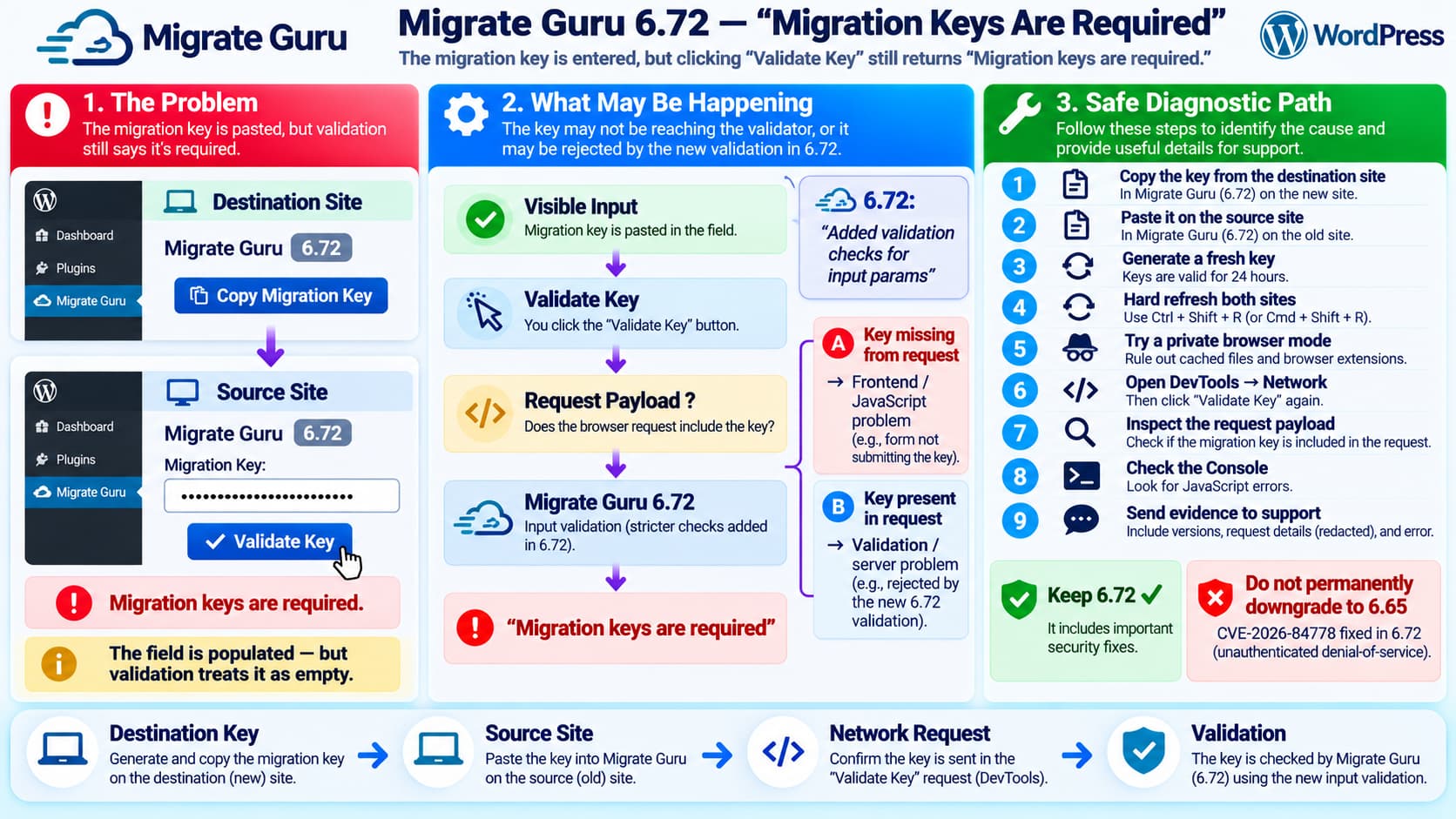
A Migrate Guru migration can fail before it starts with the following validation message:
Migration keys are required.
The confusing part is that the migration-key field is visibly populated.
A current report describes exactly that situation with Migrate Guru 6.72 installed and activated on both the source and destination WordPress sites. Clicking Validate Key repeatedly returns the same red required-field error even though the key has been pasted into the form.
This is important because the message does not necessarily mean the user forgot to enter a key.
It can also mean that the value visible in the browser is not reaching the validation request in the form expected by Migrate Guru.
There Has Already Been an Almost Identical Migrate Guru Report
A previous Migrate Guru support topic was titled:
Migration keys are required
The user reported that after upgrading to Migrate Guru 6.65:
Key copied from destination
        ↓
Key pasted into source
        ↓
Submit clicked
        ↓
“Migration keys are required”
They specifically noted that they had checked the key and that the system appeared to be treating the populated field as empty. Reinstalling the plugin initially did not solve it.
Migrate Guru support responded by asking the user to ensure that the same latest plugin version was installed on both the source and destination sites.
The user later confirmed that the migration started working.
That historical case is highly relevant—but it does not completely solve the new one.
The current report already confirms:
Source:      Migrate Guru 6.72
Destination: Migrate Guru 6.72
So simply telling the user to make the versions match is insufficient in this case.
Version 6.72 Changed Input Validation
The timing is particularly notable because the Migrate Guru 6.72 changelog contains only one primary change:
6.72
Tweak: Added validation checks for input params.
That does not prove that 6.72 introduced this particular bug.
However, it makes the exact error worth investigating as a possible validation regression because:
Visible form value
        ↓
New request validation
        ↓
Server reports parameter missing
is consistent with the symptom.
The safest conclusion is:
Migrate Guru 6.72 may be rejecting or failing to receive the migration-key parameter during validation even though the browser displays the pasted value.
That should remain a hypothesis until the actual browser request is inspected.
Do Not Confuse “Required” With “Invalid”
These are two different failures.
An invalid or expired key would normally mean something conceptually like:
Migration key received
        ↓
Key checked
        ↓
Key rejected
But:
Migration keys are requirednormally suggests an earlier failure:
Validation request received
        ↓
Expected key parameter missing/empty
        ↓
Required-field validation fails
That distinction is useful.
If the key never reaches the validator, repeatedly generating different keys may not solve the underlying problem.
First Confirm the Correct Migration Direction
Migrate Guru’s migration-key workflow has caused some confusion in the past.
The intended process is:
DESTINATION / NEW SITE
Install Migrate Guru
        ↓
Copy migration key
        ↓
SOURCE / OLD SITE
Install Migrate Guru
        ↓
Paste destination key
        ↓
Start migration
Migrate Guru support explicitly clarified this flow after another user reported confusing instructions around the Copy key dialog.
So make sure the migration key was generated on the:
NEW / DESTINATION siteand pasted into Migrate Guru on the:
OLD / SOURCE siteDo not copy the source site’s key and paste it into the destination.
Generate a Fresh Key
Migrate Guru changed migration keys in version 5.65 to have a:
24-hour validityperiod.
Therefore, generate a fresh destination key before doing deeper troubleshooting.
Use this sequence:
Destination site
→ Open Migrate Guru
→ Generate / copy current key
→ Immediately switch to source site
→ Paste it
→ Validate
Do not rely on a key copied the previous day.
Also avoid manually editing the key.
Paste Into a Plain-Text Editor First
Copy/paste problems are less likely because the field is visibly populated, but they are easy to eliminate.
Copy the key into:
Notepad
TextEdit in plain-text mode
VS Code
and confirm there are no obvious:
- leading spaces;
- trailing spaces;
- line breaks;
- quotation marks;
- copied labels;
- invisible formatting.
Then copy only the key itself into Migrate Guru.
Do not paste a line such as:
Migration Key: ABC123...if Migrate Guru expects only:
ABC123...Check Whether the Browser Actually Submits the Key
This is the most useful diagnostic for this particular error.
Open the source site’s WordPress admin.
Then open browser Developer Tools.
In Chrome or Edge:
F12
→ Network
Now:
- paste the migration key;
- click Validate Key;
- locate the request created by that action;
- inspect its Payload, Form Data, or Request section.
The important question is:
Does the outgoing request actually contain the migration key?
There are two very different outcomes.
Result A — The Key Is Missing From the Request
For example:
Browser field:
ABC123... ✓

Network request:
migration key parameter absent ✕
That strongly points toward a frontend/form submission issue.
Possible causes include:
- Migrate Guru JavaScript not reading the input;
- an input-name mismatch;
- duplicate fields;
- a 6.72 frontend regression;
- another admin script interfering with the form.
This would also explain why the server reports that the field is required.
Result B — The Request Contains the Key
For example:
Request Payload:
migration_key = ABC123...
but the response still says:
Migration keys are requiredThat moves the suspected problem to:
Migrate Guru request handling
        ↓
input sanitization/validation
        ↓
server/API validation
This is much stronger evidence to send to Migrate Guru support.
Do Not Post the Real Migration Key Publicly
A migration key is authentication material for a migration workflow.
When taking screenshots or sharing Network requests:
migration_key:
████████████████████
Redact it.
Do the same for:
- secrets;
- tokens;
- cookies;
- nonces;
- authorization headers;
- customer credentials.
Support may ask for site details privately, but the actual key should not be published in a WordPress.org forum post.
Check the Browser Console Too
While Developer Tools is open, switch to:
ConsoleReload the Migrate Guru screen and reproduce the error.
Look for the first red JavaScript error.
Useful categories include:
Uncaught TypeError
Uncaught ReferenceError
Failed to fetch
403
REST API error
admin-ajax.php
CORS
Content Security Policy
If JavaScript fails before the Validate Key handler collects the form value, the server can receive an empty parameter even though the user sees text in the field.
Try a Private Browser Session
Open an Incognito/Private window and log into both WordPress installations again.
Generate a new key and repeat the process.
This eliminates several browser-side variables:
- stale JavaScript;
- old cached admin assets;
- browser extensions;
- autofill behavior;
- stale local/session storage.
For the cleanest test, disable browser extensions in that private session if possible.
Hard Refresh Both WordPress Admin Screens
Because both sites are already running 6.72, stale frontend assets are worth ruling out.
Use:
Ctrl + Shift + Ron Windows/Linux or:
Cmd + Shift + Ron macOS.
Then regenerate the migration key.
A plugin update can replace PHP while a browser tab still has JavaScript loaded from an older version.
That can create exactly the kind of frontend/backend mismatch that causes a newly validated parameter to disappear or use the wrong field name.
Clear WordPress and Server Caches
Normally WordPress admin pages should not be heavily cached, but some hosting stacks or optimization tools can still interfere.
Temporarily clear:
- page cache;
- object cache;
- CDN cache;
- host/server cache;
- browser cache.
Pay particular attention to any optimization system that combines or delays JavaScript in /wp-admin/.
Administration JavaScript should normally be excluded from frontend optimization.
Other Plugins Are Not the Only Possible Interference
Even if normal plugins are disabled, several components can still alter WordPress requests:
MU plugins
hosting security modules
WAF/firewall
Cloudflare
server cache
custom wp-config.php rules
security headers
reverse proxy
browser extensions
So a standard:
Plugins → Deactivatetest does not necessarily eliminate every external influence.
If Network inspection shows that the key is sent correctly from the browser but disappears or is rejected downstream, inspect these layers next.
Compare the Two Sites’ WordPress Environment
Having the same Migrate Guru version is useful, but the environments may still differ.
Compare:
WordPress version
PHP version
HTTPS configuration
site URL
home URL
security/firewall configuration
object cache
MU plugins
hosting provider
The plugin currently requires PHP 7.0+ and is listed as compatible with current WordPress releases.
A different PHP version alone should not automatically produce a missing-required-field message, but recording both environments helps support reproduce the failure.
Reinstall 6.72 Without Downgrading
A clean reinstall of the same current version is reasonable if files may have been partially updated.
On each site:
- back up the site;
- deactivate Migrate Guru;
- remove only the plugin files if necessary;
- reinstall Migrate Guru 6.72 from WordPress.org;
- activate it;
- generate a completely new key;
- retry in a private browser window.
Do not delete the entire WordPress installation or reset the database.
Do Not Downgrade to 6.65 as a Permanent Fix
This is particularly important.
Migrate Guru 6.72 is not merely a cosmetic release.
A security issue affecting versions through 6.65 was fixed in 6.72.
CVE-2026-84778 describes an unauthenticated denial-of-service vulnerability affecting Migrate Guru versions 6.65 and earlier, with 6.72 listed as the fixed version.
Therefore:
6.72 ✓ current patched version
6.65 ✕ security-vulnerable
Do not solve this validation problem by leaving production on 6.65.
A temporary old-version test on an isolated staging environment may help establish a regression, but it should not become the production solution.
The 6.72 Validation Change May Be Security-Related
The public changelog says:
6.72
Added validation checks for input params
and the same release is identified as the patched version for CVE-2026-84778.
It is therefore plausible that the stricter validation was introduced as part of security hardening.
That does not mean the security fix itself is wrong.
It means a regression could have been introduced around a legitimate validation improvement.
The correct solution would be:
Keep validation/security protection
        +
Correctly accept the legitimate migration-key request
—not to remove validation or permanently downgrade.
Why Matching Versions Was Enough Before but May Not Be Enough Now
The previous 6.65 report was resolved after Migrate Guru support advised ensuring that both sites were on the same latest version.
That tells us that migration-key compatibility can depend on the code running on both ends.
However, the new report has already demonstrated:
Source      6.72
Destination 6.72
Therefore the current case should be escalated beyond the standard version-mismatch answer.
A useful support report should explicitly say:
Both source and destination have been verified as Migrate Guru 6.72, so the resolution given in the earlier “Migration keys are required” thread has already been tested.
That prevents support from repeating the same first-line troubleshooting step.
Check Whether the Key Is Still Valid After Regeneration
A valid test should be performed promptly.
Migrate Guru’s changelog indicates migration keys have 24-hour validity.
For diagnostic purposes, use a key that is only a few minutes old.
That eliminates:
expired keyas a competing explanation.
Even though an expired key would ideally produce an “invalid” rather than “required” error, removing the variable still improves the test.
Capture the Validation Response
In Developer Tools → Network, inspect both:
Requestand:
ResponseRecord:
Request URL
Request method
HTTP status
Payload parameter names
Response text / JSON
Do not share secrets.
An especially useful support report would show:
Input field visibly populated ✓

Network payload contains key ✓

HTTP 200/4xx

Server response:
“Migration keys are required”
If that exact sequence is confirmed, the problem is no longer reasonably explained as simple user input error.
It would provide strong evidence of a validation-side defect.
Check for a 403 or Firewall Rejection
If clicking Validate Key generates:
403 Forbiddenor another firewall response, then the visible Migrate Guru message may be secondary.
Check:
- Wordfence;
- ModSecurity;
- hosting WAF;
- Cloudflare WAF;
- server security logs.
Do not globally disable the firewall on a production site.
Instead, identify the exact blocked request and create a narrowly scoped exception only if the hosting/security provider confirms it is legitimate.
Test From Another Browser
Because this operation depends on browser-side form handling, try one clean test in another browser.
For example:
Chrome
→ Firefox
or:
Firefox
→ Chrome
If one browser works and another fails, the problem is much more likely frontend-side.
If every browser sends the same request and receives the same error, that points more strongly toward plugin/server validation.
The Destination Site Must Be Online
Migrate Guru’s current migration process requires Migrate Guru to be installed on both sites, and both installations need to be accessible online for migration-key transfers. Migrate Guru support has also confirmed that the current workflow relies on the Migration Key method rather than the old FTP-only migration path.
So verify that the destination is reachable from the public internet.
Avoid:
localhost
127.0.0.1
private-only staging host
HTTP-auth protected site
IP-restricted admin
unless Migrate Guru explicitly supports that environment.
However, an inaccessible destination usually produces a connection/validation error later in the process rather than a client-side “keys are required” message.
Recommended Diagnostic Sequence
Use this order:
1. Confirm 6.72 on both sites
        ✓ already done

2. Confirm direction
   Destination → copy key
   Source → paste key

3. Generate a brand-new key

4. Hard-refresh both admin tabs

5. Test in Incognito/Private mode

6. Open DevTools → Network

7. Click Validate Key

8. Check whether key exists
   in the outgoing payload

9. Check Console for JS errors

10. Check response HTTP status/body

11. Reinstall 6.72 if necessary

12. Send evidence to Migrate Guru support
The Network request is the pivotal test.
What to Send Migrate Guru Support
Provide:
Migrate Guru source version:
6.72

Migrate Guru destination version:
6.72

WordPress source version:
WordPress destination version:

PHP source:
PHP destination:

Migration direction:
Destination key → Source site

Key age:
Freshly generated

Browser:
Chrome / Firefox / Safari

Private browser test:
Same / Works

Validation result:
“Migration keys are required”

Network request:
Key parameter present? Yes / No

HTTP status:
200 / 403 / 500 / other

Console error:
[exact first error]
Security/CDN: Cloudflare / Wordfence / ModSecurity / other
Do not include the actual migration key in a public support topic.
If sensitive site information is required, Migrate Guru’s support team has previously asked users to send site details privately to its support address when forum troubleshooting is insufficient.
Current Status of This Exact 6.72 Report
The current WordPress.org topic describing this exact scenario remains unresolved at the time of research.
It currently contains only the original report and no published developer response.
Therefore, there is not yet an official confirmed fix for this particular 6.72 case.
Avoid claims such as:
Disable plugin Xor:
Downgrade to version Yas though they are confirmed solutions.
They are not.
Most Likely Diagnosis
Based on the evidence currently available:
Migration field contains a value
        +
same error occurred previously
        +
both sites already run 6.72
        +
6.72 added new input validation
        +
error says parameter is required
the strongest working diagnosis is:
The migration key is likely being lost, renamed, rejected, or otherwise not recognized between the visible Migrate Guru form and the new 6.72 validation layer.
This could be:
frontend form/JavaScript issueor:
server-side input-validation issueThe browser Network payload will distinguish those possibilities.
Recommended Temporary Approach
Do not downgrade the production sites to 6.65 because 6.72 contains a security fix.
Instead:
Keep 6.72
        ↓
Generate fresh destination key
        ↓
Test in clean browser
        ↓
Capture Network request
        ↓
Determine whether key is submitted
        ↓
Send evidence to Migrate Guru
If the migration is urgently required and Migrate Guru cannot validate the key, use another established migration method rather than weakening the site’s security to bypass the validation.
Final Answer
The error does not necessarily mean that the migration-key field is actually empty.
An earlier Migrate Guru user reported the same behavior: the key was pasted correctly, yet the plugin said:
Migration keys are requiredThe current case is more significant because both sites already run 6.72, eliminating the version mismatch that Migrate Guru support previously suggested.
Version 6.72 also introduced:
Added validation checks for input paramsso the best next diagnostic is to inspect the Validate Key network request and determine whether the migration key is actually included in the submitted payload.
If the payload contains the key but Migrate Guru still responds that it is required, that is strong evidence of a 6.72 validation defect that should be escalated to Migrate Guru support.
And because 6.72 fixes CVE-2026-84778, do not permanently downgrade to 6.65 merely to work around the problem.
