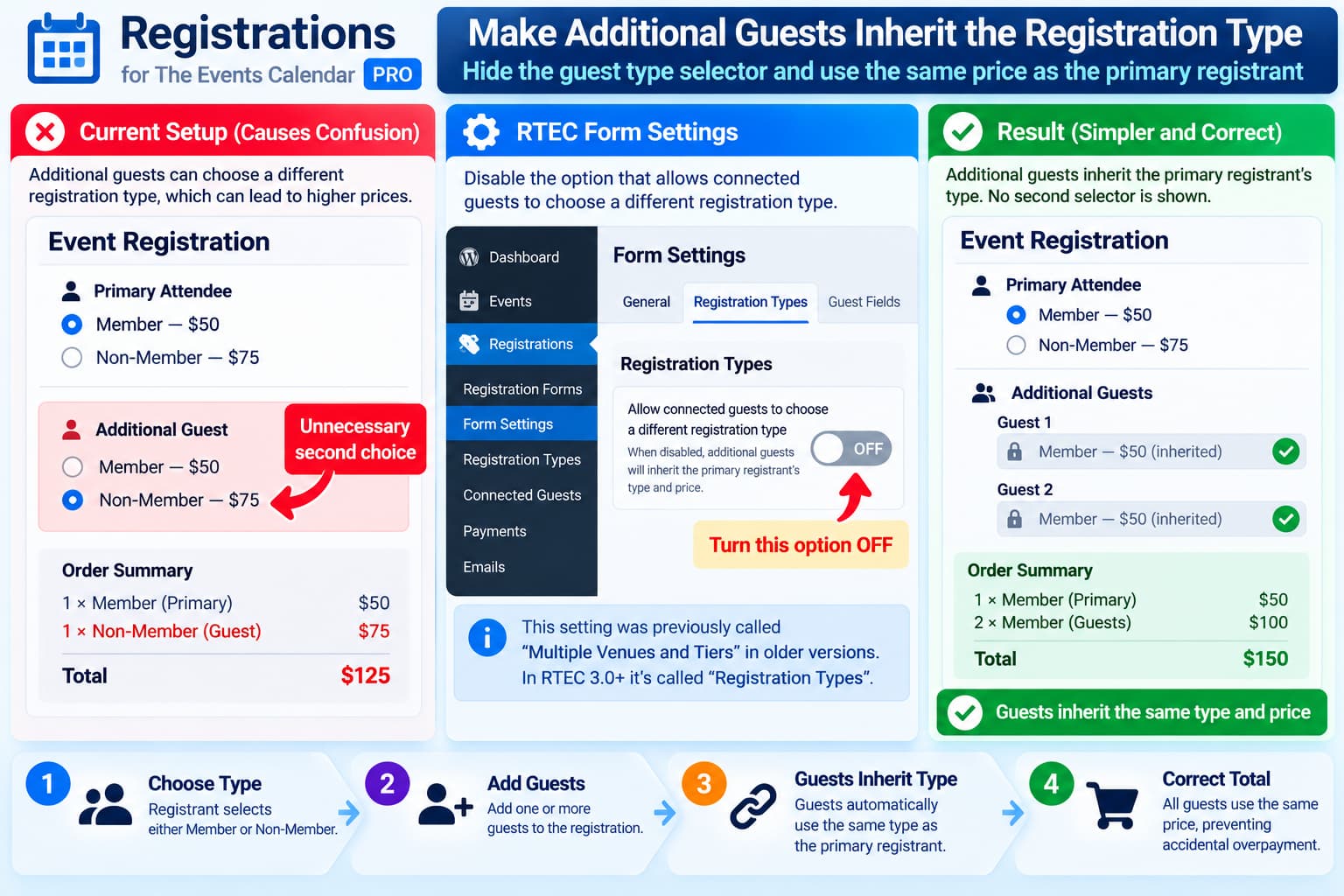
When using Registrations for The Events Calendar Pro with multiple registration types such as:
Member
Non-Member
it can be confusing if every additional guest is also asked to choose a registration type.
For example:
Primary registrant:
Member — $50

Additional guest:
Member — $50
Non-Member — $75
A member may accidentally choose Non-Member for their guest, causing the registration total to be higher than intended.
Fortunately, connected guests in Registrations for The Events Calendar were originally designed to inherit the registration type of the primary registrant.
The option for guests to choose a different type was added later and is optional.
So if you want:
Primary chooses Member
        ↓
Guest automatically becomes Member
        ↓
Guest pays Member price
you generally do not need custom CSS or JavaScript.
You need to disable the option that allows connected guests to select their own registration type.
Why Additional Guests Can Choose a Different Type
The feature now called:
Registration Typeswas previously known as:
Multiple Venues and TiersRTEC 3.0 renamed the feature but kept existing settings and data compatible.
In July 2023, RTEC Pro 2.23 added a new feature allowing connected guests to choose a different venue or tier from the main registration.
The changelog states that connected guests could now register for a different venue/tier when the related option was enabled.
Roundup WP also explains that before that change, connected guests were always forced to inherit the primary registration’s type.
Most importantly, the developer noted that the separate-selection feature:
is not enabled by default.
That means the inherited behavior is still supported.
What Setting to Change
Open the WordPress dashboard and go to the settings for Registrations for The Events Calendar Pro.
Depending on your plugin version, look under the Form settings for a section named either:
Registration Typesor, on older versions:
Multiple Venues and TiersLook for the setting that allows connected guests to choose their own registration type / venue / tier.
Disable that option.
The terminology may differ slightly between plugin versions because RTEC 3.0 renamed Multiple Venues and Tiers to Registration Types.
After saving the setting, the intended flow should be:
Primary registrant chooses:
Member
        ↓
Additional guest form appears
        ↓
No second Registration Type selector
        ↓
Guest inherits Member
        ↓
Guest receives Member pricing
Likewise:
Primary registrant chooses:
Non-Member
        ↓
Additional guest inherits:
Non-Member
Why This Is Better for Member / Non-Member Pricing
If registration type controls the price, allowing guests to choose independently creates opportunities for inconsistent registrations.
For example:
| Registrant | Selected type | Price |
|---|---|---|
| Main attendee | Member | $50 |
| Guest 1 | Non-Member | $75 |
| Guest 2 | Member | $50 |
If your business rule is:
Everyone in the registration party should use the primary person’s membership type.
then the guest selector should not be exposed at all.
The desired result is:
| Registrant | Type | Price |
|---|---|---|
| Main attendee | Member | $50 |
| Guest 1 | Member | $50 |
| Guest 2 | Member | $50 |
That removes an unnecessary decision from the registration form and prevents accidental overpayment.
Connected Guests Are Separate Registration Records
RTEC Pro supports connected guests as individual registrations linked to the primary registrant.
This is useful because each guest can still have their own:
- name;
- meal choice;
- custom fields;
- attendance information;
- check-in status;
without necessarily choosing a separate registration type.
Roundup WP’s current documentation describes connected guests as separate records that can collect individual attendee information while remaining connected to the main registration.
So hiding the registration-type selector does not mean losing the ability to collect guest information.
The guest can inherit the primary type while still supplying their own details.
Registration Types Can Have Different Prices
RTEC registration types support separate:
- prices;
- capacity limits;
- availability dates;
- guest settings.
Typical examples include:
General Admission
VIP
Student
Member
Non-Member
Morning Session
Afternoon Session
That is why letting guests choose a type can be useful in some scenarios.
For example:
Primary:
Conference Admission

Guest:
Dinner Only
But for a simple Member versus Non-Member pricing system, independent guest selection may create more confusion than value.
Why You Should Not Hide It With CSS First
A tempting workaround is something like:
.connected-guest .registration-type {
    display: none;
}
That is not the best solution.
CSS only hides the field visually.
It does not guarantee that the backend will use the correct value.
A hidden selector might still:
- retain a default value;
- retain a previous selection;
- submit an unexpected registration type;
- produce the wrong price.
If the plugin already supports inherited registration types, use its setting instead.
That way the frontend and backend agree about which type the guest should receive.
Do Not Use JavaScript to Copy the Type Unless Necessary
Another workaround would be JavaScript such as:
guestType.value = mainType.value;and then hiding the guest selector.
Again, that should not be necessary for the normal RTEC connected-guest workflow.
JavaScript can also be bypassed or fail because of:
- caching;
- script optimization;
- plugin updates;
- changed HTML markup;
- browser errors.
Use RTEC’s built-in inheritance behavior first.
Version 2.23 Introduced the Separate Guest-Type Option
This behavior is documented in the official RTEC changelog.
Version 2.23 added:
Connected guests can now register for a different venue or tier.The setting was placed in the Form tab under the old:
Multiple Venues and Tierssection.
The developer’s release notes explain why it was added: some users needed each guest to select a separate tier or venue.
Before version 2.23, guests always inherited the primary registration’s choice.
Therefore, if you want the old behavior, the solution is essentially to leave that optional feature disabled.
RTEC 3.0 Renamed the Setting Area
If you are following an older tutorial and cannot find:
Multiple Venues and Tiersthat does not necessarily mean the setting was removed.
RTEC 3.0 renamed that feature to:
Registration TypesThe developer states that the terminology changed but existing settings and data remain compatible.
So instructions written before RTEC 3.0 may say:
Form → Multiple Venues and Tierswhile current versions may describe the same functionality using:
Registration TypesCheck Your Current RTEC Version
Roundup WP’s current changelog lists version 3.3, released August 20, 2026.
Recent versions also contain several fixes specifically involving connected guests, including fixes for duplicate-email handling and inherited guest email values.
Before troubleshooting old screenshots or settings locations:
- Back up the WordPress site.
- Confirm your RTEC Pro license is active.
- Update to the current supported version.
- Recheck the Registration Types and Connected Guests settings.
Do not update a live paid-event site immediately before an active event without testing the registration workflow afterward.
Test the Correct Behavior
After disabling separate registration-type selection for connected guests, create a test event or use staging.
Test 1: Member Registration
Choose:
Memberas the primary registration type.
Add two connected guests.
Confirm that neither guest is asked to choose:
Member / Non-MemberComplete the registration.
Then check the attendee records.
Expected:
Primary: Member
Guest 1: Member
Guest 2: Member
Also confirm that all three use the correct Member price.
Test 2: Non-Member Registration
Start another registration.
Choose:
Non-Memberfor the primary attendee.
Add a guest.
Expected:
Primary: Non-Member
Guest: Non-Member
The guest should receive the corresponding non-member price.
Check the Checkout Cost Table
If payment is enabled, verify the final cost before considering the problem solved.
For example:
Member registration: $40
Member guest: $40

2 attendees
Total: $80
and:
Non-Member registration: $60
Non-Member guest: $60

2 attendees
Total: $120
Do not rely solely on the hidden form field.
The checkout total confirms that RTEC is actually calculating the guest using the inherited registration type.
Check Existing Registrations Separately
Changing the setting normally affects future form submissions.
It should not be assumed to automatically correct old registrations where a guest previously selected the wrong type.
If someone has already paid too much because they selected:
Non-Memberfor a guest when Member pricing should have applied, review that registration manually.
Check:
- payment status;
- amount collected;
- registration type stored for the guest;
- payment gateway transaction;
- refund requirements.
Do not simply edit the registration type and assume the payment amount automatically changes.
If money has already been collected, reconcile the payment separately.
What If the Guest Type Selector Still Appears?
If the option that allows guests to select independent types is disabled but the selector still appears:
- Save the form settings again.
- Clear page/cache plugin caches.
- Clear CDN cache if applicable.
- Test in a private browser.
- Check whether the event overrides global form settings.
- Verify the correct registration form is assigned to the event.
- Confirm the current RTEC Pro version.
RTEC Pro supports reusable forms that can be assigned to specific events, so an individual event may not necessarily be using the form you just edited.
Check Event-Specific Registration Settings
Registration types can be configured per event.
If the behavior appears on only one event, compare that event against another working event.
Check:
Event → Registration settingsand verify:
- selected registration form;
- registration types;
- connected guest options;
- price configuration.
An event copied from an older event can also retain older settings.
The RTEC changelog notes that settings-copy behavior has received fixes in previous releases, so testing a newly created event can help distinguish a global configuration issue from an event-specific one.
Recommended Configuration for This Scenario
For an organization where:
Member registers → guests should receive Member price

Non-Member registers → guests should receive Non-Member price
the cleanest configuration is:
Registration Types
├── Member
└── Non-Member

Connected Guests
├── Enabled
└── Allow guests to choose separate type: OFF
The user experience becomes:
REGISTER
   ↓
Choose Member / Non-Member
   ↓
Enter primary details
   ↓
Add guests
   ↓
Enter guest names/details
   ↓
Guest type automatically inherited
   ↓
Correct total calculated
This is simpler and less error-prone than asking each guest to make a pricing decision.
Final Answer
Yes.
Registrations for The Events Calendar Pro can make connected guests inherit the primary registrant’s registration type.
In fact, that was the plugin’s original behavior.
Version 2.23 added an optional setting that allows connected guests to choose their own type, but the developer explicitly documented that this behavior was not enabled by default.
If additional guests currently see their own Member / Non-Member selector:
- Open the RTEC Form settings.
- Find Registration Types — called Multiple Venues and Tiers in older versions.
- Locate the option allowing connected guests to select a separate registration type.
- Disable it.
- Save the settings.
- Test both Member and Non-Member registrations with connected guests.
The guests should then inherit the primary attendee’s type and corresponding price automatically.
No CSS or custom JavaScript should be necessary for the standard configuration.
