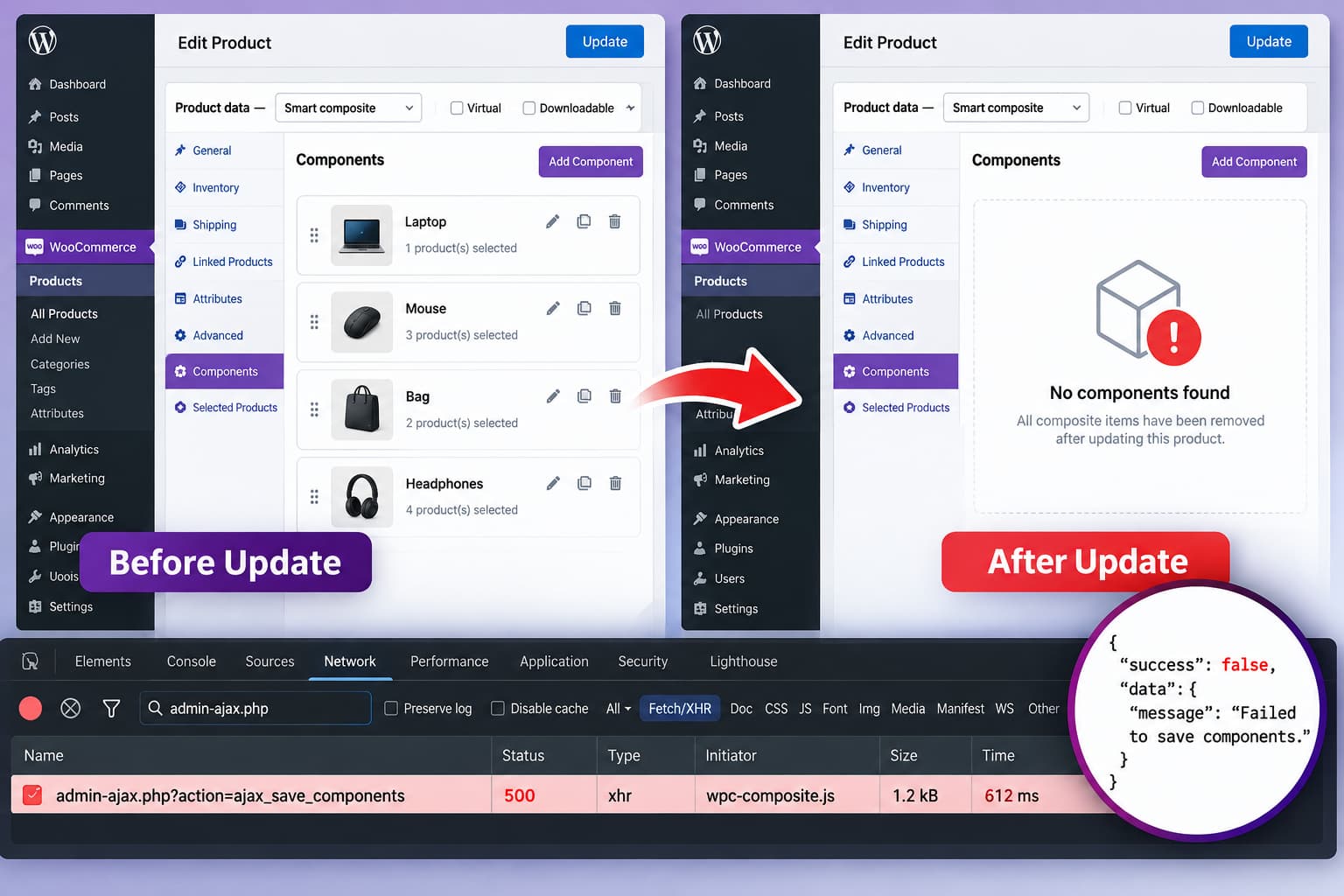
When the components of a WPC Composite Products for WooCommerce product disappear immediately after clicking Update, treat the problem as a data-saving issue before rebuilding the composite.
This is potentially destructive because another product update can overwrite a valid component configuration with an empty or incomplete one.
The first priorities are therefore:
- Stop repeatedly updating affected products.
- Take a database backup.
- Reproduce the problem on staging if possible.
- Check the component-saving AJAX request and browser console.
- Determine whether the problem started with the 8.0.x plugin branch.
WPC Composite Products 8.0.3 is currently the latest release on WordPress.org. Its changelog lists code optimization and compatibility updates for WordPress 7.1 and WooCommerce 11.1. Version 8.0.2 only lists a cart edit-link fix, while version 8.0.0 introduced a new Selected Products section in the product editor. None of those changelog entries documents a fix for components disappearing when a product is saved.
Back Up the Product Data Before Troubleshooting
Do this before testing more updates on an affected product.
At minimum, create a full database backup. A complete site backup or staging clone is even better.
If the current component configuration is still visible before clicking Update, also record it manually with screenshots or notes so that it can be reconstructed if necessary.
Do not assume that repeatedly pressing Update is harmless. If the plugin is receiving an empty component payload during the save process, another update may simply persist that empty state again.
Avoid directly editing the WordPress database at this stage.
Why This Looks Like a Component-Save Problem
WPC Composite Products does not rely only on WooCommerce’s standard product fields.
The plugin has its own component-saving mechanism. Publicly documented plugin code references show an AJAX handler named:
ajax_save_componentsand component data using parameters such as:
wooco_components[0][name]This confirms that WPC Composite Products has a dedicated AJAX path for saving its component configuration.
That distinction matters.
The normal WooCommerce product update can succeed while the WPC component-saving operation fails, sends incomplete data, or is rejected. The product itself may still appear to save normally while its composite configuration is lost.
This makes the browser’s Network and Console panels particularly useful for this problem.
Check the Browser Console Before Clicking Update
Open the affected composite product in the WordPress admin.
Then open your browser’s developer tools and select the Console tab.
Reload the product editor before doing anything else.
Look for JavaScript errors, particularly errors that appear while:
- loading the Components interface;
- changing a component;
- rearranging components;
- selecting products;
- opening the Selected Products section;
- or clicking Update.
An error originating from a WPC Composite Products JavaScript file is especially relevant.
WordPress’s own troubleshooting documentation recommends checking the browser console when admin interfaces, metaboxes, buttons, or other JavaScript-driven functionality stops operating correctly.
Do not dismiss an error merely because the components appear correctly on screen. A JavaScript exception may occur later in the workflow and prevent the configuration from being prepared for saving.
Inspect the Component AJAX Request
Next, use the Network panel of your browser developer tools.
Filter the requests using:
admin-ajax.phpThen modify a harmless field in the composite configuration and save it on a staging copy.
Look for the request associated with WPC Composite Products.
Because the plugin has an ajax_save_components saving mechanism, the useful questions are:
- Was the AJAX request actually sent?
- Did it return HTTP 200?
- Did it return 403 or another authorization error?
- Did it return 500 because PHP failed?
- Was the request cancelled?
- Does the request contain component information?
- Does the response contain an error message?
- Is an empty component structure being submitted?
If no WPC component-saving request occurs at all, concentrate on JavaScript and the product-editor interface.
If the request occurs but fails, investigate the HTTP response and PHP log.
If it succeeds but sends no component data, the problem is more likely in the plugin’s admin-side serialization or collection of the component configuration.
If valid component data is sent and the server reports success but the data disappears afterward, the server-side saving logic becomes the stronger suspect.
That distinction can reduce hours of trial-and-error troubleshooting.
Enable WordPress Debug Logging
If the browser request returns 500, an unexpected response, or no obvious explanation, enable WordPress logging temporarily.
Before editing wp-config.php, make a backup.
Add or adjust these constants before:
/* That's all, stop editing! Happy publishing. */Use:
define( 'WP_DEBUG', true );
define( 'WP_DEBUG_LOG', true );
define( 'WP_DEBUG_DISPLAY', false );
Then reproduce the problem once.
Check:
/wp-content/debug.logfor errors generated at the time the product was updated.
WordPress specifically notes that WP_DEBUG_LOG is useful for errors occurring during AJAX operations because those errors may not be visible on the normal admin page.
Look for:
- PHP fatal errors;
- uncaught exceptions;
- database errors;
- WPC Composite Products warnings;
- WooCommerce errors;
- invalid argument or type errors;
- permission-related failures.
After collecting the diagnostic information, disable debugging again on a production site.
A Plugin Conflict Test Is Useful, but It Is Not the End of the Diagnosis
A standard conflict test is still worthwhile.
Disable everything except:
- WooCommerce
- WPC Composite Products for WooCommerce
and test on staging.
If the components are still removed when the product is updated, that substantially reduces the likelihood that another plugin is responsible.
The next conflict to rule out is the theme.
Temporarily activate a standard WordPress theme on staging and repeat the save.
Themes normally have less influence over the WooCommerce product editor than plugins do, but themes can enqueue admin scripts or add WooCommerce functionality, so the test is still worthwhile before reporting a plugin bug.
If the issue continues with:
- only WooCommerce active;
- only WPC Composite Products active;
- and a default WordPress theme;
the evidence points much more strongly toward WPC Composite Products itself, WooCommerce compatibility, or the site’s underlying environment.
Compare Versions Carefully
At the time of writing, WordPress.org lists:
WPC Composite Products 8.0.3as the current release.
Its recent changelog is important:
8.0.3
Updated: Optimized the code
Updated: Compatible with WP 7.1 & Woo 11.1

8.0.2
Fixed: Edit link on the cart page

8.0.1
Fixed: Incorrect rounding price for component products

8.0.0
Added: The “Selected Products” section allows you to easily
review all products selected across the components

7.8.9
Updated: Optimized the code
Updated: Compatible with WP 7.0 & Woo 10.9
This does not prove that version 8.0.0 introduced the component-deletion problem.
However, if the issue occurs in both 8.0.2 and 8.0.3, testing the immediately preceding 7.8.9 release can be a useful regression test.
Do this only on a cloned staging site with a database backup.
The test is simple:
- Clone the affected site.
- Confirm the bug with 8.0.3.
- Restore the test product’s known-good data.
- Install 7.8.9 on staging.
- Edit the same composite product.
- Click Update.
- Check whether the components remain.
If 7.8.9 consistently preserves the components while 8.0.x consistently removes them under otherwise identical conditions, that is strong evidence for the plugin developer.
It is still not sufficient evidence to recommend permanently running an old release on a production WooCommerce store.
Check Whether the Problem Happens Only to Existing Products
Perform another controlled test on staging.
Create a brand-new product and select:
Product data → Smart compositeAdd two simple components and save it.
Then reopen the product and update it without changing the components.
There are two useful outcomes.
Existing and New Composite Products Both Lose Components
This suggests a general saving failure.
Concentrate on:
- JavaScript errors;
- the AJAX request;
- PHP errors;
- security/WAF interference;
- compatibility;
- and the plugin version.
Only Older Composite Products Lose Components
This points toward a migration or data-format issue involving previously saved configurations.
Do not manually convert database values without knowing the plugin’s expected format.
Instead, preserve one affected product as a reproducible example for the plugin developer.
Check Security and Server Rules
Even with all other WordPress plugins disabled, server-level software can interfere with an AJAX request.
Possible examples include:
- ModSecurity;
- hosting WAF rules;
- Cloudflare WAF rules;
- security rules applied outside WordPress;
- request-size limits;
- PHP limits;
- reverse proxies.
A blocked AJAX request usually leaves evidence.
Look in the Network panel for statuses such as:
403
406
413
500
502
503
If admin-ajax.php receives 403 while saving components, disabling ordinary WordPress plugins will not solve the problem because the block may be occurring before WordPress processes the request.
Check the hosting/WAF logs or ask the host whether the request was blocked.
Do not disable the site’s entire firewall permanently. If a specific false-positive rule is identified, create the narrowest exception possible.
Test With a Small Composite
Large configurations deserve a separate test.
On staging, create:
- one Smart composite product;
- two components;
- one or two products per component.
Save it.
If a small composite saves normally but the affected large product loses its configuration, inspect the failed request for truncation and check relevant PHP/server request-size limits.
Do not blindly increase server limits without first establishing that the request is actually exceeding one.
What Not to Do
Do Not Keep Rebuilding the Same Product on Production
Until the saving failure is understood, another update may remove the configuration again.
Do Not Edit the Plugin Files as the First Fix
A direct modification to WPC Composite Products may be overwritten by the next update and can make later troubleshooting harder.
Do Not Assume 8.0.2 Is a Safe Workaround
If the same behavior occurs in both 8.0.2 and 8.0.3, switching between those two versions does not isolate the cause.
Do Not Blame WooCommerce Without Capturing the Failed Save
The WooCommerce product itself can save successfully even when the plugin-specific component operation fails.
Capture the WPC component request first.
What to Include in a WPClever Bug Report
If the problem remains after the clean-environment test, provide WPClever with a reproducible report.
Include:
- WPC Composite Products version;
- WooCommerce version;
- WordPress version;
- PHP version;
- active theme;
- whether the problem occurs with only WooCommerce and WPC Composite Products active;
- whether it occurs with a default theme;
- whether new composite products are affected;
- browser console errors;
- HTTP status of the component AJAX request;
- relevant AJAX response;
- relevant
debug.logerrors; - whether 7.8.9 behaves differently from 8.0.x on staging.
Do not send passwords, database credentials, nonces, cookies, or other sensitive request headers in a public support thread.
The official WPC Composite Products support forum is available through the plugin’s WordPress.org page.
How to Verify the Fix
Once a plugin update, server-rule change, or other correction has been applied, do not verify it with only one save.
Use a staging composite containing several components.
Record the component names and products, then perform this sequence:
- Open the composite product.
- Change the regular product description only.
- Click Update.
- Confirm all components remain.
- Change one component setting.
- Update again.
- Confirm every component remains.
- Add another component.
- Update again.
- Reopen the product from a fresh browser request.
- Confirm all settings are still present.
- View the product on the storefront and confirm the components appear correctly.
Also check the Network panel during the final test and make sure the component-saving request completes without an HTTP or application error.
Only after repeated saves preserve the configuration should the problem be considered resolved.
The key diagnostic point is that disappearing components are not simply a display problem. WPC Composite Products has its own component-saving mechanism, so the most useful evidence is what happens to that save operation when the WooCommerce product is updated.
