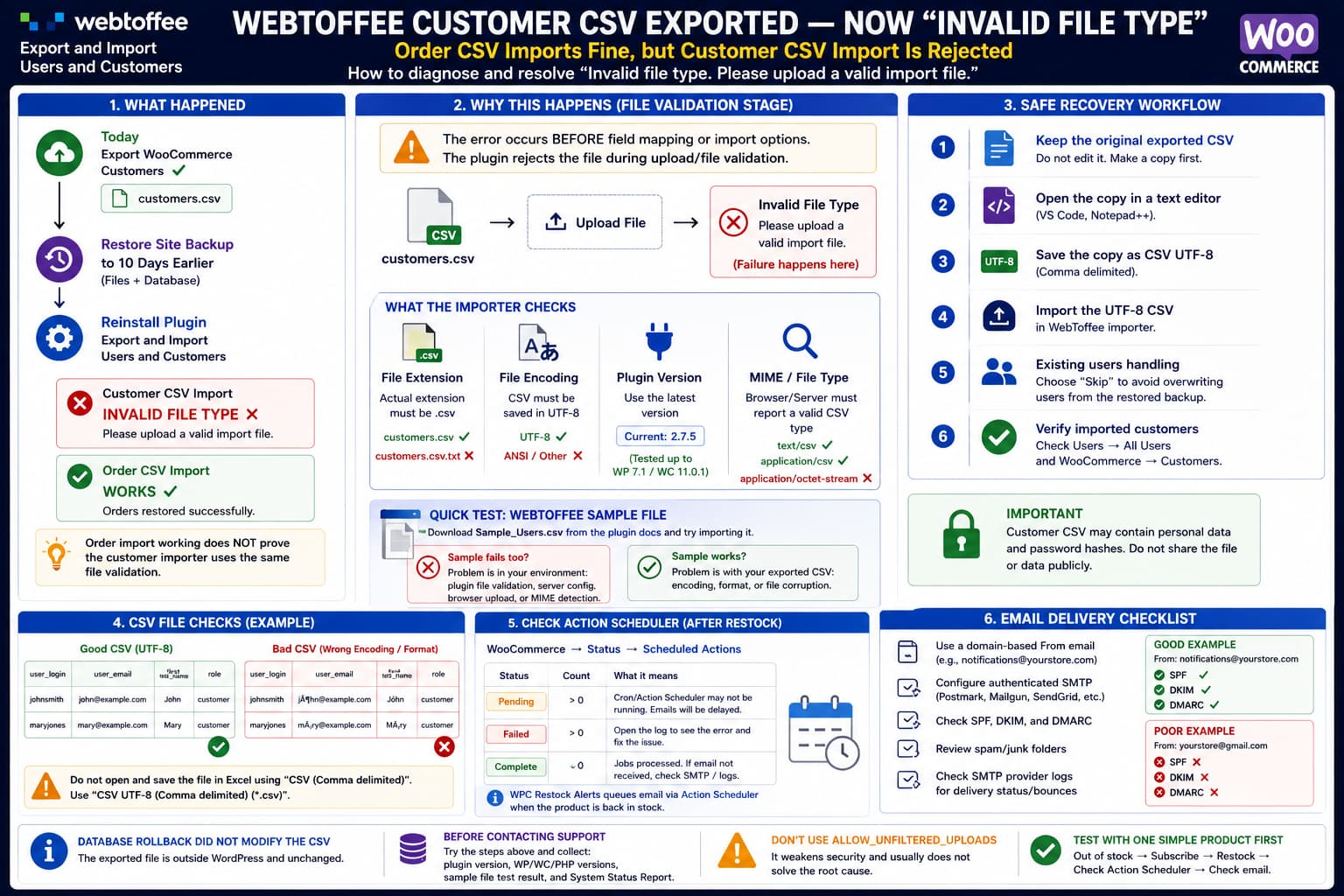
If you export WooCommerce customers using WebToffee Export and Import Users and Customers, restore the WordPress site to an earlier backup, reinstall the same plugin and then receive:
Invalid file type. Please upload a valid import file.when importing the CSV that the plugin itself generated, the database rollback is unlikely to be what made the file invalid.
The more important clue is when the error occurs.
If the plugin rejects the file immediately after you select/upload it, before reaching field mapping or import options, then WordPress has not yet started processing:
customer IDs
email addresses
passwords
existing users
user roles
The failure is happening at the file-validation stage.
That shifts troubleshooting toward:
Actual .csv extension
CSV encoding
Browser-upload MIME type
WordPress file-type detection
WebToffee plugin version
Plugin-specific validation
rather than the customer records contained inside the file.
The Customer Plugin and Order Plugin Are Separate Importers
WebToffee publishes separate plugins for:
Users / WooCommerce Customersand:
WooCommerce OrdersThe Users & Customers plugin’s own FAQ specifically directs users to the separate Order Export & Order Import product when order data needs to be migrated.
Therefore this result:
Order CSV → imports successfullydoes confirm that:
WordPress can receive an uploaded CSVbut it does not prove that:
Users/Customers importer
uses the same CSV-validation code
The two plugins can apply different checks before allowing a file through.
That explains how the order recovery can succeed while the customer CSV receives “Invalid file type.”
The Plugin Requires CSV in UTF-8
WebToffee’s current documentation for the free Users/Customers plugin states two relevant prerequisites:
Only CSV files are supported
CSV files should use UTF-8 encoding
It also requires the PHP mbstring extension.
The WordPress.org plugin page likewise tells users to save the import file with:
.csv extension
UTF-8 encoding
before importing it.
So the first goal is to verify both conditions without unnecessarily altering the original recovery file.
Preserve the Original Export First
Before opening the customer CSV in Excel or another spreadsheet program, create a copy.
For example:
customers-original.csv
customers-working-copy.csv
Keep:
customers-original.csvuntouched.
This is especially important because the WebToffee Users/Customers export can contain sensitive customer data and can also export WordPress password hashes. The plugin states that exported passwords can be imported again so existing users keep their passwords.
Treat the file as sensitive data.
Do not upload an unredacted customer export to a public support forum.
Make Sure the File Really Ends in .csv
On Windows, file extensions can be hidden.
A file that appears as:
customers.csvin Explorer could actually be:
customers.csv.txtor another format.
Enable:
File Explorer → View → Show → File name extensions
and confirm that the actual filename ends with:
.csvUsing lowercase:
customers.csvis sensible while troubleshooting even though extension checks should normally be case-insensitive.
Do not merely rename:
customers.xlsxto:
customers.csvRenaming the extension does not convert the file format.
Inspect the CSV in a Text Editor
Open the copy with:
- VS Code;
- Notepad++;
- another plain-text editor.
A valid CSV should look broadly like:
ID,user_login,user_email,first_name,last_name,role,...
201,johnsmith,john@example.com,John,Smith,customer,...
202,maryjones,mary@example.com,Mary,Jones,customer,...
The exact columns will vary depending on the export.
If instead the file contains binary data or unreadable characters at the beginning, it may no longer be a normal CSV.
If it looks like ordinary comma-separated text, the file itself is probably still intact.
Check the Encoding
In VS Code, the current encoding is displayed in the lower-right corner.
Ideally it should say:
UTF-8If not, use:
Save with Encoding → UTF-8
and save the working copy.
If using Excel, use:
Save As → CSV UTF-8 (Comma delimited) (*.csv)
rather than a generic legacy CSV option.
WebToffee repeatedly recommends UTF-8 for its import files and specifically tells users who edit an exported user CSV to retain the headers and save the file again as UTF-8 CSV.
But Encoding Is Not the Only Possible Cause
There is an important reason not to assume this is merely an Excel problem.
WebToffee’s support history contains reports where:
files previously imported successfullyand even files exported by its own plugins suddenly produced:
Invalid file type. Only CSV are allowed.In one incident affecting Import Export WordPress Users and WooCommerce Customers 2.5.0, WebToffee investigated the upload validation and subsequently released version 2.5.2 containing a fix.
A related Product Import Export release received its own fix for the same family of problem.
That historical bug does not prove the current failure has exactly the same cause.
But it does prove that:
The file was exported by the plugindoes not completely rule out a plugin-side file-detection problem.
Recent Users Have Reported the Same Message
The issue has also appeared again in recent support discussions.
In one recent case, a user exported a CSV using the same Users/Customers plugin and immediately received:
Invalid file type. Please upload a valid import file.when importing it elsewhere.
WebToffee’s response was to check whether the CSV had been opened in a spreadsheet application and to make sure it was saved as UTF-8 CSV.
In another recent report, even WebToffee’s own:
Sample_Users.csvtriggered the same error.
WebToffee could not reproduce the problem and requested the site’s WooCommerce System Status Report for further investigation.
That gives us a very useful diagnostic test.
Test WebToffee’s Official Sample CSV
Download the sample user CSV linked in WebToffee’s current documentation.
Do not edit it.
Try importing that file.
The result divides the problem neatly.
Sample file imports successfully
The installation itself can accept CSV files.
Focus on the exported customer file:
encoding
filename
delimiter
file corruption
unexpected save format
Sample file also says “Invalid file type”
Do not keep modifying your customer data.
The problem is much more likely related to:
plugin file validation
WordPress MIME handling
server environment
browser MIME reporting
plugin conflict
At that point, send WebToffee the System Status Report and a sanitized reproduction file.
Update the Users/Customers Plugin
At the time of writing, WordPress.org lists:
Export and Import Users and Customers
Version 2.7.5
with compatibility tested through:
WordPress 7.1
WooCommerce 11.0.1
Take a backup and make sure the restored site is using the current version.
This is important after a backup rollback because the filesystem and database were both restored to an earlier state.
Even if you reinstall the plugin afterward, verify the actual version shown under:
Plugins → Installed Plugins
rather than assuming it matches the version used during export.
Why MIME Detection Can Produce a False “Invalid File Type”
WordPress provides:
wp_check_filetype()to determine a MIME type from a filename and its extension. WordPress’s documentation explains that it returns the recognized extension and MIME mapping.
CSV files can appear under different MIME labels depending on the browser, operating system and server, including values such as:
text/csv
text/plain
application/csv
application/vnd.ms-excel
Historically, when WebToffee investigated its “Only CSV are allowed” bug, its support engineers asked affected users to log both:
wp_check_filetype( $_FILES['...']['name'] )and:
$_FILES['...']['type']during the upload.
That tells us that extension/MIME detection was directly relevant to that version of the problem.
I would not modify the current plugin files with that old debugging code unless WebToffee specifically asks for it again, because internal code can change between releases.
But it explains why a perfectly readable CSV can sometimes be rejected before import begins.
The Database Restore Probably Did Not Damage the CSV
The sequence:
1. Export customer CSV
2. Download CSV to local computer
3. Restore WordPress files/database to ten days earlier
4. Reinstall import plugin
5. Upload the previously downloaded CSV
does not cause the WordPress restore to modify the CSV stored on your computer.
The file exists outside the restored WordPress installation.
The rollback can change:
WordPress version
plugin versions
plugin settings
PHP/server-related WordPress configuration
database content
but it cannot retroactively modify the downloaded CSV.
So if the CSV remained untouched, the rollback is relevant primarily because the import environment changed, not because it changed the file.
Do Not Use ALLOW_UNFILTERED_UPLOADS as the First Fix
You may find recommendations to add:
define( 'ALLOW_UNFILTERED_UPLOADS', true );to wp-config.php.
Do not use this as the first solution.
It weakens WordPress’s normal upload restrictions and does not identify why a legitimate CSV from WebToffee is being rejected.
A recent user reporting this same plugin error had already tried enabling unrestricted uploads and still experienced the failure.
The correct approach is to find out why the plugin does not recognize this particular CSV.
Check the Browser Upload Request
If you want stronger evidence before contacting support, open:
Developer Tools → Network
then upload the CSV again.
Open the import request and inspect the uploaded form data/request metadata.
Depending on the browser, you may be able to see the content type assigned to the file.
If the browser is identifying the file unusually, include that value in the support report.
Again, the order CSV succeeding does not rule this out because that importer may permit a broader set of MIME values.
Test a Tiny Sanitized CSV
Make a copy containing only the header plus one or two test users.
For example:
user_login,user_email,first_name,last_name,role
recoverytest1,recovery1@example.com,Recovery,Test,customer
Save it explicitly as:
UTF-8 CSVIf the tiny file imports but the original file is rejected, investigate the original file’s encoding or structure.
If even the minimal file is rejected as an invalid file type, the actual customer records are not the problem.
Do Not Change the Column Headers Yet
WebToffee says an exported CSV can be edited before re-importing, but its support recommendation is to leave the column headers unchanged.
For recovery, preserve the plugin-generated headers until the file is accepted.
Once the import reaches the mapping screen, mapping issues can be dealt with separately.
Do not troubleshoot field mappings while the importer is still rejecting the upload itself.
Recovering the Missing Ten Days of Customers
Once the CSV import issue is solved, be careful with the recovery settings.
The restored database already contains all users that existed before the backup date.
Your export contains a newer snapshot.
Therefore there will be overlap:
Users before rollback date
→ already exist

Users created during lost ten days
→ missing
WebToffee provides an option controlling what happens when an imported user already exists. It can either update or skip existing users.
If the goal is simply to restore accounts that disappeared during the rollback, the safer initial recovery mode is usually:
Existing users → SkipThis lets the importer create the missing accounts without unnecessarily rewriting older accounts that survived the restore.
Run this first on staging or from a fresh backup if possible.
Preserve Existing Passwords
WebToffee’s plugin can export and re-import user password hashes, allowing migrated WordPress users to continue using their existing passwords.
If the exported customer CSV contains:
user_passand those are WordPress password hashes from the original site, use the plugin’s password-retention option intended for migration.
Do not edit those hash values.
Do not convert them in Excel.
Orders and Customers Are Related but Not Identical
Successfully restoring ten days of WooCommerce orders does not necessarily restore every lost WordPress user account.
There are two concepts:
WooCommerce order customer dataand:
Registered WordPress/WooCommerce customer accountAn imported order can contain:
billing name
billing email
billing address
without recreating the associated registered WordPress user exactly as it existed before the rollback.
WebToffee maintains separate tools for customer/user import and order import for precisely this reason.
So if registered accounts disappeared during the rollback, getting the Users/Customers CSV working is still important even though the orders have already been restored.
Check WooCommerce → Customers After Import
After successfully importing users, some customer records may not immediately appear under:
WooCommerce → Customers
even though the corresponding WordPress user accounts exist.
WebToffee’s own plugin FAQ specifically documents this situation and points users to its procedure for refreshing the WooCommerce customer list.
Therefore verify recovery in both places:
Users → All Users
WooCommerce → Customers
Do not assume an account failed to import merely because WooCommerce Analytics has not refreshed its customer lookup yet.
Recommended Diagnostic Order
Use this sequence:
1. Copy the original exported customer CSV
        ↓
2. Confirm actual filename ends in .csv
        ↓
3. Update WebToffee Users/Customers to current version
        ↓
4. Try official Sample_Users.csv untouched
        ↓
5. Sample fails?
        → plugin/server/MIME validation issue
        ↓
6. Sample works?
        → inspect exported CSV encoding/format
        ↓
7. Re-save working copy as UTF-8 CSV
        ↓
8. Test a sanitized 1–2 user file
        ↓
9. Once upload succeeds, map fields
        ↓
10. Import with existing users set to Skip
        ↓
11. Verify missing users/accounts
        ↓
12. Refresh WooCommerce customer lookup if necessary
This separates:
file-validation failurefrom:
customer-import failurewhich are technically different problems.
What to Send WebToffee if It Still Fails
If the current plugin still rejects both the exported CSV and the official sample, collect:
Plugin:
Export and Import Users and Customers

Plugin version:
2.7.5

WordPress version:
...

WooCommerce version:
...

PHP version:
...

Server:
Apache / Nginx / LiteSpeed

Browser and version:
...

Operating system:
...

Original filename:
customers-....csv

File modified after export:
No / Yes

Official Sample_Users.csv:
Accepted / Rejected

Order importer CSV:
Accepted

Exact error:
Invalid file type. Please upload a valid import file.
Then include:
WooCommerce → Status → Get system report
which WebToffee has specifically requested in recent cases where even its sample CSV was rejected.
If they need the CSV itself, create a sanitized copy containing no real customer data or passwords.
Practical Conclusion
The strongest clues are:
CSV was exported by the same pluginCSV existed outside WordPress before the rollbackOrder CSV imports successfullyCustomer CSV is rejected immediately as an invalid file typeThat points first toward the Users/Customers importer’s validation of the uploaded file, not toward missing customer records created by the database rollback.
Start by updating to the current release and testing WebToffee’s untouched sample CSV.
If the sample is also rejected, the customer export is not the problem. Collect the System Status Report and report a file-validation/environment problem to WebToffee.
If the sample succeeds, preserve the original exported file and create a UTF-8 CSV copy for import. WebToffee explicitly requires UTF-8 CSV files and has recently advised the same solution for this error.
Do not weaken WordPress upload security or repeatedly rewrite the only copy of the customer backup.
Once the importer accepts the file, use the existing-user handling carefully so that the newer export restores the ten days of missing accounts without unnecessarily modifying customers already present in the restored database.
