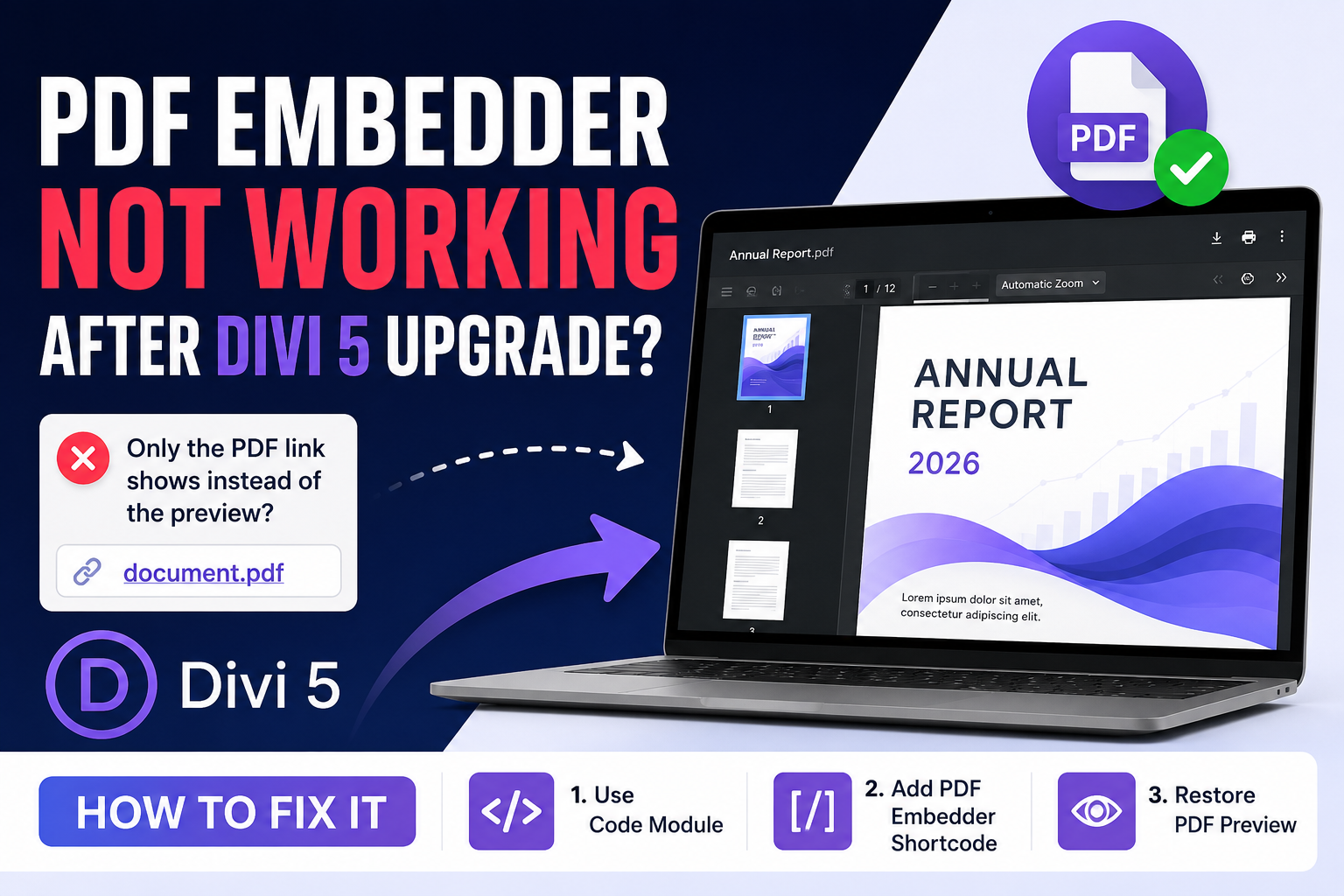
After upgrading or migrating a WordPress website from Divi 4 to Divi 5, you may find that PDF Embedder no longer displays an interactive PDF preview.
Instead of the PDF viewer, visitors see only a clickable link to the PDF file. The download link may still work, but the document preview, navigation controls, and embedded viewer are missing.
When PDF Embedder is not working after a Divi 5 upgrade, the plugin itself may not be broken. In many cases, Divi 5 is treating the PDF as a normal media link instead of processing the PDF Embedder shortcode.
The most reliable solution is to place the PDF Embedder shortcode inside a Divi Code module, rather than inserting the PDF through a Text module or Divi’s media picker.
Symptoms of the PDF Embedder and Divi 5 Problem
You may be experiencing this issue if:
- The PDF displayed correctly before upgrading to Divi 5.
- Only the PDF filename or download link appears after migration.
- The interactive PDF preview has disappeared.
- Selecting a PDF from the Divi Media Library inserts a normal link.
- The PDF Embedder shortcode appears as plain text.
- The page is marked as using Divi backward compatibility mode.
- Clearing the website cache does not restore the viewer.
- Existing PDF pages work differently from newly edited pages.
A similar issue has been reported by PDF Embedder users after migrating to Divi 5. The plugin’s support team explained that newer Divi versions may convert a shortcode inside a Text module into textual content. Their recommended solution is to use a Divi Code module instead.
Why PDF Embedder Stops Displaying the Preview
PDF Embedder normally inserts a shortcode when you select a PDF through the standard WordPress editor.
A typical shortcode looks like this:
[pdf-embedder url="https://example.com/wp-content/uploads/document.pdf"]When WordPress processes this shortcode, PDF Embedder replaces it with the interactive document viewer.
However, page builders such as Divi handle the Media Library and page content differently from the standard WordPress Block Editor. Divi’s media picker may insert a normal HTML link instead of the PDF Embedder shortcode.
PDF Embedder’s official documentation explains that drag-and-drop page builders use their own methods to access the WordPress Media Library. This can prevent the plugin from automatically inserting its shortcode, causing the PDF to appear as a plain link instead of an embedded viewer.
Divi 5 also introduced a substantially different content architecture. During migration, supported Divi content is converted to the new format, while unsupported or legacy functionality may continue through Divi’s backward compatibility system.
The issue therefore commonly occurs because of how the shortcode is inserted and processed after migration, rather than because the PDF file is damaged.
Quick Solution
Replace the existing PDF link or Text module with a Divi Code module, then add the PDF Embedder shortcode manually.
Use this shortcode structure:
[pdf-embedder url="YOUR-PDF-FILE-URL"]For example:
[pdf-embedder url="https://example.com/wp-content/uploads/2026/07/example-document.pdf"]Replace the example URL with the actual File URL copied from your WordPress Media Library.
Step 1: Back Up the Website
Before editing migrated Divi content, create a complete backup of:
- The WordPress database
- The
wp-contentdirectory - The Divi theme and child theme
- Installed plugins
- Uploaded media files
When possible, test the solution on a staging website first.
Elegant Themes recommends creating a backup and testing Divi 5 migrations on staging before making changes to a production website.
Step 2: Update Divi and PDF Embedder
Go to:
WordPress Dashboard > UpdatesInstall available stable updates for:
- WordPress
- Divi
- PDF Embedder
- Relevant caching or optimization plugins
Do not update several important components simultaneously on a live website without first creating a backup.
PDF Embedder has released fixes for viewer problems involving hidden containers and stale cached assets. Using the latest compatible version can therefore resolve secondary display problems that remain after correcting the Divi module.
After updating, clear:
- Divi’s generated CSS cache
- Your WordPress caching plugin
- Server-level page cache
- CDN or Cloudflare cache
- Browser cache
Step 3: Copy the PDF File URL
In WordPress, go to:
Media > LibraryFind the PDF you want to display and click it to open the attachment details.
Copy the complete value from the File URL field.
It should look similar to:
https://example.com/wp-content/uploads/2026/07/example-document.pdfUse the real website domain and PDF filename. Do not copy the attachment-page URL or the WordPress edit-screen URL.
Step 4: Open the Page in Divi Builder
Go to the affected page and open it with the Divi Builder.
Locate the module that currently contains:
- The plain PDF link
- The PDF filename
- The old shortcode
- The missing PDF area
Before deleting it, copy any content you may need so it can be restored if necessary.
If the PDF is inside a Text module, remove only the PDF link or shortcode. Keep any surrounding introductory text that should remain on the page.
Step 5: Add a Divi Code Module
Click the option to add a new module and search for:
CodeSelect the native Divi Code module.
Do not use a normal Button module, Image module, or File link. The Code module is recommended because it can pass the PDF Embedder shortcode to WordPress for processing.
PDF Embedder’s documentation specifically recommends the Divi Code module when embedding PDFs in Divi.
Step 6: Add the PDF Embedder Shortcode
Inside the Divi Code module, enter:
[pdf-embedder url="PASTE-YOUR-PDF-URL-HERE"]Replace the placeholder with the File URL copied from the Media Library.
Example:
[pdf-embedder url="https://example.com/wp-content/uploads/2026/07/annual-report.pdf"]Make sure:
- The shortcode starts with
[. - The shortcode ends with
]. - The attribute is written as
url=. - The URL is enclosed in straight quotation marks.
- There are no curly or typographic quotation marks.
- The PDF URL is complete.
- The PDF exists at that URL.
The shortcode method works with both the free and premium versions of PDF Embedder.
Step 7: Save and Test the Page
Save the Code module and update the page.
Then open the page in:
- A private or incognito browser window
- A browser where you are not logged into WordPress
- A mobile device
- A second desktop browser
You should now see the interactive PDF viewer instead of only a file link.
Test the following:
- The first PDF page loads.
- Next and previous page controls work.
- Scrolling works.
- The toolbar appears.
- The viewer fits the content column.
- Mobile visitors can open the PDF.
- The download button works when enabled.
Optional: Set the PDF Viewer Width
By default, PDF Embedder can fill the available parent container.
To set a specific width, add the width attribute:
[pdf-embedder url="https://example.com/wp-content/uploads/document.pdf" width="800"]To use the full available width, you can normally leave the width unset:
[pdf-embedder url="https://example.com/wp-content/uploads/document.pdf"]PDF Embedder states that the default width and height use the available parent container. A fixed width will scale down when the parent container is narrower.
Optional: Move or Keep the Toolbar Visible
You can place the toolbar at the top:
[pdf-embedder url="https://example.com/wp-content/uploads/document.pdf" toolbar="top"]You can keep it visible:
[pdf-embedder url="https://example.com/wp-content/uploads/document.pdf" toolbar="top" toolbarfixed="on"]The free version supports a limited set of shortcode attributes, including the PDF URL, width, height, toolbar position, and fixed-toolbar behavior. Other options may require PDF Embedder Premium.
What to Do If the Shortcode Appears as Text
If visitors see this directly on the page:
[pdf-embedder url="https://example.com/document.pdf"]WordPress is not processing the shortcode.
Check the following:
- Confirm PDF Embedder is active under Plugins > Installed Plugins.
- Confirm you used the Divi Code module.
- Remove paragraph tags or other formatting around the shortcode.
- Retype the square brackets manually.
- Clear Divi, WordPress, server, and CDN caches.
- Confirm the shortcode name is exactly
pdf-embedder. - Test with a newly created Divi Code module.
- Temporarily disable HTML or shortcode security plugins on staging.
Do not place the shortcode inside <pre> or <code> HTML tags. Those tags intentionally display code as text.
What to Do If Only the PDF Link Appears
If only the filename or a clickable PDF link appears, inspect the content inside the Divi module.
You may find regular HTML similar to:
<a href="https://example.com/wp-content/uploads/document.pdf">
    Download PDF
</a>
That code creates a download link. It does not create an embedded viewer.
Replace it with:
[pdf-embedder url="https://example.com/wp-content/uploads/document.pdf"]The most common cause is selecting the PDF through Divi’s media interface instead of manually inserting the PDF Embedder shortcode.
What to Do If the Viewer Is Blank
When the shortcode is present but the viewer area is blank, try the following troubleshooting steps.
Clear All Caches
Clear:
- Divi static CSS files
- Caching-plugin cache
- JavaScript optimization cache
- Server cache
- CDN cache
- Browser cache
PDF Embedder has previously fixed a JavaScript issue involving a viewer inside hidden containers and stale cached assets, so updating the plugin and clearing old files are important troubleshooting steps.
Check the Browser Console
Open the affected page, right-click and choose Inspect, then open the Console tab.
Look for red errors involving:
pdf
pdf.js
pdfemb
worker
source width
JavaScript
CORS
A JavaScript optimization plugin may be delaying, combining, or removing a required PDF Embedder script.
Temporarily disable JavaScript delay or minification on a staging website. If the PDF begins loading, exclude PDF Embedder’s scripts from that optimization.
Test Outside Tabs, Accordions, or Popups
A PDF viewer may have difficulty calculating its width when it initially loads inside a hidden:
- Divi tab
- Accordion
- Toggle
- Popup
- Slider
- Conditionally displayed section
For testing, move the Code module into a normal visible Divi section.
If it works there, the issue is related to the hidden container rather than the PDF URL or shortcode.
Verify the PDF URL
Open the PDF URL directly in a private browser window.
The browser should load or download the actual PDF. If it returns a 404, 403, login screen, or redirect loop, the viewer will not be able to display it properly.
Also confirm that the website does not unexpectedly switch between:
http://and:
https://Check for Plugin Conflicts
If the PDF still does not appear, create a staging copy and test for conflicts.
Temporarily deactivate nonessential plugins, especially:
- Caching plugins
- JavaScript optimization plugins
- Security plugins
- Media offloading plugins
- Content-protection plugins
- Lazy-loading plugins
Do not perform this test directly on a busy production website unless you understand how each plugin affects the site.
Elegant Themes also provides Divi Safe Mode through the Support Center. Safe Mode can temporarily disable third-party plugins, child themes, and custom code for the logged-in administrator without changing what regular visitors see.
You can find it under:
Divi > Support Center > Safe ModeIf the PDF works in Safe Mode, a plugin, child theme, or custom code conflict is likely involved.
Check Divi 5 Backward Compatibility Mode
After migration, Divi may display a notice that a page is using backward compatibility mode.
This notice is not necessarily an error. It means the page contains legacy Divi 4 content or a third-party component that has not been converted to Divi 5’s native format.
Divi loads parts of the legacy framework only on affected pages so that unsupported content can continue functioning. Those pages may not receive the full performance improvements of Divi 5.
PDF Embedder does not need to be a custom Divi module to work. Using its shortcode inside a native Divi Code module is normally the most reliable approach.
Can You Continue Using a Text Module?
Older configurations may work when the shortcode is placed inside a Divi Text module.
However, PDF Embedder support has reported that newer Divi versions may treat a shortcode inside the Text module as textual content. For Divi 5, the Code module is therefore the safer and more consistent option.
You can keep normal explanatory content in a Text module and place the PDF shortcode in a separate Code module directly below it.
For example:
Text module:
Download or review our latest annual report below.

Code module:
[pdf-embedder url="https://example.com/wp-content/uploads/annual-report.pdf"]
This keeps the content easy to edit while ensuring that the PDF shortcode is processed correctly.
Should You Roll Back to Divi 4?
Rolling back should not be the first solution for this specific problem.
First try:
- Updating Divi and PDF Embedder
- Replacing the Text module with a Code module
- Adding the shortcode manually
- Clearing all caches
- Testing for optimization conflicts
Consider a temporary rollback only when several important third-party features fail and the website cannot operate reliably on Divi 5.
Elegant Themes provides a rollback process, but recommends maintaining a complete backup because major migrations can make extensive changes to site content.
Frequently Asked Questions
Why does Divi show a PDF link instead of a preview?
Divi’s media picker may insert the standard WordPress PDF attachment link instead of the PDF Embedder shortcode. Add the shortcode manually inside a Divi Code module.
Does PDF Embedder work with Divi 5?
PDF Embedder can be used with Divi 5 through its shortcode. The recommended approach is to place the shortcode inside Divi’s native Code module rather than relying on automatic media insertion.
What is the PDF Embedder shortcode?
The basic shortcode is:
[pdf-embedder url="https://example.com/wp-content/uploads/document.pdf"]Replace the example with the actual PDF File URL from your Media Library.
Can I use the free version?
Yes. The basic shortcode method works with both PDF Embedder Free and Premium.
Why is the shortcode visible on the page?
The shortcode is either inside a module that treats it as plain text, or PDF Embedder is inactive. Move it to a Divi Code module and confirm the plugin is activated.
Why is the PDF viewer blank after adding the shortcode?
Possible causes include stale cached scripts, JavaScript optimization, an invalid PDF URL, a hidden parent container, or a plugin conflict.
Will clearing Divi’s cache fix it?
Clearing Divi and website caches can help when old JavaScript or CSS assets remain after the upgrade. However, it will not convert a normal PDF link into an embed. You must still use the PDF Embedder shortcode.
Final Solution
When PDF Embedder is not working after a Divi 5 upgrade, check how the PDF was added to the page.
If Divi inserted a normal link or the shortcode is stored in a Text module, replace it with a native Divi Code module and add the shortcode manually:
[pdf-embedder url="YOUR-PDF-FILE-URL"]Then update the page, clear all cache layers, and test it in a private browser window.
For most affected websites, this restores the interactive PDF preview without requiring a Divi rollback or a different PDF plugin.
