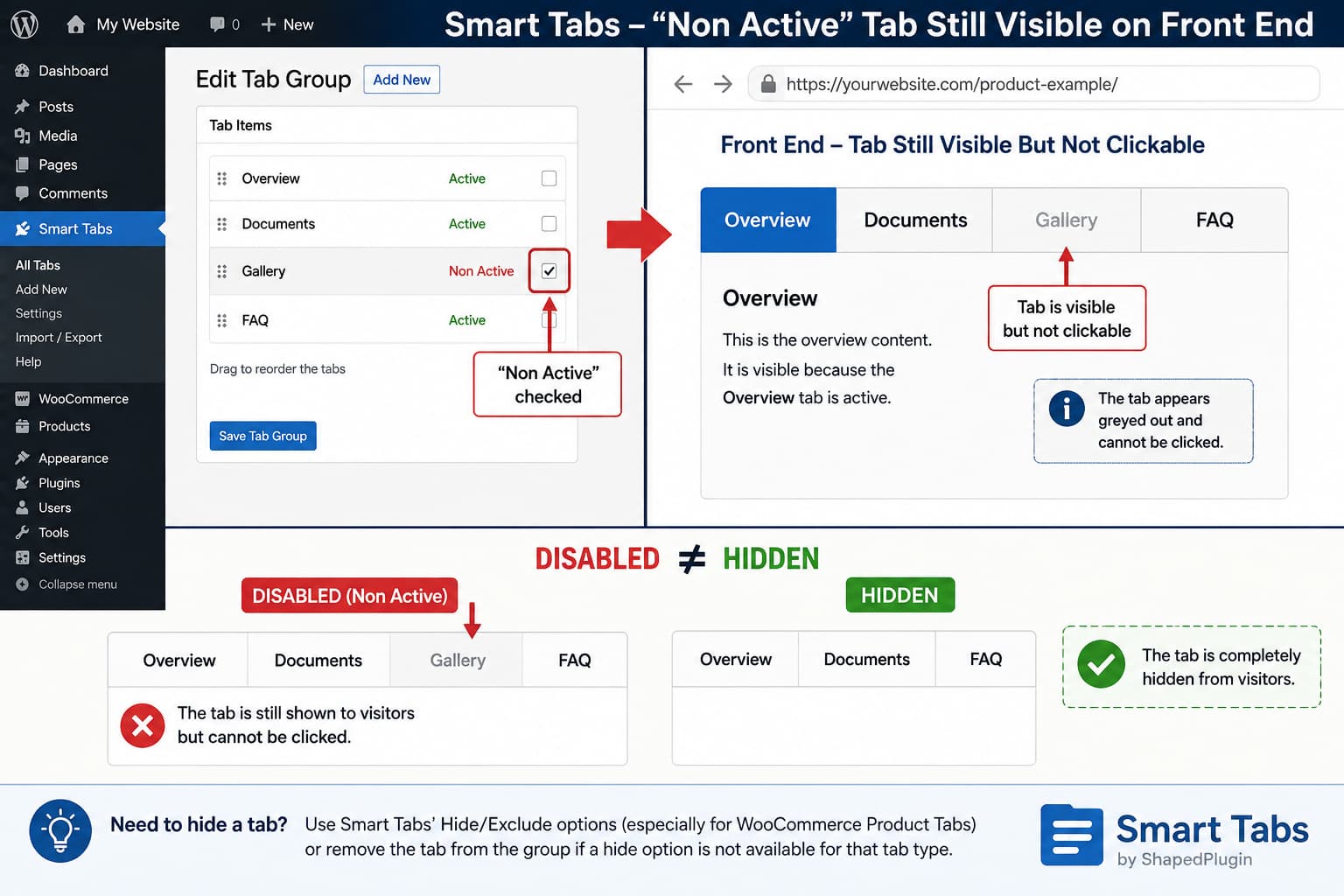
If a tab in Smart Tabs is marked Non Active but remains visible on the front end as an unclickable tab, the setting is behaving more like a disabled state than a hidden state.
Those two behaviors are technically different:
- Disabled: The tab remains visible but visitors cannot activate it.
- Hidden: The tab is not displayed to visitors at all.
If your intention is to temporarily remove a tab from public view, disabling it is usually not enough. The correct solution depends on whether you are working with a normal Smart Tabs tab group or WooCommerce Product Tabs.
As of Smart Tabs 3.1.6, the plugin’s official documentation does not document the Non Active checkbox as a visibility control, and the current changelog does not list a change that makes non-active tabs disappear completely.
Why a Non Active Tab Can Still Be Visible
A tab interface normally has several different states.
A tab can be:
- currently selected;
- available but not selected;
- disabled;
- completely removed from the interface.
These states should not be treated as interchangeable.
The WAI-ARIA tabs pattern also distinguishes the active tab from other tabs in the tab list. A tab control and its associated panel are separate parts of the interface, which is one reason disabling a control does not inherently mean removing it from the tab list.
In Smart Tabs, the observed Non Active behavior appears to follow this distinction: the tab remains part of the rendered navigation but cannot be activated.
That may be useful when you deliberately want visitors to know that a section exists but is currently unavailable.
It is much less useful when the actual requirement is:
Do not show this tab at all.
The current WordPress.org support discussion about this exact behavior is still unresolved, so it would be premature to describe it as a confirmed plugin bug rather than the current implementation of the option.
First Decide Whether You Need “Disabled” or “Hidden”
Before changing anything, determine what visitors should see.
Use a disabled tab when:
- visitors should know the section exists;
- the content will become available later;
- the disabled state communicates something useful;
- keeping the tab label visible is intentional.
Hide the tab when:
- the section should not be visible yet;
- the tab is no longer relevant;
- a product should not have that tab;
- displaying an empty or unavailable tab creates confusion;
- the tab title itself should not be public.
If the second list describes your requirement, Non Active is not sufficient if it continues rendering the tab title.
For WooCommerce Product Tabs, Use the Hide or Exclude Controls
Smart Tabs has dedicated visibility functionality for WooCommerce Product Tabs that is separate from ordinary tab activation.
The current plugin listing specifically advertises the ability to:
- hide or override tabs for individual products;
- exclude tabs from specific products.
These WooCommerce tab controls were expanded when the plugin introduced its dedicated Product Tabs functionality in version 3.0.0.
If the tab is attached to a WooCommerce product, use the product-tab exclusion or hide functionality rather than relying on Non Active.
The exact available controls can depend on whether you are using the free or Pro features.
After changing the visibility setting:
- Update the tab configuration.
- Clear any page or object cache.
- Open the product in a private browser window.
- Confirm the tab title is completely absent.
- Check the mobile accordion version as well.
Smart Tabs can render product tabs differently on smaller screens, including accordion layouts, so verify both desktop and mobile output.
For Normal WordPress Smart Tabs, Check Whether a Hide Setting Exists
Smart Tabs also creates ordinary tab groups that can be embedded in posts and pages using its shortcode or block.
The official documentation describes extensive controls for tab content, layout, icons, responsive behavior, animation, typography, and display settings. However, the current documentation does not describe Non Active as an individual-tab hide feature.
If you are editing a normal WordPress tab group rather than WooCommerce Product Tabs, inspect the tab’s available settings first.
Look specifically for terminology such as:
- Hide
- Exclude
- Visibility
- Disable
- Active
- Status
Do not assume Non Active means hidden unless the plugin explicitly states that it does.
If no separate visibility setting exists, the plugin may currently lack a built-in way to keep an ordinary tab saved in the group while completely excluding it from front-end output.
Safest Temporary Solution for a Normal Tab Group
If a tab absolutely must not appear publicly and there is no documented hide option, the safest approach is to remove it from the rendered tab group rather than trying to make a disabled tab look hidden.
Before doing this, preserve its content.
You can:
- Back up the WordPress database.
- Copy the tab content into a private draft or another safe location.
- Remove the tab from the published tab group.
- Update the group.
- Verify the front end.
- Restore the tab later when it is needed.
Smart Tabs also provides export and import functionality in current releases, which may be useful when preserving larger configurations before modifying them.
This is less convenient than a dedicated visibility toggle, but it prevents the tab from being intentionally rendered as a disabled navigation item.
Be Careful With CSS-Only Fixes
It may be tempting to inspect the tab and add:
display: none;to its navigation element.
That can visually solve the problem, but it is not always a complete solution.
A tab component normally consists of at least two related elements:
Tab navigation item
        ↓
Associated tab panel
Hiding only the navigation element may leave:
- the associated content in the HTML;
- JavaScript still initializing the hidden tab;
- an incorrect active-tab index;
- accessibility relationships pointing to an invisible control;
- different behavior on mobile accordion layouts.
Smart Tabs also supports different responsive presentations, so a selector that hides a desktop tab may not necessarily hide the corresponding accordion item on mobile.
For those reasons, prefer a plugin-provided hide/exclude option when one applies.
If custom CSS is necessary, inspect the actual generated markup for your installed Smart Tabs version and make sure both the navigation and corresponding panel are handled correctly. Do not copy selectors from an unrelated site because generated IDs and markup can differ between tab groups.
Do Not Use CSS to Protect Private Content
There is another important difference between hiding something visually and preventing it from being delivered.
Suppose a tab contains:
- unpublished pricing;
- private documentation;
- member-only information;
- confidential text;
- content scheduled for a future announcement.
If Smart Tabs still outputs that tab’s content into the page HTML and CSS merely hides it, visitors may still be able to find the content by viewing the page source or using Developer Tools.
CSS is therefore not an access-control mechanism.
For content that genuinely must remain private, make sure it is excluded from the generated page on the server side rather than merely made invisible.
Check the Current Smart Tabs Version
Before troubleshooting older behavior, update the plugin on a staging site or after taking a backup.
At the time of writing, WordPress.org lists:
Smart Tabs version: 3.1.6
Release date: July 10, 2026
Minimum WordPress: 5.0
Minimum PHP: 7.2
The current release does not list a fix specifically changing the Non Active tab behavior.
That means updating is good maintenance practice, but there is currently no authoritative changelog evidence that updating alone will cause a Non Active tab to become completely hidden.
How to Verify What Smart Tabs Is Doing
After marking a tab Non Active, open the public page in an incognito/private browser window.
Check three things.
1. Is the tab title still rendered?
If yes, the option is not functioning as a complete visibility control in your configuration.
2. Can the tab be activated?
If the title remains but clicking it does nothing, the tab is effectively being presented as disabled.
3. Is the tab content still present in the HTML?
Open Developer Tools and inspect the tab group.
Search for a distinctive sentence from the supposedly hidden tab.
If the content still exists in the document, the tab has not been removed from front-end output even if its panel is currently invisible.
This distinction matters if the purpose of hiding the tab is privacy rather than appearance.
When to Report It to the Plugin Developer
If what you need is a simple per-tab control that means:
Keep this tab and its content in the WordPress admin, but do not output it on the front end.
and Smart Tabs does not currently offer such a setting for that tab type, this is best treated as a feature request or UX improvement rather than applying fragile custom JavaScript.
A clearer interface could separate the two actions:
Enabled / Disabled
Visible / Hidden
That would let users choose independently whether a tab is interactive and whether it is rendered at all.
When reporting the issue, provide:
- Smart Tabs version;
- WordPress version;
- whether it is a WordPress tab group or WooCommerce Product Tab;
- desktop and mobile behavior;
- screenshot of the Non Active setting;
- screenshot showing the disabled tab on the front end.
That will also help the developer determine whether the observed result is intentional behavior or a defect in a particular tab type.
The Practical Fix
If Non Active leaves the Smart Tabs tab visible but unclickable, do not rely on it when your requirement is to remove the tab from public view.
For WooCommerce Product Tabs, use Smart Tabs’ dedicated hide/exclude functionality where available.
For ordinary WordPress tab groups, check for a separate visibility option in your installed version. If none exists and the tab must disappear completely, preserve its content and remove it from the published group until it is needed again.
CSS can be used for presentation-specific cases, but it should not be considered a secure or universal replacement for proper server-side tab visibility.
