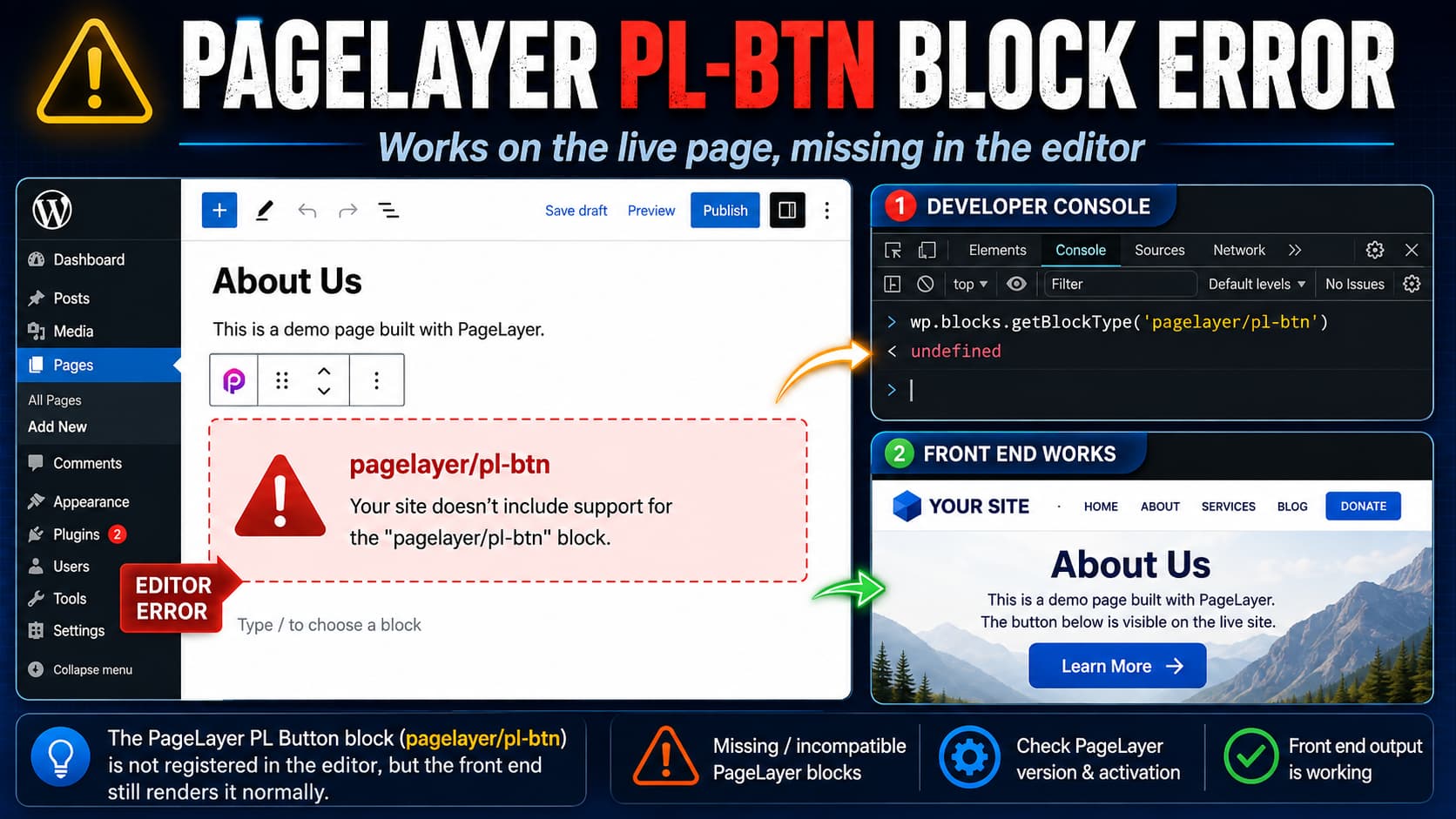
When the WordPress editor displays:
Your site doesn’t include support for the “pagelayer/pl-btn” block. You can leave it as-is or remove it.
but the PageLayer button still appears correctly on the published page and in Preview, the content itself is usually not the immediate problem.
The message means the block editor found saved content belonging to pagelayer/pl-btn, but the PageLayer button block was not successfully registered in the current Gutenberg editor session. WordPress handles an unregistered block using its unsupported-block fallback while preserving the block’s saved markup.
Do not remove, convert, or recreate the existing button as the first troubleshooting step. The safer approach is to find out why PageLayer’s Gutenberg integration is not loading.
Why the Button Still Works on the Front End
A WordPress block can contain HTML that was saved into the post content when the block was originally created.
If Gutenberg later cannot find the JavaScript definition for that block, it may no longer know how to provide the editing interface even though the previously saved HTML remains in the database.
That explains this combination of symptoms:
- The published button still displays.
- Preview still works.
- Gutenberg says the block is unsupported.
- Editing controls for the button are unavailable.
WordPress documents this state as the core/missing or unsupported-block fallback. The original block name and saved content are retained even though the editor cannot currently load that block type.
This is different from an “invalid block content” error, where Gutenberg recognizes the block type but finds that its saved HTML no longer matches the markup the block expects.
PageLayer Is Supposed to Support Gutenberg
This error should not normally appear simply because a PageLayer button was opened in Gutenberg.
PageLayer officially added support for its widgets in Gutenberg in version 1.8.1. Its documentation specifically describes dragging PageLayer widgets into the Gutenberg editor and editing their properties from the block settings panel.
The current WordPress.org plugin listing also advertises Gutenberg integration and includes Button among PageLayer’s available widgets.
Therefore, if pagelayer/pl-btn is showing as unsupported, something is preventing the expected PageLayer block registration from completing.
Do Not Delete the Unsupported Block
The unsupported-block notice offers the option to leave the block intact or remove it.
Choose leave it intact while troubleshooting.
Do not:
- remove the block;
- convert it to HTML;
- replace it with a WordPress Button block;
- recreate the button manually;
- save a modified version of the page unnecessarily.
The original PageLayer block data may still be recoverable as soon as its block definition begins loading correctly again.
Take a database backup or create a WordPress revision before making changes.
Step 1: Confirm PageLayer Is Active and Updated
Go to:
Plugins → Installed Plugins
Confirm that PageLayer is active.
Then check its version.
At the time of writing, WordPress.org lists PageLayer 2.1.8, released August 17, 2026, as the current version.
Updating is especially relevant to Gutenberg problems because PageLayer 2.0.2 specifically included a bug fix for cases where the Gutenberg editor was not loaded correctly.
If you are using an older PageLayer release:
- Back up the site.
- Update PageLayer.
- Clear relevant caches.
- Reload the WordPress editor.
- Check the button again.
Do not update PageLayer Pro independently to an incompatible release if the site also uses the Pro plugin. Keep the free and Pro components on supported versions from the vendor.
Step 2: Check Whether the Button Block Is Registered
This is one of the most useful diagnostics for this specific error.
Open the affected page in the WordPress editor.
Then open your browser’s Developer Tools and select Console.
Run:
wp.blocks.getBlockType('pagelayer/pl-btn')WordPress’s @wordpress/blocks API provides getBlockType() specifically for retrieving a currently registered block type. It returns the block object if it exists and undefined if that block type has not been registered.
If you receive a block object
PageLayer has registered pagelayer/pl-btn.
In that case, reload the editor and investigate whether the error is limited to this particular saved block or page.
You should also check the browser console for other JavaScript errors.
If the result is undefined
The important part of the diagnosis is confirmed:
Gutenberg has not registered the PageLayer button block in that editor session.
The next task is finding out why.
If wp itself is undefined
That suggests a more fundamental editor JavaScript loading problem.
Look immediately for failed scripts or JavaScript errors in Developer Tools.
Step 3: Test a New Draft Without Changing the Existing Page
Create a temporary draft page.
Do not modify the production page yet.
Open the Gutenberg block inserter and search for PageLayer blocks.
Try to find the PageLayer Button widget.
PageLayer blocks are missing entirely
This points toward a broader PageLayer Gutenberg integration problem.
Possible causes include:
- PageLayer editor assets failing to load;
- incomplete or corrupted plugin files;
- another plugin interfering with the block editor;
- a JavaScript error stopping PageLayer initialization;
- an optimization or security system interfering with admin assets;
- an incompatibility involving the installed versions.
Other PageLayer blocks appear, but Button does not
This narrows the problem considerably.
Check the PageLayer version and plugin files before modifying the affected page. A missing individual block definition is more likely to require PageLayer-specific investigation than a general WordPress editor fix.
A new PageLayer Button works normally
The problem may be specific to the older page content or the way that particular block was stored.
Do not replace the old button immediately. First compare the block registration and editor console behavior between the working draft and affected page.
Step 4: Check the Browser Console
Reload the editor while Developer Tools is open.
Look for errors containing terms such as:
pagelayer
blocks
block-editor
Uncaught
TypeError
ReferenceError
Also open the Network panel and reload the page.
Filter for JavaScript requests and check for:
404
403
500
A missing or blocked PageLayer JavaScript file can explain why the front-end HTML remains visible while Gutenberg cannot register its editing component.
The first JavaScript error is often more useful than the last one because one failed dependency can produce several additional errors afterward.
Do not suppress console errors without identifying what generated them.
Step 5: Clear Caches Without Deleting the Page
Clear any relevant:
- WordPress caching plugin cache;
- server/page cache;
- object cache;
- browser cache.
Then reopen the editor in a private/incognito browser window.
A front-end CDN cache is less likely to be responsible for an editor-only block-registration failure, but optimization plugins can sometimes alter JavaScript behavior depending on their configuration.
If the site uses JavaScript combination, delay, defer, or minification features, test with those optimizations temporarily disabled on a staging copy.
Do not assume caching is the cause simply because clearing the cache temporarily changes behavior.
Step 6: Test for a Plugin Conflict
An editor-only error can be caused by another plugin interfering with Gutenberg JavaScript.
Perform this test on a staging site whenever possible.
Keep PageLayer active and temporarily disable other nonessential plugins.
Reload the affected page after each meaningful group of changes.
If pagelayer/pl-btn begins working, reactivate plugins incrementally until the error returns.
Pay particular attention to plugins that modify:
- Gutenberg;
- admin JavaScript;
- block availability;
- page builders;
- security policies;
- script optimization;
- role capabilities.
Do not conduct a broad plugin-deactivation test directly on a busy production site unless you understand the effect each plugin has.
Step 7: Check for the Standalone Gutenberg Plugin
WordPress already contains the block editor.
If the separate Gutenberg plugin is installed, it provides newer block-editor functionality than WordPress core and can expose compatibility problems in third-party block plugins.
If it is active, test the site on staging with the standalone Gutenberg plugin disabled while keeping PageLayer enabled.
Then check:
wp.blocks.getBlockType('pagelayer/pl-btn')again.
This does not mean Gutenberg itself is inherently incompatible with PageLayer. PageLayer officially supports Gutenberg. The test simply determines whether the separate development plugin changes the behavior.
Step 8: Reinstall PageLayer if Its Files May Be Incomplete
If PageLayer is current but its Gutenberg blocks still fail to register, an incomplete plugin update is another possibility.
Before reinstalling:
- Back up the files and database.
- Confirm you have any required PageLayer Pro package or license information.
- Preserve a copy of the existing PageLayer plugin directory for comparison if necessary.
Then reinstall a clean copy from the official WordPress plugin repository.
Do not delete page content.
The PageLayer widgets stored in the page database are separate from replacing the plugin’s program files, but a full backup remains important before removing any plugin directory from production.
After reinstalling, clear caches and test again:
wp.blocks.getBlockType('pagelayer/pl-btn')If it now returns a registered block object, reopen the existing page before making any content changes.
Step 9: Test the Theme Only if Necessary
A theme conflict is possible but less likely than failed PageLayer block registration when the problem affects only Gutenberg.
If plugin testing does not identify the cause, clone the site to staging and temporarily switch to a default WordPress theme.
Keep PageLayer active.
Then check whether the block becomes available.
If pagelayer/pl-btn registers under the default theme but disappears with the normal theme, investigate theme code that modifies the block editor or admin scripts.
Do not switch themes casually on the live site because widget areas, menus, templates, and styling can change.
Why Preview Can Work While Gutenberg Fails
Preview and the editor do not use exactly the same rendering path.
The public or previewed page can use saved HTML, PageLayer-generated CSS, shortcodes, or front-end processing that does not require Gutenberg’s React editing component to be successfully registered.
The Gutenberg editor, however, needs a registered block definition to provide an editing interface for pagelayer/pl-btn.
That is why this is primarily an editor registration/loading problem when the front-end button remains functional.
How to Verify the Fix
After applying the appropriate fix, reopen the original page without deleting the existing button.
Confirm all of the following:
- The unsupported-block warning is gone.
- The original button appears normally in Gutenberg.
- Clicking the button exposes the expected PageLayer controls.
- The browser console does not show PageLayer initialization errors.
- This returns a registered block object:
wp.blocks.getBlockType('pagelayer/pl-btn')- The published page still displays the original button correctly.
- The button URL, text, styling, and responsive behavior have not changed.
Only save the page after confirming that the editor recognizes the original block.
What If the Error Still Appears?
If PageLayer is current, cleanly installed, and the problem persists with other plugins disabled on staging, collect the following before contacting PageLayer support:
- WordPress version;
- PageLayer version;
- PageLayer Pro version, if installed;
- PHP version;
- active theme;
- screenshot of the unsupported-block message;
- JavaScript console errors;
- failed Network requests;
- result of:
wp.blocks.getBlockType('pagelayer/pl-btn')Also mention whether a new PageLayer Button can be inserted into a blank draft.
That information distinguishes a damaged individual page from a PageLayer block-registration problem and gives the plugin developer something concrete to investigate.
The original button should not need to be removed simply because Gutenberg temporarily fails to recognize its block type.
