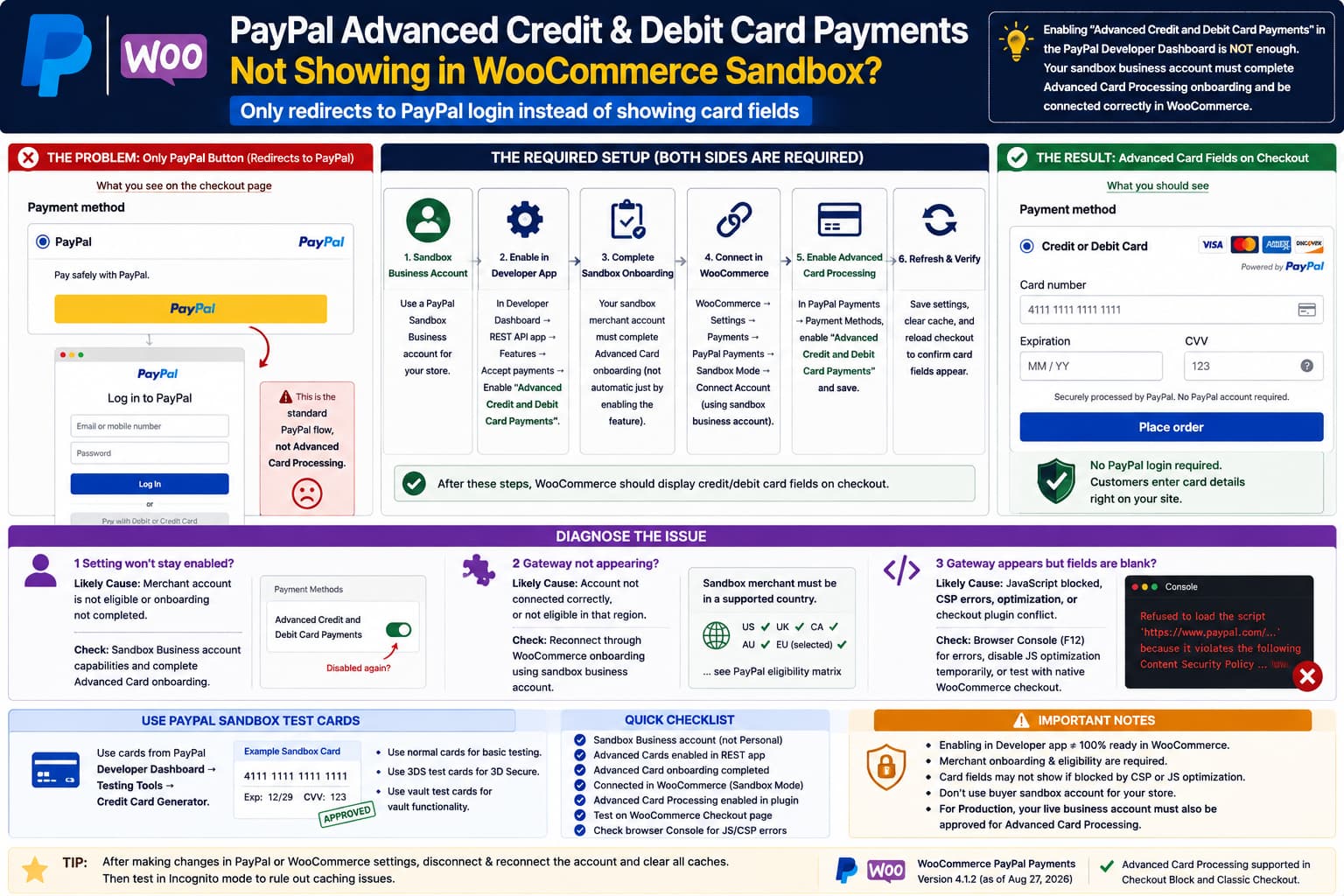
When testing WooCommerce PayPal Payments in Sandbox mode, you may enable:
Advanced Credit and Debit Card Paymentsinside your PayPal sandbox app and expect checkout to display card fields such as:
Card number
Expiration date
CVV
directly on the WooCommerce checkout page.
Instead, you may only see:
PayPal
[ PayPal button ]
and clicking it opens or redirects to PayPal, where the buyer is expected to log into a PayPal account.
That means you are currently using the PayPal-branded checkout flow, not the plugin’s Advanced Card Processing gateway.
With Advanced Card Processing configured correctly, WooCommerce should provide a separate on-site card-payment option with PayPal-hosted card fields. Customers do not need to log into PayPal to enter their card details.
The key point is:
Checking “Advanced Credit and Debit Card Payments” in the PayPal Developer Dashboard does not always mean the WooCommerce sandbox merchant has completed the Advanced Card Processing onboarding required by the plugin.
What Advanced Card Processing Should Look Like
There are two different PayPal card experiences, and they are easy to confuse.
Standard PayPal/Card flow
You might see:
PayPal
↓
PayPal button
↓
PayPal popup or PayPal website
↓
Login / guest payment options controlled by PayPal
PayPal controls this interface.
Advanced Credit and Debit Card Processing
The checkout should instead contain something conceptually like:
Credit or Debit Card

Card number
[ 4111 .... .... .... ]

Expiration
[ MM/YY ]

CVV
[ ... ]

[ Place order ]
Those fields are rendered on your WooCommerce checkout using PayPal-hosted card components.
WooCommerce describes Advanced Card Processing as a customizable on-site experience where buyers can pay using debit or credit cards without needing a PayPal account.
So if your only option sends the buyer to PayPal, Advanced Card Processing is not currently active on checkout, regardless of what one sandbox setting says.
Enabling It in the PayPal Developer App Is Only One Requirement
PayPal’s current Advanced Checkout documentation says a sandbox integration requires a:
Sandbox Business Account
+
Advanced Credit and Debit Card Payments capability
You can inspect the sandbox app under:
PayPal Developer Dashboard
→ Apps & Credentials
→ Sandbox
→ REST API apps
→ your app
→ Features
→ Accept payments
and enable:
Advanced Credit and Debit Card Paymentsthere.
However, PayPal also states that if the sandbox business account was created separately and Advanced Card Payments is not fully enabled, you may need to complete sandbox onboarding.
WooCommerce goes even further in its plugin-specific documentation:
Sandbox accounts must follow the Advanced Card signup/onboarding process too.
So there are really two layers:
Developer App Capability
✓

Merchant/Sandbox Business Account Capability
✓
Both need to line up with the account connected to WooCommerce.
First Check: Are You Using a Sandbox Business Account?
Go to:
developer.paypal.com
→ Testing Tools / Sandbox Accounts
Find the account connected to WooCommerce.
Its type must be:
Businessnot:
PersonalWooCommerce’s own onboarding instructions recommend creating a separate sandbox business account for the merchant and another personal/business sandbox account for the buyer.
The correct setup is approximately:
Sandbox Business Account
= your WooCommerce store

Sandbox Personal Account
= test customer
Do not connect the buyer’s sandbox account to the WooCommerce plugin.
Reconnect Through WooCommerce’s Sandbox Onboarding
This is the most important step I would try.
Instead of only entering sandbox API credentials manually or enabling a developer-app checkbox, reconnect the account through the plugin’s onboarding wizard.
Go to:
WooCommerce
→ Settings
→ Payments
→ PayPal
or, in the current interface:
WooCommerce
→ Settings
→ Payments
→ PayPal Payments
Enable:
Sandbox ModeThen disconnect/start over if necessary and use:
Connect AccountLog in using the sandbox business account.
During onboarding, choose the option to accept:
Credit and Debit Cardsand complete any Advanced Card Processing prompts.
WooCommerce explicitly says that Advanced Card eligibility/onboarding is initiated through its Activate PayPal workflow and that the sandbox merchant must also go through the signup process.
Why Manual API Credentials Can Be Misleading
You can have perfectly valid:
Sandbox Client ID
Sandbox Secret
and successfully process ordinary PayPal sandbox payments.
That proves:
WooCommerce → PayPal API connection
✓
but it does not necessarily prove:
Advanced Card Processing merchant eligibility
✓
So this can happen:
PayPal button
✓ works

Sandbox buyer login
✓ works

Advanced card fields
✗ absent
without any contradiction.
Basic PayPal Checkout and Advanced Card Processing require different merchant capabilities.
Check the Advanced Card Processing Setting in WooCommerce
After reconnecting, go to the plugin’s Payment Methods page.
Look for:
Advanced Credit and Debit Card Paymentsor:
Advanced Card Processingand enable it.
WooCommerce says enabling this gateway should replace the ordinary card Smart Button with a dedicated customizable card-payment gateway on checkout.
The desired status is:
PayPal
Enabled

Advanced Credit and Debit Card Payments
Enabled
These are separate payment experiences.
You do not have to disable ordinary PayPal just to offer cards.
If Advanced Card Processing Cannot Stay Enabled
This is a major clue.
Suppose you do:
Enable Advanced Credit and Debit Card Payments
→ Save
then refresh and find:
Disabled againThat often means the plugin does not see the required capability on the connected PayPal merchant.
Similar recent WooCommerce PayPal Payments reports show card-processing controls remaining disabled even after users believed the PayPal account had been approved; plugin support then needed to inspect the connection capabilities directly.
At that point, repeatedly clearing cache will not help.
Check PayPal’s Merchant Capability, Not Just the App Checkbox
Inside PayPal’s Developer Dashboard, verify:
Apps & Credentials
→ Sandbox
→ REST API apps
→ your WooCommerce sandbox app
→ Features
→ Accept payments
and make sure:
Advanced Credit and Debit Card Payments
✓
is enabled.
But also verify that the business sandbox account itself has completed onboarding.
This distinction is important:
REST App
       ↓
has Advanced Cards feature

Sandbox Merchant
       ↓
must also be enabled/eligible
If the merchant side is incomplete, WooCommerce may fall back to the standard PayPal experience.
“Enabled in Sandbox” Does Not Mean “Enabled in Live”
Sandbox and live capabilities are separate.
You can have:
Sandbox Advanced Cards
✓

Live Advanced Cards
✗
or the reverse.
WooCommerce notes that the live Advanced Credit and Debit Card feature requires PayPal evaluation/approval for the business account and is available only for eligible merchants in supported countries.
So when you later switch to production, you must verify the live PayPal business account separately.
Test on the Actual WooCommerce Checkout Page
Advanced card fields should be tested on:
Checkoutnot necessarily on:
Product page
Cart page
Mini-cart
WooCommerce explains that credit-card functionality is primarily a checkout payment method, while express locations emphasize PayPal, Pay Later, Venmo and similar buttons.
So if you are looking at the cart and only seeing:
PayPalthat does not prove Advanced Cards are unavailable.
Go all the way to the configured WooCommerce checkout.
WooCommerce Block Checkout Is Supported
The current PayPal Payments documentation confirms that Advanced Card Processing is supported in the WooCommerce Checkout Block, including embedded card fields.
Current versions also continue to support card handling in classic checkout, and the 4.1.2 changelog contains a specific Advanced Card/FraudNet fix for classic checkout.
Therefore I would not assume:
“Advanced Cards only works with the Checkout Block.”
That is not accurate for the current plugin.
However, custom checkout builders can still interfere.
Temporarily Test With the Native WooCommerce Checkout
If the account is definitely enabled but fields still do not appear, create or test a standard checkout page using either:
WooCommerce Checkout Blockor:
[woocommerce_checkout]Temporarily avoid custom checkout templates from:
Elementor Checkout Widget
CartFlows
FunnelKit
CheckoutWC customizations
theme-specific checkout builders
for the diagnostic.
If Advanced Card fields appear on a stock WooCommerce checkout but not your custom checkout:
PayPal capability
✓

Plugin gateway
✓

Custom checkout compatibility
✗
You have isolated the problem.
Check Browser Console for PayPal JavaScript Errors
If WooCommerce displays the card gateway name but the actual fields are blank, open:
F12
→ Console
Reload checkout.
Look for errors containing:
paypal
hosted
card
fraudnet
ppcp
Content-Security-Policy
CSP
A previous PayPal Payments regression caused Advanced card fields not to display and generated a Content Security Policy error.
So there are two different failure modes:
Gateway completely absent
Usually investigate:
Merchant capability
Onboarding
Plugin setting
Eligibility
Gateway present, card fields blank
Investigate:
JavaScript
CSP
optimization
theme/plugin conflict
PayPal SDK loading
Check Content Security Policy
If the console contains something like:
Content-Security-Policy blocked...
paypal.com
paypalobjects.com
your server, security plugin, CDN, or custom headers may be preventing PayPal’s hosted-field scripts from running.
Inspect:
Content-Security-Policyheaders and any security solution that modifies them.
PayPal card fields rely on PayPal-hosted scripts/components, so blocking their required resources can leave an otherwise-enabled gateway empty.
Do not simply disable CSP permanently. Adjust the policy properly after identifying the blocked PayPal resource.
Temporarily Disable JavaScript Optimization
For testing, disable features such as:
Delay JavaScript
Defer JavaScript
JS Combine
JS Minification
Cloudflare Rocket Loader
script optimization
Then purge caches and test Incognito.
PayPal’s checkout JavaScript has timing dependencies, and the current plugin changelog has included fixes for race conditions involving Advanced Card components. Version 4.1.2 specifically fixed a classic-checkout FraudNet JavaScript timing issue.
If the card fields return after disabling optimization, configure an exclusion for the affected PayPal scripts instead of leaving all optimization disabled.
Update WooCommerce PayPal Payments
As of August 27, 2026, WordPress.org lists:
WooCommerce PayPal Payments
Version 4.1.2
Released August 4, 2026
Version 4.1.2 includes several payment and onboarding improvements, including:
Advanced onboarding options
card-decline handling improvements
classic checkout hosted-field/FraudNet fix
So before debugging an older release, update on staging.
Also keep WooCommerce itself current.
How to Test the Sandbox Card Fields
Once Advanced Card Processing appears correctly, do not necessarily use the credit card information attached to your personal sandbox PayPal account.
PayPal provides dedicated sandbox test cards.
WooCommerce’s documentation says:
- normal card payments can use cards generated in the PayPal Developer Dashboard,
- 3D Secure testing requires specific 3DS test cards,
- Vault testing requires vault-ready cards.
For normal testing:
PayPal Developer Dashboard
→ Testing Tools
→ Credit Card Generator
Generate a test card and enter it into the WooCommerce card fields.
These are sandbox credentials only.
What Successful Sandbox Testing Should Look Like
The flow should be:
WooCommerce Checkout
↓
Credit or Debit Card
↓
Card fields displayed directly on checkout
↓
Enter PayPal sandbox test card
↓
Place Order
↓
WooCommerce sends order to PayPal Sandbox
↓
Sandbox transaction completes
It should not require logging into a PayPal buyer account for the direct card-payment path.
A PayPal login popup is appropriate for:
PayPal payment methodbut not for the Advanced Card Processing card fields.
If You Only See “Debit or Credit Card” Inside a PayPal Popup
That is likely the standard card option, not Advanced Card Processing.
The distinction is:
Debit/Credit Card Smart Button
→ PayPal-controlled experience
→ may open PayPal UI
versus:
Advanced Credit/Debit Card gateway
→ fields rendered directly in WooCommerce checkout
WooCommerce explicitly distinguishes Standard Card Payments from Advanced Card Processing.
So don’t use the presence of a PayPal “Debit or Credit Card” button as proof that Advanced Card Processing is active.
Check Store Country and Currency
Advanced Card Processing is not universally available.
WooCommerce says it is available only for business accounts in selected countries, and PayPal maintains the eligibility matrix.
This can matter even in sandbox because the sandbox business account has a country.
If your sandbox merchant was created for a country where the feature is not supported, the plugin may not expose the Advanced Card gateway correctly.
Check:
WooCommerce
→ Settings
→ General
→ Store Address / Country
and compare it with:
PayPal Sandbox Business Account
→ Country
Ideally those should represent the market you intend to test.
Don’t Use a Personal PayPal Account as the Merchant
WooCommerce’s current onboarding documentation says a PayPal Business Account is required for WooCommerce transaction processing.
For the seller side, use:
Sandbox BusinessFor the buyer side:
Sandbox PersonalIf the merchant connection accidentally uses the wrong sandbox account type, disconnect and reconnect correctly.
A Clean Re-Onboarding Procedure
If this were my test site, I would do the following:
- Update WooCommerce PayPal Payments to 4.1.2.
- Confirm WooCommerce’s checkout page is the normal WooCommerce checkout.
- In PayPal Developer Dashboard, create/verify a Sandbox Business account.
- Confirm its REST app has Advanced Credit and Debit Card Payments enabled.
- Complete PayPal sandbox Advanced Card onboarding if requested.
- In WooCommerce PayPal Payments, enable Sandbox Mode.
- Disconnect the current PayPal connection.
- Reconnect through the plugin onboarding wizard using the sandbox business account.
- Enable Advanced Credit and Debit Card Payments under Payment Methods.
- Save and refresh the settings page.
- Verify the Advanced Card gateway remains enabled.
- Open checkout in Incognito.
- Look for the separate card-payment gateway.
- If absent, inspect PayPal/plugin logs and merchant capabilities.
- If present but blank, inspect Console for CSP/JavaScript errors.
- Test with a PayPal-generated sandbox card.
That isolates account setup from frontend problems.
Enable PayPal Payments Logging
For a stubborn case, enable plugin logging and reproduce the issue.
Then go to:
WooCommerce
→ Status
→ Logs
Look for current PayPal Payments logs.
The useful information is not your secret key. Never post those credentials publicly.
Look for capability/account responses mentioning terms such as:
advanced_card_processing
card_processing
eligible
capabilities
merchant
onboarding
A support engineer can use those logs to determine whether PayPal tells WooCommerce that your sandbox merchant is eligible.
A Useful Diagnostic Fork
The quickest way to narrow this down is:
Can you enable Advanced Credit and Debit Cards in WooCommerce and does the setting stay enabled?
If No:
Focus on:
Sandbox merchant onboarding
Account capability
Country eligibility
Wrong sandbox account
Reconnection
If Yes, but no gateway appears:
Focus on:
Checkout compatibility
Gateway availability
Plugin conflict
WooCommerce checkout
If gateway appears but fields are blank:
Focus on:
JavaScript
CSP
PayPal SDK
Optimization
Theme/plugin conflict
This prevents mixing three different problems together.
Most Likely Cause in This Case
The strongest clue is:
“Yes, I have enabled this in sandbox.”
but checkout still provides only:
PayPal redirect/loginThat suggests the developer-app feature is enabled, but the sandbox merchant connection used by WooCommerce has not been fully recognized/onboarded for Advanced Card Processing, or WooCommerce was connected before the capability was enabled and has stale merchant capability information.
PayPal says Advanced Card Payments should be enabled on the sandbox business account and provides explicit onboarding steps if it isn’t. WooCommerce independently says sandbox accounts must complete the signup process for Advanced Card features.
So my first action would be:
Disconnect PayPal Payments
↓
Verify Sandbox Business account
↓
Verify Advanced Cards on its REST app
↓
Complete sandbox onboarding
↓
Reconnect through WooCommerce's Sandbox onboarding wizard
↓
Enable Advanced Card Processing
rather than changing checkout CSS or clearing cache again.
Direct Answer
Enabling Advanced Credit and Debit Card Payments in the PayPal sandbox Developer Dashboard is necessary, but it may not be sufficient for WooCommerce.
When Advanced Card Processing is working, the card number, expiration, and CVV fields should appear directly on the WooCommerce checkout page. A PayPal login/redirect flow means you are currently using the ordinary PayPal gateway instead.
Check that:
1. Your connected sandbox merchant is a Business account.
2. Advanced Credit and Debit Card Payments is enabled for the REST app.
3. The sandbox merchant has completed Advanced Card onboarding.
4. WooCommerce PayPal Payments is connected to that exact sandbox business account.
5. Advanced Card Processing is enabled under WooCommerce → PayPal Payments → Payment Methods.
After changing PayPal’s sandbox capability, I would disconnect and re-onboard the account through WooCommerce so the plugin retrieves the correct merchant capabilities.
If Advanced Card Processing remains enabled but the fields still do not render, check the browser console next for CSP/JavaScript errors and test with the native WooCommerce checkout.
WooCommerce PayPal Payments 4.1.2 is the current release as of August 27, 2026, so use that version before spending much time diagnosing an older build.
