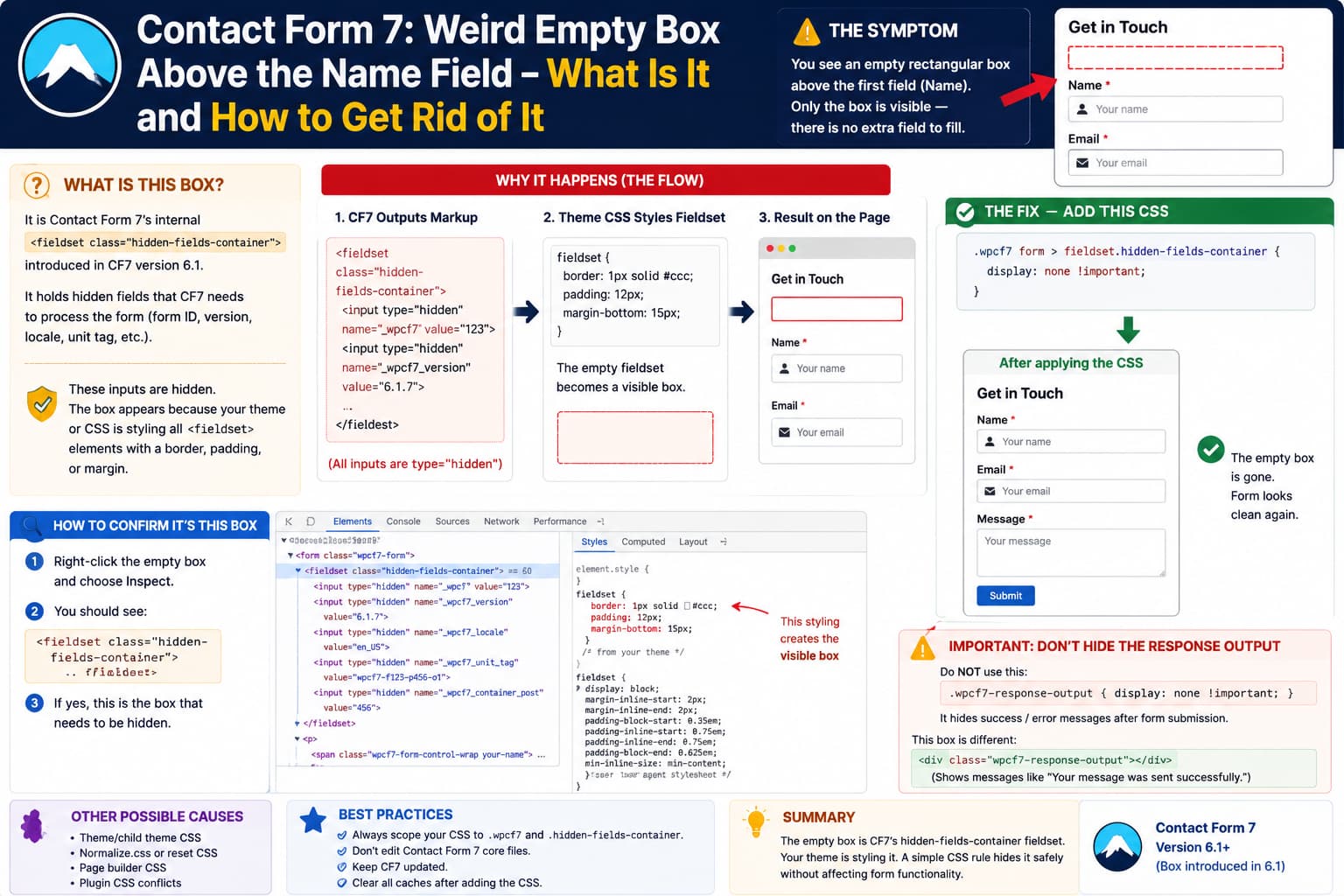
If a Contact Form 7 form suddenly has an empty rectangular box immediately above the first field, such as:
[ empty box ]

Name
[             ]

Email
[             ]
the box is very likely not another form field and it is not something you accidentally added to the Contact Form 7 form editor.
It is probably this element:
<fieldset class="hidden-fields-container">
    ...
</fieldset>
Contact Form 7 introduced this hidden-fields-container structure in version 6.1. It contains internal hidden inputs that CF7 needs when processing the form. WordPress.org support discussions confirm that the new fieldset appeared with Contact Form 7 6.1.
Normally visitors should never notice it.
The visible rectangle appears when a WordPress theme or its CSS applies normal fieldset styling to that supposedly invisible container.
What Is Inside the Box?
If you inspect the page HTML, it may look similar to:
<fieldset class="hidden-fields-container">

    <input
        type="hidden"
        name="_wpcf7"
        value="123"
    >

    <input
        type="hidden"
        name="_wpcf7_version"
        value="6.1.7"
    >

    <input
        type="hidden"
        name="_wpcf7_locale"
        value="en_US"
    >

    <input
        type="hidden"
        name="_wpcf7_unit_tag"
        value="wpcf7-f123-p456-o1"
    >

    <input
        type="hidden"
        name="_wpcf7_container_post"
        value="456"
    >

</fieldset>
Those fields contain internal information such as:
Form ID
Contact Form 7 version
Current locale
Form instance/unit tag
Containing WordPress post
Submission-related data
They are not fields the visitor is supposed to fill in.
A current real-world CF7 page shows exactly this structure before the first visible form field.
Why Does Something Called “hidden-fields-container” Appear as a Box?
Because the inputs themselves are hidden:
type="hidden"but the wrapper is a:
<fieldset>Themes often have generic CSS for every fieldset.
For example:
fieldset {
    border: 1px solid #c0c0c0;
    margin: 0 2px;
    padding: 0.35em 0.625em 0.75em;
}
That creates a visible rectangle even when every input inside it is hidden.
This exact conflict was reported after the Contact Form 7 markup changed. One user traced the box to a theme using Normalize.css, which applied a border and padding to all fieldset elements.
So the resulting page becomes:
Contact Form 7:
"This fieldset only contains invisible fields."

Theme CSS:
"Every fieldset needs a border and padding."

Result:
Visible empty rectangle
The Quick Fix
Add this CSS:
.wpcf7 .hidden-fields-container {
    display: none !important;
}
You can normally add it under:
Appearance
→ Customize
→ Additional CSS
or your theme’s:
Theme Options
→ Custom CSS
Then clear any page/cache/CDN cache and reload the contact page.
Multiple Contact Form 7 users with the same visible empty rectangle have confirmed this fix.
A More Defensive Version
I prefer scoping the rule specifically to a Contact Form 7 form:
.wpcf7 form fieldset.hidden-fields-container {
    display: none !important;
}
This avoids accidentally affecting another plugin that happens to use the same class name.
You could be even more specific:
.wpcf7 form > fieldset.hidden-fields-container {
    display: none !important;
}
That targets only the internal CF7 fieldset directly inside the form.
Is It Safe to Hide?
For this particular container, yes.
The fields inside are already:
<input type="hidden">and the CSS is only preventing their wrapper from consuming visual space.
You are not deleting the fields from the HTML.
The browser still has:
_wpcf7
_wpcf7_version
_wpcf7_locale
_wpcf7_unit_tag
...
available when the form submits.
This is different from:
<fieldset disabled>which would actually disable form controls.
CSS:
display: none;does not make hidden inputs unsuccessful form controls simply because their parent isn’t rendered visually.
Alternative: Remove Only the Visible Styling
If you prefer not to use display:none, you can neutralize the fieldset instead:
.wpcf7 form fieldset.hidden-fields-container {
    border: 0 !important;
    margin: 0 !important;
    padding: 0 !important;
    min-width: 0 !important;
    height: 0 !important;
    overflow: hidden !important;
}
That keeps the container in the layout technically but gives it no visible dimensions.
A very similar workaround has been used successfully in the CF7 support forum.
For most sites, however:
.wpcf7 .hidden-fields-container {
    display: none !important;
}
is simpler.
How to Confirm This Is Your Box
Don’t guess.
Open the contact page.
Then:
Right-click the empty box
→ Inspect
Chrome/Edge/Firefox DevTools should highlight the responsible HTML element.
If you see:
<fieldset class="hidden-fields-container">you have confirmed the issue.
You may also see browser-computed styles such as:
fieldset {
    border: 1px solid;
    padding: 10px;
}
coming from:
theme.css
style.css
normalize.css
page-builder CSS
That tells you exactly why the supposedly hidden area became visible.
Several Other Users Have Reported the Same Thing
This isn’t an isolated symptom.
There have been multiple WordPress.org support topics describing:
- an “empty box appearing above contact form fields,”
- a “visible rectangle showing above the form,”
- “one useless box @ top,”
- and an “extra column” or line appearing after updating CF7.
In several of those cases, the element was specifically:
hidden-fields-containerand CSS hiding or neutralizing that element resolved the visual problem.
That makes it a very strong match for a box located immediately before the Name field.
Why Did Contact Form 7 Add This Fieldset?
Contact Form 7 6.1 was a significant internal update released on June 26, 2025.
The developer described substantial code-quality changes, including new HTML-generation infrastructure and safer handling of internal values.
The internal hidden fields that CF7 needs are now grouped into:
<fieldset class="hidden-fields-container">rather than the older markup structure users may have been accustomed to.
So the fieldset itself isn’t necessarily evidence that something is broken.
The visual styling of that fieldset is the problem.
Don’t Remove the Fieldset From the Plugin PHP
Avoid editing Contact Form 7 core files to change:
<fieldset class="hidden-fields-container">back to another element.
Changes inside:
/wp-content/plugins/contact-form-7/will be overwritten when Contact Form 7 updates.
And modifying CF7’s internal form generation could cause unexpected form-processing problems.
CSS is the much safer workaround.
Don’t Delete the Hidden Inputs Either
Do not use JavaScript or PHP to strip:
_wpcf7
_wpcf7_version
_wpcf7_locale
_wpcf7_unit_tag
_wpcf7_container_post
from the form.
The correct goal is:
Keep internal fields
✓

Do not show an empty visual box
✓
not:
Delete CF7's internal submission fields
✗
Don’t Hide Every Fieldset on the Website
Avoid a rule like:
fieldset {
    display: none !important;
}
That could break legitimate forms containing:
<fieldset>
    <legend>Contact preference</legend>

    Email
    Phone
</fieldset>
It could also affect:
WooCommerce
checkout fields
account forms
other contact forms
accessibility structures
Scope your fix specifically:
.wpcf7 .hidden-fields-container {
    display: none !important;
}
Also Avoid This Overly Broad Rule
Do not use:
.wpcf7 fieldset {
    display: none;
}
because you may have intentionally added a genuine fieldset inside your Contact Form 7 form.
Again, target:
.hidden-fields-containeronly.
What If the Box Is Not hidden-fields-container?
There is another common Contact Form 7 box:
<div class="wpcf7-response-output"></div>This is CF7’s response message area.
It displays messages such as:
Your message was sent successfully.

One or more fields have an error.

There was an error trying to send your message.
Contact Form 7’s official documentation says .wpcf7-response-output is the element used for submission response messages.
However, that box is normally associated with the response area rather than a mysterious fieldset directly above the first Name input.
How to Tell the Difference
If DevTools shows:
<fieldset class="hidden-fields-container">use:
.wpcf7 .hidden-fields-container {
    display: none !important;
}
If DevTools shows:
<div class="wpcf7-response-output">you are looking at CF7’s response message box instead.
For an initial, untouched form, CF7 normally hides the response box based on the form state. Its official styling uses:
.wpcf7 form.init .wpcf7-response-output {
    display: none;
}
and equivalent rules for other transient states.
Don’t Permanently Hide the Response Output
A common internet solution is:
.wpcf7-response-output {
    display: none !important;
}
I don’t recommend that unless you intentionally want to remove all CF7 response messages.
Otherwise users will no longer see:
Message sent successfullyor:
There was an errorafter submission.
If your problem is the initial response box appearing when empty, use state-aware styling instead.
For example:
.wpcf7 form.init .wpcf7-response-output {
    display: none;
}
That preserves messages after actual submission.
The Position Gives Us an Important Clue
The report says the strange box appears:
above the “name” field
That location is particularly significant.
CF7’s internal markup typically starts:
<form>

    <fieldset class="hidden-fields-container">
        hidden internal inputs
    </fieldset>

    <p>
        Name field
    </p>

    ...
</form>
So the visual order becomes:
hidden-fields-container
↓
Name
↓
Email
↓
Message
↓
Submit
which matches the described symptom very closely. A current page containing CF7 markup shows exactly that ordering.
Why It May Appear Only on Some Themes
Two sites can run exactly the same Contact Form 7 release:
Site A
✓ no box

Site B
✗ empty box
because their themes treat <fieldset> differently.
Site A might have:
fieldset {
    border: 0;
    margin: 0;
    padding: 0;
}
while Site B has:
fieldset {
    border: 1px solid #ccc;
    padding: 12px;
    margin-bottom: 15px;
}
CF7’s HTML is identical.
Only the inherited/theme styling differs.
That explains why disabling random Contact Form 7 settings often doesn’t change anything.
WoodMart Users Have Reported It Too
Multiple users reported this behavior with WoodMart, including an extra line/box appearing at the top of Contact Form 7 after the markup change.
That does not mean the issue is exclusive to WoodMart.
Any theme or CSS framework that styles generic <fieldset> elements can expose it.
This includes older CSS normalization/reset packages.
The Correct Troubleshooting Sequence
I would do this:
- Open the affected contact page.
- Right-click the empty rectangle.
- Select Inspect.
- Check whether the element is
fieldset.hidden-fields-container. - If yes, add the scoped CSS below.
- Clear site/CDN/browser cache.
- Reload in Incognito.
- Submit a test form.
- Confirm the email still arrives.
- Confirm validation/success messages still work.
Use:
.wpcf7 form > fieldset.hidden-fields-container {
    display: none !important;
}
That’s enough in most cases.
Is Updating Contact Form 7 the Fix?
You should still keep Contact Form 7 updated.
At the time of verification, WordPress.org lists:
Contact Form 7
Version: 6.1.7
Released: August 17, 2026
10+ million active installations
Tested through WordPress 7.1
But the existence of hidden-fields-container itself is intentional and dates back to the 6.1 architecture.
Therefore, upgrading doesn’t necessarily mean that markup will disappear.
The real issue is usually:
CF7 fieldset
+
theme fieldset styling
=
visible empty box
Direct Answer
The box immediately above the Name field is most likely Contact Form 7’s:
<fieldset class="hidden-fields-container">Contact Form 7 6.1 introduced this container for internal hidden form values.
Your theme is probably applying ordinary fieldset borders, padding, or margins to it, which turns an otherwise invisible internal container into an empty rectangle. This exact issue has been reported by several CF7 users.
Add:
.wpcf7 form > fieldset.hidden-fields-container {
    display: none !important;
}
to your site’s custom CSS.
Then clear cache and test the form.
Do not delete the hidden inputs, modify Contact Form 7 core files, or hide all <fieldset> elements globally.
And before applying the fix, use Inspect Element once to verify the strange box actually has:
class="hidden-fields-container"If instead it has:
wpcf7-response-outputthen it is the submission response box and should be handled differently so you don’t accidentally hide important success/error messages.
