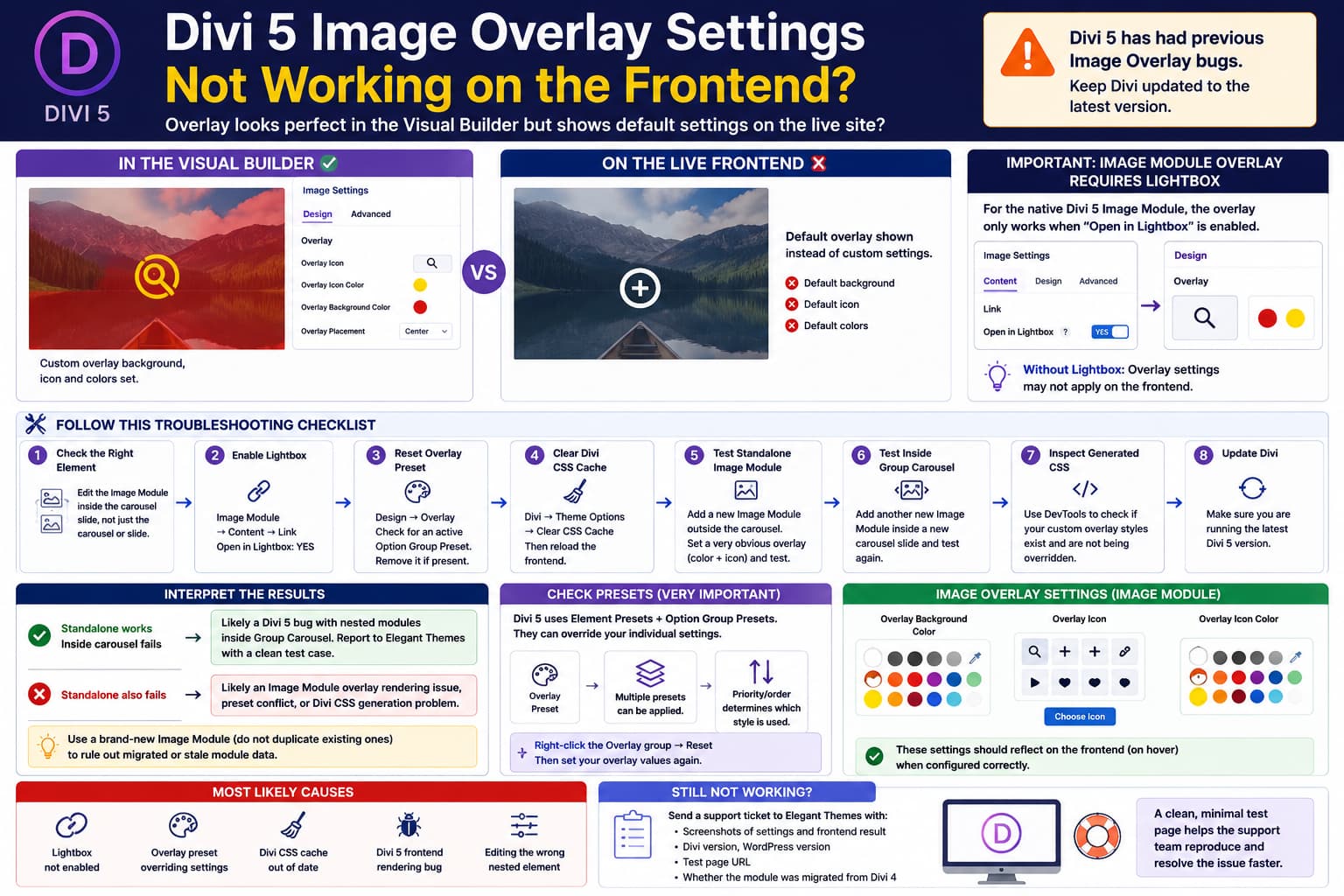
If an image carousel looks correct inside the Divi 5 Visual Builder but its Image Overlay settings revert to the default appearance on the live site, this is not necessarily something you configured incorrectly.
A typical case looks like this:
Visual Builder

Overlay background:
custom color

Overlay icon:
custom icon

Icon color:
custom color

✓ Looks correct
but on the live page:
Frontend

Overlay background:
Divi default

Overlay icon:
Divi default

✗ Custom settings ignored
If you have already:
- removed custom CSS,
- disabled other plugins,
- cleared caches,
- tested different browsers,
- tested different operating systems,
then you have already eliminated most of the usual conflicts.
At that point I would focus on which Divi element owns the overlay settings, Divi’s lightbox requirement, presets, Divi’s own generated CSS cache, and a possible Divi 5 frontend rendering bug.
Elegant Themes has already documented and fixed several Divi 5 overlay-related bugs during development, including missing frontend hover icons and Image/Fullwidth Image overlay problems.
First Check: Which Module Actually Owns the Overlay?
This matters a lot in Divi 5 because a “carousel” can be built several different ways.
For example, you might be using:
Group Carousel
    ↓
Carousel Slide
    ↓
Image Module
In that setup, the Image Module inside each slide owns its image overlay.
The Group Carousel itself does not automatically control the hover overlay of every nested Image Module.
So open one individual image inside the carousel and check:
Image Module
→ Design
→ Overlay
rather than only editing the parent carousel or slide.
Divi 5’s Group Carousel is designed so each slide can contain independent modules, including Image modules, headings, buttons, groups, and other elements.
Important: Image Module Overlay Requires Lightbox
For the native Divi 5 Image Module, Elegant Themes documents a specific condition:
The Overlay option applies when Open in Lightbox is enabled.
The relevant configuration is:
Image Module
→ Content
→ Link
→ Open in Lightbox
→ Yes
Then:
Design
→ Overlay
becomes responsible for the hover overlay appearance.
So before doing anything more complicated, check every affected image.
Use:
Content
→ Link
→ Open in Lightbox: YES
Then configure:
Design
→ Overlay
→ Overlay Icon Color
→ Overlay Background Color
→ Overlay Icon
Elegant Themes describes those as the standard Divi 5 overlay controls.
If Lightbox is disabled, the Image Module’s overlay settings are not intended to function in the same way.
Run This Simple Standalone Image Test
This is the fastest way to determine whether the problem belongs to:
Divi Image Moduleor:
Carousel nestingCreate a temporary row outside the carousel.
Add a new native Image Module.
Set:
Content
→ Image
→ choose any image

Content
→ Link
→ Open in Lightbox
→ YES
Then configure something deliberately obvious:
Design
→ Overlay

Background:
bright red

Icon:
something unmistakable

Icon color:
yellow
Save the page and test the frontend.
Result A: Standalone Image Works
If:
Standalone Image
✓ custom overlay works

Same Image inside Carousel
✗ defaults
you have isolated the problem to the nested carousel context.
That is excellent evidence for a Divi bug report.
Result B: Standalone Image Also Fails
If:
Standalone Image
✗ defaults too
then the problem is not really your carousel.
It is likely related to:
- Image Module overlay rendering,
- presets,
- generated Divi CSS,
- or the particular Divi 5 build.
That drastically narrows the investigation.
Clear Divi’s Own CSS Cache
You mentioned clearing all caches, but there is one cache worth checking specifically:
Divi 5 CSS CacheDivi 5 generates static CSS files containing module design settings.
Elegant Themes says that when the Visual Builder looks correct but the live site does not, Divi’s generated CSS cache is one of the most common causes.
Go to:
WordPress Dashboard
→ Divi
→ Theme Options
and click:
Clear CSS CacheThen reload the frontend.
Divi 5 stores generated CSS in its own cache system, typically under:
/wp-content/et-cache/and Elegant Themes confirms that Divi 5 generates and caches CSS on a per-page basis for performance.
So clearing:
browser cache
plugin cache
server cache
Cloudflare
does not necessarily mean Divi’s own generated style files were regenerated.
Temporarily Disable Static CSS as a Diagnostic
If your version still exposes the option, temporarily disable Static CSS File Generation and reload the page.
Elegant Themes recommends this test specifically when the live frontend differs from the Visual Builder.
If the overlay suddenly becomes correct:
Static CSS ON
→ wrong overlay

Static CSS OFF
→ correct overlay
you have found a generated-style/cache problem.
You can then re-enable it after clearing/regenerating the CSS.
Check Divi 5 Presets
Divi 5 has a much more powerful preset system than many users coming from Divi 4 expect.
There are now:
Element Presets
+
Option Group Presets
and multiple presets can be applied to the same option group.
That means your Overlay group can potentially inherit styles from a preset even though you are looking at custom values elsewhere.
For the affected Image Module:
Image
→ Design
→ Overlay
hover over the Overlay group and look for its Preset control.
Check whether an Option Group Preset is active.
If so, temporarily:
Reset / remove the Overlay presetand set the three overlay values directly on that one Image Module.
Divi 5 allows preset values to become defaults and also supports stacked presets where priority/order affects which value wins.
Use Divi’s Reset Feature on the Overlay Group
Rather than deleting and rebuilding the whole carousel, try resetting only the Overlay settings.
Divi 5 supports resetting attributes at:
- module level,
- tab level,
- option-group level,
- individual-field level.
Right-click:
Design
→ Overlay
and reset the relevant style/preset attributes.
Then enter the overlay values again.
This is particularly useful after migrating a page from Divi 4 or after repeatedly experimenting with presets.
Test a Brand-New Image Rather Than Duplicating the Existing One
There is another useful diagnostic.
Do not duplicate your affected module.
Instead:
Add New Image Modulefrom scratch inside a new carousel slide.
Configure only:
Image
Lightbox
Overlay color
Overlay icon
Icon color
Nothing else.
Then test.
If:
New Image Module
✓ works

Existing Image Module
✗ defaults
then the existing element probably contains stale/migrated attributes or preset data.
You do not have a site-wide Divi problem.
You have an element-specific state problem.
In that case, rebuilding the affected Image elements may be quicker than debugging their stored attributes.
If It Works Outside the Carousel but Fails Inside
Now you have a very clean reproduction:
Divi 5
↓
Image Module outside Group Carousel
✓ Overlay works

Image Module inside Group Carousel
✗ Overlay reverts to defaults
That points to a nested-element rendering issue.
Divi 5’s Group Carousel renders normal Divi modules inside dynamically managed carousel slides, and Elegant Themes continues to release fixes related to nested modules and frontend rendering as Divi 5 evolves.
At that point I would not add CSS to force the design yet.
A custom CSS workaround might hide the underlying issue and become unnecessary after the next Divi update.
Divi 5 Has Had Overlay Bugs
This part is important because it means the reported behavior is technically plausible.
Elegant Themes’ Divi 5 update history explicitly includes fixes such as:
Fixed Full Width Image Module overlay option missing issue.

Fixed Image module Hover icon overlay issue on Hover state.

Fixed Image module missing hover icon issue on the Front-end.

Fixed Image and Fullwidth Image Overlay option group
not appearing correctly in preset mode.
So there is documented history of exactly this area receiving fixes.
That does not prove your particular carousel case is the same bug, but it means you should not assume you simply misunderstood Divi.
Update Divi Before Creating a Workaround
Elegant Themes has been releasing Divi 5 updates very frequently.
For example:
- Divi 5.10 was released August 11, 2026 with 85 fixes and improvements.
- Divi 5.11 followed on August 15, 2026 with another 18 fixes and improvements.
Therefore go to:
Dashboard
→ Updates
and make sure you are running the newest Divi 5 build offered to your site.
Do this before debugging an overlay rendering issue for several hours.
Check Whether You’re Editing the Hover State
An image overlay is fundamentally a hover effect.
So verify that the appearance you’re seeing in the builder is actually the frontend hover state, not only the Visual Builder’s selected/editing appearance.
Test the live page by physically moving the mouse over the image.
The overlay should normally transition from:
Imageto:
Image
+
Overlay background
+
Overlay icon
Elegant Themes describes Divi’s Overlay option specifically as a hover customization system.
Also check the responsive/state controls next to individual fields.
It is possible to have:
Desktop:
custom value

Tablet:
default

Phone:
default
or accidentally configure a state other than the one you expected.
Use DevTools to Determine Whether Divi Generated Your Custom Style
At this stage, DevTools gives you a definitive answer.
Open the live page.
Right-click the affected image and choose:
InspectThen hover the image.
Locate the overlay element or its pseudo-element in DevTools.
In:
Stylesor:
Computedinspect:
background-color
color
font-family / icon
opacity
You are looking for one of two situations.
Case 1: Your Custom Value Is Missing Completely
Suppose you selected:
rgba(255,0,0,0.8)but that color does not appear anywhere in the generated frontend CSS.
That suggests:
Divi saved setting
↓
Visual Builder knows about it
↓
frontend style generator did not output it
That is strong evidence of a Divi rendering/style-generation bug.
Case 2: Your Custom Value Exists but Is Crossed Out
For example:
your custom value
background: red;
is visible in DevTools but crossed out by another rule.
Then the problem is CSS precedence.
Possible sources include:
Divi default preset
Option Group Preset
module preset
another Divi generated rule
third-party CSS
Since you already disabled custom CSS and plugins, a Divi preset/style-layer conflict would become particularly interesting.
Check the Actual Frontend CSS File
Divi 5’s generated CSS is generally stored through its page-resource cache.
In DevTools:
Network
→ CSS
reload the page.
Open the Divi-generated stylesheet.
Search for the custom overlay color.
For example:
#ff0000If it is absent, Divi never generated the required frontend style.
If it appears but does not apply, investigate the CSS selector and cascade.
That distinction makes a support report much stronger.
Native Gallery/Post Carousel vs Image Module
Don’t confuse the different Overlay groups.
Divi’s native Gallery and Post Carousel modules have their own module-level Overlay controls. For example, Elegant Themes documents the Post Carousel’s Overlay controls for background color, icon, and icon color.
The Gallery Module similarly has its own:
Design
→ Overlay
group.
But if your carousel is:
Group Carousel
→ Slide
→ Image Module
then configure the individual nested Image Module.
Those are not necessarily the same styling system.
If “Image Carousel” Comes From a Third-Party Divi Extension
There is another possibility.
Divi 5 itself has the Group Carousel, but several Marketplace products also provide modules literally named:
Image CarouselFor example, All In One Carousel for Divi includes a dedicated Image Carousel module, and other Divi extensions provide their own carousel implementations.
If your module comes from an extension rather than Divi core, the troubleshooting changes.
Check its module name.
If it says something like:
Supreme Image Carousel
DiviGear Image Carousel
All In One Image Carousel
then the overlay renderer belongs to that plugin.
In that situation:
- update the extension,
- check its declared Divi 5 compatibility,
- test its equivalent native Divi element,
- report the frontend mismatch to the extension developer.
Deactivating all other plugins does not eliminate the carousel plugin itself if you needed to leave it active to reproduce the issue.
The Best Isolation Test
I would reduce the problem to this exact page:
Blank page
↓
One Group Carousel
↓
One slide
↓
One Image Module
↓
Open in Lightbox = Yes
↓
Custom overlay:
red background
yellow icon
No:
presets
animations
custom CSS
global styles
dynamic content
Theme Builder template
Then test the frontend.
If that minimal case still shows Divi’s default overlay, you have an excellent reproducible bug.
What I Would Do Next in This Specific Case
Because you have already tested:
custom CSS
plugins
browser cache
different browsers
different OS
I would not repeat those tests.
I would do this:
1. Update Divi 5 to latest available build.

2. Divi → Theme Options
   → Clear CSS Cache.

3. Confirm Image Module:
   Open in Lightbox = Yes.

4. Remove/reset any Overlay Option Group Preset.

5. Create one NEW standalone Image Module.

6. Test the overlay outside the carousel.

7. Put another new Image Module inside a new Group Carousel.

8. Compare both.

9. Inspect frontend generated CSS in DevTools.
That sequence should tell you whether you have:
configuration issue
preset issue
old module/migration issue
Divi CSS generation problem
nested carousel bug
without guessing.
What to Send Elegant Themes Support
If you reproduce it with a clean module, send a concise report like:
Divi 5 overlay settings render correctly in the Visual Builder but revert to the default overlay on the frontend. Custom CSS has been removed, all unrelated plugins have been disabled, Divi/static/server/browser caches cleared, and the issue occurs across browsers.
A new Image Module with Open in Lightbox enabled has a custom overlay background/icon configured. The frontend still renders Divi’s default overlay.
Standalone Image Module: [works/fails]
Image Module inside Group Carousel: [works/fails]
Divi version: [version]
WordPress version: [version]
Also include:
- screenshot of Overlay settings,
- screenshot of frontend result,
- test page URL,
- Divi version,
- whether the module was migrated from Divi 4,
- whether any Overlay preset is assigned.
That gives support a reproducible test instead of a general “styles don’t work” report.
Most Likely Explanation
Based on the troubleshooting already completed, I would rank the possibilities like this:
1. Image Module/Carousel overlay frontend bug
2. Divi Overlay Option Group preset/default conflict
3. Divi static CSS generated incorrectly
4. Editing the wrong nested element's Overlay settings
5. Lightbox requirement not enabled
A normal third-party plugin or browser conflict is much less compelling after the tests you have already done.
Divi 5’s own history includes multiple frontend Image Overlay fixes, so a current edge case around nested carousel images would not be unprecedented.
Direct Answer
No, I would not assume this is simply because you’re new to Divi 5.
First confirm that the actual Image Module inside the carousel has:
Content
→ Link
→ Open in Lightbox
→ Yes
because Divi’s Image Module overlay controls are documented as applying when Lightbox is enabled.
Then clear Divi’s own CSS cache, reset any Overlay preset, and test a brand-new standalone Image Module.
If:
standalone image overlay worksbut:
the same Image Module inside Group Carousel
shows defaults
you have isolated a probable Divi 5 carousel/nested-module bug.
If even the standalone Image Module fails, inspect Divi’s generated frontend CSS and report it as an Image Overlay frontend-rendering issue. Elegant Themes’ Divi 5 changelog already contains several previous fixes in this exact area.
