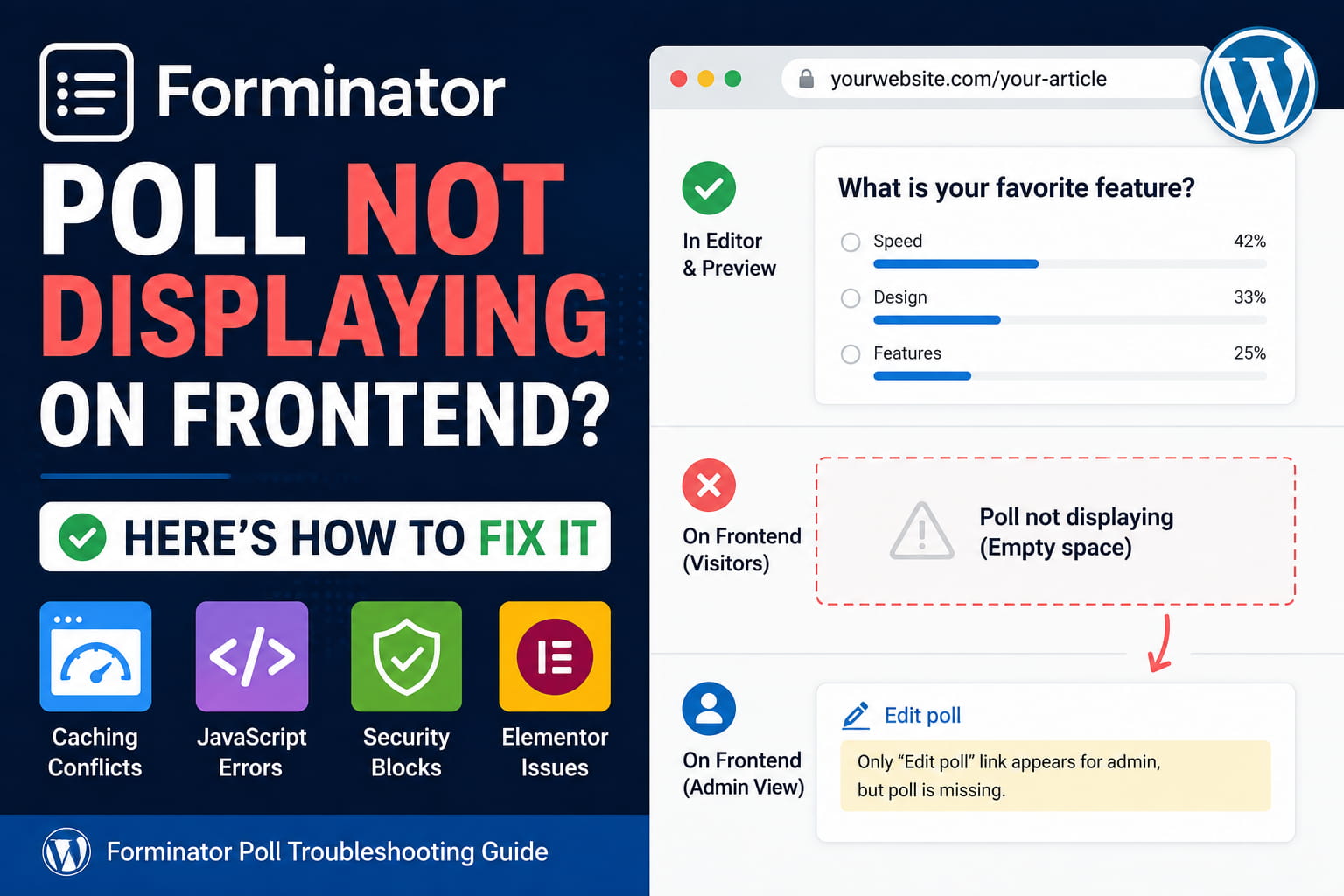
A Forminator poll may display correctly in the Forminator preview and WordPress editor but disappear completely from the public page.
When an administrator views the page, only the Edit poll link may appear. Logged-out visitors see an empty space where the poll should be.
This problem commonly occurs on WordPress websites using Elementor, caching or performance optimization, and themes such as Foxiz. It usually means that WordPress recognizes the embedded poll, but Forminator cannot complete the frontend rendering process.
This guide explains why a Forminator poll is not displaying on the frontend and provides a step-by-step solution.
Symptoms of the Problem
You may be experiencing this issue when:
- The poll is published in Forminator.
- The poll works in the Forminator preview.
- The poll appears inside the WordPress or Elementor editor.
- Only the Edit poll link appears for logged-in administrators.
- Logged-out visitors see an empty space.
- The shortcode remains visible in the page editor.
- The problem affects the live page but not the backend preview.
- The poll previously worked correctly.
Forminator officially adds an Edit poll link on the frontend for logged-in administrators. Therefore, seeing this link means the shortcode or poll block has been recognized. It does not necessarily mean that the poll itself has finished rendering.
Why the Forminator Poll Disappears
The most likely cause is a frontend rendering conflict.
Forminator supports two ways of rendering a poll:
- Render the poll directly in the page HTML.
- Load the poll dynamically using AJAX.
AJAX rendering is designed to prevent cached pages from displaying outdated poll content. However, when the AJAX request is blocked, delayed, cached, or interrupted by another JavaScript error, the poll container can remain empty.
The administrator’s Edit poll link may still appear because WordPress processes that portion separately.
Other possible causes include:
- A caching plugin serving an outdated version of the page
- JavaScript delay or defer settings
- Combined or minified JavaScript files
- Cloudflare Rocket Loader
- A security plugin blocking Forminator requests
- An Elementor frontend rendering problem
- Theme CSS hiding the Forminator container
- An expired poll opening or closing date
- Incorrect voting-status settings
- A plugin conflict
- Missing or blocked Forminator assets
Recommended Fix: Change the Poll Rendering Method
The first solution is to disable AJAX rendering temporarily and prevent the poll page from being cached.
Step 1: Open the Poll
In the WordPress dashboard, go to:
Forminator > PollsFind the affected poll and click Edit.
Step 2: Open the Behavior Settings
Inside the poll editor, select:
BehaviorScroll down to the Rendering section.
Forminator provides two relevant settings:
- Load poll using AJAX
- Prevent page caching on poll pages
The official Forminator documentation states that AJAX loading is intended to avoid page-cache conflicts. It also provides a separate option that prevents caching plugins from caching pages containing the poll.
Step 3: Change the Rendering Configuration
Use the following configuration for testing:
Load poll using AJAX: Disabled
Prevent page caching on poll pages: Enabled
Save and publish the changes.
This causes Forminator to include the poll in the original page response instead of relying on a separate frontend AJAX request.
Step 4: Clear Every Cache
After changing the setting, clear all available cache layers:
- WordPress page cache
- Browser cache
- Server cache
- Object cache
- CDN cache
- Cloudflare cache
- Elementor generated CSS
- Theme performance cache
Then open the page in a new private or incognito window.
If the poll now appears, the problem was related to AJAX rendering, caching, or frontend JavaScript optimization.
Change the Poll Submission Method
Rendering and submission are separate Forminator settings.
Even when the poll becomes visible, submitting a vote may still fail if AJAX requests are being blocked.
Inside the poll’s Behavior settings, find Submission Method and temporarily select:
Reload pageForminator specifically recommends the page-reload method when the default AJAX submission causes problems on a website.
Test the poll again.
When both the poll and voting work with server-side rendering and page reload, you have confirmed that the problem is connected to AJAX or JavaScript rather than the poll data itself.
Reinsert the Poll Using a Fresh Shortcode
A stale Elementor or Gutenberg block can sometimes reference an outdated poll configuration.
Go to:
Forminator > PollsClick the gear icon beside the poll and select:
Copy ShortcodeThe shortcode will look similar to:
[forminator_poll id="123"]Replace 123 with the actual poll ID generated by Forminator.
Forminator officially supports embedding polls through shortcodes, blocks, posts, pages, and widget areas.
For Elementor
Edit the page with Elementor and follow these steps:
- Remove the existing Forminator poll widget or block.
- Add an Elementor Shortcode widget.
- Paste the fresh Forminator shortcode.
- Update the page.
- Clear Elementor and website caches.
- Test the public page again.
Using Elementor’s standard Shortcode widget helps determine whether the problem is caused by the original poll block or widget integration.
Regenerate Elementor CSS and Data
When the poll appears in the Elementor editor but not on the public page, Elementor may be serving outdated generated files.
Go to:
Elementor > ToolsDepending on your Elementor version, use the available options to:
- Clear files and data
- Regenerate CSS
- Synchronize the library
- Clear Elementor cache
Then save the page again and purge the website cache.
Do not rely only on the Elementor editor preview. Always test the real public URL in an incognito window.
Disable JavaScript Optimization Temporarily
Performance plugins frequently delay, defer, combine, or minify JavaScript. These settings can prevent Forminator from initializing correctly.
Temporarily disable the following features:
- Delay JavaScript execution
- Defer JavaScript
- Combine JavaScript files
- Minify JavaScript
- Remove unused JavaScript
- Async JavaScript loading
- Cloudflare Rocket Loader
Clear all caches and test the poll again.
Common plugins or services that may need testing include:
- WP Rocket
- LiteSpeed Cache
- Autoptimize
- W3 Total Cache
- FlyingPress
- Perfmatters
- Asset CleanUp
- Hummingbird
- SG Optimizer
- Cloudflare
If disabling optimization makes the poll appear, turn the features back on individually until the conflict returns.
Then exclude Forminator assets from the affected optimization feature.
A practical exclusion pattern is:
/wp-content/plugins/forminator/The exact exclusion field and format depend on the caching plugin being used.
Avoid excluding all JavaScript across the website. Exclude only Forminator assets or the specific file causing the problem.
Check Whether Forminator Assets Are Being Unloaded
Asset-management plugins can remove CSS or JavaScript files from pages where they believe the files are unnecessary.
Check tools such as:
- Perfmatters Script Manager
- Asset CleanUp
- Plugin Organizer
- Theme performance panels
- Custom dequeue code
- Code Snippets
- MU plugins
Make sure Forminator CSS and JavaScript are not disabled on the article page.
Also inspect the theme’s custom code for functions such as:
wp_dequeue_script()
wp_deregister_script()
wp_dequeue_style()
wp_deregister_style()
Custom performance code may unintentionally remove Forminator assets from single posts.
Check the Browser Console
Open the affected page in Chrome and press:
F12Select the Console tab and refresh the page.
Look for red errors, particularly those containing:
forminator
jQuery
undefined
Uncaught
CORS
403
404
500
admin-ajax
A JavaScript error from the theme or another plugin can stop later scripts from running, even when the error is not directly related to Forminator.
Common examples include:
Uncaught ReferenceError: jQuery is not definedUncaught TypeError: Cannot read properties of undefinedFailed to load resource: the server responded with a status of 403Record the complete error, including the script filename and line number.
Inspect the Network Requests
While Developer Tools is open, select the Network tab.
Refresh the page and search for:
forminator
ajax
poll
Look for failed requests.
HTTP 403
A 403 Forbidden response usually indicates that a security plugin, firewall, CDN, or hosting rule blocked the request.
Temporarily test:
- Wordfence firewall
- Defender firewall
- Cloudflare WAF
- ModSecurity
- Hosting bot protection
- Rate limiting
- Custom security rules
Do not permanently disable protection. Identify and allow only the legitimate Forminator request.
HTTP 404
A 404 Not Found response may indicate:
- A stale cached script URL
- An incomplete plugin update
- A deleted minified file
- Incorrect CDN rewriting
- A missing Forminator asset
Clear generated CSS and JavaScript files and reinstall the current Forminator version if necessary.
HTTP 500
A 500 response normally indicates a PHP or server-side error.
Enable WordPress debugging or review the server error log to identify the failing function.
Check the Poll Voting Status
Open:
Forminator > Polls > Edit Poll > BehaviorReview the Vote Opening settings.
Make sure:
Status: Open
Open From: No future date
Open Until: No expired date
Forminator allows polls to be open, paused, or closed. It also supports opening and closing dates and custom messages for unavailable polls.
Temporarily remove all opening and closing dates and set the status to Open.
Save the poll and test again.
Check the Voting Limit
Forminator can identify previous voters using:
- Browser cookies
- IP addresses
By default, visitors may be restricted from voting more than once.
For testing, temporarily remove the voting limit or allow unlimited voting.
Then test from:
- A private browser window
- A different browser
- A mobile data connection
- A different IP address
A voting limitation should normally show results or a message rather than a completely empty area, but testing without restrictions helps eliminate it as a cause.
Test for a Foxiz Theme Conflict
Because the affected website uses the Foxiz theme, test whether theme CSS or JavaScript is interfering with Forminator.
Temporarily activate a default WordPress theme on a staging website or use WordPress troubleshooting mode.
Do not switch themes directly on a busy production website without a backup or staging environment.
If the poll appears with a default theme, inspect Foxiz settings related to:
- JavaScript optimization
- Lazy loading
- AJAX pagination
- Infinite scrolling
- Single-post templates
- Content blocks
- Ad placement
- Smart loading
- CSS optimization
Also search the generated CSS for rules affecting:
.forminator-ui
.forminator-poll
.forminator-poll--question
Forminator’s frontend poll container uses poll-specific classes, and the plugin allows custom CSS to target those elements. The official documentation warns that highly specific CSS can create conflicts and require debugging.
Temporary CSS Visibility Test
Use the following CSS only as a diagnostic test:
.forminator-ui {
    display: block !important;
    visibility: visible !important;
    opacity: 1 !important;
    height: auto !important;
    max-height: none !important;
}
Add it temporarily under:
Appearance > Customize > Additional CSSIf the poll suddenly becomes visible, a theme or plugin stylesheet is hiding its container.
Do not keep this broad CSS permanently. Use browser inspection to identify the exact conflicting selector and create a narrowly targeted correction.
Test for a Plugin Conflict
Create a full backup before changing plugins.
Temporarily deactivate plugins in this order:
- Cache and optimization plugins
- Asset-management plugins
- Security plugins
- Popup and modal plugins
- Elementor add-ons
- Poll or form integrations
- Remaining nonessential plugins
Test the public page after each change.
When the poll appears, reactivate the last plugin and inspect its settings.
Because the issue occurs only on the frontend, start with plugins that modify frontend HTML, CSS, JavaScript, caching, or AJAX requests.
Update Forminator, Elementor, and the Theme
Make sure the following components are compatible and current:
- WordPress
- Forminator
- Elementor
- Elementor Pro, when used
- Foxiz
- Foxiz core or companion plugins
- PHP
Take a backup before updating.
The current Forminator changelog includes ongoing Elementor compatibility work, AJAX-related fixes, console-error corrections, and poll-specific improvements.
After updating:
- Clear the website cache.
- Clear the server cache.
- Purge the CDN.
- Regenerate Elementor files.
- Test the page in an incognito window.
Reinstall Forminator Without Deleting Data
An incomplete plugin update can leave missing or mismatched files.
Before reinstalling:
- Create a database and file backup.
- Export the affected poll from Forminator.
- Record the poll shortcode and ID.
- Deactivate Forminator.
- Replace the plugin files with a fresh copy.
- Reactivate the plugin.
- Clear all caches.
Do not use a database-cleaning tool during this process.
Normally, replacing plugin files does not delete saved polls, but a backup and export should still be created first.
Recommended Configuration for Problematic Cached Pages
When AJAX rendering remains unreliable, use this configuration:
Rendering:
Load poll using AJAX: Disabled
Prevent page caching on poll pages: Enabled

Submission Method:
Reload page
This configuration reduces dependence on frontend JavaScript and prevents supported caching plugins from storing the poll page.
After confirming that the poll works, AJAX submission can be tested again. Keep server-side poll rendering if AJAX loading continues to produce an empty container.
How to Confirm the Problem Is Fixed
Complete the following test:
- Open the poll page while logged out.
- Confirm that the question and answer choices appear.
- Submit a vote.
- Confirm that the success message or results appear.
- Open the page in a second browser.
- Test from a mobile device.
- Purge the website cache.
- Test the page again.
- Confirm there are no red console errors.
- Confirm no Forminator requests return 403, 404, or 500 errors.
The fix is complete only when the poll works for logged-out visitors, not just in the WordPress or Forminator preview.
Final Recommendation
When a Forminator poll is not displaying on the frontend, but the administrator can see an Edit poll link, the shortcode has usually been recognized successfully.
The strongest initial suspect is the poll’s AJAX rendering request being blocked or interrupted by caching, JavaScript optimization, a security rule, Elementor, or the active theme.
Start with the simplest reliable configuration:
Disable Load poll using AJAX
Enable Prevent page caching on poll pages
Set Submission Method to Reload page
Then clear every cache layer and test in an incognito window.
If that restores the poll, review JavaScript optimization, security rules, Elementor-generated files, and Forminator asset exclusions before re-enabling AJAX.
This approach fixes the frontend display problem without recreating the poll or replacing its existing submissions.
