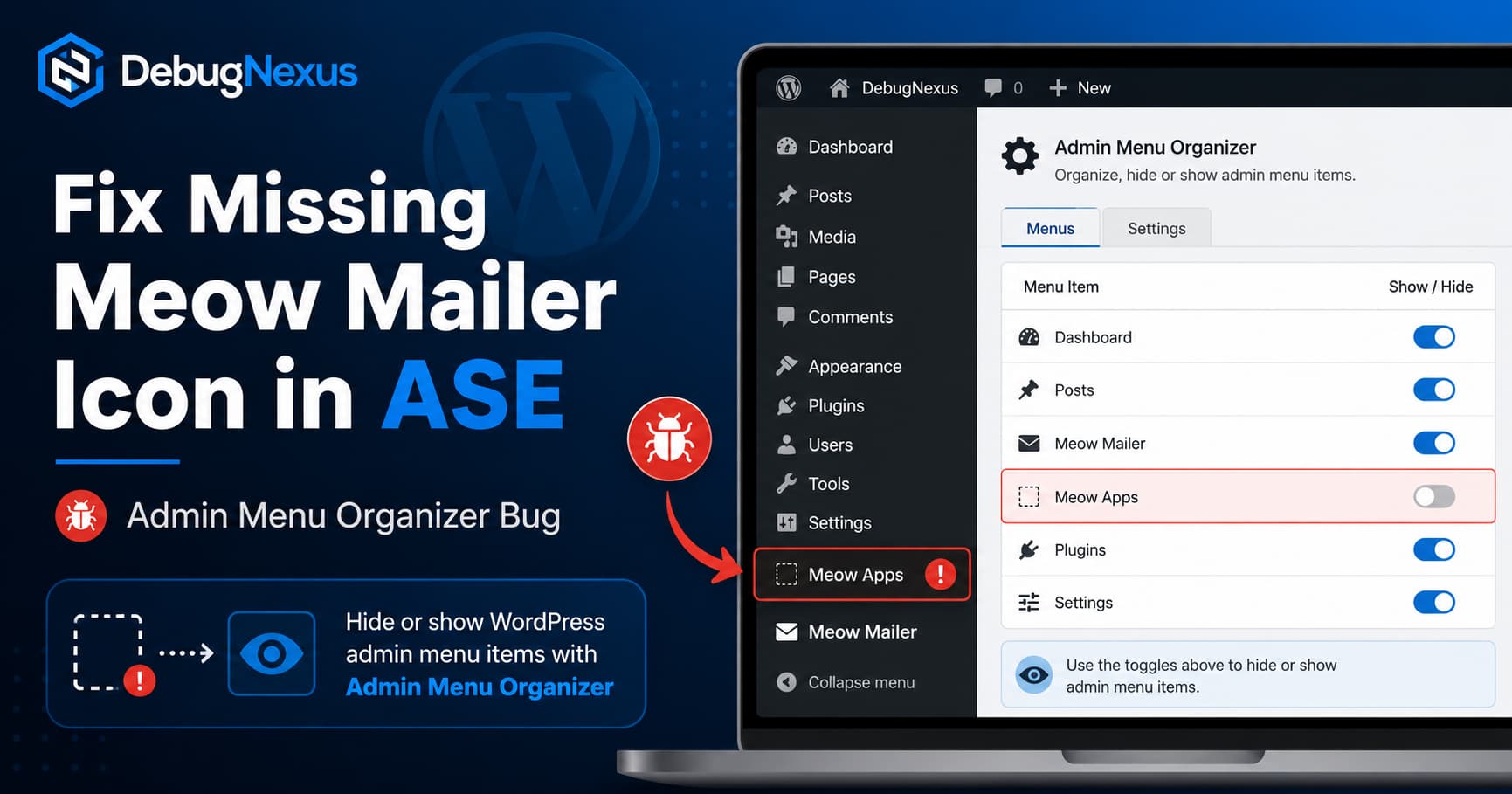
The Admin Menu Organizer module in the Admin and Site Enhancements plugin allows WordPress administrators to reorder, rename, and hide dashboard menu items.
However, a compatibility issue can occur when the Meow Apps menu, used by Meow Mailer, is marked as hidden.
After saving the Admin Menu Organizer settings, the Meow Apps menu may return without its original icon when you click Show All. The text remains visible, but the colored plugin image disappears.
This guide explains why the problem happens and provides both a quick workaround and a PHP solution.
The Problem
The issue can usually be reproduced with the following setup:
- Install and activate Admin and Site Enhancements, commonly called ASE.
- Install and activate Meow Mailer.
- Enable the Admin Menu Organizer module in ASE.
- Mark the Meow Apps menu as hidden.
- Save the settings.
- Click Show All in the WordPress admin menu.
The Meow Apps menu becomes visible again, but its original colored cat icon is missing.
The menu link may still work correctly. This is primarily an admin interface compatibility problem rather than an email delivery failure.
Why the Meow Apps Icon Disappears
The problem is caused by the way the two plugins handle the WordPress admin menu.
How Meow Mailer Adds Its Icon
WordPress normally expects a menu icon to be passed separately through the $icon_url parameter of the add_menu_page() function. That parameter supports Dashicons, image URLs, and base64-encoded SVG icons.
Meow Mailer currently uses a different method.
Its code inserts an HTML <img> element directly inside the Meow Apps menu title. This allows the plugin to preserve the original multicolored SVG instead of allowing WordPress to recolor it as a standard admin icon.
The plugin also hides the normal WordPress icon and uses JavaScript to clone its custom image when the admin sidebar is collapsed.
In simplified form, the menu title is constructed like this:
<img class="meowapps-menu-icon" src="data:image/svg+xml;base64,...">
Meow Apps
How ASE Processes Menu Titles
ASE’s Admin Menu Organizer stores and rebuilds WordPress menu labels after an administrator reorders, renames, or hides them.
ASE’s own changelog documents that the organizer removes HTML tags and their contents from menu titles shown in its sortable menu interface.
Therefore, when ASE processes the Meow Apps title, it effectively changes this:
<img class="meowapps-menu-icon" src="...">Meow Appsinto this:
Meow AppsBecause Meow Mailer placed the icon inside the title instead of the native WordPress icon field, removing the HTML also removes the icon.
This creates the compatibility conflict:
- Meow Mailer expects the icon to remain inside the menu title.
- ASE expects menu titles to contain plain text.
- Saving or hiding the menu causes ASE to rebuild the label without the image.
At the time this issue was reported, ASE 8.9.1 and Meow Mailer 0.1.7 were the latest versions listed on WordPress.org.
Is This a Serious WordPress Error?
In most cases, no.
This issue normally affects only the visual appearance of the WordPress dashboard menu. It does not indicate that:
- Meow Mailer has stopped sending emails.
- SMTP credentials have been deleted.
- Email logs have been lost.
- The website frontend is broken.
- WordPress media files are missing.
The Meow Mailer settings should still be accessible under:
Meow Apps > Meow MailerYou can also test the plugin by opening its settings and sending a test email.
Quick No-Code Workaround
The simplest temporary solution is to avoid hiding the Meow Apps parent menu with ASE.
Go to:
WordPress Dashboard
> Tools
> Admin and Site Enhancements
> Admin Interface
> Admin Menu Organizer
Then:
- Find the Meow Apps menu item.
- Remove its hidden status.
- Move it near the bottom of the menu instead.
- Save the ASE settings.
- Reload the WordPress dashboard.
Moving the item to the bottom keeps the admin menu organized without forcing ASE to hide and rebuild the menu entry.
Temporarily Disable Admin Menu Organizer
When the icon remains missing after unhiding the item:
- Disable the Admin Menu Organizer module.
- Save the ASE settings.
- Reload the WordPress dashboard.
- Confirm that the Meow Apps icon returns.
- Re-enable the organizer.
- Leave Meow Apps visible until an official compatibility update is released.
This is also a useful test. If disabling the module restores the icon, it confirms that the issue is caused by menu processing rather than a broken image file.
PHP Fix: Restore the Original Meow Apps Icon
The following compatibility snippet restores the original Meow Apps image after ASE finishes rebuilding the WordPress admin menu.
The code retrieves the SVG directly from Meow Mailer’s existing public logo property. It does not duplicate or permanently store the base64 image.
<?php
/**
 * Plugin Name: DebugNexus - Restore Meow Apps Admin Icon
 * Description: Restores the Meow Apps menu icon after ASE Admin Menu Organizer rebuilds the menu label.
 */

defined( 'ABSPATH' ) || exit;

/**
 * Restore the custom Meow Apps image inside its admin menu label.
 */
function debugnexus_restore_meow_apps_admin_icon() {
    global $menu;

    if ( ! is_array( $menu ) || ! class_exists( 'MeowKit_MWMAIL_Admin' ) ) {
        return;
    }

    if (
        ! isset( MeowKit_MWMAIL_Admin::$logo ) ||
        ! is_string( MeowKit_MWMAIL_Admin::$logo )
    ) {
        return;
    }

    $logo = MeowKit_MWMAIL_Admin::$logo;

    /*
     * Only accept the expected base64 SVG data format.
     */
    if ( 0 !== strpos( $logo, 'data:image/svg+xml;base64,' ) ) {
        return;
    }

    foreach ( $menu as &$menu_item ) {
        if (
            ! isset( $menu_item[2] ) ||
            'meowapps-main-menu' !== $menu_item[2]
        ) {
            continue;
        }

        /*
         * Preserve the current menu label, including a label customized
         * through ASE, but remove any existing HTML to prevent duplication.
         */
        $label = wp_strip_all_tags( (string) $menu_item[0] );

        $menu_item[0] = sprintf(
            '<img alt="" aria-hidden="true" class="meowapps-menu-icon" src="%1$s" />%2$s',
            esc_attr( $logo ),
            esc_html( $label )
        );

        break;
    }

    unset( $menu_item );
}

/*
 * Register the admin_menu callback during admin_init.
 *
 * This allows callbacks previously registered by ASE to run first, even
 * when they use a very late admin_menu priority.
 */
add_action(
    'admin_init',
    function () {
        add_action(
            'admin_menu',
            'debugnexus_restore_meow_apps_admin_icon',
            PHP_INT_MAX
        );
    }
);
How to Install the Fix with WPCode or Code Snippets
You can add the code without editing your theme.
Using WPCode:
- Install and activate WPCode.
- Open Code Snippets > Add Snippet.
- Select Add Your Custom Code.
- Choose PHP Snippet.
- Paste the code.
- Remove the opening
<?phpline when WPCode adds PHP mode automatically. - Set the snippet to run in the WordPress admin area or everywhere.
- Activate the snippet.
- Reload the dashboard.
The icon should appear again when the Meow Apps menu is visible.
How to Install It as a Must-Use Plugin
A must-use plugin is suitable when you do not want the fix to depend on the active theme or a code-snippet plugin.
Create this file:
/wp-content/mu-plugins/debugnexus-meow-menu-icon.phpCreate the mu-plugins directory when it does not already exist.
Paste the complete PHP code into the file and save it. Must-use plugins are loaded automatically, so no activation is required.
Why the PHP Fix Works
The snippet waits until the WordPress admin initialization process begins and then registers a very late admin_menu callback.
By that point:
- Meow Mailer has registered the Meow Apps menu.
- ASE has registered its menu customization logic.
- ASE processes the saved menu order and hidden status.
- The compatibility snippet locates the
meowapps-main-menuentry. - The original Meow SVG is inserted back into the menu label.
The code also includes several safety checks:
- It runs only when the Meow Mailer admin class exists.
- It confirms that the global WordPress menu is available.
- It accepts only a base64 SVG data URI.
- It escapes the SVG value before output.
- It strips existing HTML to prevent duplicate icons.
- It preserves a customized menu label.
How to Test the Fix
After installing the snippet, complete the following checks.
Test the Expanded Menu
Reload the WordPress dashboard with the sidebar fully expanded.
Confirm that:
- The Meow Apps icon is visible.
- The menu title is visible.
- Clicking the menu opens the correct page.
Test ASE Show All and Show Less
Mark Meow Apps as hidden in ASE, save the settings, and then test:
- Click Show All.
- Confirm that Meow Apps appears with its icon.
- Click Show Less.
- Confirm that the item is hidden again.
- Reload the dashboard and repeat the test.
Test the Collapsed Admin Menu
Collapse the WordPress sidebar.
Meow Mailer includes JavaScript that clones the custom image into the icon area when the menu is folded. The icon should therefore remain visible in the collapsed menu.
Test Meow Mailer
Open:
Meow Apps > Meow Mailer > SettingsSend a test email and confirm that it appears in the email log. This verifies that the visual fix has not affected email delivery.
What Not to Do
Do Not Edit the Meow Mailer Plugin Files
Editing files inside:
/wp-content/plugins/meow-mailer/is not recommended.
Any manual modification will be overwritten during the next plugin update.
Do Not Edit ASE Core Files
Removing ASE’s HTML-stripping code directly may introduce security or compatibility problems. ASE processes menu labels from many plugins, not only Meow Mailer.
Use a separate compatibility snippet instead.
Do Not Delete All ASE Settings Immediately
ASE stores settings for multiple modules. Deleting all its database options can remove unrelated configuration, including security, dashboard, login, and optimization settings.
Only reset the entire plugin when you have a recent backup and genuinely need to remove all ASE configuration.
Do Not Assume It Is a Cache Problem
Clearing the browser and server cache is a reasonable troubleshooting step, but it will not permanently restore HTML that ASE removed from the saved menu label.
A cache purge may temporarily change what is displayed, but the conflict can return the next time the Admin Menu Organizer settings are saved.
Permanent Fix Options for the Plugin Developers
The compatibility snippet is intended as a temporary site-level workaround. A permanent solution should ideally be implemented by one or both plugin developers.
Possible Meow Mailer Fix
Meow Mailer could avoid placing the image inside the menu title.
Possible approaches include:
- Passing the SVG through the native
$icon_urlparameter. - Adding the image to
.wp-menu-imagewith CSS or JavaScript. - Keeping the menu title as plain text.
- Providing a filter for changing the menu icon implementation.
Using the native icon parameter may convert the colored image into a single-color WordPress admin icon, but it would be more compatible with menu editor plugins.
Possible ASE Fix
ASE could treat the visual icon separately from the editable menu label.
For example, ASE could:
- Preserve the original menu icon data before sanitizing the title.
- Restore safe plugin-generated icon markup after applying the custom label.
- Avoid replacing the original menu title when only the visibility setting changed.
- Add compatibility handling for menu labels containing image elements.
ASE should not blindly preserve arbitrary HTML from every menu label, since menu titles must be handled securely. A targeted icon-preservation method would be safer.
Frequently Asked Questions
Why does the Meow Mailer icon disappear only after saving ASE?
Saving the Admin Menu Organizer causes ASE to process and rebuild the menu title. Because the icon is embedded as HTML inside that title, the icon is removed when ASE converts the title to plain text.
Does the missing icon stop WordPress emails?
The icon itself does not control email sending. Meow Mailer should continue processing wp_mail() requests, although you should send a test email to confirm your configuration.
Can CSS alone restore the original icon?
Not reliably, unless the complete image URL or SVG data is included in the CSS. The PHP snippet is more maintainable because it retrieves the existing logo directly from Meow Mailer.
Will clearing the WordPress cache fix it?
Cache clearing may be useful after changing the menu configuration, but it does not resolve the underlying conflict between the HTML menu title and ASE’s title sanitization.
Will the snippet survive plugin updates?
Yes. Code stored in WPCode, Code Snippets, or an MU-plugin is separate from the Meow Mailer and ASE plugin directories.
However, the snippet depends on Meow Mailer’s current class name and public logo property. Remove or update the snippet if a future Meow Mailer release changes that implementation.
Should the snippet remain active permanently?
Keep it active only while the compatibility problem exists. After either plugin releases an official fix, deactivate the snippet and test the admin menu again.
Conclusion
The missing Meow Mailer icon is caused by a compatibility conflict in how the two plugins construct and sanitize WordPress admin menu labels.
Meow Mailer places its custom SVG image inside the Meow Apps menu title. ASE’s Admin Menu Organizer removes HTML when it stores and rebuilds menu labels. The menu text survives, but the image does not.
Leaving Meow Apps visible is the easiest workaround. For websites that need the item hidden behind ASE’s Show All control, the PHP snippet restores the original icon after the menu organizer finishes processing it.
Because the problem affects plugin-generated admin markup, it should eventually be corrected through an official compatibility update rather than permanent modifications to either plugin’s core files.
