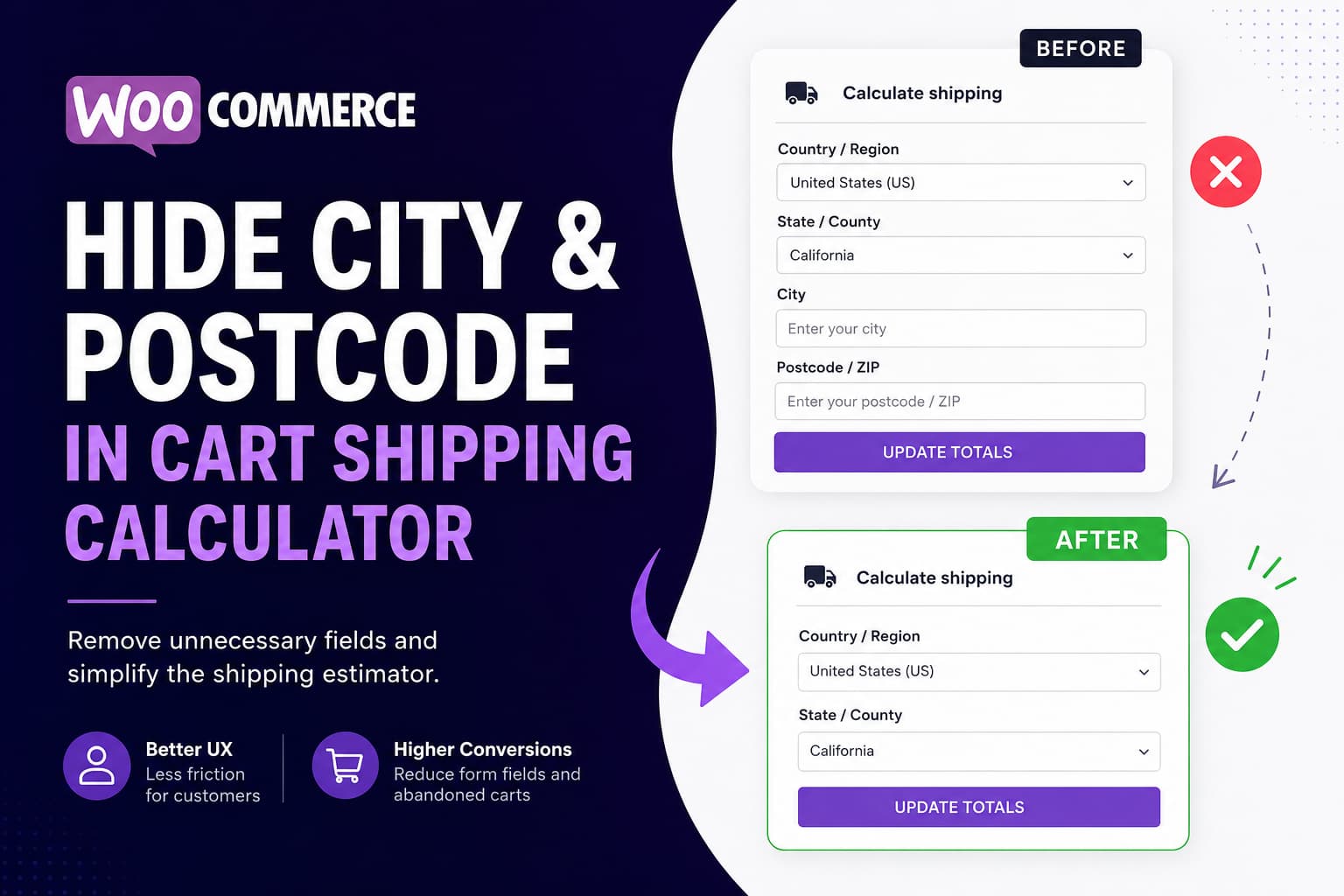
The WooCommerce cart shipping calculator normally asks customers to enter the following information:
- Country or region
- State or county
- City
- Postcode or ZIP code
This makes sense when shipping rates depend on a customer’s exact location. However, some WooCommerce stores calculate shipping using only the selected country and state or region.
In that situation, requiring City and Postcode creates unnecessary friction. Customers may not understand why they need to provide a complete location before they have even started checkout.
This guide explains how to remove the City and Postcode fields from the WooCommerce cart shipping calculator while keeping Country and State available.
The Problem
A customer expands the shipping calculator on the WooCommerce cart page and sees four location fields:
Country / Region
State / County
City
Postcode / ZIP
However, the store’s shipping rules may only use:
Country / Region
State / County
For example, a store may have:
- A fixed shipping price for each country
- State-based flat-rate shipping
- Regional delivery prices
- Free shipping for selected states
- No postcode-specific shipping zones
In these cases, City and Postcode do not affect the estimated shipping cost.
Removing the unnecessary fields makes the calculator faster and easier to use.
Quick Solution
Add the following PHP snippet:
/**
 * Hide City and Postcode fields from the
 * classic WooCommerce cart shipping calculator.
 */
add_filter(
	'woocommerce_shipping_calculator_enable_city',
	'__return_false'
);

add_filter(
	'woocommerce_shipping_calculator_enable_postcode',
	'__return_false'
);
After activating the snippet, the cart shipping calculator should display only:
Country / Region
State / County
This does not remove the City or Postcode fields from the checkout page. It only changes the classic cart shipping calculator.
Why This Solution Works
WooCommerce’s classic shipping calculator template provides separate filters that control whether each location field is displayed.
The relevant filters are:
woocommerce_shipping_calculator_enable_country
woocommerce_shipping_calculator_enable_state
woocommerce_shipping_calculator_enable_city
woocommerce_shipping_calculator_enable_postcode
Each filter returns true by default.
The following line changes the City filter to false:
add_filter(
	'woocommerce_shipping_calculator_enable_city',
	'__return_false'
);
The following line does the same for Postcode:
add_filter(
	'woocommerce_shipping_calculator_enable_postcode',
	'__return_false'
);
WooCommerce therefore skips both fields when rendering the calculator.
WooCommerce also uses the Postcode filter when deciding whether enough information has been entered to calculate shipping in the classic cart. This allows the calculation to proceed without requiring a postcode when the field has been intentionally disabled.
Method 1: Add the Code Using Code Snippets
Using a snippets plugin is the safest option for most website owners because the change will not disappear when the active theme is updated.
Step 1: Install Code Snippets
From the WordPress dashboard, go to:
Plugins > Add New PluginSearch for:
Code SnippetsInstall and activate the plugin.
Step 2: Create a New Snippet
Go to:
Snippets > Add NewEnter a name such as:
Hide WooCommerce Cart City and PostcodeAdd this code:
/**
 * Hide unnecessary location fields from the
 * classic WooCommerce cart shipping calculator.
 */
add_filter(
	'woocommerce_shipping_calculator_enable_city',
	'__return_false'
);

add_filter(
	'woocommerce_shipping_calculator_enable_postcode',
	'__return_false'
);
Do not include an opening <?php tag when the snippets plugin already provides the PHP environment.
Step 3: Activate the Snippet
Set the snippet to run everywhere, save it, and activate it.
Clear all website, server, CDN, and browser caches before testing the cart.
Method 2: Add the Code to a Child Theme
Developers can add the filters to the active child theme’s functions.php file.
Open:
wp-content/themes/your-child-theme/functions.phpAdd:
/**
 * Hide City and Postcode from the WooCommerce
 * cart shipping calculator.
 */
add_filter(
	'woocommerce_shipping_calculator_enable_city',
	'__return_false'
);

add_filter(
	'woocommerce_shipping_calculator_enable_postcode',
	'__return_false'
);
Do not add this directly to a parent theme. A parent-theme update could overwrite the modification.
Hide Only the City Field
To remove City but keep Postcode, use only:
add_filter(
	'woocommerce_shipping_calculator_enable_city',
	'__return_false'
);
The calculator will display:
Country / Region
State / County
Postcode / ZIP
This may be useful when postcode-based rates are configured but the city is not required.
Hide Only the Postcode Field
To remove Postcode but keep City, use:
add_filter(
	'woocommerce_shipping_calculator_enable_postcode',
	'__return_false'
);
The calculator will display:
Country / Region
State / County
City
This may be suitable for a local-delivery system that uses city names but does not use postcode matching.
Complete Customization Example
You can explicitly define the visibility of all four fields:
/**
 * Customize fields in the classic WooCommerce
 * cart shipping calculator.
 */

// Keep Country visible.
add_filter(
	'woocommerce_shipping_calculator_enable_country',
	'__return_true'
);

// Keep State visible.
add_filter(
	'woocommerce_shipping_calculator_enable_state',
	'__return_true'
);

// Hide City.
add_filter(
	'woocommerce_shipping_calculator_enable_city',
	'__return_false'
);

// Hide Postcode.
add_filter(
	'woocommerce_shipping_calculator_enable_postcode',
	'__return_false'
);
The Country and State filters are not strictly necessary because WooCommerce enables them by default. They are included here to make the intended configuration clear.
Do Not Hide the Fields With CSS
You may find solutions that use CSS such as:
#calc_shipping_city_field,
#calc_shipping_postcode_field {
	display: none;
}
This only hides the inputs visually.
The fields may still exist in the page source, and WooCommerce may continue treating them as enabled when checking whether enough address information has been entered.
CSS-only hiding can also create accessibility problems because the form structure no longer accurately represents the fields visible to the customer.
The PHP filters are the better solution because they prevent WooCommerce from rendering the fields in the first place.
Important: Classic Cart Versus WooCommerce Cart Block
This PHP solution is designed for the classic WooCommerce cart interface.
A classic cart page normally contains the following shortcode:
[woocommerce_cart]Newer WooCommerce stores may use the Cart block instead.
The block-based cart uses a JavaScript and Store API interface instead of the classic PHP shipping-calculator template. As a result, the filters in this article may not change the calculator displayed inside the Cart block.
How to Check Which Cart You Use
Go to:
WordPress Dashboard > Pages > CartEdit the page.
If you see a WooCommerce Cart block, the website uses the block-based cart.
If you see a Shortcode block containing:
[woocommerce_cart]the website uses the classic cart.
Solution for a Block-Based Cart
The most reliable way to use these filters is to switch the Cart page to the classic shortcode.
Before making the change, test it on a staging website.
Step 1: Edit the Cart Page
Go to:
Pages > CartStep 2: Remove the Cart Block
Remove the existing WooCommerce Cart block.
Step 3: Add a Shortcode Block
Insert a Shortcode block and enter:
[woocommerce_cart]Step 4: Save and Test
Update the page and test:
- Product quantity updates
- Coupon application
- Cart totals
- Shipping calculations
- Mobile layout
- Checkout navigation
- Payment and shipping plugins
Switching from the block cart may change the page design and remove block-specific functionality. Stores that need to keep the Cart block will require a block-compatible customization or extension instead of the classic PHP filters.
Do Not Remove These Fields When Rates Need Them
Only hide City and Postcode when the shipping methods genuinely do not depend on them.
Do not use this solution when the store uses:
- Postcode-specific shipping zones
- ZIP-code delivery restrictions
- Local delivery based on postcode
- Live carrier calculations
- Distance-based shipping
- City-specific shipping rates
- Address-validation services
- Shipping plugins that require a complete destination
Carrier integrations commonly need a postcode to request an accurate rate. Removing it could cause rates to disappear, return incorrect prices, or use an overly broad fallback price.
WooCommerce also recommends checking the customer’s complete address when troubleshooting incorrect shipping rates. The required information depends on the shipping method and zone configuration.
Does This Remove Fields From Checkout?
No.
These filters target the cart shipping calculator. Customers can still enter their complete shipping address during checkout.
That is normally the desired behavior:
Cart estimate:
Country + State

Final checkout address:
Full shipping address
The cart provides a quick estimate, while checkout collects the information needed to deliver the order.
Do not remove checkout address fields simply because they are unnecessary for the cart estimate. Payment gateways, tax systems, fraud-prevention tools, fulfillment services, and delivery companies may still need them.
Shipping Rates Do Not Appear After Removing Postcode
If no shipping rates appear after applying the snippet, check the following.
1. Confirm the Shipping Zone
Go to:
WooCommerce > Settings > Shipping > Shipping zonesMake sure the selected Country and State match a configured zone.
2. Confirm That the Zone Has a Shipping Method
Open the relevant zone and verify that at least one method is enabled, such as:
- Flat rate
- Free shipping
- Local pickup
3. Check for Postcode Restrictions
Edit the shipping zone and inspect its location rules.
If the zone contains specific postcodes, WooCommerce cannot reliably match it after the postcode field has been removed.
Change the zone so it matches the entire country or state, or restore the postcode field.
4. Check Third-Party Shipping Plugins
Temporarily disable shipping-related extensions on a staging site.
Some extensions ignore the standard WooCommerce field filters or require a postcode before returning rates.
5. Clear All Caches
Exclude the following pages from full-page caching:
Cart
Checkout
My Account
Then clear:
- WordPress cache
- Server cache
- Redis or object cache
- CDN cache
- Browser cache
Cart and checkout pages contain session-specific information and generally should not be served from a static full-page cache.
6. Enable WooCommerce Shipping Debug Mode
Go to:
WooCommerce > Settings > Shipping > Shipping settingsEnable shipping debug mode temporarily.
Reload the cart and check which shipping zone WooCommerce matches.
Disable debug mode after testing because its information may be displayed on the storefront.
How to Test the Fix
Test the modification on a staging website before adding it to a live store.
Use the following checklist:
- Add a physical product to the cart.
- Open the Cart page while logged out.
- Expand the shipping calculator.
- Confirm that City is not displayed.
- Confirm that Postcode is not displayed.
- Confirm that Country remains available.
- Confirm that State or County remains available.
- Select every supported country.
- Select several supported states or regions.
- Confirm the correct shipping rates appear.
- Continue to checkout.
- Confirm that the complete checkout address form remains available.
- Complete a test order.
- Check the order’s shipping method and total.
- Repeat the test on mobile and desktop.
Also test logged-in customers because WooCommerce may prefill previously saved shipping information from the customer account.
Remove the Customization
To restore the default WooCommerce fields, deactivate or delete the snippet.
Alternatively, remove these lines:
add_filter(
	'woocommerce_shipping_calculator_enable_city',
	'__return_false'
);

add_filter(
	'woocommerce_shipping_calculator_enable_postcode',
	'__return_false'
);
Clear all caches and reload the cart.
City and Postcode should return automatically.
Frequently Asked Questions
Can WooCommerce hide these fields from its settings?
The classic shipping calculator does not currently provide a normal administrator setting for disabling City and Postcode individually.
The fields can be controlled through the filters used in this guide.
Will this code survive a WooCommerce update?
Yes. The code does not edit WooCommerce plugin files.
Keep it inside a snippets plugin, a child theme, or a small custom plugin. Never edit files inside:
wp-content/plugins/woocommerce/Plugin updates would overwrite direct modifications.
Can I keep Postcode and remove City?
Yes. Add only the City filter:
add_filter(
	'woocommerce_shipping_calculator_enable_city',
	'__return_false'
);
Can I remove State as well?
Yes:
add_filter(
	'woocommerce_shipping_calculator_enable_state',
	'__return_false'
);
However, do not remove State when shipping zones or tax rules depend on it.
Why does the code not work on my Cart page?
The website may be using the WooCommerce Cart block rather than the classic cart shortcode.
The filters target the classic PHP shipping-calculator template. Use the classic [woocommerce_cart] shortcode or develop a block-compatible customization.
Should I remove City and Postcode from checkout too?
Usually not.
Checkout address fields may be required by payment gateways, taxes, fraud detection, shipping labels, carrier integrations, and order fulfillment.
This article removes the fields only from the preliminary cart estimate.
Final Recommendation
When shipping prices depend only on Country and State, requiring City and Postcode in the cart calculator adds unnecessary work for the customer.
Use WooCommerce’s dedicated PHP filters:
add_filter(
	'woocommerce_shipping_calculator_enable_city',
	'__return_false'
);

add_filter(
	'woocommerce_shipping_calculator_enable_postcode',
	'__return_false'
);
This is safer and more reliable than hiding the inputs with CSS.
Before deploying the change, verify that no shipping zone, live-rate service, tax calculation, or third-party shipping extension requires a postcode or city.
For the classic WooCommerce cart, this provides a clean shipping estimator containing only the fields needed to calculate the available rates.
