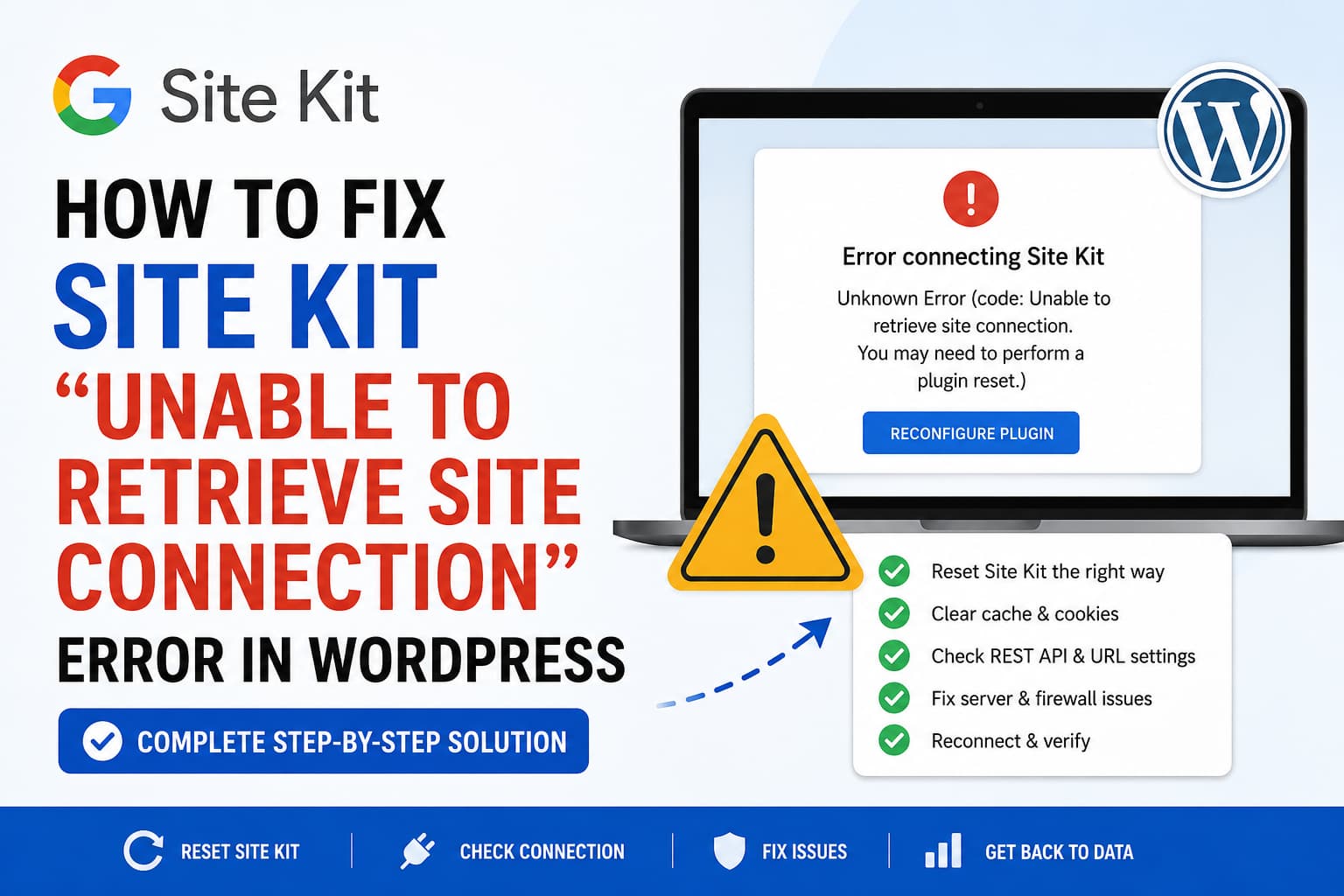
Google Site Kit may suddenly stop connecting to its authentication service after the plugin has been removed, reinstalled, or reconfigured.
Instead of completing the setup, WordPress displays an error similar to this:
Error connecting Site Kit

Unknown Error (code: Unable to retrieve site connection.
You may need to perform a plugin reset.)
The same message may appear on the Google authorization page:
Unable to retrieve site connection.
You may need to perform a plugin reset.
This can be especially confusing when deleting and reinstalling Site Kit makes no difference.
In most cases, reinstalling the plugin is not the correct fix. Site Kit must be reset from the WordPress Tools menu so that its stored connection information can be cleared properly.
Quick Solution
Go to:
WordPress Dashboard
Tools
Available Tools
Reset Site Kit
Confirm the reset and then return to:
Site Kit
Dashboard
Start the Site Kit setup again and reconnect the appropriate Google account.
Google’s official troubleshooting documentation specifically recommends this reset when the site is no longer communicating with Site Kit, including cases involving an old URL, a changed protocol, a domain migration, or a site that has been inactive.
A recent Site Kit support case with the same authentication-proxy error was resolved using this exact procedure, even though deleting and reinstalling the plugin had already failed.
Why Reinstalling Site Kit Does Not Fix the Error
Deleting a WordPress plugin normally removes its PHP files, but this does not always remove every external connection or service record associated with the plugin.
Site Kit uses both:
- Settings stored in the WordPress database
- A remote Site Kit service that connects the website to Google services
Google explains that when Site Kit is uninstalled, the site’s service record is scheduled for deletion after 60 days. If the plugin is reinstalled and activated before that period ends, the existing record may still be reused.
This means the following process may leave the broken connection intact:
Deactivate Site Kit
Delete Site Kit
Reinstall Site Kit
Activate Site Kit
The plugin files are new, but the website may reconnect to the same invalid or outdated Site Kit service record.
That is why the proper reset is different from a normal uninstall.
Before Resetting Site Kit
Resetting Site Kit disconnects all WordPress users from the plugin and removes its local settings, dashboard-sharing preferences, and code snippets placed by Site Kit.
It does not delete your Google Analytics account, Search Console property, Tag Manager container, or other Google accounts. However, if Site Kit was responsible for inserting an Analytics or Google tag, tracking may stop until setup is completed again.
Before resetting, record the following information:
- The Google account currently connected to Site Kit
- The selected Google Analytics account and property
- The selected Analytics web data stream
- The Search Console property
- Any connected Tag Manager container
- Whether Site Kit is currently placing the Google tag
- Any dashboard-sharing settings
Creating a website backup is also recommended before changing plugin or integration settings.
Step 1: Reset Site Kit From Available Tools
Log in using a WordPress administrator account.
Open:
Tools > Available ToolsFind the Site Kit section and click:
Reset Site KitConfirm the reset when WordPress displays the warning.
This reset option should be available even when Site Kit setup was never completed. That is important because the alternative reset option under Site Kit settings may only appear after a successful setup.
Do not simply click “Redo the plugin setup” before performing the reset. The setup process may continue attempting to use the same broken site connection.
Step 2: Clear Every Cache Layer
After completing the reset, clear all cache layers that may contain an old Site Kit verification tag, callback, REST API response, or redirect.
Clear whichever of the following apply to the website:
- WordPress page cache
- Hosting or server cache
- Redis or Memcached object cache
- Varnish cache
- Cloudflare or another CDN cache
- Browser cache
Open a private or incognito browser window after clearing the caches.
Browser extensions, privacy tools, and ad blockers can interfere with Google authorization requests. Google recommends temporarily disabling ad-blocking extensions while setting up Site Kit.
Step 3: Reconnect Site Kit
Return to:
Site Kit > DashboardClick:
Set up Site KitSign in using a Google account that has access to the website’s Google services.
During the setup process:
- Grant the requested Site Kit permissions.
- Allow Site Kit to verify ownership of the website.
- Connect or select the correct Search Console property.
- Connect the correct Google Analytics property and data stream.
- Reconnect any additional services such as Tag Manager or AdSense.
For client websites, use Google properties owned by the client whenever possible. The developer can be granted access instead of permanently connecting client data to the developer’s own account.
Step 4: Confirm That Site Kit Is Working
After reconnecting, open:
Site Kit > DashboardConfirm that the connection error has disappeared.
You may initially see messages such as:
Gathering dataor:
Not enough traffic yet to display statsThese messages do not necessarily indicate a connection failure. New Analytics or Search Console connections may require time before reports begin appearing in WordPress.
Next, open:
Tools > Site Health > StatusLook for the following passed test:
The REST API is availableGoogle Site Kit requires the WordPress REST API for communication between WordPress and connected Google services.
What to Do if Resetting Site Kit Does Not Work
The reset resolves many cases, but the error can return when another configuration prevents Site Kit from communicating with WordPress or Google.
Work through the following checks in order.
Check the WordPress Address and Site Address
Open:
Settings > GeneralCompare these two fields:
WordPress Address (URL)
Site Address (URL)
They should normally use the same:
- Domain
wwwor non-wwwformat- HTTP or HTTPS protocol
- Capitalization
- Trailing-path structure
For example:
WordPress Address: https://example.com
Site Address:      https://example.com
A configuration such as this can cause connection problems:
WordPress Address: http://example.com
Site Address:      https://www.example.com
Site Kit documentation notes that URL mismatches, migrations, HTTPS changes, and domain changes can prevent it from locating the site’s existing service record. Resetting Site Kit clears the previous URL and allows it to register the current one.
Also inspect wp-config.php for hardcoded values:
define( 'WP_HOME', 'https://example.com' );
define( 'WP_SITEURL', 'https://example.com' );
When these constants exist, they override the values shown in the WordPress General Settings screen.
Do not change a live website’s URL without confirming that DNS, SSL, redirects, and the WordPress installation are configured for the new address.
Check Whether the REST API Is Blocked
Open the REST API root in an incognito window:
https://example.com/wp-json/Replace example.com with the website’s domain.
A working REST API normally returns a JSON response containing the website name, URL, namespaces, and other API information.
Common failed responses include:
401 Unauthorized403 Forbidden404 Not FoundOnly authenticated users can access the REST APIThe REST API may be blocked by:
- A security plugin
- A password-protection plugin
- Maintenance mode
- Cloudflare WAF
- ModSecurity
- A hosting firewall
- Custom code
- A disabled REST API setting
- Server-level Basic Authentication
Site Kit requires the REST API to be available to administrators during setup and while viewing its dashboard. Google also identifies firewall restrictions, hosting configurations, and third-party plugins as common sources of REST API failures.
When Site Health reports a REST API error, resolve that issue before attempting Site Kit setup again.
Internal link suggestion: Link this section to the existing DebugNexus guide titled “How to Fix Password Protected 2.8.4 Blocking the WordPress REST API.”
Disable Maintenance or Coming Soon Mode
The website must be publicly accessible while Site Kit verifies ownership.
Temporarily disable:
- Coming soon plugins
- Maintenance mode plugins
- Password-protected landing pages
- Hosting-level development protection
- HTTP Basic Authentication
These systems can replace the normal WordPress homepage, preventing Google from detecting the verification file or meta tag created by Site Kit.
Google specifically warns that maintenance and coming soon plugins can overwrite the front end and prevent Site Kit from completing its connection.
The protection can normally be re-enabled after Site Kit setup has finished.
Check Outbound HTTP Requests
Site Kit must make outbound requests from the WordPress server to:
sitekit.withgoogle.comA hosting firewall, CDN rule, proxy, security service, or server configuration may block these requests. Google identifies blocked external HTTP connections as a direct cause of Site Kit setup failures.
Check wp-config.php for this constant:
define( 'WP_HTTP_BLOCK_EXTERNAL', true );When enabled, WordPress blocks external HTTP requests unless the destination is included in WP_ACCESSIBLE_HOSTS.
WordPress documents that WP_HTTP_BLOCK_EXTERNAL can prevent plugins and WordPress core features from connecting to external services.
Do not disable a security restriction without understanding why it was added. Ask the hosting provider or server administrator to review the outbound-request logs and whitelist the required Google endpoints safely.
Temporarily Disable Cache and Security Plugins
Caching and security plugins can affect:
- REST API responses
- Google verification tags
- Redirects
- Authentication callbacks
- Outbound requests
- WordPress nonces
- Admin AJAX requests
Temporarily deactivate caching, optimization, security, and URL-rewriting plugins while testing Site Kit.
Common categories to investigate include:
- Page caching
- JavaScript optimization
- HTML modification
- Relative URL conversion
- REST API restrictions
- Login protection
- Firewall protection
- Cookie or consent integrations
- Translation and multi-domain plugins
Clear all caches after deactivating a plugin and test Site Kit in an incognito window.
Use WordPress Troubleshooting Mode
Disabling plugins directly on a live website can affect visitors. A safer method is to use WordPress Troubleshooting Mode.
Install and activate the official Health Check and Troubleshooting plugin. Then select the Troubleshoot option under Site Kit.
Troubleshooting Mode allows an administrator to test with only Site Kit active without disabling plugins for normal visitors.
Test the setup with:
- Site Kit enabled
- All other plugins disabled for your session
- A default WordPress theme enabled for your session
If Site Kit works, re-enable the other plugins one at a time until the error returns. The last plugin enabled is a likely source of the conflict.
Google recommends this procedure for identifying Site Kit theme and plugin conflicts.
Check cURL, SSL, DNS, and IPv6
Site Kit may fail when the server cannot establish a secure outbound connection.
Ask the hosting provider to check for:
- cURL connection failures
- cURL timeout errors
- Expired CA certificates
- SSL certificate verification failures
- DNS resolution problems
- Blocked Google IP addresses
- IPv6 routing problems
- ModSecurity or Imunify360 blocks
- Outbound port 443 restrictions
Relevant PHP or WordPress errors may include:
cURL error 7: Failed to connectcURL error 28: Operation timed outcURL error 60: SSL certificate problemGoogle states that cURL errors are normally caused by server-level configuration and should be investigated by the hosting provider.
Site Kit also provides an IPv4 testing workaround for the separate google_api_connection_fail warning. Use that workaround only when the IPv6-related warning is actually present, rather than installing it for every Site Kit error.
Check the Google Account Permissions
Make sure the Google account used during setup has access to the correct:
- Search Console property
- Google Analytics account
- Google Analytics property
- Google Analytics data stream
- Tag Manager account and container
- AdSense account, when applicable
Use the same Google account throughout the setup process.
Do not share a single WordPress administrator account between multiple people who connect different Google accounts. Each administrator should use a separate WordPress account and their own authorized Google account.
When the wrong account is connected, Site Kit may display messages about insufficient permissions even though another administrator originally completed setup.
Do Not Delete Google Analytics or Search Console Properties
The Site Kit error normally concerns the connection between WordPress and the Site Kit service.
Deleting the following is usually unnecessary:
- Google Analytics accounts
- Google Analytics properties
- Analytics data streams
- Search Console properties
- Tag Manager containers
Deleting these resources can result in data loss or cause Site Kit to connect to a newly created property with no historical reporting.
Reset the plugin connection first. Delete a Google property only when there is a separate, confirmed reason to remove it.
Do Not Delete Site Kit Database Options Manually
Some tutorials recommend deleting Site Kit options directly from the WordPress database.
This should not be the first solution.
A database-only cleanup may remove local plugin settings without correctly clearing the website’s remote Site Kit service record. The official reset process is safer because it is designed to disconnect users, remove settings, and reset the website’s Site Kit association.
Manual database changes should only be considered after creating a full backup and receiving guidance for a confirmed database-specific problem.
Message to Send to Your Hosting Provider
When the error remains after a proper Site Kit reset, send the following information to the hosting provider:
Google Site Kit cannot complete its setup and reports:

“Unable to retrieve site connection. You may need to perform a plugin reset.”

The plugin has already been reset through Tools > Available Tools > Reset
Site Kit.

Please confirm that the server can make outbound HTTPS requests to
sitekit.withgoogle.com and required Google API services.

Please also check for cURL, SSL, DNS, IPv6, ModSecurity, firewall, proxy,
REST API, and outbound port 443 errors. Please confirm that WordPress
external HTTP requests are not being blocked by the server configuration.
Include the Site Health information and the approximate time when the failed connection attempt occurred. This helps the hosting provider locate the correct firewall or PHP log entry.
Frequently Asked Questions
Where is the Site Kit reset option when setup was never completed?
Open:
Tools > Available Tools > Reset Site KitThis option can be available even when the reset control under Site Kit settings is unavailable.
Does resetting Site Kit delete Google Analytics data?
No. Resetting disconnects Site Kit and removes its WordPress settings and Site Kit-placed snippets. It does not delete the associated Google Analytics account or its historical data.
Tracking can stop temporarily when Site Kit was inserting the Analytics tag, so reconnect the plugin promptly.
Why does the error remain after reinstalling Site Kit?
Reinstalling replaces the plugin files but may reconnect the site to its existing Site Kit service record. Google states that an uninstalled site record can remain scheduled for deletion for 60 days and may persist when the plugin is reinstalled during that period.
Can caching cause the Site Kit connection error?
Yes. Cache can interfere with verification tags, redirects, REST API responses, and setup requests. Clear WordPress, server, object, CDN, and browser caches before reconnecting.
Does Site Kit need the WordPress REST API?
Yes. Site Kit uses the REST API to communicate between WordPress and connected Google services. The REST API must be accessible during setup and while administrators use the Site Kit dashboard.
Should I remove my Search Console property?
Not as an initial troubleshooting step. Reset the Site Kit connection first. Removing the property may create additional verification and reporting problems without fixing the original connection failure.
What if the reset option is missing?
Confirm that:
- Site Kit is installed and activated.
- You are logged in as a WordPress administrator.
- You are looking under Tools > Available Tools.
- A security or role-management plugin is not hiding administrator tools.
Reinstall Site Kit only when the plugin files themselves are missing. After activation, check the Tools menu again.
Final Recommendation
When Site Kit displays:
Unable to retrieve site connection.
You may need to perform a plugin reset.
do not repeatedly uninstall and reinstall the plugin.
Use this order:
- Reset Site Kit from Tools > Available Tools.
- Clear all cache layers.
- Reconnect using the correct Google account.
- Verify the WordPress and Site URLs.
- Check the WordPress REST API.
- Disable maintenance, cache, and security restrictions temporarily.
- Test for plugin conflicts using Troubleshooting Mode.
- Ask the host to inspect outbound HTTP, cURL, SSL, DNS, firewall, and IPv6 failures.
For most installations, the Tools-menu reset is enough. When it is not, the remaining cause is usually a URL mismatch, blocked REST API, plugin conflict, or server restriction preventing WordPress from reaching the Site Kit authentication service.
