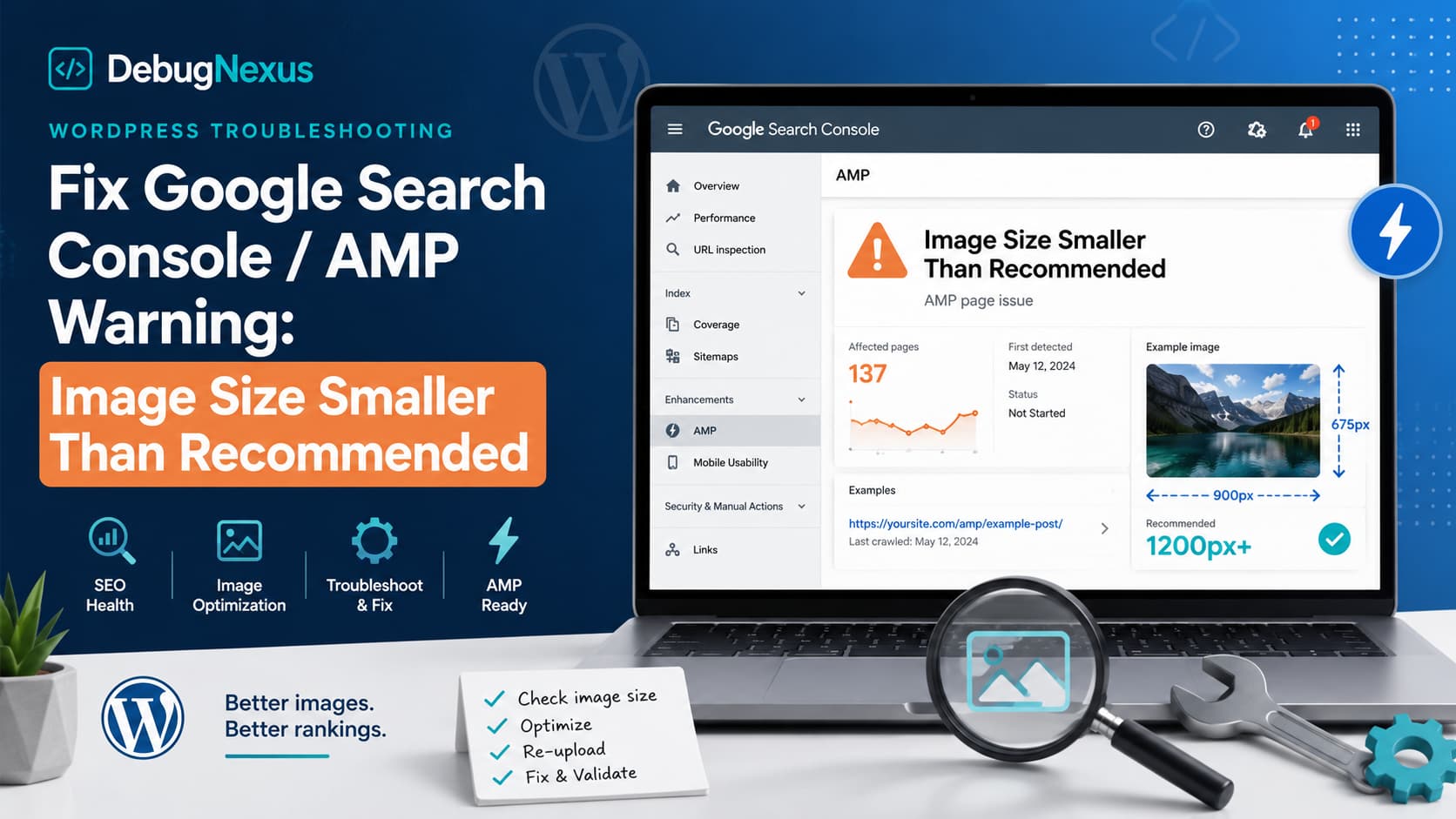
Google Search Console may report the following AMP issue even when your page appears to contain a perfectly large image:
Image size smaller than recommended size
This can be especially confusing when only one or two posts are affected while hundreds of other pages created with the same WordPress and AMP configuration pass without any problem.
In one example, the following AMP pages continued to show the warning even after the posts were updated and republished:
- A Magix Video Deluxe review
- A Nero AI Video Upscaler review
The visible images on both pages appeared large enough. However, the important detail is that Google does not necessarily evaluate the image displayed inside the article.
It checks the image referenced by the page’s structured data.
That difference is the reason replacing content, updating the post or republishing it from the AMP editor often fails to resolve the warning.
What Does “Image Size Smaller Than Recommended” Mean?
The warning means that an image referenced in the AMP page’s structured data is smaller than Google’s recommended dimensions.
Google explains that this may prevent the page from receiving certain AMP-related search features. It can also stop the page from appearing with a large image in Google Discover. The warning does not normally prevent the page from being indexed or appearing in standard search results.
For Discover, Google recommends images that:
- Are at least 1200 pixels wide
- Contain more than 300,000 total pixels
- Work well in a 16:9 landscape format
- Are enabled for large previews through AMP or
max-image-preview:large
Google also recommends specifying the preferred image using Article schema or the og:image meta tag.
A safe featured-image size for most WordPress posts is:
1280 × 720 pixelsYou can also use:
1200 × 675 pixelsBoth sizes use a 16:9 aspect ratio and are suitable for large search and Discover previews.
Why a Large Image Can Still Trigger the Warning
The dimensions of the visible image are not always the dimensions Google receives through structured data.
A page can display a 1600-pixel-wide image while its schema references a WordPress-generated thumbnail such as:
example-image-300x169.jpgor:
example-image-768x432.jpgGoogle evaluates the schema image URL, not the larger original image stored in the Media Library.
Several WordPress issues can cause this.
1. The schema uses a generated thumbnail
WordPress automatically creates multiple versions of uploaded images. Depending on the theme, SEO plugin or AMP plugin, the Article schema may use the medium, medium_large or another cropped version instead of the original image.
For example, the visible image might be:
/uploads/2026/07/review-image.jpgBut the schema might contain:
/uploads/2026/07/review-image-768x432.jpgThe first image may meet Google’s recommendation while the second does not.
2. The post has a different featured image
An image added at the top of the post is not automatically the WordPress featured image.
Most SEO and AMP plugins use the featured image when generating Article or BlogPosting schema. Therefore, a large image inside the post will not fix the issue if the featured image is missing or too small.
3. Duplicate schema is being generated
It is common for several WordPress components to generate structured data simultaneously:
- The active theme
- AMP for WP
- Yoast SEO
- Rank Math
- Schema and Structured Data for WP & AMP
- Another schema or review plugin
One schema block may contain the correct image while a second Article block references a logo, author avatar or small thumbnail.
Google can still report the smaller image.
4. The AMP page uses different schema from the canonical page
A canonical WordPress post and its /amp/ version may not use the same structured data.
The standard page might receive schema from the SEO plugin, while AMP for WP creates a separate Article object for the AMP version.
This explains why a canonical page may pass testing while its AMP version produces the warning.
5. Google is seeing cached markup
Updating the visible page does not guarantee that every cache has been cleared.
Older structured data may remain in:
- A WordPress caching plugin
- Server-level page cache
- Cloudflare
- Another CDN
- AMP cache
- Google’s previously crawled copy
If Google’s live test passes but the Search Console report still displays the warning, the report may be showing an older crawl.
How to Find the Exact Image Causing the Warning
Do not begin by replacing every image in the article. First, identify the image URL that Google is evaluating.
Step 1: Run the AMP URL through Rich Results Test
Open Google’s Rich Results Test and enter the complete AMP URL.
For example:
https://example.com/post-name/amp/Once the test finishes, expand the detected Article or BlogPosting item.
Look for the following property:
"image"It may appear as a direct URL:
"image": "https://example.com/uploads/image-768x432.jpg"It may also appear as an ImageObject:
"image": {
  "@type": "ImageObject",
  "url": "https://example.com/uploads/image-768x432.jpg",
  "width": 768,
  "height": 432
}
Google recommends using crawlable, representative images in Article structured data. It also recommends providing high-resolution images in 16:9, 4:3 and 1:1 formats when possible.
Step 2: Open the schema image URL directly
Copy the image URL from the test and open it in a new browser tab.
Check whether the filename contains a WordPress size suffix such as:
-300x300
-768x432
-1024x576
-scaled
The presence of a suffix does not automatically mean the image is invalid. However, it can reveal that the plugin is using a generated image size rather than the full original.
Step 3: Check the actual image dimensions
Download the schema image or inspect it through the browser.
On Windows, right-click the downloaded image and select:
Properties → DetailsOn macOS, open the image in Preview and select:
Tools → Show InspectorFor this warning, the safest approach is to use an image at least 1200 pixels wide.
Step 4: Inspect all schema blocks
Open the AMP page in your browser and view its source code.
Search for:
application/ld+jsonThen search for:
"image"Check every Article, BlogPosting or NewsArticle object.
You may discover that one plugin uses the correct image while another uses:
- A 150 × 150 author avatar
- A 512 × 512 site icon
- A small default logo
- A medium-sized featured image
- An old image that is no longer visible on the post
A page should ideally have one consistent source controlling its Article schema.
Step-by-Step WordPress Fix
Step 1: Replace or reset the featured image
Edit the affected WordPress post.
In the post settings, locate the Featured image section.
Remove the existing featured image and upload a new image with a minimum width of 1200 pixels. A recommended size is:
1280 × 720 pixelsSet the new upload as the featured image.
Do not simply insert it inside the article. It must be assigned through the Featured Image setting.
Update the post.
Step 2: Avoid replacing the image file under the same URL
Some image replacement plugins overwrite the existing file while retaining the original attachment metadata.
This can produce a situation where the actual file is large but WordPress or the schema plugin still stores older width and height values.
A safer method is:
- Upload the image as a completely new Media Library attachment.
- Give it a new filename.
- Set the new attachment as the featured image.
- Update the post.
- Remove the previous attachment only after confirming the fix.
For example:
magix-video-deluxe-review-featured-2026.jpgUsing a new filename also helps avoid stale CDN and browser caches.
Step 3: Regenerate WordPress image sizes
If the original image was uploaded before the theme’s current image sizes were registered, some required thumbnail versions may not exist.
Use a trusted thumbnail regeneration tool to recreate WordPress image sizes.
After regeneration, update the post again and clear all caches.
This step is useful when only older posts are affected while newer posts work correctly.
Step 4: Check AMP for WP schema settings
Open the AMP plugin settings and find the Structured Data, Schema or SEO integration section.
The exact setting names can vary by plugin version.
Confirm that:
- The post is using Article or BlogPosting schema.
- The schema image comes from the featured image.
- The AMP plugin is not using a small default image.
- Compatibility with your SEO plugin is enabled where applicable.
- Only one plugin is responsible for the primary Article schema.
AMP for WP’s support documentation also identifies the featured image and structured-data image as the main areas to investigate for this warning.
Step 5: Check the SEO plugin
If you use Yoast SEO, Rank Math or another SEO plugin, check the post’s social and schema settings.
Confirm that the post has:
- A valid featured image
- A large Facebook/Open Graph image
- Article or BlogPosting schema
- No custom social image that is smaller than 1200 pixels
Rank Math, for example, normally uses the featured image for Article-related search metadata, while Yoast creates ImageObject nodes that can include the image URL, width and height.
Step 6: Remove duplicate Article schema
Run the AMP URL through the Rich Results Test again.
If it detects multiple Article or BlogPosting items, identify which plugins are generating them.
Possible solutions include:
- Disabling schema in the AMP plugin and keeping the SEO plugin’s schema
- Disabling Article schema in the SEO plugin for AMP URLs
- Removing theme-generated schema
- Disabling an unnecessary schema plugin
Do not add another custom schema block before fixing the existing output. Adding more schema can make the conflict harder to diagnose.
Step 7: Clear every cache layer
Clear:
- The WordPress page cache
- Object cache, if enabled
- Hosting or server cache
- Cloudflare or CDN cache
- AMP plugin cache
- Browser cache
Then reopen the AMP URL in a private browser window.
View the source again and confirm that the schema now references the new full-size image URL.
Code Fix for the Official AMP WordPress Plugin
The following code applies specifically to the official AMP plugin for WordPress. It uses the plugin’s documented amp_schemaorg_metadata filter to replace the schema image with the post’s full-size featured image.
Add the code through the Code Snippets plugin, a small custom plugin or your child theme’s functions.php file:
/**
 * Force AMP Article schema to use the full-size featured image.
 *
 * Intended for the official AMP plugin for WordPress.
 */
add_filter(
    'amp_schemaorg_metadata',
    function ( $metadata ) {
        if ( ! is_singular( 'post' ) ) {
            return $metadata;
        }

        $post_id  = get_queried_object_id();
        $image_id = get_post_thumbnail_id( $post_id );

        if ( ! $image_id ) {
            return $metadata;
        }

        $image = wp_get_attachment_image_src( $image_id, 'full' );

        if ( ! $image || empty( $image[0] ) ) {
            return $metadata;
        }

        $metadata['image'] = array(
            '@type'  => 'ImageObject',
            'url'    => esc_url_raw( $image[0] ),
            'width'  => (int) $image[1],
            'height' => (int) $image[2],
        );

        return $metadata;
    },
    20
);
After adding the code:
- Clear all caches.
- Test an affected AMP URL.
- Inspect the Article schema.
- Confirm that the
image.urlvalue points to the original full-size featured image. - Confirm that the reported width is at least 1200 pixels.
This hook belongs to the official AMP plugin. It may not change the output of the separate AMP for WP plugin. For AMP for WP, first determine which plugin or module is creating the Article schema before applying custom code.
Why Republishing the AMP Page Does Not Fix It
Republishing only updates the post content.
It will not resolve the issue when:
- The featured image remains unchanged
- The schema points to a generated thumbnail
- Another plugin creates duplicate schema
- The CDN serves an older image
- Google has not recrawled the updated page
- WordPress still stores old attachment dimensions
- The AMP plugin uses its own default image
The repair must change the image URL inside the structured data that Google receives.
How to Validate the Fix in Search Console
After making the changes, test the AMP URL again using the live testing tools.
Confirm that:
- The correct Article or BlogPosting object is detected
- Its image URL opens successfully
- The image is at least 1200 pixels wide
- The image width and height match the real file
- No second Article object contains a smaller image
- The AMP page remains valid
Next, open Google Search Console and navigate to the affected AMP issue.
Click:
Validate FixYou can also inspect the individual URL and request indexing.
Google notes that recrawling and reprocessing structured data can take several days. Therefore, the warning may remain in the historical Search Console report even after the live test shows the corrected markup.
What If the Live Test Passes but Search Console Still Shows the Warning?
This usually means Google has not yet updated the stored report.
Check the following:
- The live AMP URL uses the correct image.
- The image is not blocked by
robots.txt. - The image returns an HTTP 200 response.
- The image does not require cookies or authentication.
- The CDN is not serving different dimensions to Googlebot.
- The canonical and AMP URLs reference the same primary image.
- The live test no longer reports the warning.
If all of these checks pass, request validation and allow Google time to recrawl the page.
Repeatedly editing and republishing the post is unlikely to speed up the process.
Common Mistakes to Avoid
Compressing the image by reducing its dimensions
Image compression and image dimensions are different.
You can optimize a 1280 × 720 image without reducing its pixel dimensions. Use WebP, AVIF or optimized JPEG output while retaining sufficient width.
Checking only the image inside the content
Always inspect the featured image and the structured-data image URL.
Assuming file size determines eligibility
A 70 KB image can be 1280 pixels wide, while a 500 KB image can still be only 800 pixels wide.
Google is concerned with dimensions, quality and accessibility, not simply the file size in kilobytes.
Ignoring duplicate schema
Even if the correct image appears in one schema object, another small image in a duplicate Article object can continue triggering the warning.
Using the site logo as the Article image
The Article image should represent the article itself. Google advises against using generic logos as the primary image for article and Discover previews.
Frequently Asked Questions
Is “Image size smaller than recommended” an error?
It is normally a non-critical warning. The page can still be indexed, but it may not qualify for certain AMP search presentations or large-image Discover cards.
What is the recommended image size for AMP?
Use an image at least 1200 pixels wide. A 1280 × 720 or 1200 × 675 featured image is a practical choice for most blog posts.
Does the image need to appear visibly on the page?
The image should be relevant to the article and accessible to Google. In WordPress, assigning it as the featured image is usually the most reliable way to make SEO and AMP plugins use it.
Can WebP images cause the warning?
WebP itself is not the problem. The warning is usually caused by insufficient dimensions or the wrong image URL in structured data.
However, check that Google can crawl the WebP file and that the schema does not reference a smaller fallback image.
Should I delete and recreate the post?
No. Recreating the entire post is rarely necessary.
Fix the featured image, schema output and caching configuration instead.
Why are only two posts affected?
Those posts may have:
- Older attachment metadata
- A different featured-image size
- A manually selected social image
- A thumbnail generated under previous WordPress settings
- Duplicate schema
- Cached AMP markup
- An image uploaded before the current image sizes were registered
Compare the affected posts with a similar post that passes validation. The difference is usually visible in the schema image URL or attachment metadata.
Final Solution
When Google reports “Image size smaller than recommended” for an AMP page, do not rely on the image you can see inside the article.
Inspect the Article structured data and identify the exact image URL Google is reading.
In most WordPress cases, the complete fix is:
- Upload a new featured image at least 1200 pixels wide.
- Set it through the WordPress Featured Image panel.
- Make sure the AMP or SEO schema uses the full-size attachment.
- Remove duplicate Article schema.
- Regenerate image sizes when necessary.
- Clear WordPress, server, CDN and AMP caches.
- Test the live AMP URL.
- Submit the fix for validation in Google Search Console.
The warning is not usually caused by the visible design of the post. It is caused by the structured-data image being too small, outdated or incorrectly selected.
