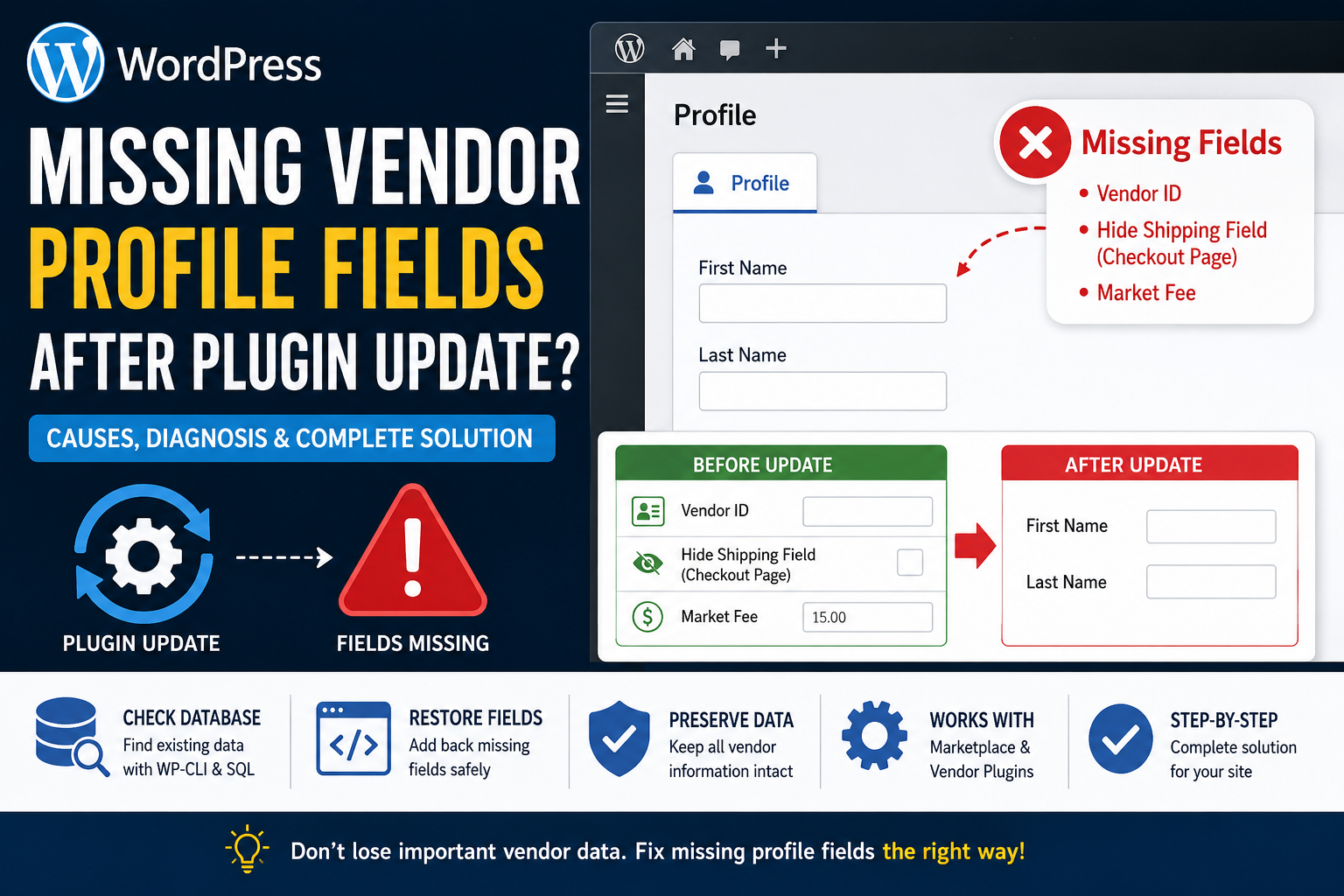
A WordPress user recently reported that several fields disappeared from the Profile tab of vendor accounts immediately after updating a plugin.
The missing fields included:
- Vendor ID
- Hide Shipping Field on the checkout page
- Market Fee
After the update, the Profile tab reportedly displayed only:
- First Name
- Last Name
This type of problem does not necessarily mean the vendor information has been deleted. In many cases, the data remains in the WordPress database, but the updated plugin no longer registers, retrieves, or displays the fields correctly.
This guide explains how to determine what happened, recover the existing values, and restore the missing vendor profile fields without modifying the affected plugin directly.
Important limitation of the original report
The original report does not identify:
- The name of the affected plugin
- The plugin version installed before the update
- The new plugin version
- The vendor role slug
- The database meta keys used by the missing fields
- Whether the Profile tab is the standard WordPress user profile or a custom plugin screen
For that reason, it is not possible to confirm whether the fields were intentionally removed, relocated, or affected by a specific plugin regression.
The correct troubleshooting process is to check the stored data first and only restore the interface after confirming the real user meta keys.
What probably happened
When custom profile fields disappear after an update, the problem is usually caused by one of the following situations.
1. The plugin stopped registering the fields
A plugin normally uses WordPress hooks or its own profile-rendering system to add custom fields.
An update may have:
- Removed an old callback
- Changed a hook name
- Changed the field configuration structure
- Moved the fields to another settings tab
- Added a role or capability check
- Failed to load the field module
WordPress provides separate hooks for displaying fields while users edit their own profiles and while administrators edit other users. A plugin must use the appropriate hooks for both screens.
2. The data exists, but the interface is missing
Profile fields and profile data are not the same thing.
A plugin may stop displaying a field while the original value remains stored in the wp_usermeta database table.
WordPress retrieves this data with get_user_meta() and saves it with update_user_meta().
This is the best possible outcome because the interface can usually be restored without rebuilding the vendor information.
3. The plugin reset its field configuration
Some plugins store enabled fields, field order, labels, or visibility rules in a WordPress option.
During an update, that configuration may be:
- Reset to its default value
- Replaced by a new format
- Lost during a failed migration
- Ignored because of an outdated cache
- Restricted to certain user roles
This can explain why standard fields such as First Name and Last Name remain while plugin-created fields disappear.
4. The vendor role is no longer detected
An update may change how the plugin determines whether a user is a vendor.
For example, the display logic may now require:
- A specific user role
- A marketplace capability
- An approved vendor status
- A completed vendor setup process
- A valid marketplace record connected to the WordPress user
If the condition fails, the plugin may load only the basic WordPress fields.
5. The update introduced a compatibility conflict
The field-registration callback may still exist but fail because of:
- Another marketplace plugin
- A custom admin plugin
- A user-role editor
- A security plugin
- An object-cache conflict
- A JavaScript error in the profile interface
- A PHP warning or fatal error during profile rendering
First determine whether the data is missing or only hidden
Do not immediately recreate the fields.
First, determine whether the existing vendor values are still stored in the database.
There are three useful ways to check.
Method 1: Inspect the user metadata with WP-CLI
Find the affected vendor’s WordPress user ID and run:
wp user meta list 123Replace 123 with the real user ID.
WP-CLI officially supports listing all metadata associated with a WordPress user.
To make the result easier to search, export it as CSV:
wp user meta list 123 --format=csvOn a Linux server, you can filter likely keys:
wp user meta list 123 --format=csv | grep -Ei "vendor|shipping|fee|market"When the value is serialized, use:
wp user meta list 123 --unserializeLook for meta keys that may correspond to:
Vendor ID
Hide Shipping Field
Market Fee
The actual keys may look completely different from the labels shown in WordPress. For example:
marketplace_vendor_number
vendor_hide_shipping
checkout_shipping_disabled
market_fee
vendor_market_fee
These are examples only. Do not create new keys until you find the keys already used by the affected plugin.
Method 2: Inspect the usermeta table
Open phpMyAdmin or another database-management tool and run:
SELECT
    umeta_id,
    user_id,
    meta_key,
    meta_value
FROM wp_usermeta
WHERE user_id = 123
ORDER BY meta_key ASC;
Replace:
wp_with the actual database table prefix, and replace 123 with the vendor’s WordPress user ID.
You can also search likely keys:
SELECT
    user_id,
    meta_key,
    meta_value
FROM wp_usermeta
WHERE user_id = 123
AND (
    meta_key LIKE '%vendor%'
    OR meta_key LIKE '%shipping%'
    OR meta_key LIKE '%fee%'
    OR meta_key LIKE '%market%'
)
ORDER BY meta_key ASC;
Do not edit or delete database rows while investigating.
Export the affected rows or create a complete database backup before making any changes.
Method 3: Compare an affected vendor with a working vendor
When another vendor still displays the fields correctly, compare the metadata for both accounts:
wp user meta list 123 --format=csv > vendor-affected.csv
wp user meta list 456 --format=csv > vendor-working.csv
Then compare the two files.
This can reveal:
- A missing meta key
- A different value format
- A different vendor role
- An approval-status difference
- A missing marketplace record
How to interpret the result
| Result | Likely explanation |
|---|---|
| The meta keys and values still exist | Display or field-registration regression |
| The values exist for some vendors only | Migration, role, or account-status problem |
| The values are empty for every vendor | Configuration reset or failed data migration |
| The old plugin version displays the fields | Regression in the new plugin release |
| Only First Name and Last Name appear | Custom profile-field callback is not loading |
| Fields appear for administrators but not vendors | Capability or role restriction |
| Fields appear after disabling another plugin | Plugin compatibility conflict |
Check whether the fields were moved
Before adding custom code, inspect all settings provided by the affected plugin.
Look under areas such as:
WordPress Dashboard > Users
WordPress Dashboard > Vendors
WooCommerce > Settings
Marketplace > Settings
Vendor Settings
Profile Fields
Registration Fields
Checkout Settings
Commission Settings
Shipping Settings
Search the plugin changelog for terms such as:
profile
vendor fields
user meta
shipping
commission
market fee
migration
deprecated
removed
relocated
The update may have moved the settings rather than removed them.
Test the previous version on staging
When the problem started immediately after an update, test the previous plugin version on a staging website.
Do not perform the rollback directly on a busy production marketplace.
The recommended process is:
- Create a current database and file backup.
- Copy the website to staging.
- Record the current plugin version.
- Install the previous known-working version.
- Open the same vendor profile.
- Check whether the missing fields return.
- Compare the old and new plugin files or field settings.
When the previous release restores the fields without changing the database, the data probably still exists and the new release has changed the display logic.
Do not leave an old plugin version installed permanently, particularly when it contains security fixes that are missing from the previous release.
Perform a plugin conflict test
On staging, temporarily leave active only:
- WordPress
- WooCommerce, when required
- The marketplace plugin
- The affected profile-fields plugin
Switch temporarily to a default WordPress theme or Storefront when WooCommerce is involved.
Then open the vendor profile again.
If the fields return, reactivate the disabled plugins one at a time until the conflict reappears.
Also check the browser console for JavaScript errors and the WordPress debug log for PHP errors.
Clear all relevant caches
After plugin updates, stale cached data may prevent a new field configuration from loading.
Clear:
- The WordPress caching plugin
- The hosting-level cache
- Redis or Memcached
- PHP OPcache
- Cloudflare or another CDN
- The browser cache
Object caching is particularly relevant when the plugin stores vendor objects, capabilities, or field definitions in cached results.
Safe fallback: Restore the fields through a custom plugin
When the data still exists but the plugin no longer displays the fields, you can add a temporary compatibility plugin.
This approach:
- Does not edit the marketplace plugin
- Is not overwritten by a normal plugin update
- Uses WordPress’s standard profile hooks
- Includes permission and nonce validation
- Reads and updates the existing user meta
Important requirements
Before using the code, you must know the real meta keys.
The following placeholders must be replaced:
replace_with_hide_shipping_meta_key
replace_with_market_fee_meta_key
You must also confirm what value the original plugin expects for an enabled checkbox.
Common formats include:
1 and 0
yes and no
true and false
on and an empty value
Using the wrong key or value format may create a second field that the marketplace plugin does not recognize.
Step 1: Create an MU plugin
Using SFTP, SSH, or your hosting file manager, open:
/wp-content/Create the following directory when it does not already exist:
/wp-content/mu-plugins/Inside it, create:
debugnexus-vendor-profile-field-recovery.phpAdd the following code:
<?php
/**
 * Plugin Name: DebugNexus Vendor Profile Field Recovery
 * Description: Restores selected vendor metadata fields on WordPress user profile screens.
 * Version: 1.0.0
 */

defined( 'ABSPATH' ) || exit;

/**
 * Configure the existing metadata keys and values used by the
 * marketplace or vendor-management plugin.
 *
 * Replace the placeholder meta keys before activating this code.
 */
function debugnexus_vendor_profile_configuration() {
	return array(
		'hide_shipping_key' => 'replace_with_hide_shipping_meta_key',
		'hide_shipping_on'  => '1',
		'hide_shipping_off' => '0',
		'market_fee_key'    => 'replace_with_market_fee_meta_key',
	);
}

/**
 * Display the recovered vendor fields.
 *
 * This runs on:
 * - A user's own profile screen
 * - The Edit User screen used by administrators
 */
function debugnexus_display_vendor_profile_fields( $profile_user ) {
	if (
		! $profile_user instanceof WP_User ||
		! current_user_can( 'edit_user', $profile_user->ID )
	) {
		return;
	}

	$config = debugnexus_vendor_profile_configuration();

	$hide_shipping = get_user_meta(
		$profile_user->ID,
		$config['hide_shipping_key'],
		true
	);

	$market_fee = get_user_meta(
		$profile_user->ID,
		$config['market_fee_key'],
		true
	);

	wp_nonce_field(
		'debugnexus_save_vendor_profile_fields',
		'debugnexus_vendor_profile_nonce'
	);
	?>
	<h2><?php esc_html_e( 'Vendor Settings', 'debugnexus' ); ?></h2>

	<table class="form-table" role="presentation">
		<tr>
			<th>
				<label for="debugnexus_vendor_id">
					<?php esc_html_e( 'Vendor ID', 'debugnexus' ); ?>
				</label>
			</th>

			<td>
				<input
					type="text"
					id="debugnexus_vendor_id"
					class="regular-text"
					value="<?php echo esc_attr( $profile_user->ID ); ?>"
					readonly
				/>

				<p class="description">
					<?php
					esc_html_e(
						'This displays the WordPress user ID. Confirm that the marketplace uses the user ID as its vendor ID.',
						'debugnexus'
					);
					?>
				</p>
			</td>
		</tr>

		<tr>
			<th>
				<?php
				esc_html_e(
					'Hide Shipping Field (Checkout Page)',
					'debugnexus'
				);
				?>
			</th>

			<td>
				<label for="debugnexus_hide_shipping_value">
					<input
						type="checkbox"
						id="debugnexus_hide_shipping_value"
						name="debugnexus_hide_shipping_value"
						value="1"
						<?php
						checked(
							(string) $config['hide_shipping_on'],
							(string) $hide_shipping
						);
						?>
					/>

					<?php
					esc_html_e(
						'Hide the shipping field for this vendor.',
						'debugnexus'
					);
					?>
				</label>
			</td>
		</tr>

		<tr>
			<th>
				<label for="debugnexus_market_fee_value">
					<?php esc_html_e( 'Market Fee', 'debugnexus' ); ?>
				</label>
			</th>

			<td>
				<input
					type="number"
					id="debugnexus_market_fee_value"
					name="debugnexus_market_fee_value"
					class="regular-text"
					min="0"
					step="0.01"
					value="<?php echo esc_attr( $market_fee ); ?>"
				/>

				<p class="description">
					<?php
					esc_html_e(
						'Enter the fee using the same format expected by the original marketplace plugin.',
						'debugnexus'
					);
					?>
				</p>
			</td>
		</tr>
	</table>
	<?php
}

add_action(
	'show_user_profile',
	'debugnexus_display_vendor_profile_fields'
);

add_action(
	'edit_user_profile',
	'debugnexus_display_vendor_profile_fields'
);

/**
 * Save the recovered vendor fields.
 */
function debugnexus_save_vendor_profile_fields( $user_id ) {
	if ( ! current_user_can( 'edit_user', $user_id ) ) {
		return;
	}

	if (
		! isset( $_POST['debugnexus_vendor_profile_nonce'] ) ||
		! wp_verify_nonce(
			sanitize_text_field(
				wp_unslash(
					$_POST['debugnexus_vendor_profile_nonce']
				)
			),
			'debugnexus_save_vendor_profile_fields'
		)
	) {
		return;
	}

	$config = debugnexus_vendor_profile_configuration();

	$hide_shipping = isset(
		$_POST['debugnexus_hide_shipping_value']
	)
		? $config['hide_shipping_on']
		: $config['hide_shipping_off'];

	update_user_meta(
		$user_id,
		$config['hide_shipping_key'],
		$hide_shipping
	);

	if ( isset( $_POST['debugnexus_market_fee_value'] ) ) {
		$raw_fee = sanitize_text_field(
			wp_unslash(
				$_POST['debugnexus_market_fee_value']
			)
		);

		if ( '' === $raw_fee ) {
			$market_fee = '';
		} elseif ( function_exists( 'wc_format_decimal' ) ) {
			$market_fee = wc_format_decimal( $raw_fee );

			if (
				'' !== $market_fee &&
				is_numeric( $market_fee )
			) {
				$market_fee = (string) max(
					0,
					(float) $market_fee
				);
			}
		} else {
			$normalized_fee = str_replace( ',', '.', $raw_fee );

			$market_fee = is_numeric( $normalized_fee )
				? (string) max( 0, (float) $normalized_fee )
				: '';
		}

		update_user_meta(
			$user_id,
			$config['market_fee_key'],
			$market_fee
		);
	}
}

add_action(
	'personal_options_update',
	'debugnexus_save_vendor_profile_fields'
);

add_action(
	'edit_user_profile_update',
	'debugnexus_save_vendor_profile_fields'
);
WordPress provides show_user_profile and edit_user_profile for outputting custom profile fields. Saving must be connected to both personal_options_update and edit_user_profile_update so that the code works when users edit themselves and when an administrator edits another user.
Step 2: Replace the placeholder keys
Find:
'hide_shipping_key' => 'replace_with_hide_shipping_meta_key',Replace it with the existing meta key found in the database:
'hide_shipping_key' => 'actual_existing_meta_key',Then replace:
'market_fee_key' => 'replace_with_market_fee_meta_key',with:
'market_fee_key' => 'actual_existing_market_fee_key',Do not guess the keys.
Creating a new key with a similar name may make the custom form appear to work while the marketplace continues reading its original key.
Step 3: Match the checkbox values
Suppose the existing database value is:
yeswhen shipping is hidden and:
nowhen it is enabled.
Change:
'hide_shipping_on'  => '1',
'hide_shipping_off' => '0',
to:
'hide_shipping_on'  => 'yes',
'hide_shipping_off' => 'no',
The saved values must exactly match the format used by the original plugin.
Step 4: Confirm the meaning of Vendor ID
The provided recovery plugin displays the WordPress user ID:
$profile_user->IDThis is correct only when the marketplace treats the WordPress user ID as the vendor ID.
Some systems may use:
- A custom user meta value
- A vendor post ID
- A taxonomy term ID
- A record from a custom database table
When the marketplace uses a different identifier, replace the displayed value with the correct plugin-specific lookup.
Do not make the Vendor ID editable unless the plugin documentation explicitly supports changing it.
Step 5: Test the restored fields
On staging:
- Open an existing vendor account.
- Record the current database values.
- Confirm that all three fields appear.
- Change the Market Fee.
- Save the profile.
- Reload the page.
- Confirm that the new value remains.
- Check the corresponding
wp_usermetarow. - Test the checkout behavior.
- Verify commission or market-fee calculations.
- Test a vendor with the checkbox enabled.
- Test another vendor with the checkbox disabled.
Do not assume that displaying and saving a field proves that its marketplace functionality works.
The marketplace must read the same meta key and value format during checkout.
This solution does not restore every type of Profile tab
The custom plugin above adds fields to the standard WordPress screens:
Users > Profile
Users > Edit User
It will not automatically modify a completely custom profile screen built with React, Vue, AJAX, or a marketplace-specific template.
When the missing Profile tab is inside a custom vendor dashboard, the correct long-term fix requires one of the following:
- A plugin-specific action hook
- A plugin-specific filter
- A template override
- A corrected field-registration configuration
- An official update from the plugin developer
The database and WP-CLI investigation steps still apply.
Should you edit the original plugin?
Avoid editing the plugin directly unless you need an emergency temporary patch and no hook is available.
A normal plugin update replaces its directory, which removes direct modifications.
Direct edits also make it difficult to determine whether future behavior comes from:
- The official plugin
- The custom modification
- A conflict between the two
An MU plugin, small custom plugin, or documented template override is easier to maintain.
What to send to the plugin developer
A useful bug report should include:
Plugin name:
Previous working version:
Current affected version:
WordPress version:
WooCommerce version:
PHP version:
Marketplace plugin:
Vendor role slug:
Affected profile URL or screen:
Fields that disappeared:
Whether the metadata still exists:
Whether the previous version restores the fields:
Browser console errors:
Relevant PHP errors:
Also include the exact meta keys when they are not sensitive.
A concise technical report could say:
After updating the plugin, the custom fields Vendor ID, Hide Shipping Field, and Market Fee no longer appear in the vendor Profile tab. First Name and Last Name still appear. The original user-meta values remain in
wp_usermeta, so this appears to be a field-registration or profile-rendering regression rather than data deletion. Please confirm whether the fields were moved or whether the current version no longer registers them for the vendor role.
Frequently asked questions
Did the plugin update delete the vendor information?
Not necessarily.
When the fields disappear but the values remain in wp_usermeta, the issue is limited to the interface or field-registration logic.
Check the database before attempting to recreate the information.
Why do First Name and Last Name still appear?
First Name and Last Name are standard WordPress user fields.
The missing fields are probably custom fields supplied by a marketplace, checkout, or vendor-management plugin.
The core fields can continue working even when the custom plugin callback fails.
Can I add the fields back with CSS?
No.
CSS can hide or restyle fields that already exist in the HTML. It cannot securely retrieve, validate, and save missing user metadata.
PHP or the plugin’s own field builder is required.
Can I recreate the values with WP-CLI?
Yes, but only after confirming the exact meta key and expected value.
WP-CLI supports adding, updating, deleting, and listing WordPress user metadata.
For example:
wp user meta update 123 actual_market_fee_key 15Do not run this command with guessed keys.
Why does get_user_meta() return an empty value?
An empty result may mean either:
- The key does not exist
- The key exists but contains an empty value
WordPress documents that an empty stored value can be difficult to distinguish from a nonexistent single metadata value when using get_user_meta().
Inspecting the database row directly can clarify the difference.
Should I permanently roll back the plugin?
A rollback is useful for confirming a regression and temporarily restoring business functionality.
It is not always a safe permanent solution because the older release may lack bug fixes, security patches, or compatibility updates.
Report the issue and move back to a corrected current release when one becomes available.
Final solution
When vendor profile fields disappear after a WordPress plugin update, first determine whether the problem affects the stored data or only the profile interface.
The safest process is:
- Create a backup and staging copy.
- Confirm the exact plugin versions involved.
- Inspect the affected user’s metadata.
- Identify the original meta keys and value formats.
- Check whether the fields were moved or disabled.
- Test the previous version on staging.
- Perform a conflict test.
- Clear object and server caches.
- Restore the fields through a custom compatibility plugin when necessary.
- Test the actual checkout and fee behavior.
- Request an official plugin fix.
The key distinction is that a missing profile field does not automatically mean missing vendor data.
When the values remain in wp_usermeta, the issue can often be resolved by restoring the field-registration layer while preserving all existing vendor records.
