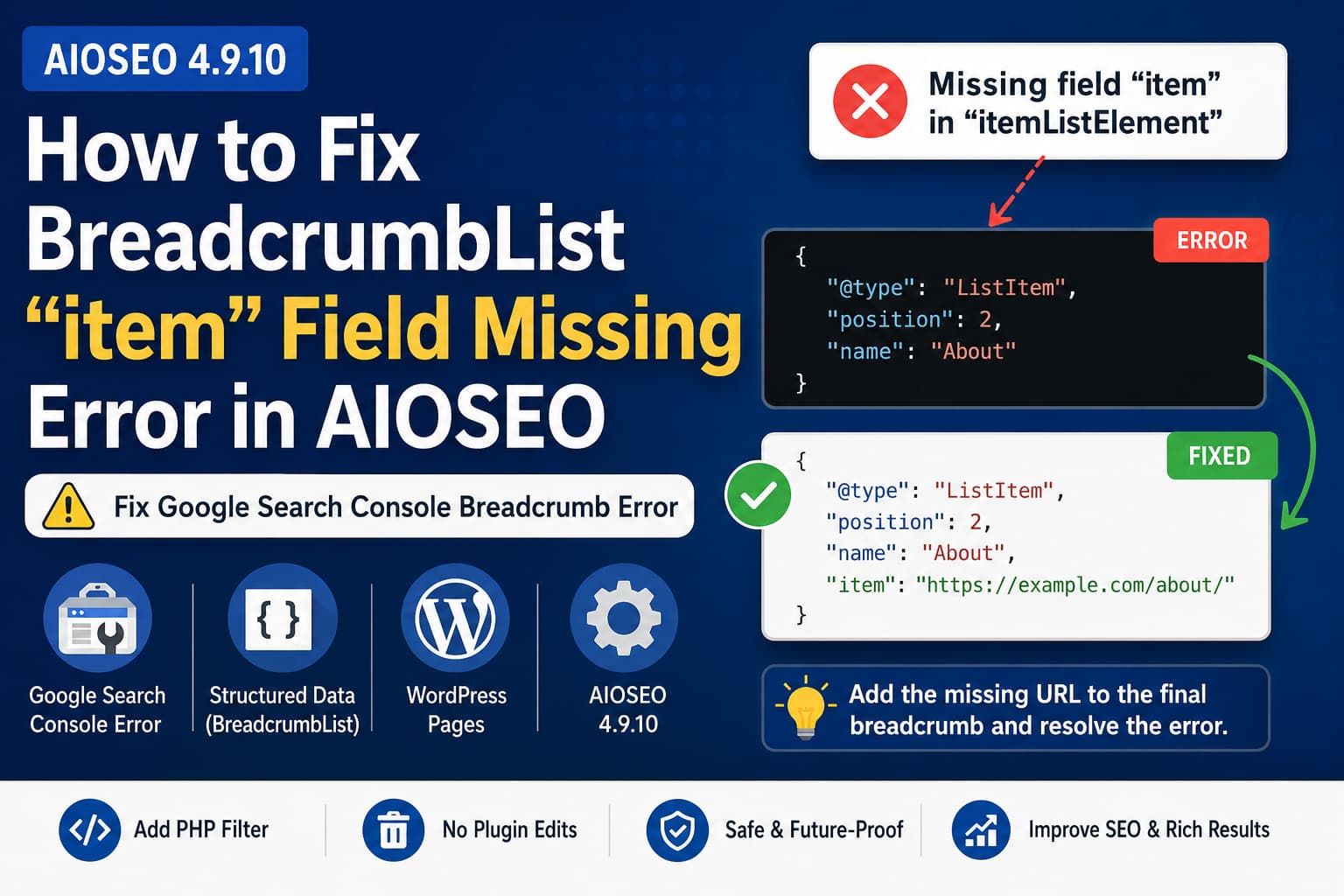
A new issue reported by an All in One SEO user describes Google Search Console flagging WordPress Pages because the final ListItem inside the BreadcrumbList schema does not contain an item URL.
The report affects AIOSEO version 4.9.10 and remains unresolved at the time of writing. The reported output also contains previousItem and nextItem relationships between breadcrumb entries.
The Search Console error normally appears as:
Missing field “item” in “itemListElement”
A typical affected breadcrumb may look similar to this:
{
  "@type": "BreadcrumbList",
  "itemListElement": [
    {
      "@type": "ListItem",
      "position": 1,
      "name": "Home",
      "item": "https://example.com/",
      "nextItem": {
        "@type": "ListItem",
        "@id": "https://example.com/about/#listItem",
        "name": "About"
      }
    },
    {
      "@type": "ListItem",
      "position": 2,
      "name": "About",
      "previousItem": {
        "@type": "ListItem",
        "@id": "https://example.com/#listItem",
        "name": "Home"
      }
    }
  ]
}
The final “About” entry has a name and position but no explicit item property containing the page URL.
This guide explains what is happening and provides a safe WordPress workaround.
Is the Last Breadcrumb Required to Have an item URL?
This is where the situation becomes confusing.
Google’s official breadcrumb documentation says that every ListItem normally uses these properties:
positionnameitem
However, Google also explicitly states that the item property is not required for the final breadcrumb. When the final entry does not contain item, Google says it can use the URL of the containing page instead. Google’s own JSON-LD example omits item from the final breadcrumb.
Therefore, an AIOSEO breadcrumb without item on the final entry is not automatically invalid according to Google’s published documentation.
Nevertheless, some site owners are seeing Search Console report it as an error. Possible reasons include:
- Search Console is processing an older cached version of the schema.
- Another plugin or the active theme is generating a second BreadcrumbList.
- A
WebPagegraph references a BreadcrumbList that is missing or malformed. - AIOSEO’s additional
previousItemandnextItemrelationships are exposing a parser inconsistency. - The live page output differs from the output Google previously crawled.
- The final breadcrumb URL cannot be reliably inferred from the surrounding graph.
The safest workaround is to add the current Page URL explicitly to the final breadcrumb.
Does AIOSEO Use an Invalid Breadcrumb Array?
Not exactly.
AIOSEO still outputs breadcrumb entries inside the required itemListElement array. The previousItem and nextItem properties are additional relationships between the entries.
For example:
"itemListElement": [
  {
    "@type": "ListItem",
    "position": 1,
    "name": "Home",
    "item": "https://example.com/"
  },
  {
    "@type": "ListItem",
    "position": 2,
    "name": "About"
  }
]
This remains an array of ListItem objects.
The practical problem is that the last object may not contain the explicit URL that Search Console is requesting. You do not necessarily need to remove the previousItem or nextItem properties to correct that specific error.
Step 1: Confirm Which Plugin Generates the Schema
Before adding code, open one of the affected Pages in your browser.
Right-click the page and select View Page Source. Search the source for:
aioseo-schemaAIOSEO normally wraps its JSON-LD in markup similar to:
<script type="application/ld+json" class="aioseo-schema">Also search for:
BreadcrumbListCount how many BreadcrumbList graphs appear.
You may have duplicate breadcrumb schema if it is being generated by more than one of the following:
- AIOSEO
- Your WordPress theme
- A page builder
- A breadcrumb plugin
- A schema plugin
- Custom code in
functions.php - Google Tag Manager
- A header or footer script plugin
Only one system should normally be responsible for the primary breadcrumb schema.
An older related AIOSEO support case involved custom breadcrumb schema existing alongside AIOSEO’s JSON-LD. The proposed resolution used the aioseo_schema_output filter to change the AIOSEO graph, and the user later reported that implementing the filter through WPCode worked. That case had a different root cause, but it demonstrates the supported method for modifying AIOSEO schema output.
Step 2: Test the Current Live Output
Test the affected URL using:
- Google Rich Results Test
- Google Search Console URL Inspection
- Schema.org Validator
- The raw page source in an incognito browser window
Do not rely only on a WordPress preview or cached browser tab.
If the live Rich Results Test is valid but Search Console still reports the error, Google may be showing data from an older crawl.
If the live test also reports the missing item property, apply the following workaround.
Step 3: Add the Missing URL with an AIOSEO Filter
AIOSEO provides the official aioseo_schema_output filter for modifying the JSON schema graphs it generates.
Add this code using one of these methods:
- The WPCode plugin
- A custom functionality plugin
- Your child theme’s
functions.phpfile - A must-use plugin
Do not add it directly to the AIOSEO plugin files because a future plugin update will overwrite the change.
<?php
/**
 * Add an explicit item URL to the final AIOSEO breadcrumb on WordPress Pages.
 *
 * Temporary workaround for the Google Search Console:
 * "Missing field 'item' in 'itemListElement'" error.
 */
add_filter(
	'aioseo_schema_output',
	'debugnexus_fix_aioseo_page_breadcrumb_item',
	20
);

function debugnexus_fix_aioseo_page_breadcrumb_item( $graphs ) {
	// Apply the workaround only to regular WordPress Pages.
	if ( ! is_page() || ! is_array( $graphs ) ) {
		return $graphs;
	}

	$page_id  = get_queried_object_id();
	$page_url = $page_id ? get_permalink( $page_id ) : '';

	if ( ! $page_url ) {
		return $graphs;
	}

	foreach ( $graphs as $graph_index => $graph ) {
		// Find the BreadcrumbList graph.
		if (
			empty( $graph['@type'] ) ||
			'BreadcrumbList' !== $graph['@type'] ||
			empty( $graph['itemListElement'] ) ||
			! is_array( $graph['itemListElement'] )
		) {
			continue;
		}

		$last_index = array_key_last( $graph['itemListElement'] );

		if (
			null === $last_index ||
			! is_array( $graph['itemListElement'][ $last_index ] )
		) {
			continue;
		}

		// Add the current Page URL to the final breadcrumb entry.
		$graphs[ $graph_index ]['itemListElement'][ $last_index ]['item'] =
			esc_url_raw( $page_url );
	}

	return $graphs;
}
This snippet has been syntax-checked for PHP errors.
What the Code Does
The workaround:
- Runs only on WordPress Pages.
- Retrieves the URL of the currently queried Page.
- Finds AIOSEO’s
BreadcrumbListgraph. - Locates the final
itemListElemententry. - Adds the current Page URL as its
itemproperty. - Leaves AIOSEO’s other schema graphs unchanged.
The corrected output should resemble:
{
  "@type": "ListItem",
  "position": 2,
  "name": "About",
  "item": "https://example.com/about/"
}
This removes any ambiguity about the URL represented by the final breadcrumb.
Applying the Fix Through WPCode
To add the snippet through WPCode:
- Install and activate WPCode.
- Go to Code Snippets → Add Snippet.
- Select Add Your Custom Code.
- Choose PHP Snippet as the code type.
- Paste the code without adding another opening
<?phptag if WPCode already provides one. - Set the insertion method to Auto Insert.
- Select Run Everywhere.
- Save and activate the snippet.
- Clear all WordPress, server and CDN caches.
Although the snippet is set to run everywhere, its internal is_page() condition prevents it from changing posts, products, archives or other content types.
Extending the Fix to Posts and Custom Post Types
The previous snippet intentionally targets Pages because the current report specifically concerns Pages.
To apply it to all singular WordPress content, replace:
if ( ! is_page() || ! is_array( $graphs ) ) {with:
if ( ! is_singular() || ! is_array( $graphs ) ) {This broader version may affect:
- Posts
- Pages
- WooCommerce products
- Portfolio items
- Other public custom post types
Use the broader condition only after testing it on staging.
To target Pages and WooCommerce products only, use:
if ( ! is_singular( array( 'page', 'product' ) ) || ! is_array( $graphs ) ) {Should You Remove previousItem and nextItem?
Removing them is usually unnecessary for the reported missing-field error.
The smallest and safest modification is to add the missing item URL while preserving everything else generated by AIOSEO.
Aggressively rebuilding the entire BreadcrumbList could create new problems involving:
- Multilingual Page URLs
- Parent and child Pages
- Custom post-type archives
- Paginated archives
- Taxonomy breadcrumbs
- WooCommerce product categories
- Canonical URL filters
Modify only the property Search Console is requesting unless testing proves the other relationships are causing the error.
Step 4: Clear Every Cache Layer
After activating the snippet, clear all applicable caches:
- WordPress caching plugin
- LiteSpeed, Nginx or Varnish cache
- Hosting platform cache
- Cloudflare or another CDN
- Object cache such as Redis
- Browser cache
Then open the affected URL in an incognito window and inspect the source again.
Search for the final breadcrumb name and confirm that it now includes:
"item": "https://example.com/current-page/"Step 5: Check for Duplicate Schema Again
After adding the fix, verify that the page does not contain two different BreadcrumbList graphs.
Duplicate schema commonly happens when:
- A theme includes its own schema generator.
- Yoast, Rank Math or another SEO plugin was not fully disabled.
- A breadcrumb plugin adds Microdata while AIOSEO adds JSON-LD.
- Custom schema was previously inserted through Elementor or a code-snippet plugin.
- Google Tag Manager injects a second schema script.
Duplicate schema can produce confusing results because one graph may be valid while another contains the missing field.
Temporarily disabling the suspected source on a staging site is often the fastest way to identify the duplicate.
Step 6: Validate the Corrected Page
After clearing the caches:
- Run the URL through Google Rich Results Test.
- Expand the detected Breadcrumb structured data.
- Confirm that every breadcrumb contains a name and position.
- Confirm that the final entry now contains the current Page URL.
- Open Search Console.
- Use URL Inspection → Test Live URL.
- Return to the Breadcrumb enhancement report.
- Select Validate Fix.
Google recommends testing a live URL and requesting validation after correcting structured-data errors. It may take several days for Google to recrawl the affected Pages and update the report.
What If Search Console Still Shows the Error?
If the live schema is correct but the report remains unchanged, check the following.
Google Has Not Recrawled the Page
Search Console reports can lag behind the current live output. Inspect the last crawl date in URL Inspection.
The Wrong Version Is Cached
Check the page while logged out and through an external testing tool. Administrators may bypass caching while Google receives an older cached version.
Another BreadcrumbList Still Exists
Search the complete source for every occurrence of:
"@type":"BreadcrumbList"Correcting one graph will not fix a second invalid graph.
The WebPage Graph References a Missing Breadcrumb
AIOSEO may include a reference similar to:
"breadcrumb": {
  "@id": "https://example.com/page/#breadcrumblist"
}
That @id must match an actual BreadcrumbList graph on the page.
A previous support case involved an AIOSEO WebPage graph referencing a breadcrumb graph that was not available for the affected content type. In that situation, removing the broken breadcrumb reference through aioseo_schema_output resolved the error.
The Canonical URL Does Not Match
Confirm that the following URLs agree:
- Breadcrumb
item - Page canonical URL
- WordPress permalink
- AIOSEO Page URL
- The URL tested in Search Console
Differences involving HTTP versus HTTPS, www versus non-www, trailing slashes or translated URLs can create inconsistent structured data.
Alternative Fix: Remove AIOSEO Breadcrumb Schema
Removing the BreadcrumbList should be a last resort.
Consider this only when:
- Your theme already generates valid breadcrumb schema.
- Another plugin is intentionally responsible for breadcrumbs.
- AIOSEO is creating an invalid reference that cannot be repaired.
- You have confirmed that removing it does not leave a broken
breadcrumbreference inside the WebPage graph.
Do not output two competing breadcrumb systems.
AIOSEO officially supports filtering its schema graphs through aioseo_schema_output, so use that filter rather than editing plugin code.
Should You Downgrade AIOSEO?
Downgrading is not the preferred first step.
AIOSEO 4.9.10 includes unrelated fixes, including a fix for a PHP 8 breadcrumb fatal error caused when a third-party plugin added an invalid breadcrumb entry. Its published changelog does not currently list a fix for the final item field report.
The safer approach is:
- Back up the website.
- Reproduce the issue on staging.
- Apply the targeted filter.
- Monitor the original support thread and AIOSEO changelog.
- Remove the workaround after an official update demonstrably resolves the output.
Avoid keeping an unnecessary filter forever because future AIOSEO versions may change the schema structure.
Does This Error Affect Indexing or Rankings?
A breadcrumb structured-data error does not necessarily mean the Page itself cannot be indexed.
However, invalid or inconsistently processed breadcrumb markup can prevent Google from using that structured data for breadcrumb-enhanced search results. Fixing the error also makes the site hierarchy clearer and prevents repeated warnings from hiding more serious schema issues.
The Page’s content, canonical tag, robots directives, status code and internal links should be checked separately if there is also an indexing problem.
Frequently Asked Questions
Is item required on the final BreadcrumbList entry?
Google’s current documentation says it is not required for the final entry. When omitted, Google may use the URL of the containing page. Adding it explicitly is still a reasonable workaround when Search Console reports it as missing.
Why does Search Console show an error when Google says the field is optional?
The exact cause of the newly reported AIOSEO 4.9.10 case has not yet been confirmed. Cached schema, duplicate graphs, broken graph references or differences between Google’s parsers may be involved. The WordPress.org report remains unresolved.
Is previousItem or nextItem invalid?
Those properties are not automatically the source of the error. AIOSEO still places the main breadcrumbs inside itemListElement. The minimal workaround is to add the missing URL rather than remove unrelated graph data.
Can I add the code to the parent theme?
You can, but a parent-theme update may erase it. A child theme, custom plugin, must-use plugin or WPCode is safer.
Should I edit the AIOSEO plugin?
No. Direct plugin edits will be overwritten during updates and make troubleshooting more difficult.
How long will Search Console take to update?
The live test can reflect the change immediately after caches are cleared, but the enhancement report may not update until Google recrawls and reprocesses the affected URLs.
Final Recommendation
Although Google officially permits the final breadcrumb to omit item, an explicit URL removes ambiguity and provides a practical workaround for affected AIOSEO Pages.
Start by checking for duplicate schema. If AIOSEO is the only breadcrumb generator and the live test confirms the missing property, use the targeted aioseo_schema_output filter to add the current Page URL to the final ListItem.
After implementing the fix:
- Clear every cache layer.
- Inspect the live page source.
- Test the URL with Google’s Rich Results Test.
- Use Search Console’s live inspection.
- Submit the breadcrumb issue for validation.
- Monitor AIOSEO updates and remove the workaround after an official fix is confirmed.
