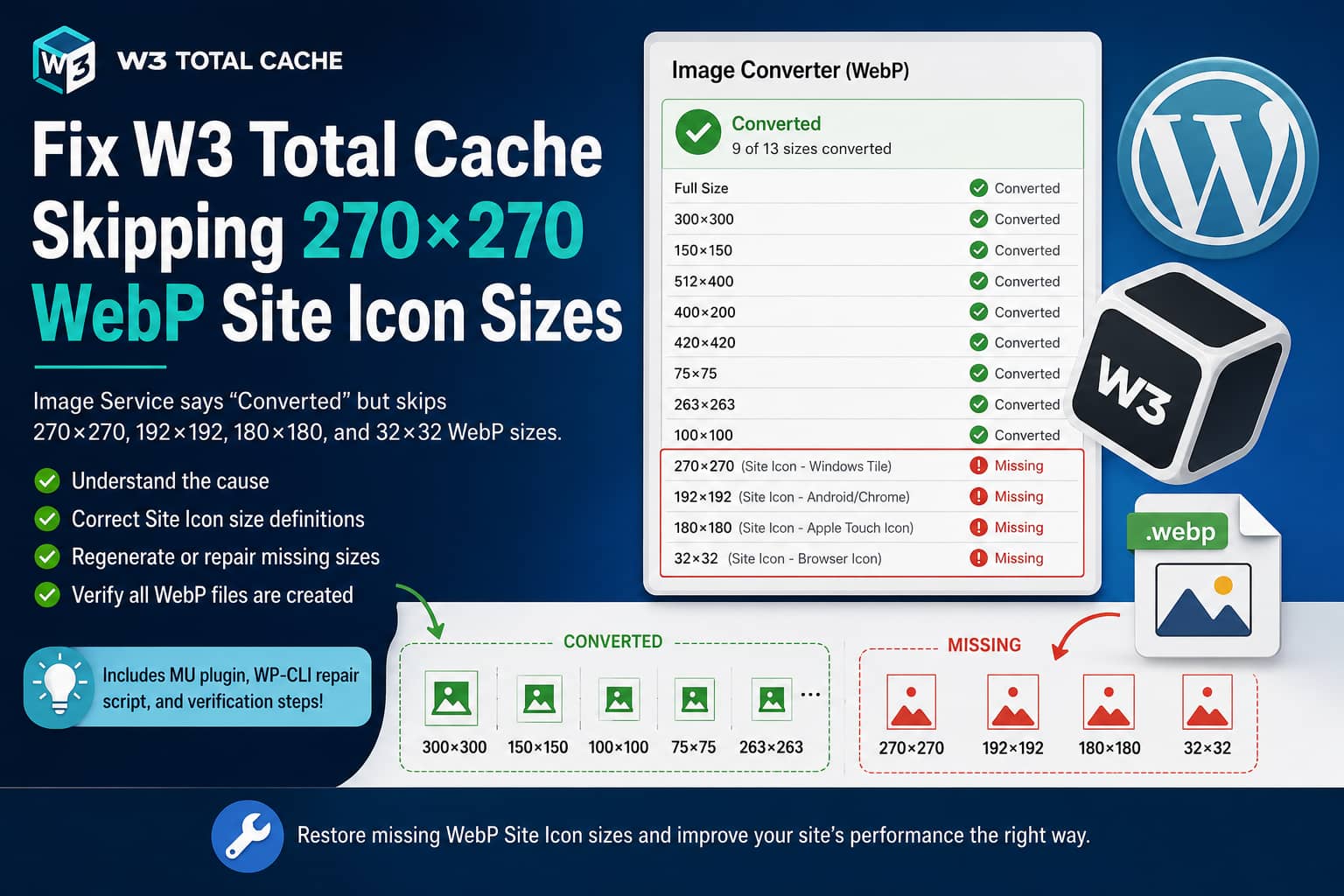
W3 Total Cache’s Image Converter can occasionally report an image as Converted even though some of its intermediate WebP files were never generated.
A recently reported case showed a particularly consistent pattern. W3 Total Cache converted the main image and several registered sizes successfully, but failed to create WebP versions for these four WordPress Site Icon sizes:
- 270×270
- 192×192
- 180×180
- 32×32
The original PNG versions existed on the server and opened correctly. Reverting and converting the attachments again produced exactly the same result. No PHP fatal error, timeout, or memory error appeared in the log.
This article explains why the problem can happen, why W3 Total Cache still displays a successful conversion status, and how to repair the missing WebP sizes safely.
Symptoms of the problem
The affected images may show the following behavior:
- W3 Total Cache converts the full-sized PNG or JPEG to WebP.
- Standard WordPress sizes such as 300×300 and 150×150 are created successfully.
- Processing appears to reach the 270×270 Site Icon size.
- The 270×270 WebP file is not created.
- The 192×192, 180×180, and 32×32 WebP files that follow it are also missing.
- The Media Library still displays WebP Converted.
- Reverting and converting the image again produces the same result.
- The PHP error log remains empty.
The four missing sizes are not random. WordPress uses 32×32 for the browser icon, 192×192 for Android and Chrome, 180×180 for Apple touch icons, and 270×270 for the Microsoft tile image.
What W3 Total Cache is actually doing
W3 Total Cache does not send every WordPress thumbnail to its remote Image Converter service.
The main attachment is sent to the W3 Total Cache API and converted to WebP or AVIF remotely. After the converted full-sized image is returned, the additional image sizes are generated by the WordPress installation itself using GD or ImageMagick. BoldGrid’s own troubleshooting documentation confirms that the original image is converted through its API while the additional thumbnail sizes are created locally by the website server.
The current W3 Total Cache source follows this process:
- Download the converted image from the API.
- Save it to the WordPress uploads directory.
- Insert it as a child attachment of the original image.
- Call
wp_generate_attachment_metadata(). - Let WordPress create the intermediate sizes locally.
The converted child attachment and its metadata are created after the API conversion completes.
This means that when the full WebP exists but certain resized WebP files do not, the remote WebP conversion probably succeeded. The failure is more likely occurring during WordPress’s local image resizing stage.
Why no error appears in the PHP log
WordPress creates intermediate images through _wp_make_subsizes().
For every registered image size, WordPress calls the active image editor’s make_subsize() method. When that method returns a WP_Error, WordPress currently does not write the error to the normal PHP log. The relevant section of WordPress core contains a TODO: Log errors comment and then continues processing.
This explains why enabling the following settings may still produce an empty debug log:
define( 'WP_DEBUG', true );
define( 'WP_DEBUG_LOG', true );
define( 'WP_DEBUG_DISPLAY', false );
Those settings are still useful for detecting PHP warnings and fatal errors, but the individual image resize error may be returned as a WP_Error and silently discarded before it reaches the log.
Why W3 Total Cache still says “Converted”
W3 Total Cache’s overall status does not prove that every WordPress intermediate size was created.
The plugin considers the attachment converted when it has at least one converted child attachment. Its current status logic checks whether the post_children collection is non-empty and then assigns the status converted. It does not compare every required image size against the child attachment’s _wp_attachment_metadata.
Therefore, the following combination is possible:
- Full WebP file exists
- Several WebP thumbnails exist
- Some WebP thumbnails are missing
- W3 Total Cache status is still “Converted”
The status means the WebP child attachment was created. It does not currently mean that its entire thumbnail set is complete.
A possible Site Icon size-definition problem
The current WordPress Site Icon size code is also worth checking.
In the Site Icon additional_sizes() method, the width key is shown as:
'width ' => $size,Notice the trailing space after width.
The expected image-size key is:
'width' => $size,The current WordPress source shows the malformed width key inside the Site Icon size definitions.
Depending on the WordPress version, image editor, source dimensions, and filters active during metadata generation, this malformed key may cause WordPress to treat a square crop as a height-only resize or return an image editor error.
It is particularly relevant in this case because 270×270 is the first missing Site Icon-specific size, and all the Site Icon sizes following it are also missing.
Do not edit the WordPress core file directly. A core edit will be overwritten by the next WordPress update and can complicate future troubleshooting.
Full solution
Complete the repair on a staging site first and take a database and uploads backup before changing the live website.
Step 1: Confirm that the server supports WebP
In WordPress, open:
Tools → Site Health → Info → Media Handling
Check the active image editor and supported file formats.
You should see WebP listed under either:
- ImageMagick supported file formats
- GD supported file formats
W3 Total Cache’s documentation specifically recommends checking this section when the original image converts but additional sizes are missing.
If WebP is not supported, ask the hosting provider to enable WebP support for the active GD or ImageMagick PHP extension.
However, when several intermediate WebP files are already being created successfully, general WebP support is probably working. The issue is more likely limited to the affected Site Icon size definitions.
Step 2: Add a safe Site Icon size correction
Create the following directory if it does not already exist:
/wp-content/mu-plugins/Inside that directory, create:
debugnexus-site-icon-webp-fix.phpAdd this code:
<?php
/**
 * Plugin Name: DebugNexus Site Icon WebP Size Fix
 * Description: Corrects Site Icon size definitions when WordPress or W3 Total Cache generates image sub-sizes.
 * Version: 1.0.0
 */

defined( 'ABSPATH' ) || exit;

add_filter(
	'intermediate_image_sizes_advanced',
	function ( $sizes, $image_meta, $attachment_id ) {

		/*
		 * Optional manual attachment IDs.
		 *
		 * Replace these IDs with the affected original attachment IDs.
		 * Leave the array empty to target only the current WordPress Site Icon.
		 */
		$manual_parent_ids = array( 4028, 4029 );

		$site_icon_id = (int) get_option( 'site_icon' );
		$parent_id    = (int) wp_get_post_parent_id( $attachment_id );

		$target_ids = $manual_parent_ids;

		if ( $site_icon_id ) {
			$target_ids[] = $site_icon_id;
		}

		$target_ids = array_values(
			array_unique(
				array_filter(
					array_map( 'absint', $target_ids )
				)
			)
		);

		/*
		 * Normalize malformed Site Icon definitions that contain
		 * "width " with a trailing space instead of "width".
		 */
		foreach ( $sizes as $name => $definition ) {
			if (
				0 === strpos( (string) $name, 'site_icon-' ) &&
				is_array( $definition ) &&
				! isset( $definition['width'] ) &&
				isset( $definition['width '] )
			) {
				$definition['width'] = absint( $definition['width '] );
				unset( $definition['width '] );

				$sizes[ $name ] = $definition;
			}
		}

		/*
		 * Apply the explicit Site Icon definitions to:
		 *
		 * 1. The original Site Icon attachment.
		 * 2. A W3TC WebP child whose parent is the Site Icon.
		 * 3. Any manually listed original attachment.
		 */
		$is_target = in_array( (int) $attachment_id, $target_ids, true ) ||
			in_array( $parent_id, $target_ids, true );

		if ( ! $is_target ) {
			return $sizes;
		}

		$site_icon_sizes = array( 270, 192, 180, 32 );

		foreach ( $site_icon_sizes as $pixels ) {
			$sizes[ 'site_icon-' . $pixels ] = array(
				'width'  => $pixels,
				'height' => $pixels,
				'crop'   => true,
			);
		}

		return $sizes;
	},
	9999,
	3
);
Because this is an MU plugin, WordPress loads it automatically. It does not need to be activated from the Plugins page.
This code performs two functions:
- It corrects any malformed
widthkey that already exists. - It guarantees that the four required Site Icon sizes have valid width, height, and crop values when WordPress generates metadata for the original attachment or its W3TC WebP child.
Step 3: Revert and convert the image again
After adding the MU plugin:
- Open Media → Library.
- Switch the Media Library to list view.
- Find the affected image.
- Click Revert in the Image Converter column.
- Wait for the previous WebP child attachment to be removed.
- Click Convert.
- Allow W3 Total Cache’s conversion process and WP-Cron to finish.
- Clear the W3 Total Cache page cache and browser cache.
The regenerated WebP child should now receive valid definitions for:
site_icon-270
site_icon-192
site_icon-180
site_icon-32
Repeat the process separately for each affected attachment.
Repair the existing WebP child without another API conversion
Developers with WP-CLI access can repair the existing W3 Total Cache WebP child directly.
This avoids consuming another Image Converter request and provides visible error messages when an individual resize fails.
Create a file in the WordPress root directory named:
fix-w3tc-site-icon-webp.phpAdd the following code:
<?php
/**
 * Repair missing Site Icon sizes on existing W3TC WebP child attachments.
 *
 * Run with:
 * wp eval-file fix-w3tc-site-icon-webp.php
 */

if ( ! defined( 'WP_CLI' ) || ! WP_CLI ) {
	exit( "This script must be run through WP-CLI.\n" );
}

require_once ABSPATH . 'wp-admin/includes/image.php';

/*
 * Original attachment IDs reported as affected.
 * Replace these values when repairing different attachments.
 */
$parent_ids = array( 4028, 4029 );

$required_sizes = array(
	'site_icon-270' => array(
		'width'  => 270,
		'height' => 270,
		'crop'   => true,
	),
	'site_icon-192' => array(
		'width'  => 192,
		'height' => 192,
		'crop'   => true,
	),
	'site_icon-180' => array(
		'width'  => 180,
		'height' => 180,
		'crop'   => true,
	),
	'site_icon-32' => array(
		'width'  => 32,
		'height' => 32,
		'crop'   => true,
	),
);

foreach ( $parent_ids as $parent_id ) {
	$parent_id   = absint( $parent_id );
	$service_meta = (array) get_post_meta(
		$parent_id,
		'w3tc_imageservice',
		true
	);

	$child_id = 0;

	if ( ! empty( $service_meta['post_children']['webp'] ) ) {
		$child_id = absint(
			$service_meta['post_children']['webp']
		);
	} elseif ( ! empty( $service_meta['post_child'] ) ) {
		/*
		 * Compatibility with older W3TC metadata.
		 */
		$possible_child = absint(
			$service_meta['post_child']
		);

		if ( 'image/webp' === get_post_mime_type( $possible_child ) ) {
			$child_id = $possible_child;
		}
	}

	if ( ! $child_id ) {
		WP_CLI::warning(
			"Parent attachment {$parent_id}: no W3TC WebP child was found."
		);
		continue;
	}

	$file = get_attached_file( $child_id );

	if ( ! $file || ! is_file( $file ) ) {
		WP_CLI::warning(
			"WebP child {$child_id}: attached file does not exist."
		);
		continue;
	}

	$metadata = wp_get_attachment_metadata( $child_id );

	if ( ! is_array( $metadata ) ) {
		$image_size = wp_getimagesize( $file );

		if ( empty( $image_size[0] ) || empty( $image_size[1] ) ) {
			WP_CLI::warning(
				"WebP child {$child_id}: WordPress cannot read the image dimensions."
			);
			continue;
		}

		$metadata = array(
			'width'    => (int) $image_size[0],
			'height'   => (int) $image_size[1],
			'file'     => _wp_relative_upload_path( $file ),
			'filesize' => wp_filesize( $file ),
			'sizes'    => array(),
		);
	}

	if ( empty( $metadata['sizes'] ) || ! is_array( $metadata['sizes'] ) ) {
		$metadata['sizes'] = array();
	}

	$editor = wp_get_image_editor( $file );

	if ( is_wp_error( $editor ) ) {
		WP_CLI::warning(
			"WebP child {$child_id}: " . $editor->get_error_message()
		);
		continue;
	}

	if ( ! method_exists( $editor, 'make_subsize' ) ) {
		WP_CLI::warning(
			"WebP child {$child_id}: the active image editor does not support make_subsize()."
		);
		continue;
	}

	WP_CLI::log(
		"Repairing parent {$parent_id}, WebP child {$child_id}: {$file}"
	);

	foreach ( $required_sizes as $size_name => $definition ) {
		$existing_file = '';

		if ( ! empty( $metadata['sizes'][ $size_name ]['file'] ) ) {
			$existing_file = path_join(
				dirname( $file ),
				$metadata['sizes'][ $size_name ]['file']
			);
		}

		if ( $existing_file && is_file( $existing_file ) ) {
			WP_CLI::log(
				"Skipping {$size_name}: file already exists."
			);
			continue;
		}

		unset( $metadata['sizes'][ $size_name ] );

		$result = $editor->make_subsize( $definition );

		if ( is_wp_error( $result ) ) {
			WP_CLI::warning(
				$size_name . ': ' . $result->get_error_message()
			);
			continue;
		}

		$metadata['sizes'][ $size_name ] = $result;

		/*
		 * Save after each successful size so completed work is
		 * preserved even if a later size fails.
		 */
		wp_update_attachment_metadata(
			$child_id,
			$metadata
		);

		WP_CLI::success(
			"Created {$size_name}: {$result['file']}"
		);
	}

	wp_update_attachment_metadata(
		$child_id,
		$metadata
	);

	WP_CLI::success(
		"Finished WebP child attachment {$child_id}."
	);
}
Run it from the WordPress root:
wp eval-file fix-w3tc-site-icon-webp.phpUnlike the normal WordPress metadata-generation loop, this script displays the actual error returned by the active image editor.
For example, it may reveal errors such as:
Could not calculate resized image dimensionsThe image cannot be editedUnable to save the imageThe attached file cannot be foundDelete the repair script from the server after completing and verifying the repair.
How to find the W3TC WebP child attachment ID
W3 Total Cache stores its conversion information in the original attachment’s w3tc_imageservice post meta.
Run:
wp eval '
foreach ( array( 4028, 4029 ) as $parent_id ) {
	$data = (array) get_post_meta(
		$parent_id,
		"w3tc_imageservice",
		true
	);

	$child_id = 0;

	if ( ! empty( $data["post_children"]["webp"] ) ) {
		$child_id = absint(
			$data["post_children"]["webp"]
		);
	} elseif ( ! empty( $data["post_child"] ) ) {
		$child_id = absint(
			$data["post_child"]
		);
	}

	echo "Parent {$parent_id}: WebP child {$child_id}\n";
}
'
Newer W3 Total Cache versions normally store the WebP child under:
post_children → webpOlder metadata may use:
post_childVerify that all four files were created
Run this command after the repair:
wp eval '
foreach ( array( 4028, 4029 ) as $parent_id ) {
	$data = (array) get_post_meta(
		$parent_id,
		"w3tc_imageservice",
		true
	);

	$child_id = ! empty( $data["post_children"]["webp"] )
		? absint( $data["post_children"]["webp"] )
		: absint( $data["post_child"] ?? 0 );

	echo "\nParent {$parent_id}, WebP child {$child_id}\n";

	if ( ! $child_id ) {
		echo "No WebP child found.\n";
		continue;
	}

	$file = get_attached_file( $child_id );
	$meta = wp_get_attachment_metadata( $child_id );

	foreach (
		array(
			"site_icon-270",
			"site_icon-192",
			"site_icon-180",
			"site_icon-32",
		) as $size_name
	) {
		$size_file = $meta["sizes"][ $size_name ]["file"] ?? "";
		$full_path = $size_file
			? path_join( dirname( $file ), $size_file )
			: "";

		echo $size_name . ": ";

		if ( $full_path && is_file( $full_path ) ) {
			echo $size_file . " - OK\n";
		} else {
			echo "MISSING\n";
		}
	}
}
'
A successful result should resemble:
site_icon-270: image-name-270x270.webp - OK
site_icon-192: image-name-192x192.webp - OK
site_icon-180: image-name-180x180.webp - OK
site_icon-32: image-name-32x32.webp - OK
Clear all caches after the repair
After generating the missing files:
- Purge the W3 Total Cache page cache.
- Purge the browser cache.
- Purge the CDN cache if a CDN is active.
- Restart PHP or clear OPcache only if the server requires it.
- Open the website in a private browser window.
- Inspect the page source and browser Network panel.
Check that the favicon and touch-icon requests return valid images and do not produce 404 responses.
What to do if the repair script still fails
Check the reported image editor error
The direct repair script should display the actual WP_Error. That message is more useful than the normal empty PHP error log.
Confirm uploads-directory permissions
The PHP user must be able to write to the relevant uploads directory.
Use the hosting provider’s recommended ownership and permissions. Do not use 777 permissions as a permanent fix.
Typical values are:
Directories: 755
Files: 644
Correct ownership is more important than applying excessively open permissions.
Test the other image editor
A website may use ImageMagick when GD would work correctly, or the reverse.
The active editor is visible under:
Tools → Site Health → Info → Media Handling
A developer can temporarily change the editor preference on staging:
add_filter(
	'wp_image_editors',
	function () {
		return array(
			'WP_Image_Editor_GD',
			'WP_Image_Editor_Imagick',
		);
	}
);
Reverse the order to prioritize ImageMagick:
add_filter(
	'wp_image_editors',
	function () {
		return array(
			'WP_Image_Editor_Imagick',
			'WP_Image_Editor_GD',
		);
	}
);
Do not leave this override active unless the chosen editor has been properly tested with JPEG, PNG, transparent PNG, WebP, and large-image uploads.
Check filters added by other plugins
Plugins can modify or remove image sizes through:
intermediate_image_sizesintermediate_image_sizes_advancedwp_get_missing_image_subsizesA theme, image optimization plugin, thumbnail plugin, or custom code snippet may alter the size definitions before WordPress processes them.
Test the conversion on staging with other image optimization plugins disabled.
Confirm the WebP child is a valid image
Run:
wp eval '
$child_id = 1234;
$file = get_attached_file( $child_id );

var_dump(
	$file,
	is_file( $file ),
	wp_getimagesize( $file ),
	get_post_mime_type( $child_id )
);
'
Replace 1234 with the WebP child attachment ID.
WordPress should identify the file as:
image/webpand return valid width and height values.
Can the Site Icon remain PNG?
Yes.
Favicons and touch icons are usually small files. The performance difference between a properly optimized PNG favicon and WebP is generally insignificant compared with large content images, product images, or hero banners.
A practical temporary workaround is to exclude the Site Icon attachments from W3 Total Cache conversion and continue serving the original PNG versions until WordPress or W3 Total Cache provides a permanent upstream fix.
This is preferable to:
- Editing WordPress core files
- Forcing invalid metadata
- Renaming files manually
- Marking missing files as present in the database
- Applying unsafe upload-directory permissions
What W3 Total Cache should improve
A more reliable Image Converter workflow should:
- Capture errors returned while generating each intermediate size.
- Store the failed size name and error message in
w3tc_imageservicemetadata. - Compare expected sizes with the generated child attachment metadata.
- Display a Partially Converted status when files are missing.
- Provide a retry action for missing sizes only.
- Avoid marking the attachment fully converted merely because one WebP child exists.
- Provide per-attachment verbose logs in the Media Library.
The current converted status confirms that a WebP child attachment exists, but it does not validate the completeness of every intermediate image file.
Frequently asked questions
Why does W3 Total Cache say “Converted” when WebP files are missing?
W3 Total Cache marks the original attachment converted when a converted child attachment exists. It does not currently require every intermediate size to appear in the child attachment’s metadata.
Is the 270×270 size created by W3 Total Cache?
The full image is converted through W3 Total Cache’s remote API. The 270×270 and other intermediate sizes are normally generated locally by WordPress using the server’s active GD or ImageMagick editor.
Why does the problem begin at 270×270?
The 270×270 size is the first size in the affected Site Icon group. The sizes following it, including 192×192, 180×180, and 32×32, are also Site Icon-specific dimensions. This points to the Site Icon size definitions or the image editor’s handling of those definitions.
Why is there no error in debug.log?
WordPress checks whether make_subsize() returned a WP_Error, but the current core loop does not log the error. It contains a placeholder indicating that error logging still needs to be implemented.
Will regenerating thumbnails fix it?
A normal thumbnail regeneration may reproduce the same problem when the malformed size definition or conflicting filter remains active. Correct the definitions first, then regenerate the W3TC WebP child or run the direct repair script.
Should I edit the WordPress Site Icon class?
No. Never use a WordPress core edit as the permanent solution. Apply the correction through a plugin or MU plugin so that WordPress updates remain safe.
Final conclusion
This issue is not necessarily a failure of the remote WebP encoder.
The evidence points to a multi-stage problem:
- W3 Total Cache successfully converts the full image through its API.
- WordPress attempts to generate the intermediate WebP files locally.
- The Site Icon size definitions may contain an invalid or incomplete width value.
- The active image editor returns an error or unsuitable result.
- WordPress does not log the individual resize error.
- W3 Total Cache sees that the main WebP child exists and marks the attachment converted.
Correcting the Site Icon size definitions and regenerating or directly repairing the W3TC WebP child provides a safe solution without editing WordPress core or replacing the original PNG.
