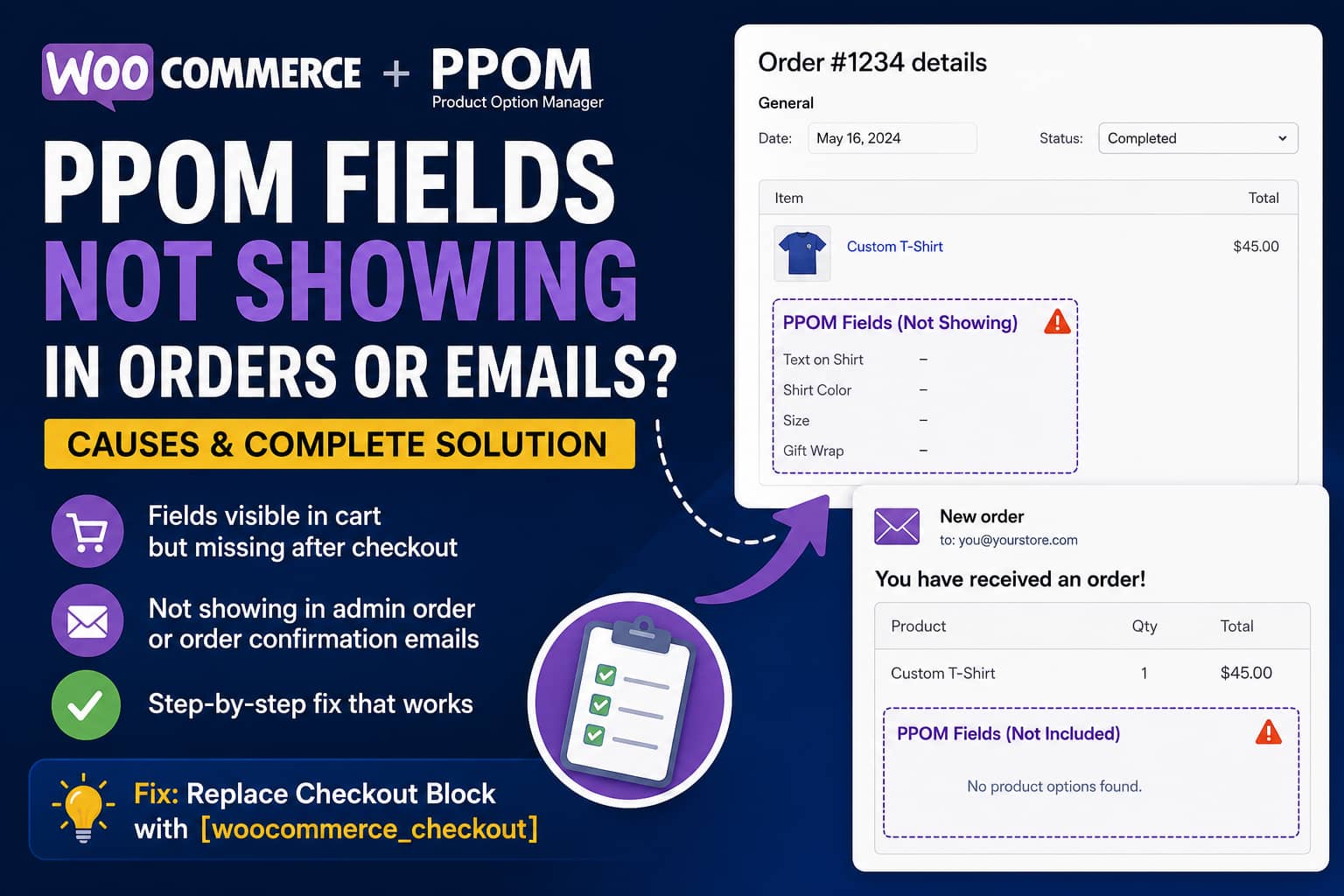
PPOM fields may display correctly on a WooCommerce product page and continue appearing in the shopping cart, including any additional option prices. However, after the customer completes payment, the selected options may disappear from:
- The WooCommerce admin order
- The order received page
- The customer’s account
- The new order email sent to the store owner
- The order confirmation email sent to the customer
The completed order then contains only the product name, quantity and final price. The store owner cannot determine which customization options the customer selected.
This is not merely an email formatting problem. In most cases, the PPOM information is failing to transfer from the WooCommerce cart into the order’s line-item metadata.
Quick Solution
The most likely cause is an incompatibility between PPOM and the block-based WooCommerce Checkout page.
Replace the WooCommerce Checkout Block with the classic checkout shortcode:
[woocommerce_checkout]After replacing the block:
- Clear all WordPress, server and CDN caches.
- Start a new browser session.
- Remove the old product from the cart.
- Add the product again and select the PPOM options.
- Place a completely new test order.
Rolling back WooCommerce or PPOM without replacing the Checkout Block may not solve the problem because the page continues using the same block-based checkout architecture.
What Should Normally Happen to PPOM Fields?
PPOM is designed to make the customer’s custom field selections available on both cart and order detail pages. n order is created, PPOM normally reads the field information stored in the WooCommerce cart item and saves it as order line-item metadata. The plugin also stores a private copy of the raw PPOM payload under the _ppom_fields metadata key.
The current PPOM order handler follows this general process:
Product field submission
        ↓
WooCommerce cart item data
        ↓
PPOM field data stored in the cart session
        ↓
WooCommerce creates the order line item
        ↓
PPOM saves visible field values and _ppom_fields
        ↓
WooCommerce displays the values in the order and email
However, PPOM’s order handler stops immediately when the expected ppom['fields'] information is missing from the cart item. When that happens, no PPOM options are written to the order. xplains why the additional prices can appear correct in the cart while the selected options disappear from the final order.
Why the WooCommerce Checkout Block Can Cause This Problem
WooCommerce made the Cart and Checkout Blocks the default experience for newly created stores beginning with WooCommerce 8.3. WooCommerce also warned that extensions modifying cart or checkout behavior could produce incomplete or broken functionality unless they had specifically integrated with the block system. time of writing, PPOM’s repository documentation declares:
- High-Performance Order Storage compatibility as supported
- Cart and Checkout Blocks compatibility as unsupported
It also documents the classic WooCommerce order lifecycle that PPOM uses to move product options from the cart into order items. ore, the Checkout Block is the leading suspect when:
- PPOM fields appear on the product page
- Selected options appear in the cart
- Option pricing is calculated correctly
- All fields disappear only after checkout
- The problem remains after rolling back plugin versions
This conclusion is based on the current compatibility declaration and PPOM’s order-persistence code. A plugin or theme conflict can produce similar symptoms, so additional testing may still be required.
Complete Fix: Replace the Checkout Block
Always perform checkout changes on a staging site first when possible.
Step 1: Back Up the Website
Create a complete backup containing:
- WordPress files
- The WordPress database
- WooCommerce settings
- PPOM field groups
- Theme customizations
- Custom snippets
Do not edit the checkout page on a busy production store without a current backup.
Step 2: Open the WooCommerce Checkout Page
From the WordPress dashboard, go to:
Pages → CheckoutOpen the page in the WordPress block editor.
Use the editor’s List View to determine whether the page contains a block named:
CheckoutIf it does, the store is using the block-based checkout.
Step 3: Remove the Checkout Block
Select the complete Checkout Block from List View.
Delete the block. Be careful not to delete the Checkout page itself.
Step 4: Add the Classic Checkout Shortcode
Add a new Shortcode block to the page.
Paste the following shortcode:
[woocommerce_checkout]Update or publish the page.
WooCommerce officially documents this method for reverting from the Checkout Block to the classic shortcode checkout. p 5: Confirm the Correct Checkout Page Is Assigned
Go to:
WooCommerce → Settings → Advanced → Page setupConfirm that the page you edited is selected as the Checkout page.
Save the settings even if the correct page is already selected.
Step 6: Consider Replacing the Cart Block
The checkout page is the most important page to replace for this particular problem. However, when PPOM data behaves inconsistently between the product, cart and checkout pages, replace the Cart Block as well.
Go to:
Pages → CartRemove the Cart Block and add a Shortcode block containing:
[woocommerce_cart]WooCommerce continues to provide both classic shortcodes for stores requiring extensions or custom checkout functionality that is not yet available in the block experience. p 7: Clear Every Cache Layer
Clear all available caches, including:
- WordPress caching plugin
- Object cache
- Hosting or server cache
- Varnish cache
- Cloudflare or another CDN
- Browser cache
Temporarily disable JavaScript delay, deferral, combination and minification while testing.
The PPOM troubleshooting documentation recommends clearing the WordPress, server and CDN caches and testing in an incognito browser session. p 8: Start With a Completely New Cart
Do not test using a product that was added to the cart before changing the checkout page.
Existing cart sessions may contain incomplete or stale PPOM data.
Use the following testing process:
- Open a private or incognito browser window.
- Visit the affected product.
- Complete all four PPOM fields.
- Add the product to the cart.
- Confirm that every selection appears in the cart.
- Proceed through the new classic checkout.
- Place a test order using a safe test payment method.
Step 9: Verify the New Order
Check each of the following locations:
WooCommerce Admin Order
Go to:
WooCommerce → Orders → Test orderExpand the product line item.
Every selected PPOM option should appear underneath the product name.
Order Received Page
Confirm that the selected product options appear on the customer’s order confirmation page.
Customer Account
Open:
My Account → Orders → ViewVerify that the product options appear under the corresponding product.
Store Owner Email
Check the WooCommerce New order email.
Customer Email
Check the Processing order or Completed order email sent to the customer.
Do not consider the problem resolved until the fields appear in the backend order and both relevant emails.
Why Rolling Back WooCommerce Did Not Fix It
Downgrading WooCommerce from a newer release to WooCommerce 10.4.0 does not automatically convert a Checkout Block into the classic checkout shortcode.
The Checkout page content is stored in the WordPress database. Therefore:
WooCommerce downgrade ≠ Checkout Block removalSimilarly, rolling PPOM back to version 33.0.0 does not change the type of checkout page being used.
The store can continue using the same incompatible Checkout Block after both plugins have been downgraded. This is why changing the actual Checkout page architecture is an essential troubleshooting step.
What to Do if the Classic Checkout Does Not Fix It
When the issue continues on the classic checkout, determine whether the problem affects order storage or only email display.
Scenario 1: PPOM Fields Are Missing From the Admin Order
When the options are missing from the WooCommerce admin order, the information was not saved as order line-item metadata.
Editing the email template will not fix this situation because the email cannot display information that the order does not contain.
Continue with the following checks.
Update PPOM Free and PPOM Pro Together
Ensure that both PPOM Free and PPOM Pro are compatible and fully updated.
An outdated PPOM Pro installation can conflict with a newer free PPOM installation. The official troubleshooting documentation recommends updating both components together before performing more advanced debugging. eck Every PPOM Data Name
Open:
WooCommerce → PPOM FieldsEdit the field group attached to the product.
Confirm that every field has a unique Data Name using only:
- Lowercase letters
- Numbers
- Underscores
Examples:
customer_name
shirt_color
engraving_text
delivery_date
Avoid values such as:
Customer Name
shirt-color
Engraving.Text
delivery date
PPOM’s documentation states that Data Names should contain lowercase letters and underscores, without spaces, uppercase letters, hyphens, dots or other special characters. Although this requirement is documented primarily for conditional logic, correcting malformed Data Names removes another possible source of field-processing errors. he PPOM field group and test with another new order.
Reattach the PPOM Field Group
Confirm that the correct PPOM group is attached to the affected product, product category or product tag.
Remove the assignment, save it and then attach it again.
Also update the WooCommerce product after saving the PPOM group.
Test for a Plugin Conflict
Create a staging copy or use WordPress troubleshooting mode.
Temporarily activate only:
- WooCommerce
- PPOM Free
- PPOM Pro, when required
- The payment gateway needed for testing
Use a default WordPress or Storefront theme.
Then place another new order.
ThemeIsle recommends testing with a default theme and only WooCommerce and PPOM enabled. Other plugins should then be reactivated individually until the issue returns. rticular attention to:
- Checkout customization plugins
- Cart editing plugins
- Product bundle plugins
- Composite product plugins
- Subscription plugins
- Multicurrency plugins
- WPML or translation plugins
- Email customization plugins
- Checkout funnel plugins
- Performance and caching plugins
- Custom PHP snippets
- Custom theme checkout overrides
If the PPOM fields work with only WooCommerce and PPOM active, reactivate one plugin at a time and submit a new test order after each change.
The last plugin activated before the problem returns is the likely conflict.
Scenario 2: Fields Appear in the Admin Order but Not in Emails
This is an email rendering or template problem rather than an order-storage problem.
Test the following:
- Temporarily disable the WooCommerce email customizer.
- Switch to the standard WooCommerce email templates.
- Check WooCommerce template overrides under WooCommerce system status.
- Update outdated email template overrides in the child theme.
- Resend the order notification.
- Test both HTML and plain-text email formats.
Common sources include:
- YayMail
- Kadence WooCommerce Email Designer
- Decorator
- Email Customizer for WooCommerce
- Custom
email-order-items.phptemplates - Theme-level WooCommerce email overrides
- Custom filters hiding order item metadata
PPOM’s order handler saves formatted field values as line-item metadata and preserves the original payload in _ppom_fields. When the visible metadata is present in the order but omitted from the email, a customized email template or metadata filter is the more likely cause. onal Developer Diagnostic
The following temporary snippet checks whether PPOM field data reaches WooCommerce when the order line item is created.
It does not record the customer’s actual selections. It records only whether the PPOM payload was present or missing.
Add it through Code Snippets or a child theme on a staging site:
/**
 * Temporary PPOM order-persistence diagnostic.
 *
 * This logs only whether the PPOM payload exists.
 * It does not log customer field values.
 */
add_action(
	'woocommerce_checkout_create_order_line_item',
	function ( $item, $cart_item_key, $values, $order ) {
		if ( ! defined( 'WP_DEBUG_LOG' ) || ! WP_DEBUG_LOG ) {
			return;
		}

		$has_ppom_data = (
			isset( $values['ppom']['fields'] )
			&& is_array( $values['ppom']['fields'] )
			&& ! empty( $values['ppom']['fields'] )
		);

		error_log(
			sprintf(
				'[PPOM DEBUG] Order: %d | Product: %d | PPOM payload: %s',
				(int) $order->get_id(),
				(int) $item->get_product_id(),
				$has_ppom_data ? 'present' : 'missing'
			)
		);
	},
	1,
	4
);
Enable WordPress debug logging in wp-config.php:
define( 'WP_DEBUG', true );
define( 'WP_DEBUG_LOG', true );
define( 'WP_DEBUG_DISPLAY', false );
Submit one test order and inspect:
/wp-content/debug.logResult: PPOM Payload Present
When the log says:
PPOM payload: presentthe fields reached the order creation process. PPOM or another plugin may be preventing the metadata from being saved or displayed.
Test with only WooCommerce and PPOM enabled.
Result: PPOM Payload Missing
When the log says:
PPOM payload: missingthe PPOM information was lost before order-item creation.
Investigate:
- Checkout Block compatibility
- Cart session handling
- Checkout optimization plugins
- Product bundle or composite integrations
- Custom cart-item filters
- Object caching
- Checkout AJAX or Store API conflicts
Remove the diagnostic snippet and disable debug mode after testing.
Can Previously Affected Orders Be Recovered?
That depends on whether PPOM stored any data with the order.
Open the affected order and inspect its product line items. A developer can also check whether the private _ppom_fields line-item metadata exists.
When _ppom_fields Exists
The raw PPOM payload may still be available even though the formatted fields are not visible.
A developer may be able to:
- Extract the saved values
- Restore readable order item metadata
- Display the fields in the admin order
- Include the values in resent emails
When No PPOM Metadata Exists
WooCommerce cannot recreate field selections that were never saved to the order.
The payment record normally confirms only the total charged, not the customer’s individual customization selections.
The available recovery options may be limited to:
- Contacting the customer
- Checking external session or cart logs
- Reviewing abandoned-cart records
- Checking a CRM or automation platform
- Reviewing webhook payload archives
- Restoring a database backup containing an earlier active cart session
Do not modify completed orders automatically unless the original customer selections can be verified.
Should You Disable High-Performance Order Storage?
Usually, no.
PPOM’s current repository documentation declares High-Performance Order Storage compatibility as supported while declaring Cart and Checkout Blocks compatibility as unsupported. This makes the Checkout Block a stronger initial suspect than HPOS. ing HPOS should only be considered after:
- Switching to the classic checkout
- Clearing all caches and sessions
- Running a clean plugin conflict test
- Confirming that PPOM data still disappears
Always perform that test on staging.
Frequently Asked Questions
Why do PPOM prices work when the selected fields are missing?
Pricing and order metadata are handled at different stages.
PPOM may successfully adjust the cart total while the separate field payload fails to reach the WooCommerce order line item. The payment amount can therefore be correct even though the order contains no readable selections.
Will editing the WooCommerce email template fix missing PPOM fields?
Not when the fields are also absent from the WooCommerce admin order.
The order data must be saved first. An email template can display existing metadata, but it cannot reconstruct options that were never attached to the order.
Can I keep using the WooCommerce Checkout Block?
Not reliably while the extension declares the block checkout incompatible.
Use the classic [woocommerce_checkout] shortcode until PPOM officially supports the Checkout Block or until a tested custom integration transfers PPOM data through the WooCommerce Store API.
Why did downgrading PPOM and WooCommerce make no difference?
The rollback changed plugin files but did not replace the Checkout Block stored inside the Checkout page.
The page must be edited separately.
Do I need to replace the Cart Block too?
Start by replacing the Checkout Block.
Replace the Cart Block as well when fields disappear after cart edits, quantity changes, restored sessions or cart refreshes.
Will the fix restore old orders automatically?
No.
The solution affects future orders. Existing orders can only be repaired when their PPOM metadata was saved somewhere and can be verified.
Final Recommended Fix
For a store where PPOM fields and prices appear correctly in the cart but disappear from completed orders and emails, use this order of operations:
- Back up the website.
- Replace the Checkout Block with
[woocommerce_checkout]. - Replace the Cart Block with
[woocommerce_cart]when needed. - Confirm the WooCommerce page assignments.
- Clear every cache layer.
- Begin with a new browser session and empty cart.
- Submit a completely new test order.
- Verify the backend order before checking emails.
- Correct invalid or duplicate PPOM Data Names.
- Run a conflict test when the fields are still missing.
- Investigate email templates only when the fields already exist in the admin order.
The most important distinction is whether the selections are missing from the order itself or only from the email. Once that is established, the problem can be isolated without applying unrelated email or database modifications.
