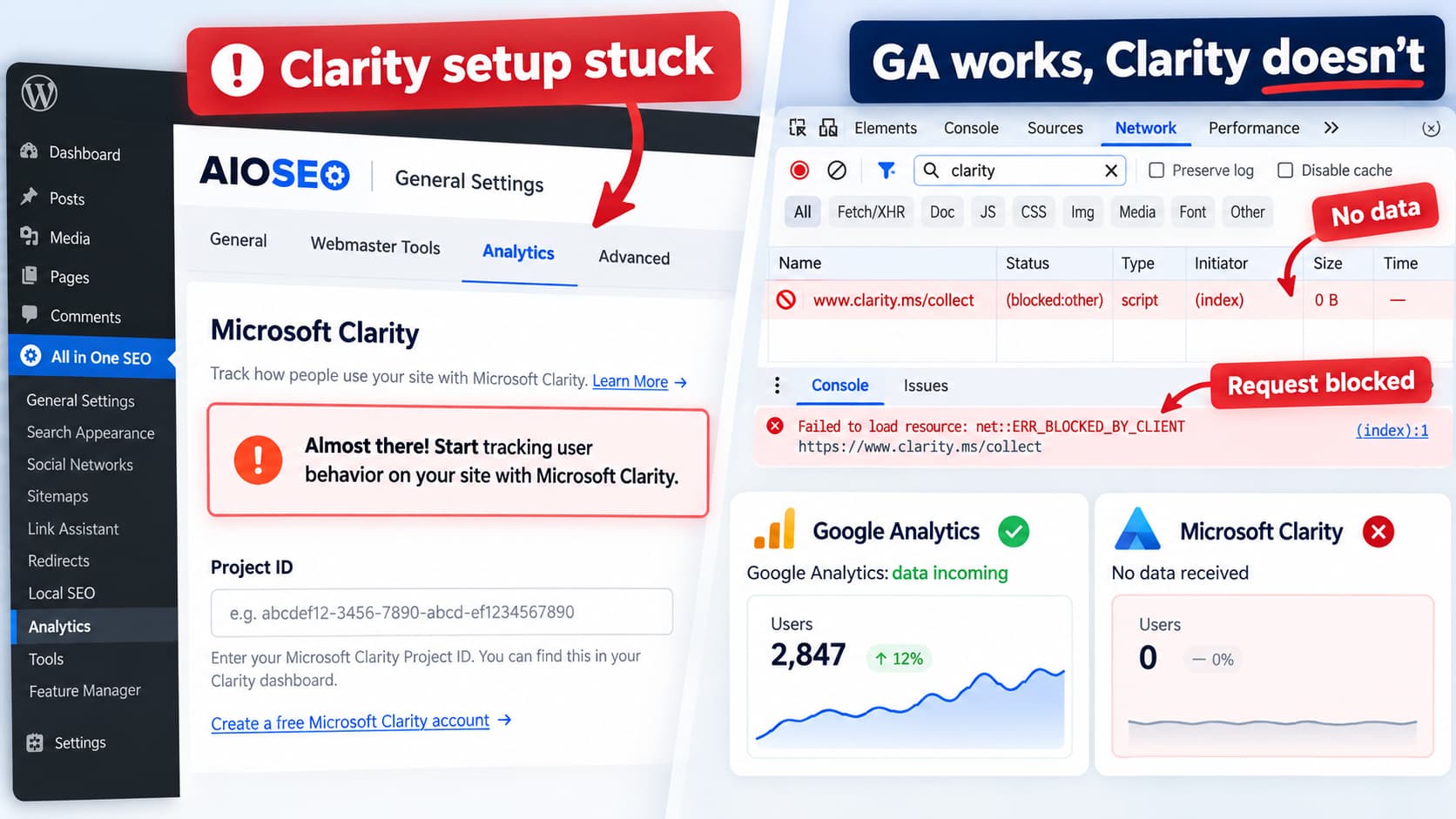
If AIOSEO continues displaying a Microsoft Clarity setup prompt such as:
Almost there! Start tracking user behavior on your site with Microsoft Clarity.
See exactly where on your site users click, scroll, and get stuck.
It takes just a few moments to set up.
while the SEO Checklist has no pending tasks and the Clarity dashboard receives no data, do not use the checklist message alone to determine whether Clarity is installed.
The important question is whether the Clarity tracking script is actually present on the public site and sending requests to Microsoft.
Google Analytics receiving traffic does not prove that Clarity is working. GA and Clarity use separate tracking code and separate collection endpoints.
A correct diagnosis takes only a few checks:
- Confirm the Clarity Project ID saved in AIOSEO.
- Confirm the tracking script appears on the frontend.
- Look for requests to
clarity.ms. - Verify POST requests to
www.clarity.ms/collect. - If the script is missing or blocked, investigate caching, security policies, and consent handling.
Check the Microsoft Clarity Project ID in AIOSEO
AIOSEO’s current documentation says Clarity is configured from:
All in One SEO → General Settings → Webmaster Tools → Microsoft Clarity
The value required by AIOSEO is the Clarity Project ID. After entering it, save the settings. AIOSEO then handles adding the Clarity tracking code to the site.
Open your Microsoft Clarity project and find its Project ID.
Then compare it with the value saved in AIOSEO.
Do not compare only the project name or website URL. Each Clarity project has its own unique tracking code and ID. Microsoft specifically recommends confirming that the tracking code on the website belongs to the project whose dashboard you are viewing.
If necessary:
- Copy the Project ID again from Clarity.
- Delete the existing value in AIOSEO.
- Paste the Project ID.
- Click Save Changes.
- Purge the site’s cache.
- Reload a public page in a private browser window.
Verify That Clarity Is Actually in the Page Source
Do not rely on AIOSEO’s dashboard message for this test.
Open the site’s homepage while logged out of WordPress.
Use View Page Source and search for:
clarity.msor:
clarity.ms/tag/A working Clarity installation normally loads a script whose source contains the Clarity project identifier.
Microsoft requires the tracking code to be loaded on the pages being monitored and recommends comparing the installed script against the code supplied by the relevant Clarity project.
If clarity.ms Is Missing
Clarity is not currently being injected into that page.
The problem is therefore before data collection even begins.
Check:
- whether the Clarity Project ID is actually saved;
- whether AIOSEO’s Microsoft Clarity integration is enabled;
- full-page caching;
- CDN caching;
- optimization plugins that alter scripts;
- conditional script managers;
- whether another plugin or custom code removes scripts from the page head.
Purge every applicable cache layer after changing the setting.
That can include:
- WordPress page cache;
- hosting cache;
- Cloudflare or another CDN;
- browser cache.
Then test while logged out.
Use DevTools to Verify Clarity Requests
Finding the script in HTML is helpful, but the strongest test is whether the browser actually executes it.
Open the public website and press:
F12or open Developer Tools → Network.
Reload the page and search the Network panel for:
clarityYou should see Clarity-related requests.
Microsoft provides an even more specific verification method: interact with the site and look for POST requests to:
https://www.clarity.ms/collectIf those requests appear, the tracking client is running and sending telemetry.
This test divides the problem into useful categories.
No Clarity Script and No /collect Requests
The integration is not being output correctly.
Concentrate on AIOSEO configuration, caching, or script removal.
Clarity Script Loads but No /collect Requests Appear
Something is preventing Clarity from collecting or transmitting data.
Check the browser console, Content Security Policy, consent implementation, extensions, and network filtering.
/collect Requests Are Successfully Sent but Dashboard Is Empty
The website is transmitting data, so verify:
- that you are looking at the correct Clarity project;
- that the installed Project ID matches that project;
- that you signed into the expected Clarity account/authentication provider;
- the dashboard’s date filters.
Microsoft recommends visiting the site and allowing some time for dashboard processing when diagnosing an empty project. Its documentation notes that real-time activity can appear immediately, while other dashboard data can take longer to populate.
Check for the Wrong Clarity Project
This is easy to miss if several projects exist in the same Microsoft Clarity account.
Microsoft explicitly recommends comparing the tracking script installed on the website with the tracking code from:
Clarity → Settings → Setup → Installation methods
If the project identifier is different, the site’s traffic may be going into another Clarity project.
This can create a confusing situation where:
- AIOSEO appears configured;
- the tracking script exists;
- Clarity requests are being sent;
- but the dashboard you are checking stays empty.
Always verify the Project ID, not just the domain name.
Check the Browser Console for Content Security Policy Errors
A Content Security Policy can allow Google Analytics while blocking Microsoft Clarity.
That is another reason why working GA traffic does not prove that Clarity should also work.
Open:
Developer Tools → Console
and reload the page.
Look for messages containing:
Content Security Policyclarity.msor:
c.bing.comMicrosoft states that if a site uses CSP, Clarity domains must be permitted or the browser can block Clarity resources and affect dashboard data.
Microsoft’s current example includes Clarity sources such as:
https://*.clarity.ms
https://c.bing.com
Do not blindly replace your site’s CSP with an example copied from documentation.
CSP controls important browser security boundaries. If the console confirms that CSP is the problem, update the existing policy narrowly and test it on staging where possible.
Check Cookie Consent and Consent Mode
Consent configuration has become particularly important for Clarity.
Microsoft began enforcing consent-signal requirements for visitors from the EEA, UK, and Switzerland on October 31, 2025. Clarity’s behavior can therefore depend on whether your cookie banner or Consent Management Platform correctly communicates the visitor’s analytics consent.
If you use:
- CookieYes;
- Complianz;
- Cookiebot;
- Google Consent Mode;
- a custom cookie banner;
- another CMP;
test Clarity both before and after granting analytics consent.
Open the Network panel and check whether /collect requests occur.
Do not solve a consent problem by simply removing a legally required consent mechanism. Fix the integration between the consent system and Clarity instead.
Microsoft documents both supported CMP approaches and its Clarity Consent API for communicating consent state.
Test Without Browser Extensions
Ad blockers and privacy extensions can block analytics services locally.
Test the site using:
- a private/incognito window;
- a browser profile without extensions;
- or another browser.
Then check the Network panel again.
If /collect appears in a clean browser but not in your normal browser, the site may already be configured correctly and your own extension is blocking your test session.
Do not judge site-wide tracking solely from a browser containing aggressive privacy extensions.
Check Optimization and Script-Delay Features
JavaScript optimization tools can also interfere with analytics scripts.
Temporarily test without features such as:
- Delay JavaScript;
- Defer JavaScript;
- combine JavaScript;
- script manager exclusions;
- third-party script delay;
- interaction-based loading.
Common performance plugins and hosting platforms can delay third-party analytics until interaction.
That does not necessarily mean the optimization feature is defective. It may simply need a Clarity exclusion.
After changing optimization settings:
- purge all caches;
- open a private window;
- reload the page;
- check the Network panel again.
If Clarity begins working when script optimization is disabled, re-enable optimization and exclude only the Clarity resources that require immediate execution.
Check Whether Clarity Appears on Every Relevant Page
Microsoft notes that Clarity can only track pages where its script has been installed.
Check several URLs:
//about//contact/and, for WooCommerce sites:
/product/example-product/If Clarity appears only on some pages, look for conditional headers, page-builder templates, custom landing-page templates, or optimization exclusions.
Why Google Analytics Can Work While Clarity Does Not
Google Analytics and Microsoft Clarity are independent systems.
A site might contain a functional GA4 tag such as:
googletagmanager.comwhile containing no Clarity script at all.
Or the site’s security policy might allow Google domains but block:
*.clarity.msLikewise, a consent plugin could be configured correctly for Google Analytics but not Clarity.
Use GA traffic only as evidence that the site has visitors. It is not evidence that Microsoft’s tracking code is installed.
What About the Persistent “Almost There!” Message?
AIOSEO’s SEO Checklist tracks tasks separately from the actual Microsoft Clarity collection service.
AIOSEO’s current documentation explains that checklist tasks can appear as incomplete or completed, and that tasks can also be dismissed when they do not apply.
However, if the message remains and Clarity also has no incoming data, do not dismiss the notice first.
Verify the actual integration.
Once you have confirmed:
clarity.ms/tag/loads with the correct Project ID and:
www.clarity.ms/collectrequests are being transmitted, then a persistent AIOSEO checklist or dashboard prompt becomes primarily an admin-interface/status issue rather than a tracking problem.
At that point:
- update AIOSEO;
- clear browser and site caches;
- reload the AIOSEO dashboard;
- check the SEO Checklist’s Completed tab;
- dismiss an optional Clarity task if appropriate.
WordPress.org currently lists All in One SEO 5.0.2.1 as the latest release. There is no evidence in its published changelog that this particular Clarity status issue is specifically fixed in that release, so updating should be considered normal troubleshooting rather than a guaranteed solution.
Fastest Diagnostic Sequence
The most efficient troubleshooting order is:
- Open AIOSEO → General Settings → Webmaster Tools → Microsoft Clarity.
- Verify the Project ID.
- Save the settings again.
- Purge all caches.
- Open the site while logged out.
- Search page source for
clarity.ms/tag/. - Open DevTools → Network.
- Search for
clarity. - Interact with the page.
- Look for POST requests to
/collect.
From there:
| Result | Most likely area to investigate |
|---|---|
| No Clarity script | AIOSEO configuration, caching, script output |
| Script exists, no requests | CSP, JavaScript blocking, consent, optimization |
/collect is blocked | Browser/network/CSP/security layer |
/collect succeeds | Project ID, account/project selection, dashboard delay |
| Data works but AIOSEO prompt remains | AIOSEO checklist/status display |
How to Verify the Fix
Do not consider the problem solved simply because the WordPress notice disappears.
Use the actual Clarity connection as the verification.
Open the site’s frontend and confirm:
- the correct Clarity tracking script loads;
- the Project ID matches the Clarity project;
- the browser sends
/collectrequests; - no Clarity-related CSP or JavaScript errors appear;
- real-time activity appears in the correct Clarity project;
- recordings/dashboard data begins populating.
Microsoft specifically documents the /collect request as a method for verifying installation.
If those checks pass but AIOSEO still displays the setup promotion, the remaining issue is the AIOSEO task/status interface rather than Microsoft Clarity data collection.
