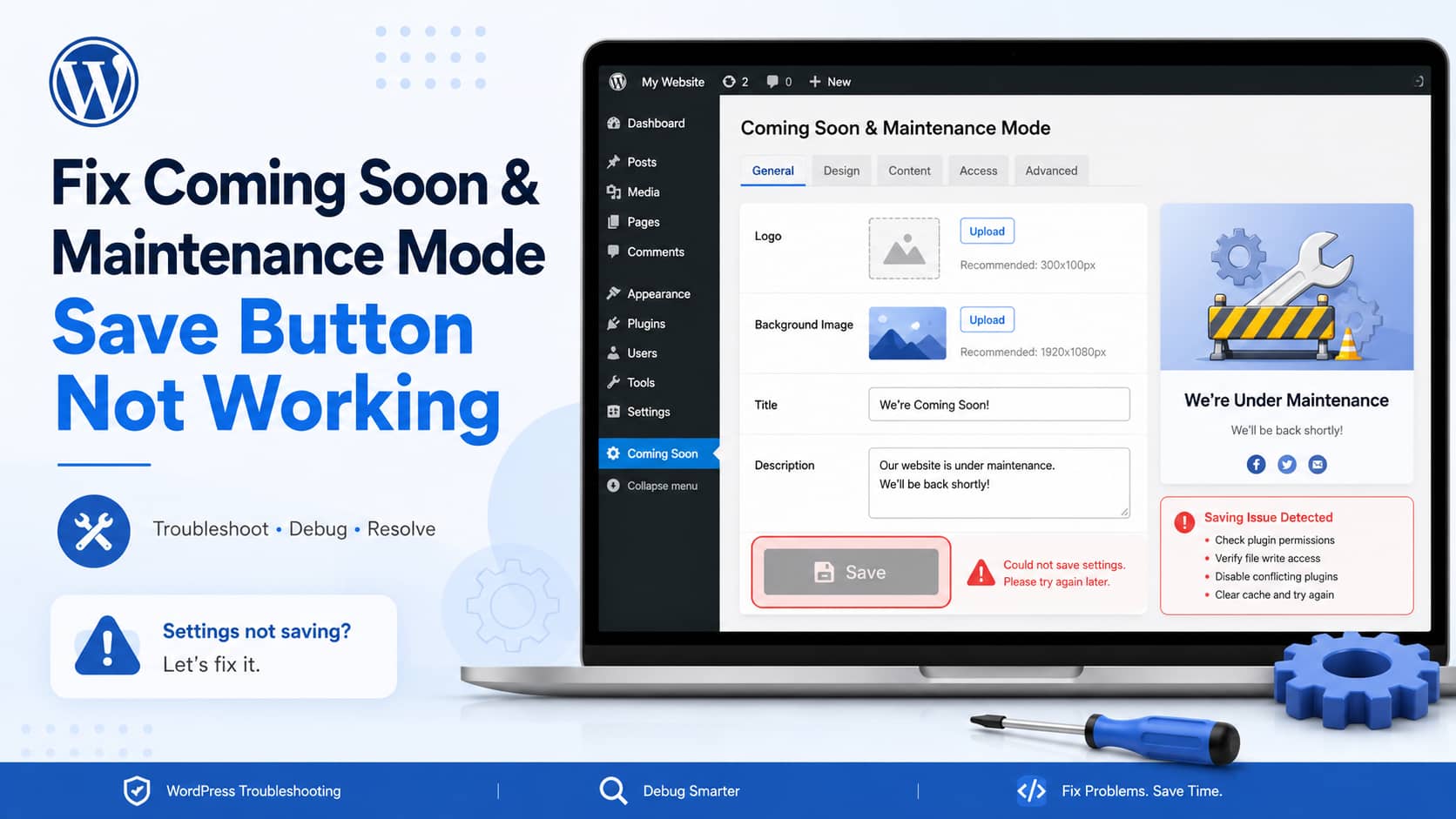
The Coming Soon and Maintenance Mode plugin normally allows you to upload a logo, choose a background image, edit the page title, add a description, and save each section from the WordPress dashboard.
However, some users may encounter a problem where none of the plugin’s save buttons respond.
The symptoms may include:
- The individual Save buttons do nothing.
- The Save All Sections button does nothing.
- The buttons do not visually react when clicked.
- Uploaded logos or background images disappear after reloading.
- The issue occurs in both Safari and Chrome.
- No success message or visible error appears.
One reported configuration involved:
- Coming Soon and Maintenance Mode plugin version 3.8.8
- WordPress 7.0.2
- Twenty Twenty-Five theme
When a button does not react at all, the problem is usually not the uploaded image or entered text. It normally means the JavaScript responsible for handling the button click did not load or stopped because of an error.
The Most Likely Cause
The strongest clue is the compatibility difference between the installed plugin and WordPress core.
At the time of writing, version 3.8.8 is the latest listed version of the WpDevArt Coming Soon and Maintenance Mode plugin. Its WordPress.org page says that it has been tested up to WordPress 6.9.5, while the affected site is using WordPress 7.0.2.
This does not prove that WordPress 7.0.2 is the cause, but it makes a compatibility problem one of the first things to investigate.
The plugin’s own FAQ also specifically addresses a non-working Save button and recommends contacting the developer for a newer version.
WordPress 7.0.2 is a security release, so downgrading a production website is not the recommended permanent solution. Any older-version testing should be performed only on a staging or local copy.
Before You Start
Create a complete backup before troubleshooting.
The backup should include:
- WordPress files
- The database
- Uploaded media
- Plugin settings
- The
wp-config.phpfile
When possible, copy the live website to a staging environment and perform the following tests there.
Also take screenshots of the current Coming Soon plugin settings. Reinstalling or replacing the plugin could remove saved configuration data.
Solution 1: Clear Browser and WordPress Caches
Start with the simplest fix.
Clear the browser cache
In Chrome on Windows, press:
Ctrl + Shift + ROn macOS, press:
Command + Shift + RYou can also open the plugin settings in an Incognito or Private Browsing window.
Disable browser extensions temporarily
Browser extensions can interfere with WordPress admin scripts. Temporarily disable:
- Ad blockers
- Privacy extensions
- Script blockers
- Password managers
- Browser security extensions
Reload the plugin settings and test the Save button again.
Clear website caching
Clear all available caching layers:
- WordPress caching plugin
- Hosting cache
- Object cache
- Redis or Memcached
- CDN cache
- Cloudflare cache
Although WordPress admin pages should not normally be cached, an incorrectly configured optimization or CDN rule can still affect plugin scripts.
Solution 2: Check the Browser Console for JavaScript Errors
Because the Save button does not respond visually, checking the browser console is one of the most important diagnostic steps.
WordPress recommends using the browser console when interactive admin features, buttons, media tools, or draggable elements stop working because these problems are often caused by JavaScript errors or conflicts.
Check in Chrome
- Open the Coming Soon plugin settings.
- Press
F12orCtrl + Shift + I. - Select the Console tab.
- Clear existing messages.
- Click one of the Save buttons.
- Look for red errors.
Common messages may include:
Uncaught TypeErrorjQuery is not definedCannot read properties of undefinedFailed to load resourceMixed Content403 ForbiddenUnexpected tokenThe first red error is normally the most important because later errors may only be side effects.
Check in Safari
First enable the Develop menu:
- Open Safari settings.
- Select Advanced.
- Enable Show Develop menu in menu bar.
- Open the plugin settings.
- Select Develop > Show JavaScript Console.
- Click Save and inspect the errors.
If Safari and Chrome show a similar JavaScript error, the problem is almost certainly coming from the website rather than the browser.
Solution 3: Inspect the Save Request in the Network Panel
The next step is to determine whether clicking Save sends a request to WordPress.
- Open browser developer tools.
- Select the Network tab.
- Filter the requests by Fetch/XHR.
- Click the plugin’s Save button.
- Look for a request to
admin-ajax.phpor another WordPress endpoint.
WordPress plugins commonly send admin-side AJAX requests through:
/wp-admin/admin-ajax.phpThe official WordPress developer documentation states that WordPress AJAX requests are processed through wp-admin/admin-ajax.php.
What the result means
No request appears
If absolutely no network request appears after clicking Save, the plugin’s click handler probably did not initialize.
Likely causes include:
- A JavaScript error
- A missing plugin script
- Script optimization changing execution order
- WordPress compatibility problems
- An invisible element covering the button
- An incomplete or corrupted plugin installation
The request returns 403 Forbidden
A 403 response commonly indicates that the request is being blocked by:
- A security plugin
- A web application firewall
- ModSecurity
- Cloudflare
- Hosting security rules
- An expired WordPress nonce
- Password protection on
wp-admin - A server rule blocking
admin-ajax.php
Clear all caches, log out, log back in, and test again.
Ask the hosting provider to check whether requests to the following file are being blocked:
/wp-admin/admin-ajax.phpDo not disable the firewall permanently. Instead, identify and whitelist the exact false-positive rule.
The request returns 500 Internal Server Error
A 500 response usually means that PHP encountered an error while processing the save request.
Enable WordPress debugging and inspect the PHP error log using the steps later in this article.
The request returns 200 but settings are not saved
A successful HTTP status does not always mean the operation succeeded. Open the request and inspect its response.
Possible responses include:
-10falseInvalid nonceYou are not allowed to do thisThese responses can indicate a nonce, user permission, AJAX action, or plugin compatibility problem.
Solution 4: Perform a Plugin Conflict Test
Even when the website uses a default WordPress theme, another plugin may prevent the Coming Soon plugin’s scripts from working.
Create a backup and perform this test on staging when possible.
- Deactivate every plugin except Coming Soon and Maintenance Mode.
- Reload the plugin settings.
- Test the Save button.
- If the button works, reactivate the other plugins one at a time.
- Test the Save button after each activation.
Pay particular attention to:
- JavaScript optimization plugins
- Cache plugins
- Admin customization plugins
- Security plugins
- Media library plugins
- Login protection plugins
- White-label dashboard plugins
- Plugins that disable WordPress features
- Plugins that modify jQuery
The Twenty Twenty-Five theme is unlikely to be responsible because this problem happens inside the WordPress administration area, but temporarily keeping a default theme active is still useful during a full conflict test.
Solution 5: Disable JavaScript Optimization in the Admin Area
Some performance plugins combine, delay, defer, or minify JavaScript too aggressively.
Temporarily disable features such as:
- Combine JavaScript
- Defer JavaScript
- Delay JavaScript execution
- Remove jQuery Migrate
- Minify JavaScript
- Cloudflare Rocket Loader
- Admin page optimization
Clear all caches after changing these settings.
WordPress admin scripts should generally be excluded from front-end optimization. Make sure these paths are not being cached or optimized:
/wp-admin/*/wp-login.php/wp-admin/admin-ajax.phpIf disabling optimization fixes the Save button, restore the optimization features one at a time and add exclusions for the affected plugin scripts.
Solution 6: Reinstall the Plugin
An interrupted update or damaged JavaScript file can make the settings interface appear normally while leaving its buttons unusable.
Before reinstalling:
- Take a database backup.
- Take screenshots of every existing setting.
- Download any logo or background image you may need.
- Confirm that you have access to WordPress through File Manager or FTP.
Then:
- Go to Plugins > Installed Plugins.
- Deactivate Coming Soon and Maintenance Mode.
- Delete the plugin.
- Go to Plugins > Add New.
- Search for Coming Soon and Maintenance Mode by WpDevArt.
- Install and activate the latest version.
- Clear browser and website caches.
- Test the Save button before changing other settings.
Deleting a plugin does not always delete its database options, but this depends on how the plugin handles uninstallation. Never assume that settings will remain without a backup.
Solution 7: Enable WordPress Debug Logging
If the Save request generates a server error, enable logging in wp-config.php.
Open the file and add or update these lines above:
/* That's all, stop editing! Happy publishing. */Use:
define( 'WP_DEBUG', true );
define( 'WP_DEBUG_LOG', true );
define( 'WP_DEBUG_DISPLAY', false );
@ini_set( 'display_errors', 0 );
Do not add duplicate constants if WP_DEBUG or WP_DEBUG_LOG already exists. Edit the existing values instead.
WordPress will normally write errors to:
/wp-content/debug.logWordPress officially documents WP_DEBUG_LOG as the method for saving errors to the debug log when WP_DEBUG is enabled.
After enabling logging:
- Return to the plugin settings.
- Click Save.
- Open
wp-content/debug.log. - Check the latest entries.
- Look for references to
coming-soon-page, WpDevArt, AJAX, PHP fatal errors, deprecated functions, or database errors.
Example:
PHP Fatal error: Uncaught TypeError ...The file path and line number following the error can identify the plugin file responsible.
After troubleshooting, disable debug mode:
define( 'WP_DEBUG', false );
define( 'WP_DEBUG_LOG', false );
define( 'WP_DEBUG_DISPLAY', false );
Debug logs may contain private filesystem paths or other sensitive details. Do not leave them publicly accessible.
Solution 8: Check WordPress URLs and HTTPS Configuration
Incorrect WordPress URL settings can cause the plugin interface to load from one domain while attempting to save through another.
Go to:
Settings > GeneralConfirm that WordPress Address and Site Address use the same:
- Domain
- HTTPS protocol
wwwor non-wwwformat- Subdirectory structure
For example, avoid configurations such as:
WordPress Address: http://example.com
Site Address: https://www.example.com
The correct configuration should normally use one consistent format:
https://example.comAlso check the browser console for mixed-content or CORS errors.
If the site recently moved to HTTPS, run a safe database search-and-replace to update old HTTP URLs. Always back up the database before performing a replacement.
Solution 9: Check Security and Firewall Rules
A security system may allow the plugin settings page to load while blocking the request that saves its configuration.
Temporarily test with the WordPress security plugin disabled.
Also inspect:
- Hosting firewall logs
- ModSecurity logs
- Cloudflare Security Events
- Country-blocking rules
- Bot protection
- Custom
.htaccessrestrictions - Password protection on the WordPress admin directory
WordPress warns that incorrectly protecting the entire wp-admin directory can break functionality such as the AJAX handler.
If disabling the security layer fixes the issue, do not leave security disabled. Find the blocked request and create a targeted exception.
Solution 10: Test WordPress Compatibility on Staging
The plugin is listed as tested through WordPress 6.9.5, while the reported site is running WordPress 7.0.2.
To confirm whether this is a compatibility issue:
- Create a staging copy of the website.
- Keep the live website on WordPress 7.0.2.
- Back up the staging site.
- Test the plugin on WordPress 6.9.5 in staging only.
- Check whether the Save buttons begin working.
- Restore or delete the staging copy after testing.
If the buttons work on WordPress 6.9.5 but fail on 7.0.2 with the same plugin and site configuration, you have strong evidence of a compatibility problem.
Do not leave the production website on an older WordPress release. WordPress 7.0.2 contains security fixes, making a permanent production downgrade unsafe.
The safer options are:
- Request a compatible plugin update from the developer.
- Replace the plugin with one tested on the current WordPress version.
- Use a temporary custom maintenance page.
- Wait for an official plugin update while using an alternative solution.
Emergency Workaround: Create a Maintenance Page Without the Plugin
When the website must be placed into maintenance mode immediately, you can create a small must-use plugin.
This bypasses the broken settings interface completely.
Step 1: Create the MU Plugins folder
Using FTP or your hosting File Manager, open:
/wp-content/Create this folder if it does not already exist:
mu-pluginsStep 2: Create the maintenance file
Inside mu-plugins, create:
debugnexus-maintenance.phpAdd the following code:
<?php
/**
 * Plugin Name: DebugNexus Temporary Maintenance Mode
 * Description: Displays a 503 maintenance page to visitors while allowing administrators to access the website.
 * Version: 1.0.0
 */

defined( 'ABSPATH' ) || exit;

add_action( 'template_redirect', function () {

    // Allow administrators to view the website normally.
    if ( is_user_logged_in() && current_user_can( 'manage_options' ) ) {
        return;
    }

    // Do not interfere with the WordPress dashboard.
    if ( is_admin() ) {
        return;
    }

    // Allow AJAX and scheduled tasks.
    if ( function_exists( 'wp_doing_ajax' ) && wp_doing_ajax() ) {
        return;
    }

    if ( function_exists( 'wp_doing_cron' ) && wp_doing_cron() ) {
        return;
    }

    // Allow REST API requests.
    if ( defined( 'REST_REQUEST' ) && REST_REQUEST ) {
        return;
    }

    $request_uri = isset( $_SERVER['REQUEST_URI'] )
        ? sanitize_text_field( wp_unslash( $_SERVER['REQUEST_URI'] ) )
        : '';

    // Keep login and admin URLs accessible.
    if (
        strpos( $request_uri, 'wp-login.php' ) !== false ||
        strpos( $request_uri, '/wp-admin' ) !== false
    ) {
        return;
    }

    status_header( 503 );
    nocache_headers();
    header( 'Retry-After: 3600' );

    $site_name = esc_html( get_bloginfo( 'name' ) );

    echo '<!doctype html>
    <html lang="en">
    <head>
        <meta charset="utf-8">
        <meta name="viewport" content="width=device-width, initial-scale=1">
        <meta name="robots" content="noindex, nofollow">
        <title>Website Maintenance - ' . $site_name . '</title>
        <style>
            * {
                box-sizing: border-box;
            }

            body {
                min-height: 100vh;
                margin: 0;
                display: flex;
                align-items: center;
                justify-content: center;
                padding: 24px;
                background: #f4f6f8;
                color: #1d2327;
                font-family: Arial, sans-serif;
                text-align: center;
            }

            .maintenance-box {
                width: 100%;
                max-width: 680px;
                padding: 48px 32px;
                background: #ffffff;
                border-radius: 16px;
                box-shadow: 0 12px 40px rgba(0, 0, 0, 0.08);
            }

            h1 {
                margin: 0 0 18px;
                font-size: clamp(32px, 6vw, 52px);
                line-height: 1.1;
            }

            p {
                margin: 0;
                font-size: 18px;
                line-height: 1.7;
                color: #50575e;
            }
        </style>
    </head>
    <body>
        <main class="maintenance-box">
            <h1>We will be back soon</h1>
            <p>Our website is currently undergoing scheduled maintenance. Thank you for your patience while we make improvements.</p>
        </main>
    </body>
    </html>';

    exit;
}, 0 );
Must-use plugins activate automatically. You do not need to activate this file from the WordPress Plugins page.
Administrators who are logged in will continue to see the normal website. Logged-out visitors will receive the maintenance page with an HTTP 503 response.
To disable maintenance mode, rename or delete:
/wp-content/mu-plugins/debugnexus-maintenance.phpWhat Information Should You Send to the Plugin Developer?
When reporting the problem, include:
- Plugin version: 3.8.8
- WordPress version: 7.0.2
- PHP version
- Active theme
- List of active plugins
- Browser console error
- Failed Network request
- HTTP response code
- Relevant
debug.logentries - Confirmation that the problem occurs in multiple browsers
- Results of the plugin conflict test
- Results of testing on WordPress 6.9.5 staging
A useful support message would be:
The Save and Save All buttons in Coming Soon and Maintenance Mode 3.8.8 do not respond on WordPress 7.0.2. The problem occurs in both Chrome and Safari with the Twenty Twenty-Five theme. I also tested after clearing caches and disabling other plugins. Here is the browser console error and the response from the failed save request.
This gives the developer enough technical information to reproduce and fix the problem.
Frequently Asked Questions
Is the Twenty Twenty-Five theme causing the problem?
Probably not. The failure occurs inside the WordPress administration dashboard, where the active front-end theme has limited involvement.
A theme conflict is still possible, but a JavaScript, plugin, AJAX, security, or compatibility issue is more likely.
Should I downgrade WordPress?
Do not downgrade the live website as a permanent solution.
WordPress 7.0.2 is a security release. An older version may be used temporarily on an isolated staging site to confirm compatibility, but production should remain fully updated.
Can large logo or background images prevent saving?
A large image can cause an upload failure, timeout, or server limit error. However, it normally would not cause every Save button to become completely unresponsive.
If the button does not react before any request is sent, investigate JavaScript first.
What does a blank or unresponsive button usually mean?
It usually means that the script responsible for handling the button click did not initialize, encountered an error, or was blocked.
Check the Console and Network panels before modifying database or server permissions.
Will changing file permissions fix it?
Probably not if the settings page and media uploads already load normally.
Plugin settings are generally saved to the WordPress database rather than written directly into the plugin directory. File permissions may matter if plugin files are missing or unreadable, but they are not the first thing to change for an unresponsive admin button.
Typical secure permissions are:
Directories: 755
Files: 644
Do not set files or directories to 777.
Final Recommended Fix Order
Use this order to avoid unnecessary changes:
- Create a backup or staging copy.
- Hard-refresh the settings page.
- Test in a private browser window.
- Check the browser Console.
- Check the Network request and response.
- Clear all caching and optimization.
- Disable other plugins temporarily.
- Check firewall and security logs.
- Reinstall plugin version 3.8.8.
- Enable WordPress debug logging.
- Test WordPress 6.9.5 on staging only.
- Contact the plugin developer with the collected errors.
- Replace the plugin or use the temporary maintenance code if compatibility is confirmed.
Conclusion
When the Save buttons in the Coming Soon and Maintenance Mode plugin do not react at all, the most likely cause is a broken or incompatible admin-side JavaScript process.
In this particular version combination, plugin 3.8.8 is officially listed as tested through WordPress 6.9.5, while the affected website is running WordPress 7.0.2. This makes compatibility a serious possibility, but the browser console, AJAX response, conflict test, and debug log should be checked before declaring it the confirmed cause.
Keep WordPress 7.0.2 installed because it contains security fixes. Troubleshoot the plugin on staging, send the diagnostic information to the developer, and use an alternative maintenance solution if an updated compatible version is not yet available.