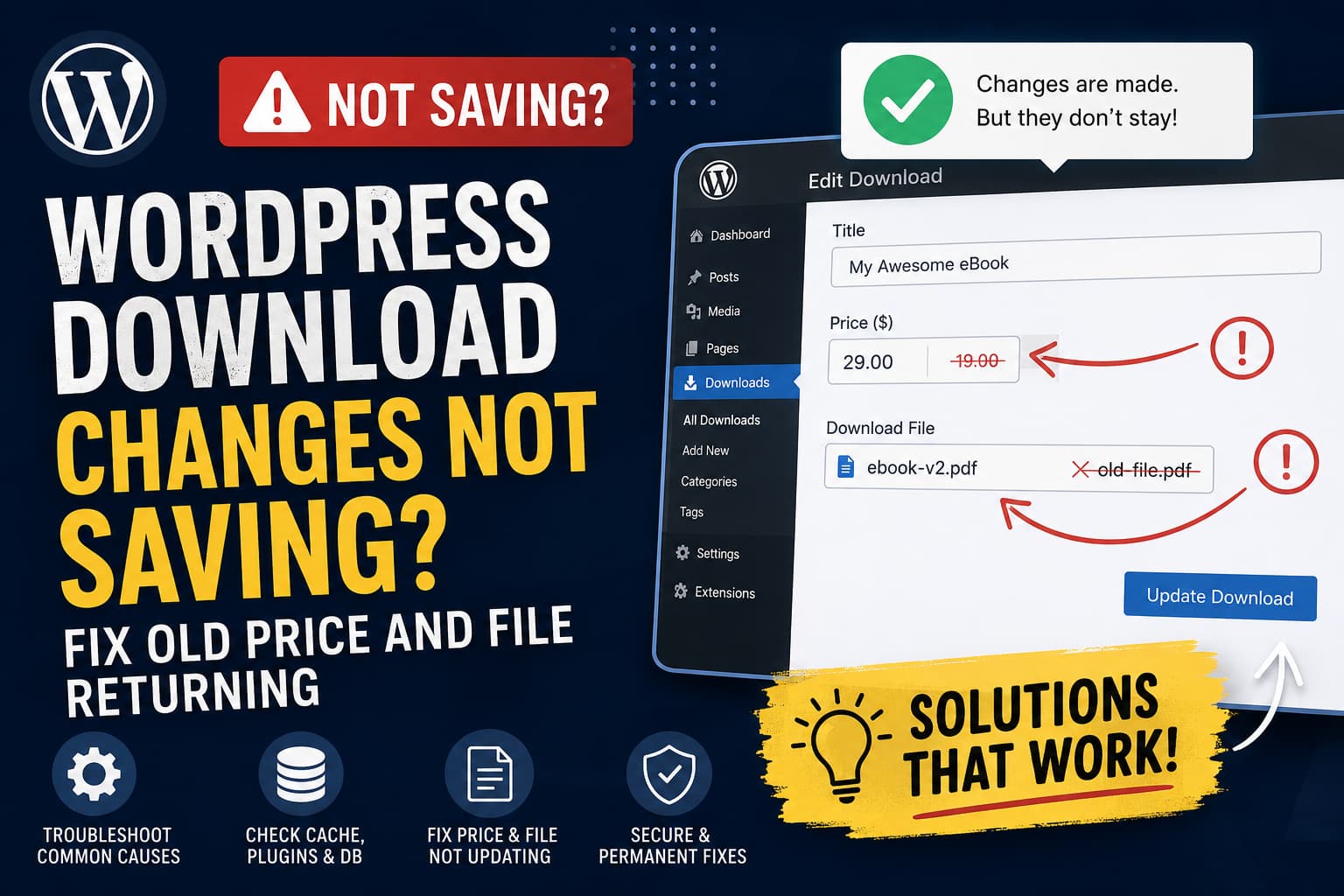
This problem commonly affects websites using a plugin that stores downloadable products separately from the main WordPress post content. Easy Digital Downloads is one example, although similar symptoms can occur with other download-management and ecommerce plugins.
In many cases, WordPress successfully saves the product title or description, but the plugin-specific price and file fields fail to save. This can happen because of a plugin conflict, blocked administrator request, stale object cache, JavaScript error, server security rule, database problem, or a regression following a plugin update.
This guide explains how to identify the cause and restore normal saving without risking your existing products.
Symptoms of the Problem
You may be experiencing this issue when:
- You edit the price of a downloadable product.
- You replace or update the downloadable file.
- WordPress shows an update or success message.
- You leave the edit screen.
- The old price returns when you open the product again.
- The old downloadable file is still assigned.
- The product title or description may save normally.
- The problem affects one or all downloadable products.
The important detail is that the old values return inside the WordPress editor. This usually means the new information was not stored successfully, rather than visitors merely seeing a cached front-end page.
Why WordPress Says the Changes Were Saved
A downloadable product can contain several different types of information.
The title, content, status, author, and publication date are handled by WordPress. However, fields such as the following may be handled separately by the download plugin:
- Product price
- Variable prices
- Downloadable file URL
- File name
- Download limits
- Licensing settings
- Purchase button behavior
WordPress may successfully update the main post while the plugin fails to save one or more of its additional fields.
This explains why an update confirmation can appear even though the old price and file return later.
Back Up the Website Before Troubleshooting
Create a complete backup before changing plugins, clearing database caches, or rolling back an update.
The backup should include:
- WordPress files
- The WordPress database
- Uploaded downloadable files
- Plugin settings
- Custom code
- Server configuration where possible
Perform plugin conflict testing and version rollbacks on a staging website whenever one is available.
Solution 1: Confirm You Are Editing the Correct Download
Before performing technical troubleshooting, confirm that you are not editing a duplicate product, translation, revision, or staging copy.
Check the following:
- Note the download or product ID shown in the browser address.
- Edit the price and add a temporary word to the title.
- Save the product.
- Return to the complete Downloads or Products list.
- Reopen the same product ID.
- Confirm whether the title, price, and file were saved.
If the title changes but the price and file do not, the problem is probably limited to the plugin’s custom fields.
If nothing saves, investigate WordPress permissions, database writes, security restrictions, or the entire update request.
Solution 2: Clear Browser, Plugin, Server, and Object Cache
A normal front-end page cache should not cache the WordPress administrator area. However, an incorrect cache rule can affect administrator requests or cause WordPress to read stale metadata.
Clear all available cache layers:
- Browser cache
- WordPress caching plugin
- Hosting cache
- Redis or Memcached object cache
- Varnish cache
- Cloudflare or another CDN
- Persistent database query cache
After clearing the caches:
- Log out of WordPress.
- Close the browser.
- Open a private or incognito window.
- Log in again.
- Edit one download.
- Change only the price.
- Save and reopen the product.
If you use Cloudflare or a custom full-page caching rule, ensure these areas are excluded from caching:
/wp-admin/*
/wp-login.php
/wp-json/*
WordPress administrator pages, login requests, REST API requests, and AJAX requests should not be served from a public page cache.
Solution 3: Test the Price and File Separately
Do not change several fields at once during testing.
First, change only the price and save the download.
Reopen the product and check whether the price remains.
Next, update only the downloadable file and save again.
This helps identify whether:
- All plugin fields fail to save
- Only price fields are affected
- Only file fields are affected
- The issue occurs only when several fields are submitted together
If the price saves but the file does not, the problem may involve file validation, URL formatting, upload permissions, or a security rule blocking the submitted file path.
If neither field saves, a plugin save handler may not be running correctly.
Solution 4: Check the Browser Console and Network Request
A JavaScript error can prevent plugin fields from being prepared or submitted correctly.
Open the download edit page and press:
F12Open the Console tab and look for red errors.
Then open the Network tab, update the download, and inspect the save request.
Depending on the editor and plugin, the request may go to:
/wp-admin/post.php
/wp-admin/admin-ajax.php
/wp-json/
Look for HTTP responses such as:
400 Bad Request
401 Unauthorized
403 Forbidden
500 Internal Server Error
502 Bad Gateway
A 403 response commonly points to a firewall, security plugin, expired nonce, or hosting security rule.
A 500 response usually indicates a PHP fatal error or server-side failure.
A request that remains pending or is cancelled may indicate a JavaScript, proxy, or connectivity problem.
Save a screenshot of the failing request and its response before contacting the plugin developer or hosting provider.
Solution 5: Check Security Plugins and Server Firewall Rules
Security tools can block administrator requests containing file paths, URLs, encoded data, or unusual field values.
Temporarily test with security features disabled on a staging website.
Common sources include:
- WordPress security plugins
- Web application firewalls
- ModSecurity
- Cloudflare WAF rules
- Hosting malware protection
- Custom administrator restrictions
- Login or REST API protection
After temporarily disabling the suspected protection:
- Edit the download.
- Change its price.
- Replace the file.
- Save the changes.
- Reopen the download.
If the values now remain saved, re-enable the protection and review its logs. Do not leave the firewall permanently disabled.
The correct solution is to allow the specific legitimate administrator request rather than disabling security globally.
Solution 6: Test for a Plugin Conflict
Another plugin may alter the product save request, modify submitted values, or overwrite the saved metadata afterward.
Use a staging website and temporarily deactivate all plugins except the plugin responsible for the downloads.
For example, when using Easy Digital Downloads, temporarily leave only Easy Digital Downloads active.
Test saving the price and file again.
If it works, reactivate the other plugins one at a time. Test the download after every activation until the problem returns.
Pay particular attention to:
- Caching plugins
- Security plugins
- Custom-field plugins
- Multilingual plugins
- Product synchronization tools
- Import and export plugins
- Membership integrations
- Licensing extensions
- Custom administrator enhancements
- Code snippet plugins
The last plugin activated before the problem returns is likely involved in the conflict.
Solution 7: Test With a Default WordPress Theme
A theme should not normally control saving download-product data, but a theme or child theme can contain custom code that modifies product fields.
Temporarily activate a default WordPress theme on staging and test again.
If saving starts working, inspect:
functions.phpAlso inspect:
- Child-theme functions
- Custom theme integrations
- Product hooks
- Save-post callbacks
- Custom metadata code
Look for code connected to actions such as:
save_post
save_post_download
updated_post_meta
added_post_meta
A custom callback may be restoring an older price or file value every time the product is updated.
Solution 8: Check for PHP Errors
A PHP error can occur after WordPress saves the main post but before the download plugin finishes saving its price and file fields.
Temporarily enable WordPress debugging by adding the following lines to wp-config.php:
define( 'WP_DEBUG', true );
define( 'WP_DEBUG_LOG', true );
define( 'WP_DEBUG_DISPLAY', false );
Place them before this line:
/* That's all, stop editing! Happy publishing. */Update the affected download again and then inspect:
/wp-content/debug.logLook for errors recorded at the exact time the update was attempted.
Relevant messages may include:
PHP Fatal error
Uncaught TypeError
Allowed memory size exhausted
Undefined function
Database error
Permission denied
Do not leave debugging enabled unnecessarily on a production website. After testing, change the settings back or remove the added lines.
Solution 9: Check the PHP Request Limits
A downloadable product with many price options, files, licensing fields, or custom settings can exceed PHP’s request limits.
Review these PHP settings:
max_input_vars
post_max_size
upload_max_filesize
memory_limit
max_execution_time
max_input_time
A reasonable starting point for a complex WordPress administration form may be:
max_input_vars = 3000
post_max_size = 64M
upload_max_filesize = 64M
memory_limit = 256M
max_execution_time = 120
max_input_time = 120
These are examples, not universal requirements. The correct values depend on the website, hosting environment, and size of the downloadable product form.
max_input_vars is especially important when the product contains many files, variable prices, custom fields, or extension settings.
When the submitted form contains more fields than PHP accepts, later values can be discarded before WordPress or the plugin receives them.
Ask your hosting provider to check whether the administrator update request is hitting any PHP limits.
Solution 10: Temporarily Disable Persistent Object Cache
Redis or Memcached can sometimes continue returning stale product metadata after the database has changed.
Temporarily disable the persistent object cache and test the download again.
Depending on your configuration, this may involve:
- Disabling Redis from the hosting panel
- Deactivating a Redis object-cache plugin
- Removing or renaming
object-cache.php - Flushing the Redis or Memcached database
Check for this file:
/wp-content/object-cache.phpDo not delete it without understanding which plugin or hosting service created it. Rename or disable it only as part of a controlled test.
If the correct price appears after the object cache is disabled, flush the object cache and investigate its configuration before re-enabling it.
Solution 11: Check Whether the Database Accepts the New Values
When the editor shows a successful update but old values immediately return, the database may be rejecting or failing to retain the plugin metadata.
Possible causes include:
- Database user lacks write permissions
- Database table is damaged
- The site is connected to a read-only database replica
- A database optimization tool restores old values
- The application writes to one database but reads from another
- Persistent object cache returns stale values
- Custom code overwrites the updated metadata
Open:
Tools > Site HealthCheck for database, REST API, loopback, or background-request errors.
You can also ask the hosting provider to confirm:
- The database is writable
- No replication delay exists
- No read-only mode is active
- No database errors occur during the update
- The website is connected to the expected database
Avoid manually editing product metadata in phpMyAdmin unless you have a current database backup and understand the plugin’s data structure.
Solution 12: Check User Permissions
Test the update while logged in as a full WordPress administrator.
A custom user role may have permission to edit the main product but not all plugin-specific settings.
This is particularly relevant when the website uses:
- A role editor
- Membership permissions
- Multisite restrictions
- Custom administrator roles
- White-label dashboard tools
- Ecommerce staff accounts
If the update works for an administrator but not for another user, inspect the capabilities assigned to that role.
Do not grant full administrator access merely to bypass the issue. Add only the specific capabilities required by the download plugin.
Solution 13: Reinstall the Download Plugin
A failed or incomplete plugin update can leave missing or mismatched files.
Before reinstalling:
- Create a full backup.
- Confirm that the plugin stores product data in the database.
- Download the same stable plugin version from its official source.
- Deactivate the plugin.
- Replace the plugin files.
- Reactivate it.
- Test one download.
Do not use Delete unless the plugin documentation confirms that deletion will not remove settings or product data.
Replacing the plugin directory through SFTP is generally safer than deleting it from the WordPress dashboard when you are uncertain about its uninstall behavior.
Solution 14: Test Whether a Recent Update Caused the Problem
If the problem began immediately after updating the download plugin, one of its extensions, WordPress, or PHP, test the previous version on staging.
Record the following before changing anything:
- WordPress version
- PHP version
- Download plugin version
- Extension versions
- Active theme
- Browser console errors
- PHP error-log entries
- Whether all downloads are affected
- Whether the title and description still save
- Whether the price, file, or both fail
A temporary rollback can help identify the responsible update, but it should not be treated as a permanent solution without reviewing security implications.
After confirming a regression, restore the current version and send the collected evidence to the plugin developer.
Temporary Workaround: Create a New Download
When only one product is affected, creating a new download can help determine whether the original product’s metadata is corrupted.
Create a new product and manually enter:
- Product title
- Price
- Downloadable file
- Description
- Featured image
- Categories
- Purchase settings
Do not duplicate the affected product during this test, because duplication may copy the problematic metadata.
If a completely new product saves normally, the issue may be limited to the original download.
After testing, you can replace the old product carefully, but preserve important SEO and sales details such as:
- Existing URL
- Product ID dependencies
- Purchase-history relationships
- License records
- Internal links
- Redirects
Do not delete a product with existing purchases until you understand how the download plugin connects purchases to products.
Most Likely Causes
When the title and description save but the old price and file return, the most likely areas are:
- A conflict preventing the plugin’s custom fields from saving
- A JavaScript error on the edit screen
- A security rule blocking the submitted file or price data
- A PHP error during the product-save process
- A persistent object cache returning stale metadata
- A regression in the download plugin or one of its extensions
- Custom code restoring old metadata after every update
The browser Network panel and WordPress debug log usually provide the fastest path to identifying which of these is responsible.
Information to Send to Plugin Support
When contacting the plugin developer, include:
WordPress version:
PHP version:
Download plugin name and version:
Active theme:
Related extensions:
Caching system:
Security plugin or firewall:
Does the title save?
Does the price save?
Does the file save?
Are all downloads affected?
Browser console error:
HTTP status from the save request:
Relevant PHP error-log entry:
Result after deactivating other plugins:
Result with a default theme:
A complete report makes it much easier for the developer to reproduce the issue and determine whether it is a plugin bug or an environment-specific conflict.
Frequently Asked Questions
Why does WordPress say the download was updated when nothing changed?
The main WordPress post may save successfully while the plugin-specific price or file fields fail. The success notice does not always confirm that every custom field was stored.
Can caching cause old values to return inside WordPress admin?
Yes. Incorrect full-page cache rules or a stale persistent object cache can affect administrator requests or metadata reads. The WordPress admin area and its API requests should be excluded from public page caching.
Should I edit the price directly in the database?
Direct database editing is not recommended as an initial solution. Download plugins may store related settings across several fields, and changing one value manually can create inconsistencies.
Is it safe to roll back the plugin?
Use rollback only as a controlled staging test or short-term diagnostic step. Review the security impact before using an older plugin version on a public website.
What should I test first?
Start by changing only the price, checking the browser Network response, reviewing the PHP error log, clearing object cache, and testing for a plugin conflict on staging.
Final Recommendation
When WordPress download changes are not saving, do not repeatedly edit the product or immediately modify the database.
First determine whether the main post saves while only the plugin fields fail. Then check the administrator request, browser console, PHP error log, cache layers, security rules, and plugin conflicts.
If the issue began after an update and disappears when only the download plugin is active, collect the exact versions and error details and report them to the plugin developer.
A systematic test will reveal whether the old price and file are returning because the update was blocked, the plugin save process failed, another component overwrote the values, or stale data is being read from cache.
