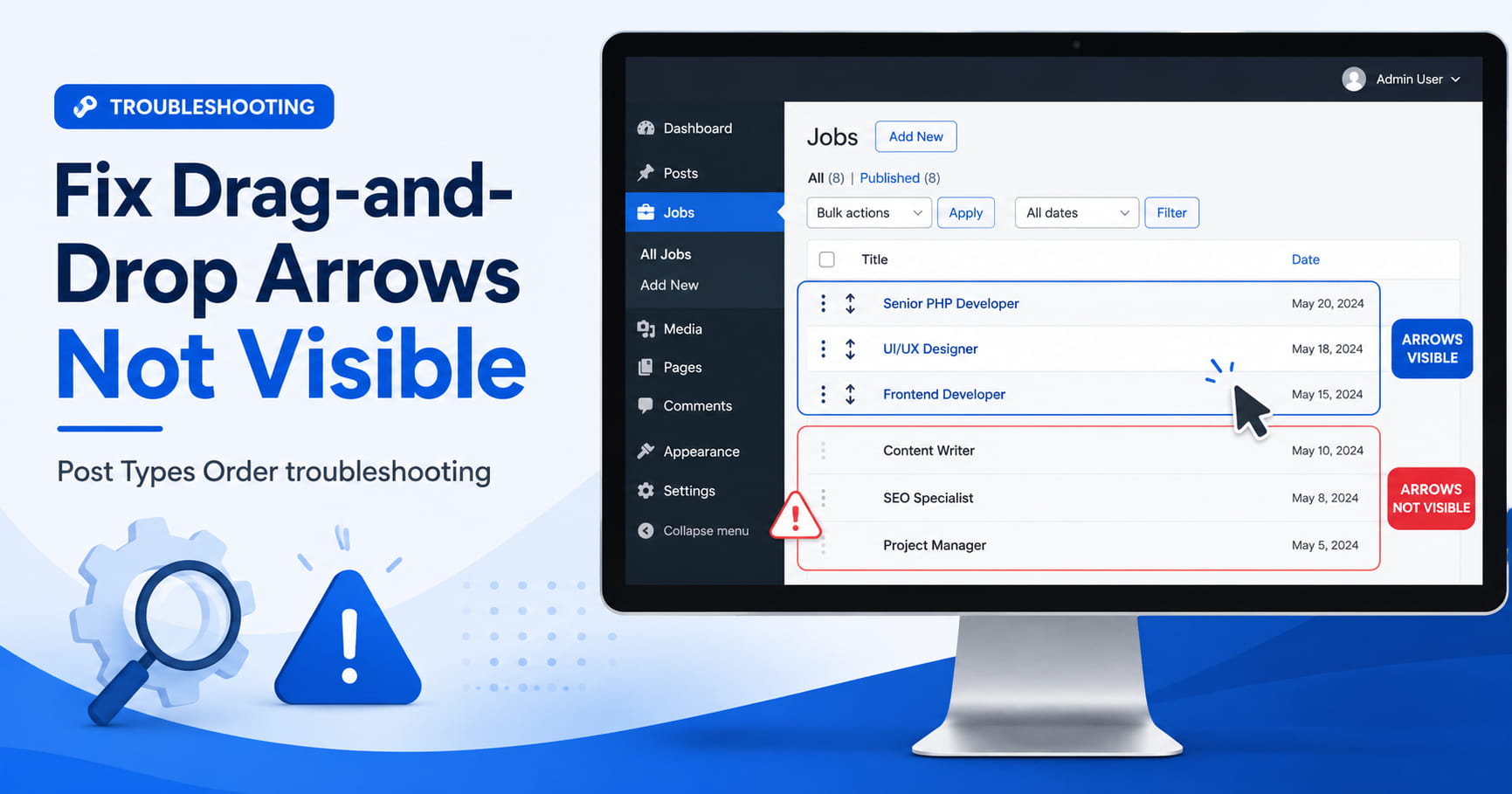
The Post Types Order plugin makes it easy to arrange WordPress posts and custom post types using a drag-and-drop interface. However, some users may find that the drag arrows are visible and working on one computer but completely missing on another.
A common example is an ACF custom post type such as “Jobs.” One administrator can see the drag handles and reorder the Jobs posts using Chrome or Safari on a Mac, while another person using Chrome or Edge on a Windows computer cannot see the arrows or move the posts.
This can be confusing when both people are using the same WordPress login. Because the account, permissions, and plugin settings are identical, the problem is more likely related to the affected computer, browser environment, blocked plugin assets, or a JavaScript conflict.
This guide explains how to identify the cause and restore the Post Types Order drag-and-drop controls.
How Post Types Order Drag and Drop Works
Post Types Order adds sorting functionality to WordPress posts and non-hierarchical custom post types. Posts can be reordered from a dedicated Re-Order screen or, when enabled, directly from the normal WordPress post archive.
The plugin places a draggable control near each post row and uses JavaScript to update the order when an item is moved. The plugin’s official documentation confirms that custom post types can be sorted through its drag-and-drop interface and that the archive interface must be enabled in the settings.
This means the feature depends on several components loading correctly:
- The Post Types Order plugin settings
- The plugin’s admin CSS
- The plugin’s JavaScript
- WordPress jQuery and sortable scripts
- The browser allowing the scripts to execute
- Other plugins not interfering with the admin interface
If the arrows are missing and dragging does not work, the issue is normally more than a simple visual problem. It often means the required stylesheet or JavaScript did not load correctly.
Why It Can Work on One Computer but Not Another
When the same WordPress account works correctly on a Mac but fails in both Chrome and Edge on one Windows computer, several causes become more likely.
Chrome and Edge use the same Chromium browser engine. They may also be affected by the same Windows security software, accessibility settings, browser policies, extensions, DNS filtering, or network restrictions.
The most likely causes include:
- A browser extension blocking or modifying WordPress admin scripts
- A security or antivirus application blocking plugin assets
- Cached or corrupted CSS and JavaScript files
- A Windows accessibility or high-contrast setting hiding the icon
- A JavaScript error preventing the sortable interface from initializing
- A plugin conflict affecting only certain browsers
- A failed or blocked request to a Post Types Order asset
- An outdated Post Types Order version
- Settings that were not saved after the custom post type was registered
The WordPress login itself is less likely to be the cause because the same account works on another device.
Start by Updating Post Types Order
Before investigating the browser, confirm that Post Types Order is updated to its latest available version.
Go to:
WordPress Dashboard > Plugins > Installed PluginsFind Post Types Order and install any available update.
The plugin has previously released fixes related to whether drag and drop is enabled for a custom post type. Its changelog also notes fixes for archive drag-and-drop loading and improvements to CSS and JavaScript asset versioning to prevent caching problems.
After updating:
- Clear the WordPress cache.
- Clear any server or CDN cache.
- Sign out of WordPress.
- Close the affected browser.
- Reopen the browser and sign in again.
Do not downgrade the plugin before completing the checks below.
Save the Post Types Order Settings Again
Post Types Order has previously documented an issue where archive drag and drop did not load until the plugin settings were saved after registering a new custom post type.
Go to:
Settings > Post Types OrderFind the settings for the affected custom post type, such as Jobs.
Confirm that archive drag-and-drop sorting is enabled. The option may be labelled similarly to:
Archive Drag & Dropor:
Show Re-Order InterfaceSet the appropriate Jobs options to Yes, then click Save Settings, even when they already appear to be enabled.
Return to:
Jobs > All JobsCheck whether the handles appear.
Also check whether a separate menu is available:
Jobs > Re-OrderIf the dedicated Re-Order screen works but the normal All Jobs screen does not, the problem is specifically related to archive drag-and-drop loading.
Test Using a Clean Browser Profile
Clearing the browser cache is useful, but it does not disable extensions or remove browser-profile settings.
The fastest test is to open the website in a completely clean browser environment.
Chrome
Open Chrome and create a temporary Guest profile:
Chrome profile icon > GuestSign in to WordPress and open the Jobs list.
Microsoft Edge
Open an InPrivate window:
Menu > New InPrivate windowBe aware that some extensions can still be allowed in private browsing. For the most reliable result, temporarily disable all extensions before testing.
When the arrows appear in a clean profile, the WordPress website and plugin are functioning correctly. An extension or browser-profile setting is causing the issue.
Re-enable extensions one at a time until the problem returns.
Pay particular attention to:
- Ad blockers
- Script blockers
- Dark-mode extensions
- Password managers
- Grammar and writing assistants
- Privacy extensions
- Antivirus browser extensions
- Accessibility extensions
- Custom CSS extensions
Extensions that modify page markup or block JavaScript can interfere with the WordPress administration area even when they work correctly on public pages.
Perform a Hard Refresh
A normal refresh may continue using cached plugin assets.
On the affected Windows computer, open the Jobs screen and press:
Ctrl + Shift + RYou can also use:
Ctrl + F5This forces Chrome or Edge to request fresh CSS and JavaScript files.
If that does not work:
- Open the browser settings.
- Clear cached images and files.
- Keep passwords and saved logins selected only when you are comfortable removing them.
- Restart the browser.
- Sign in and test again.
The Post Types Order changelog includes previous changes that added version numbers to its CSS and other assets specifically to reduce stale browser-cache problems.
Check Windows Accessibility and Contrast Settings
When the posts can still be dragged but the arrow icon itself is invisible, Windows accessibility settings may be changing the icon’s appearance.
Check:
Windows Settings > Accessibility > Contrast themesTemporarily set the contrast theme to:
NoneAlso check whether Chrome or Edge has forced-colour, dark-mode, or page-styling extensions enabled.
Reload the WordPress administration screen after changing the setting.
This test is especially relevant when:
- The cursor changes when hovering over the handle area
- Posts can be dragged despite the icon being invisible
- Buttons or icons elsewhere in WordPress also appear unusual
- The problem affects multiple Chromium browsers on the same Windows computer
When the arrows are invisible and the rows cannot be moved at all, continue with the JavaScript checks.
Check the Browser Console for JavaScript Errors
JavaScript errors can stop Post Types Order from initializing its sortable interface.
Open the affected Jobs screen, then press:
F12Select the Console tab and reload the page.
Look for red errors such as:
Uncaught TypeErrorjQuery is not definedsortable is not a functionFailed to load resourceRefused to execute scriptThe error may mention:
post-types-orderjqueryjquery-uisortable- Another WordPress plugin
- A browser extension URL
A JavaScript error from an unrelated plugin can prevent scripts loaded later on the page from working.
You can also enter the following in the console:
typeof window.jQueryThe expected result is:
functionThen test:
typeof window.jQuery?.fn?.sortableThe expected result is also:
functionIf the second command returns undefined, the sortable component did not load or another script modified it.
Check Whether Plugin Assets Are Being Blocked
While Developer Tools is open, select the Network tab and reload the Jobs page.
Use the filter box to search for:
post-types-orderAlso search for:
sortableLook for requests displayed in red or returning status codes such as:
- 403 Forbidden
- 404 Not Found
- 500 Internal Server Error
- Blocked by client
- Blocked by policy
- Cancelled
“Blocked by client” commonly indicates a browser extension.
A 403 response may indicate a security plugin, firewall, server rule, or content-security policy blocking the request.
A 404 response may mean the plugin files are incomplete or an update did not finish correctly.
Reinstall the Plugin Files
When Post Types Order CSS or JavaScript files return 404 errors, reinstalling the plugin can replace missing or corrupted assets.
Before doing this, create a website backup.
Then:
- Go to Plugins > Installed Plugins.
- Deactivate Post Types Order.
- Delete the plugin.
- Reinstall Post Types Order from the WordPress plugin directory.
- Activate it.
- Open Settings > Post Types Order.
- Verify the Jobs settings.
- Click Save Settings.
- Test the All Jobs and Re-Order screens.
Deleting and reinstalling the plugin normally does not delete the existing menu_order values stored with the posts, but a backup is still recommended before changing production plugins.
Test for a WordPress Plugin Conflict
When the issue remains in a clean browser profile, another WordPress plugin may be modifying the administration interface.
Plugins most likely to cause this include:
- Admin theme or white-label plugins
- Admin menu customization plugins
- Security plugins
- JavaScript optimization plugins
- Custom dashboard plugins
- ACF administration extensions
- Other post-ordering plugins
- Plugins that replace WordPress list tables
- Plugins that add custom columns to the Jobs screen
Perform the test on a staging website whenever possible.
Temporarily deactivate all plugins except:
- Advanced Custom Fields
- The plugin that registers the Jobs post type, when separate
- Post Types Order
Test the Jobs screen again.
When drag and drop starts working, reactivate the other plugins individually until the conflict returns.
Do not leave security, caching, or business-critical plugins disabled on a live website longer than necessary.
Check for Custom WordPress Admin CSS
Custom code may be hiding the drag handle only at certain screen widths or under Windows rendering conditions.
Search the active theme, child theme, custom plugin, and code-snippet plugins for admin CSS containing properties such as:
display: none;visibility: hidden;opacity: 0;pointer-events: none;Also inspect rules targeting:
.wp-list-table
.check-column
.dashicons
.ui-sortable
Custom CSS added through admin_head can affect WordPress list tables even though it does not appear on the public website.
Use the browser’s element inspector to determine whether the drag handle exists in the HTML.
When the element exists but is invisible, the issue is CSS.
When the element is missing entirely, the plugin did not add the handle, its settings were not applied, or its script did not initialize.
Check Browser Zoom and Screen Width
Set browser zoom to 100%:
Ctrl + 0Maximize the browser window and reload the page.
WordPress admin columns can become compressed on smaller screens or with high Windows display scaling. Although this should not normally disable sorting, it can move or hide controls in a crowded list table.
Also open Screen Options at the top of the Jobs page and temporarily disable unnecessary custom columns.
This is especially useful when ACF or another plugin has added many fields to the Jobs list.
Use the Dedicated Re-Order Screen as a Temporary Workaround
When archive drag and drop remains unavailable, try:
Jobs > Re-OrderThe plugin officially provides a dedicated Re-Order interface for supported non-hierarchical post types.
If this screen works, the content can still be reordered while the archive interface conflict is investigated.
If the Re-Order menu is missing:
- Return to Settings > Post Types Order.
- Confirm Jobs is enabled.
- Save the settings.
- Confirm that Jobs is registered as a non-hierarchical post type.
- Check the minimum user capability configured in Post Types Order.
Most Likely Fix for the Same-Login Scenario
When the same login works on a Mac but fails in Chrome and Edge on one Windows computer, use this order:
- Update Post Types Order.
- Open its settings and save them again.
- Test the Jobs page in a clean Chrome Guest profile.
- Disable all browser extensions.
- Turn off Windows contrast themes temporarily.
- Hard-refresh the admin page.
- Inspect the browser console and Network panel.
- Test for a WordPress plugin conflict.
- Reinstall Post Types Order if its assets return 404 errors.
The clean browser-profile test is particularly important. Two browsers on the same computer can still be affected by the same antivirus software, Windows accessibility configuration, managed browser policy, or similar extensions.
Final Recommendation
Post Types Order arrows not visible on only one computer usually indicates a local browser or Windows environment problem rather than a WordPress permissions issue, especially when the same account works correctly on another device.
Start by updating the plugin and saving its settings again. Then test from a clean browser profile without extensions.
When the arrows remain missing, use the browser Console and Network panels to determine whether the plugin’s CSS, JavaScript, or WordPress sortable library failed to load.
Avoid adding random CSS to force the arrows to appear before confirming that the JavaScript is working. A visible icon will not restore drag-and-drop functionality when the underlying sortable script has failed.
Once the blocked asset, browser extension, accessibility setting, or plugin conflict is identified, the drag handles should return and the custom Jobs post type can be reordered normally.
