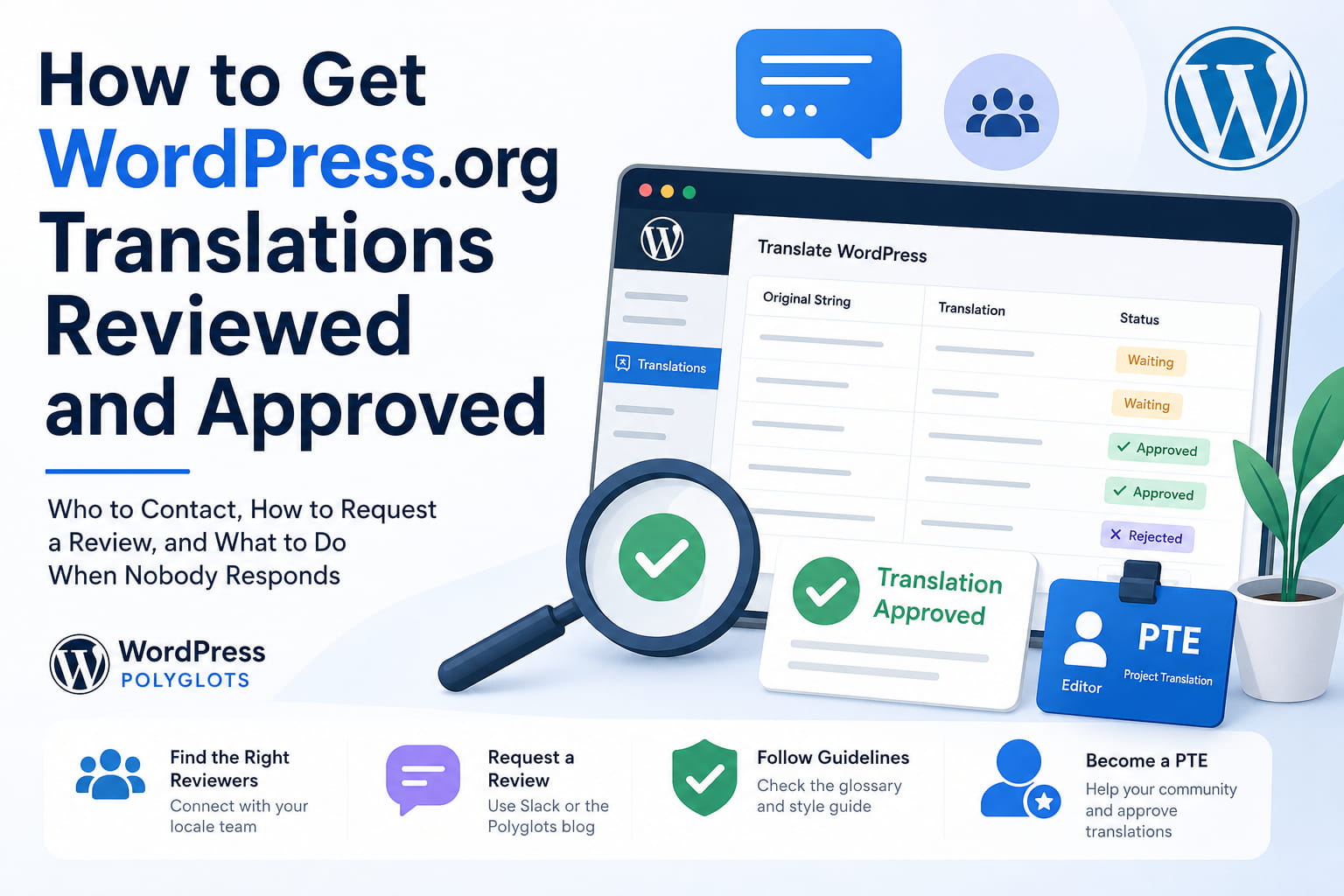
Submitting translations on WordPress.org does not automatically make them available to plugin, theme, or WordPress users.
Every suggested translation must first be reviewed and approved by an authorized translation editor. This can become confusing when the reviewer shown on a project page is unavailable, does not review other contributors’ work, or only manages their own translations.
The good news is that you are not limited to contacting one person. WordPress has locale teams, Project Translation Editors, General Translation Editors, local Slack channels, and a global Polyglots team that can help move translations through the review process.
This guide explains who can approve WordPress translations, how to request a review, and what to do when nobody responds.
Why Are WordPress Translations Waiting for Review?
When you submit a translation through Translate WordPress, it is normally saved with a Waiting status.
A waiting translation is only a suggestion. It will not be included in an official language pack until someone with the correct permissions reviews and approves it.
WordPress uses human review to maintain:
- Consistent terminology
- Correct grammar and spelling
- Compliance with the locale glossary
- Compliance with the locale style guide
- Proper handling of placeholders and variables
- Accurate translations within the correct context
The official WordPress Polyglots documentation confirms that newly submitted strings must be approved by either a General Translation Editor or a Project Translation Editor before they can be distributed.
Who Can Approve WordPress Translations?
There are two main translation-editor roles.
General Translation Editor
A General Translation Editor, commonly called a GTE, can approve translations across all projects for a specific locale.
For example, a German GTE may be able to review German translations for WordPress core, plugins, themes, and other WordPress.org projects.
GTEs may also grant Project Translation Editor access to qualified contributors.
Project Translation Editor
A Project Translation Editor, commonly called a PTE, can approve translations for a specific project and locale.
For example, someone might be a PTE for:
Plugin: WooCommerce
Locale: Bengali
That person can review Bengali translations for WooCommerce, but they may not have permission to approve Bengali translations for an unrelated plugin.
WordPress explains that PTE permissions apply to a particular combination of project and locale.
Why the Listed Reviewer May Not Review Your Translations
A person associated with a translation project is not necessarily required to review every contribution.
Possible reasons include:
- They are a volunteer with limited availability.
- They only maintain translations for projects they actively use.
- Their editor access applies to a different project or locale.
- They are no longer active in the translation team.
- They prefer to review only translations they submitted themselves.
- They may not have noticed your waiting translations.
Translation editors do not automatically receive a notification every time someone submits a new string. The WordPress handbook warns that some locales have large backlogs and translations may remain unchecked unless the contributor actively requests a review.
Therefore, contacting only the person displayed near a project is not always enough.
How to Request a WordPress Translation Review
Follow these steps to find the correct reviewer.
Step 1: Identify Your Locale
First, confirm the exact WordPress locale you translated.
A language can have multiple regional locales. For example:
English (United States): en_US
English (United Kingdom): en_GB
Portuguese (Brazil): pt_BR
Portuguese (Portugal): pt_PT
German: de
German (Switzerland): de_CH
The reviewer must have permissions for your exact locale.
Visit the WordPress Translation Teams page and locate the WordPress locale code for your language.
Using the correct locale code is important because it helps WordPress route your request to the correct translation team.
Step 2: Check the Locale Team Page
Each locale may have its own localized WordPress.org website, often called a Rosetta site.
The locale site may contain:
- Translation instructions
- A glossary
- A style guide
- Contributor information
- Reviewer contact details
- A local Slack invitation
- A translation request process
Before requesting a review, read the locale glossary and style guide where available.
This helps reduce the chance that your translations will be rejected for terminology, capitalization, punctuation, or formatting inconsistencies.
The official Polyglots handbook recommends reviewing the locale documentation and actively communicating with the relevant locale team before or after contributing translations.
Step 3: Contact the Locale Team Through Slack
Many WordPress locale teams use a local Slack workspace.
Look for channels named something similar to:
#polyglots
#translations
#translation
Post a polite message containing:
- Your WordPress.org username
- The project name
- The project translation URL
- Your locale
- The number of waiting strings
- A request for review or feedback
You can use this template:
Hello,

I have submitted translations for [PLUGIN OR THEME NAME] in the [LOCALE NAME] locale.

WordPress.org username: [USERNAME]
Project URL: [TRANSLATION PROJECT URL]
Waiting translations: [NUMBER]

Could a GTE or PTE please review the submitted strings when available?

I have reviewed the locale glossary and style guide.

Thank you.
Do not repeatedly message individual reviewers. One clear request in the correct translation channel is normally more effective.
Step 4: Use the Global WordPress Slack
When your locale does not have an active local Slack workspace, you can use the global WordPress Slack.
Create or activate your WordPress Slack account, then join:
#polyglotsExplain that you have submitted translations but cannot find an active reviewer for your locale.
Include the project and locale details so the Polyglots team can direct you to the appropriate people.
The WordPress handbook specifically recommends the global Polyglots Slack channel when local communication options are unavailable.
Step 5: Post on the Make WordPress Polyglots Blog
When you cannot reach the locale team, post a translation review request on the global Make WordPress Polyglots blog.
Make sure the post contains the correct locale tag, such as:
#bn_BD
#de
#de_CH
#es_MX
#fr_FR
The correct locale tag is important because it can notify the translation editors associated with that locale.
Use this request template:
Title: Translation Review Request for [PLUGIN OR THEME NAME]

Hello Polyglots Team,

I have suggested translations for the following project and would appreciate a review.

Project name: [PLUGIN OR THEME NAME]
Project URL: [TRANSLATION PROJECT URL]
Locale: [LOCALE NAME]
Locale code: #[LOCALE CODE]
WordPress.org username: [USERNAME]

I have reviewed the locale glossary and style guide.

Could a GTE or PTE please review the waiting translations when available?

Thank you.
The official WordPress documentation recommends the Make/Polyglots blog when no clear local contact method is available. Adding the appropriate locale tag helps notify the relevant editors.
Consider Requesting Project Translation Editor Access
When you regularly contribute high-quality translations for the same plugin or theme, consider requesting PTE access.
Becoming a PTE allows you to:
- Approve translations for the assigned project and locale
- Review other contributors’ translations
- Reject incorrect translations
- Request changes
- Help reduce the locale’s review backlog
- Maintain consistent translations for the project
PTE access is limited to the approved project and locale. It does not provide editing control over every WordPress translation project.
PTE Request Template
Title: PTE Request for [PLUGIN OR THEME NAME]

I have suggested translations for this project and would like to have them reviewed.

I would also like to become a Project Translation Editor for this project.

I confirm that I have read the style guide and glossary for the [LOCALE NAME] locale.

Name: [PLUGIN OR THEME NAME]
URL: [PROJECT URL]
WordPress.org username: [USERNAME]

#[LOCALE CODE]
WordPress officially encourages regular contributors to consider becoming PTEs because this helps locale teams review translations more efficiently.
A GTE will normally review your existing translations before granting PTE access. The team may also provide feedback or ask you to correct some strings first.
What to Do When Nobody Responds
WordPress translation editors are volunteers, so review times can vary significantly.
The official guidance recommends allowing at least two weeks for a response to a review or PTE request.
Use the following escalation process.
After One Week
Confirm that you have:
- Contacted the locale team
- Used the appropriate local Slack channel
- Included the correct project URL
- Included your WordPress.org username
- Used the correct locale code
When there is no response, post on the global Make/Polyglots blog and include the correct locale tag.
After Another Week
When there is still no response:
- Reply to your Polyglots blog request
- Ask in the global
#polyglotsSlack channel - Contact a Polyglots Global Mentor or team representative
- Explain that the locale team may be inactive
The global Polyglots team may try to contact the locale editors. When a locale is genuinely inactive, an experienced contributor may eventually be reviewed and considered for translation-editor access.
Enable Translation Feedback Notifications
Translate WordPress includes a discussion and feedback system.
A reviewer may:
- Approve your translation
- Reject it
- Mark it as fuzzy
- Request changes
- Leave feedback explaining the problem
To receive notifications, open your translation settings on Translate WordPress and enable discussion notifications.
Without this setting, you may miss reviewer questions or change requests.
The WordPress handbook confirms that contributors can opt in to email notifications for translation discussions and feedback.
Common Reasons Translations Are Rejected
A reviewer may reject or request changes for several reasons.
The Locale Glossary Was Not Followed
Many WordPress terms have approved translations.
For example, a locale may have standard translations for:
- Post
- Page
- Plugin
- Theme
- Dashboard
- Settings
- User
- Block
Using different translations creates an inconsistent interface.
Placeholders Were Changed or Removed
Translation strings may include placeholders such as:
%s
%d
%1$s
{username}
These must usually remain intact.
For example:
Hello, %sThe translated string must still include %s.
Removing or modifying placeholders can cause errors or broken output.
HTML Was Changed Incorrectly
Some strings contain HTML:
<a href="%s">Read more</a>The translation should preserve the tags and attributes unless the project documentation specifically says otherwise.
The Translation Is Too Literal
A direct word-for-word translation may not sound natural in the target language.
Translate the intended meaning while preserving the software context.
Punctuation or Capitalization Is Inconsistent
Follow the target locale’s conventions rather than copying English punctuation or capitalization automatically.
The Wrong Context Was Used
A word may have different meanings depending on where it appears.
For example, “Post” could refer to:
- A WordPress content type
- The action of publishing something
- Sending information to a server
Review the string context and developer comments before translating.
When Will Approved Translations Appear?
Approval does not always mean the translation will immediately appear on every website.
For a plugin or theme’s first language pack, WordPress generally requires at least 90% of the Stable project strings to be approved.
After the first language pack exists, later approved changes can generate updated language packs even when the project subsequently falls below that threshold.
Plugin readme translations can appear shortly after individual strings are approved and do not use the same 90% requirement.
After a language pack is generated, WordPress websites can normally download it through the standard translation update system.
Final Recommendation
When the reviewer linked to a WordPress translation project does not review other contributors’ work, you do not need to depend on that individual.
Use the official review process:
- Confirm the exact locale and project.
- Read the locale glossary and style guide.
- Contact the locale translation team.
- Ask in the local Slack translation channel.
- Use the global
#polyglotsSlack channel when necessary. - Post a review request on the Make WordPress Polyglots blog.
- Include the correct locale tag.
- Request PTE access when you plan to maintain the translation long term.
- Allow volunteers sufficient time to respond.
- Escalate to a Polyglots mentor when the locale appears inactive.
